
A member's injuries in RoninBox
A member’s injuries are logged on their profile, with the start date, the end date and comments for the other coaches: which exercises to avoid, which ones they can already do. While the injury is active, their face has a badge on the calendar, and from it you reach the injury in one tap.
Log an injury
Section titled “Log an injury”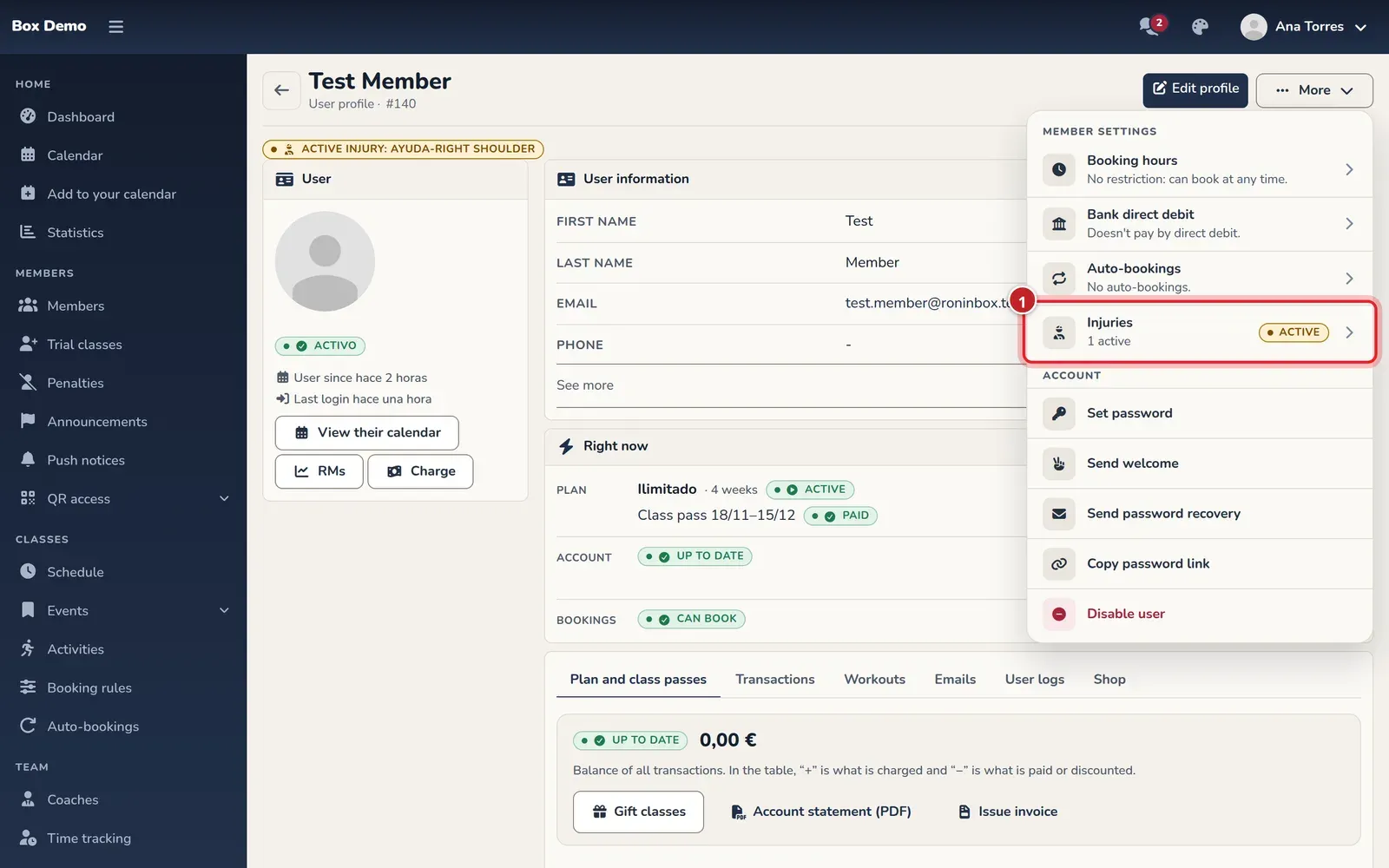
-
Open the member’s profile and tap More ▸ Injuries (mark 1). The page lists their injuries with their status, dates and how many comments they have. An active injury also shows up as an alert in the profile header.
-
Tap Add injury.
-
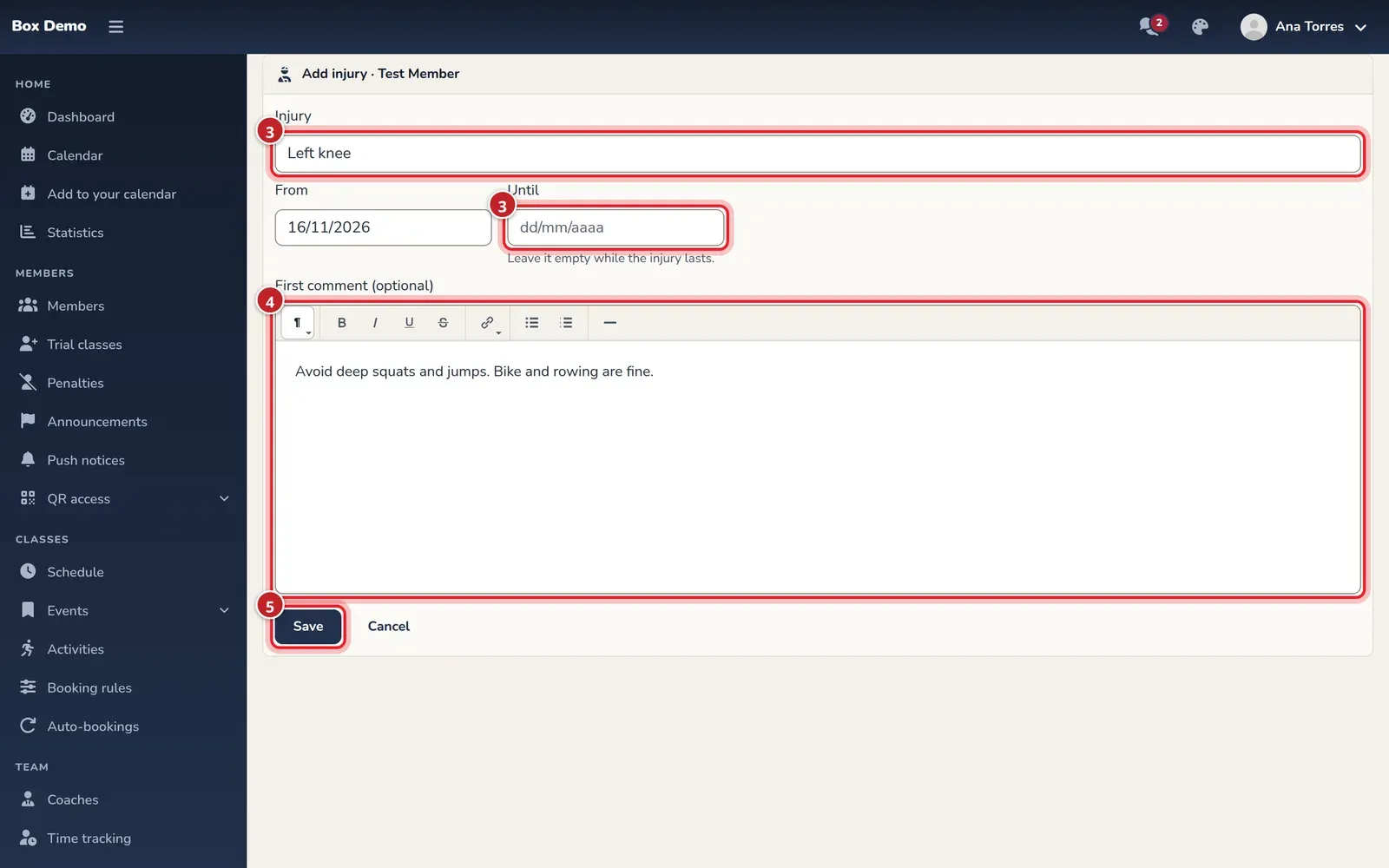
In Injury, type what the injury is, and set since when in From. Leave Until empty while they’re still injured, or enter the last day if you already know it.
-
If you want, write a First comment (optional) with the editor: bold, lists and links.
-
Tap Save. The injury page opens.
Comment on and close an injury
Section titled “Comment on and close an injury”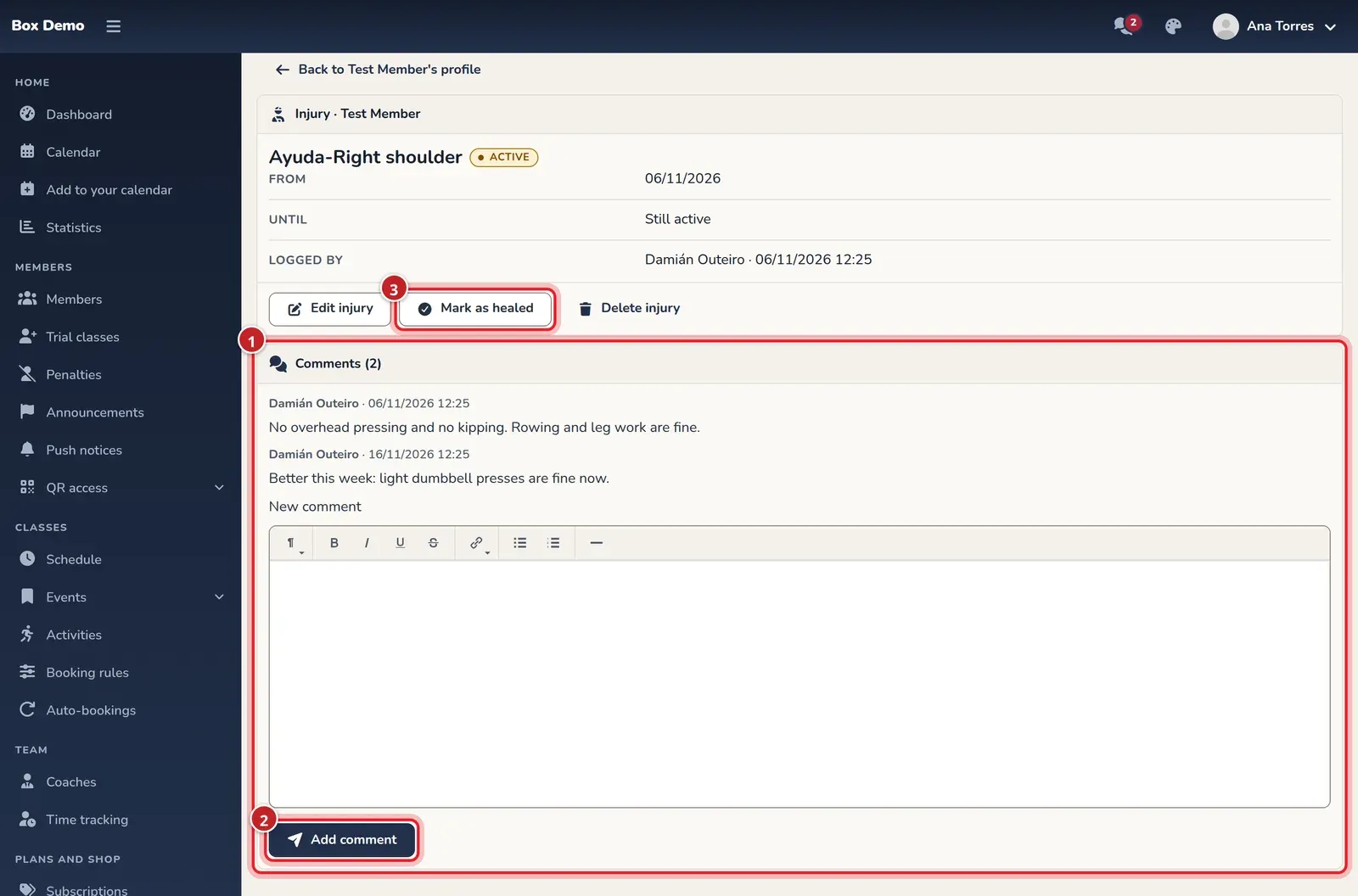
- Comments: they appear in order, each with who wrote it and when. Comments can’t be edited: they are the injury’s log.
- Write the new one in New comment and tap Add comment.
- When the member recovers, tap Mark as healed. The injury ends the day before, so the badge disappears from the calendar today.
With Edit injury you change the name or the dates. Only an administrator sees Delete injury.
The injury on the calendar
Section titled “The injury on the calendar”While the injury is active, the gym’s staff see an amber badge in the corner of the member’s face, on the calendar’s Board and in each class’s sign-up list. Members don’t see it.
Tap the face on the board, or the name in the sign-up list, to open its menu. With an active injury it includes View injury, which opens that injury. From there, Back to calendar takes you back to the same day.
The other badges on the faces and the rest of the menu are explained in The administrator calendar.