
How to make a counter sale in RoninBox
To make a counter sale in RoninBox, pick the member, add what they’re taking, and note how they pay. Use it to sell a T-shirt, a bottle, or protein at the gym and keep a record of it. There is no online shop for members: a staff member always records the sale, in a member’s name.
Transcript
In the Shop menu, open Sales. All your gym’s sales are here.
Tap New sale to record what a member is taking right now.
Choose the member. Type their name, email, or username and select them from the list.
If your gym has several locations, check where you’re making the sale under Location. It’s set to yours, not the member’s.
Add the item: search for it by name and adjust the quantity. With Add item you can add more lines.
Choose the payment method: Cash or Card terminal charge the sale right away, and Payment pending leaves the member owing it.
Finally, tap Create sale. The shop calculates the final total, with taxes, when it saves it.
Before selling, you need products with a price. If you don’t have any yet, start with Products.
Record a sale
Section titled “Record a sale”-
Open Shop ▸ Sales and tap New sale (marker 1).
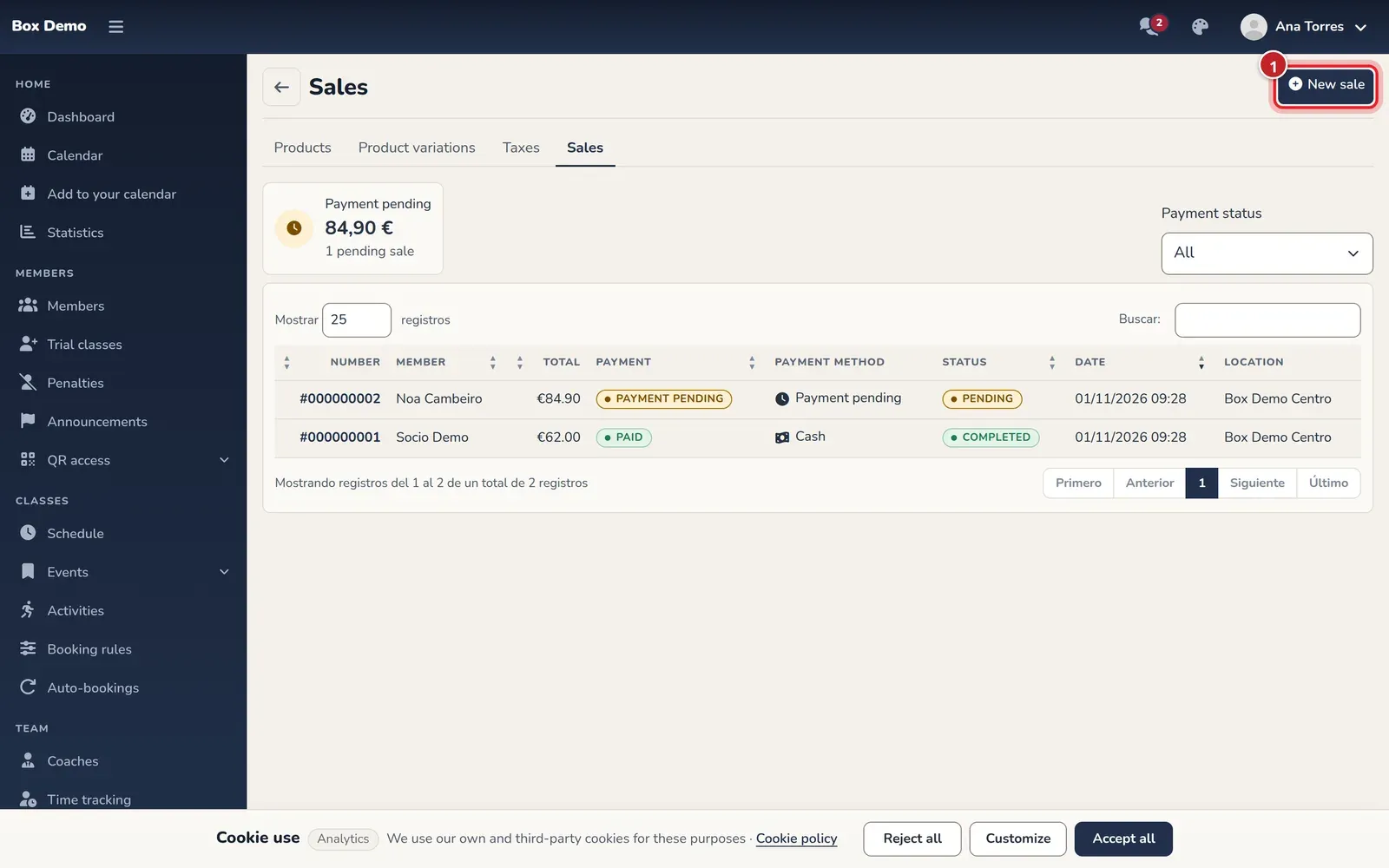
The sales list. The New sale button is at the top right. -
In Member, type the name, email, or username and choose the member from the list (marker 1).
-
In Items, search for the item (marker 2). Each item is a specific variant, for example “Gym T-shirt, M · Black”. If it tracks stock, the list shows how many are left.
-
Adjust the quantity with the “plus” and “minus” buttons or by typing it (marker 3). The maximum is 999 per line.
-
To sell another item, tap Add item (marker 4). The trash can on each line removes it. Below you’ll see the Estimated total.
-
If your gym has several locations, check Location: it’s set to yours, not the member’s. That’s where the sale will count in Billing.
-
Choose the Payment method (marker 5):
- Cash or POS (card): the sale is paid right away.
- Bank transfer or Direct debit, under Other method: these also mark it as paid right away.
- Payment pending: the member owes it until you record the payment.
-
Tap Create sale (marker 6).
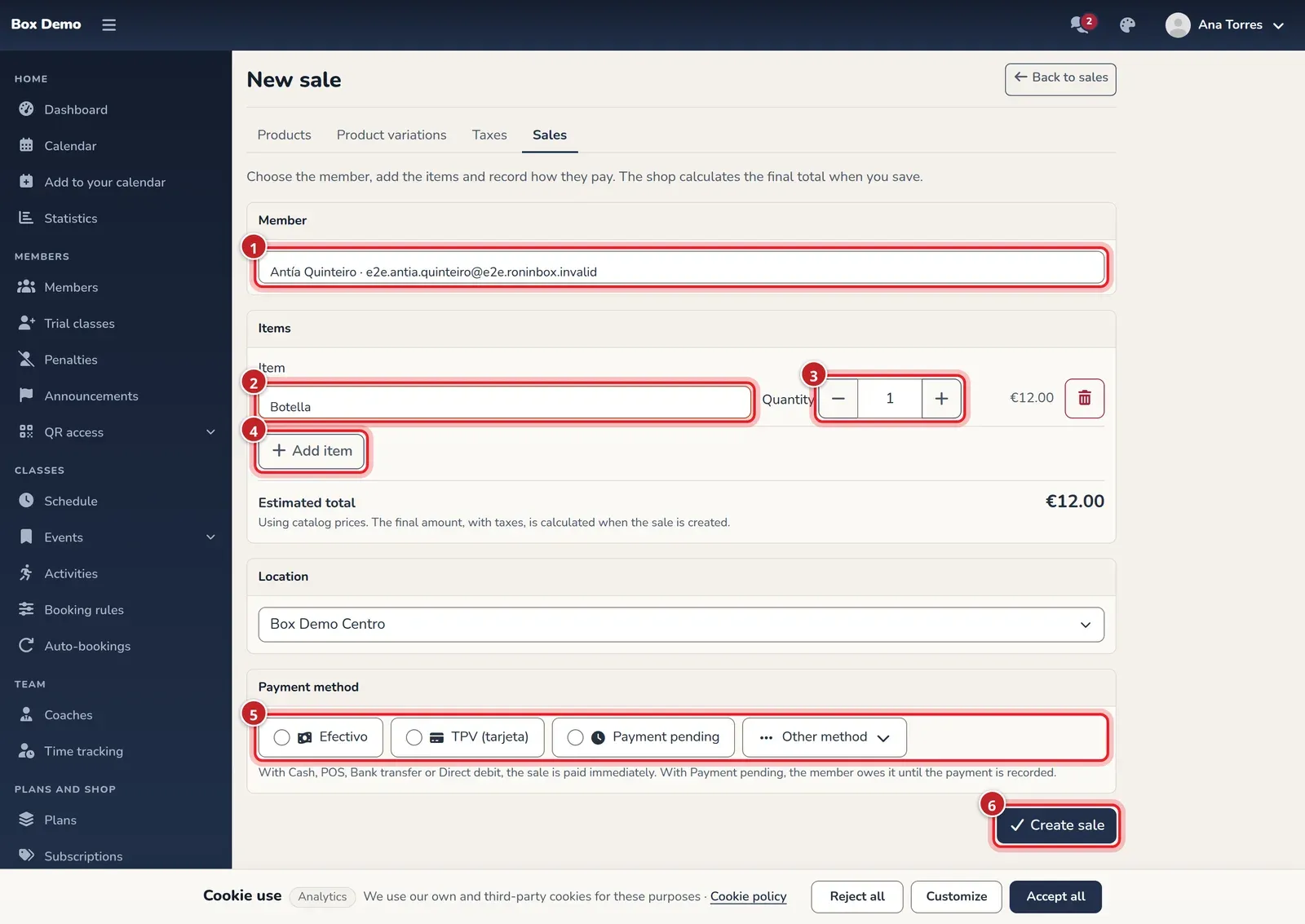
The new sale form, with a sample member and bottle. The numbers match the steps.
RoninBox opens the sale details and shows "Sale created and paid." or "Sale created. Payment is pending.".
Sell from a class (quick sale)
Section titled “Sell from a class (quick sale)”Gym staff (administrators and coaches) can sell without leaving the class. In the calendar, open a class window: next to each signed-up member’s name there’s a button with a bag, “Sell to …”. Tapping it opens a panel with your favorite products.
- For each product, choose the size or variant if it has several, and tap ”+” once per unit.
- Check the Total.
- Tap how they pay (Payment method): Cash or Card terminal charge instantly, and Pending leaves the sale pending.
Only products marked as favorites and available for sale appear. If there are none, the panel shows: "No favorite products". You’ll find how to mark them in Products.
Sell from the member’s profile
Section titled “Sell from the member’s profile”From a member’s profile you can sell them any product in the catalog, not just favorites. Any staff member can do this, including coaches.
- Open the member’s profile and go to the Shop tab.
- Tap Sell a product. The same quick sale panel opens, with all products for sale: favorites first, marked with a star.
- If there are many, type in Search products to find the one you want.
- Tap ”+” on what they’re taking and choose how they pay: Cash, Card terminal, or Pending.
Once recorded, the profile reloads and the sale appears in the tab’s list.
What happens next
Section titled “What happens next”- The sale appears in Shop sales with its number, status, and payment method.
- If the member still owes money, you’ll see it in the Shop tab of their profile. See Member profile.
- To collect monthly fees at the gym, which is a different thing, see Charge in cash or by card terminal.
Common errors
Section titled “Common errors”- I can’t find an item. It may be inactive, have no price, or no longer exist. Check it in Products.
- “Not enough stock”. You’re asking for more units than are left. Lower the quantity or correct the product’s stock.
- The shop isn’t set up. If you see a notice instead of the form, ask RoninBox to activate your gym’s shop.
- No payment methods. The form warns you if the shop has no active payment methods. Ask RoninBox for help.