
The member profile in RoninBox: details and tabs
The member profile brings together their details, payment status, plans and history on one screen. Open it from Members ▸ Members by clicking the member’s name. Most actions on a member are done from here.
The member list
Section titled “The member list”The list shows each member’s photo, name, Status and plans. It has a search box and two filters (markers 1 and 2):
- Status: all, active, Payment issues (members with unpaid monthly fees) and Deleted users (disabled members).
- Plan: members who have a specific plan.
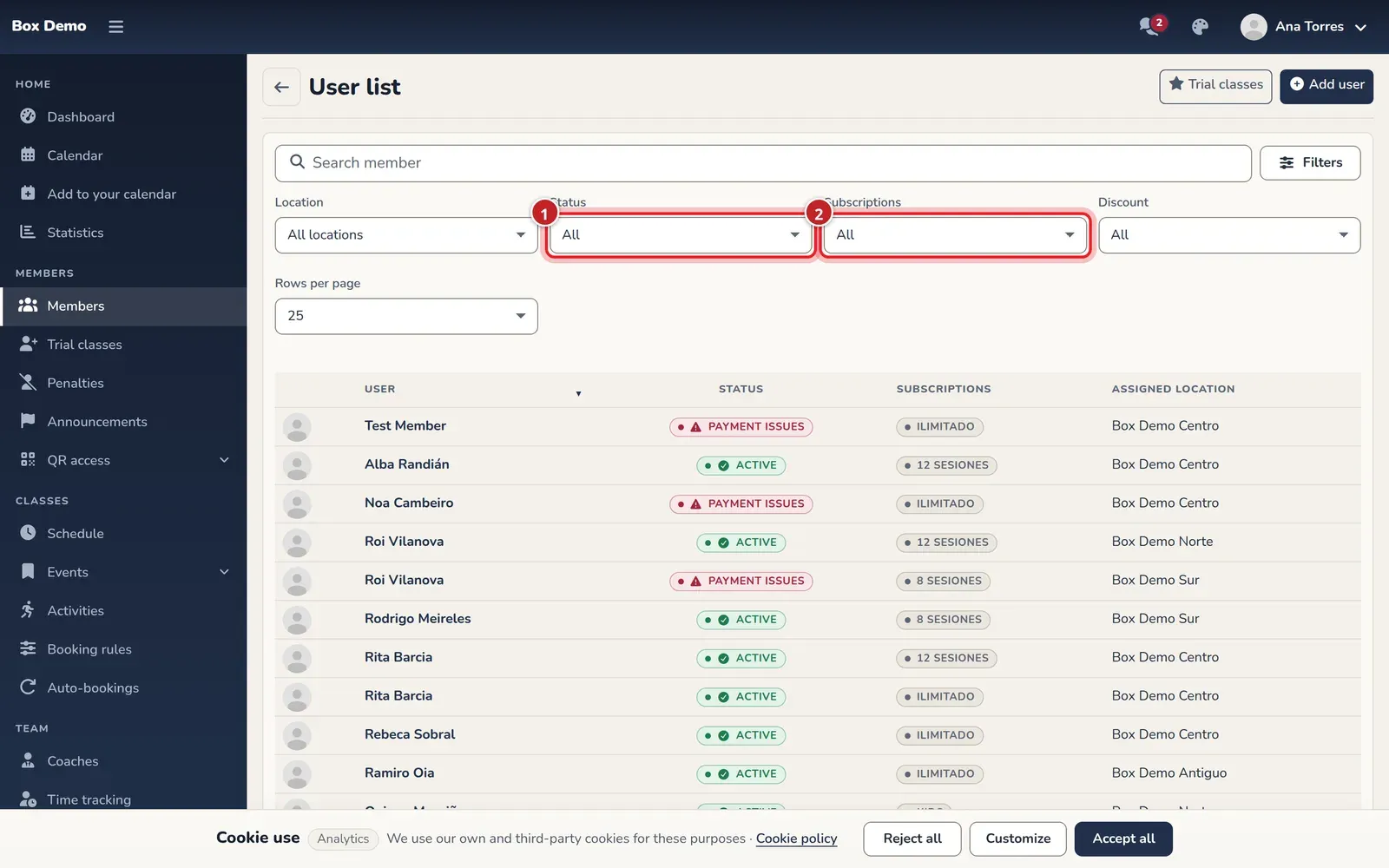
By default the list doesn’t include disabled members. To see them, use the Deleted users filter.
The profile
Section titled “The profile”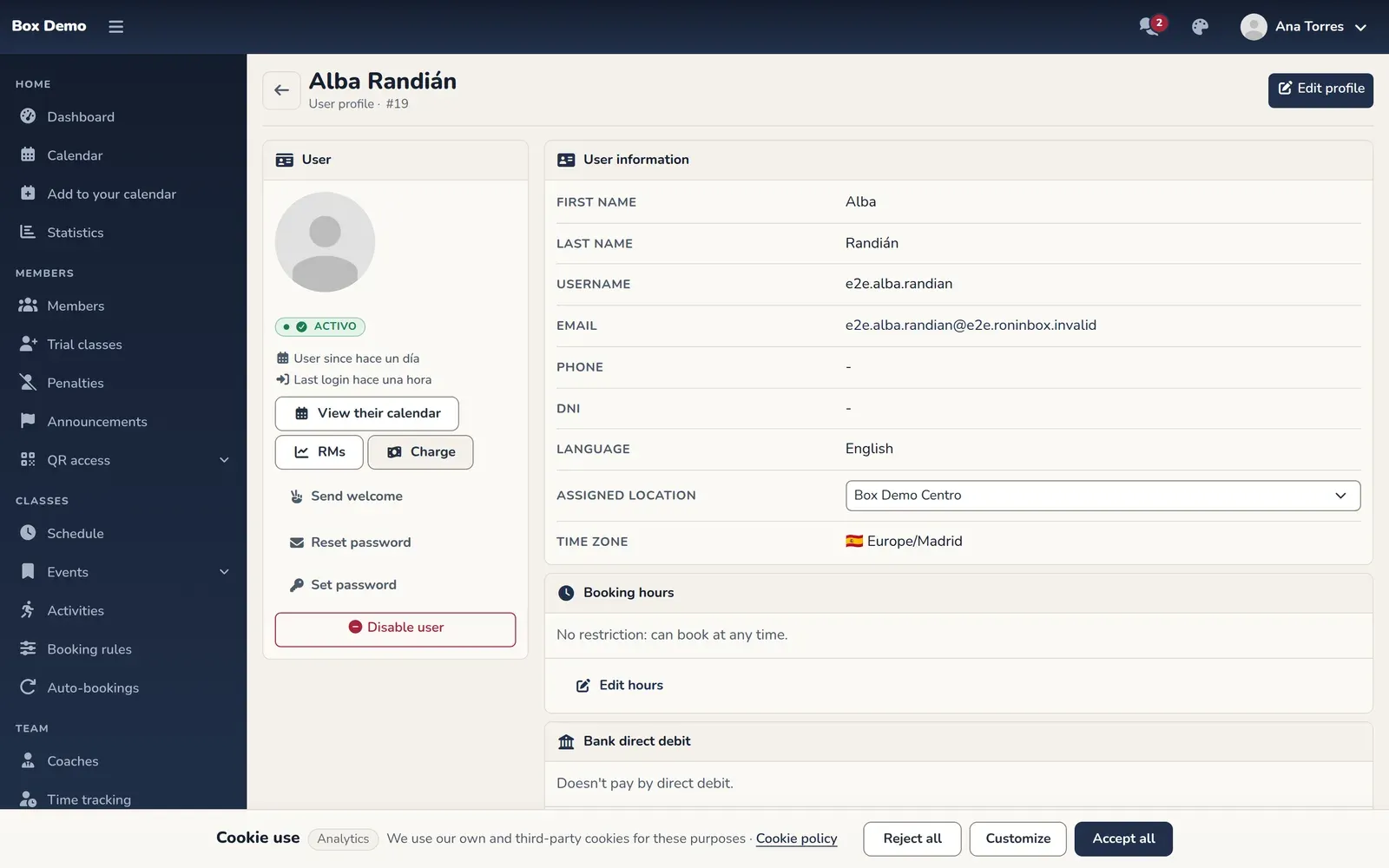
Left column
- Photo. When you hover over it, two icons appear: change the photo and delete it. On a phone, the first tap shows them.
- Status. A colored label. If you click it, RoninBox recalculates the member’s pending payments. What each status means is explained in Member statuses.
- Last login: when the member last logged in to RoninBox; hover over it to see the date and time. If they’ve never logged in, it says so. Coaches and administrators can see it, and it helps you tell apart someone who never activated their account from someone who stopped using it.
- Reset password: sends the member an email with a link to choose a password.
- Set password: you set their password yourself.
- Roles: only superadministrators see it. It’s covered in Member statuses.
- Disable user or Enable user.
Right column. At the top, the Edit profile button opens the details form, the same one used when creating the member. Below are the member’s details: first name, last name, username, email, phone, DNI, language and time zone. If the gym has several locations, it also shows their Assigned location: the location their payments count toward and the one they appear under in the list. Any coach or administrator can change it from the dropdown, and it saves right away. It doesn’t change what the member sees in their schedule: they choose that location themselves. If the member has a nickname, it appears next to their name at the top. Then come the tabs.
The tabs
Section titled “The tabs”- Monthly fees: each of the member’s billing periods, with its status and plans. Click the status to open the payment details. You can also create monthly fees and apply offers from here. See Monthly fees.
- Subscriptions: the plans they have. See Assign a plan.
- Class passes: class passes. See A member’s class passes.
- Workouts: the classes available to the member, either booked or Free. If they have a booked class that doesn’t match any credit, it appears as Unbalanced class with a selector to assign one of the free ones. The tab shows a red badge with the number of unmatched classes.
- Extensions: the extra classes for each monthly fee. You can add one with Add extension or a pack with Add pack. More in Extensions and Packs.
- Emails: the emails the member has received in the last 30 days. Nothing older is kept.
- User logs: who did what on the member’s account and when: changes to details, plans, class passes, passwords, activation. You can filter by action type and open each row to see the before and after.
Account actions
Section titled “Account actions”Set a member’s password
Section titled “Set a member’s password”-
On the profile, click Set password.
-
Type the password twice or click Generate one. It must have at least 8 characters, with a letter, a number and a symbol, the same rule as when signing up a gym. Until it meets the rule and both match, the save button stays disabled.
-
Confirm. RoninBox shows you the password only once, with a button to copy it. Write it down or copy it right then: you can’t view it again.
If the member has a real email address, RoninBox emails them that their password has been changed. The notice doesn’t include the password. If the account wasn’t activated yet, it becomes activated. A gym administrator can’t change the password of a superadministrator account.
Resend the activation link
Section titled “Resend the activation link”Reset password sends an email with a link to choose a password. It works both for a member who never activated their account and for one who forgot their password. The screen returns to the profile without a message: check that it was sent in the Emails tab. What the member sees is explained in Activate and recover an account.
Disable and enable
Section titled “Disable and enable”Administrators can do this and, for members, so can coaches: only an administrator can disable a staff member. Disable user asks for confirmation and, when you accept, it:
- Removes all of the member’s plans.
- Shows a red notice on the profile: the user can’t access the gym’s app.
- Removes them from the normal list. They’re still visible with the Deleted users filter.
Enable user gives them access again, but doesn’t give back their plans.
Remove the photo
Section titled “Remove the photo”Hover over the photo, click the trash icon and confirm.
Delete a member
Section titled “Delete a member”The profile has no button to delete members. To stop counting someone, use Disable user. That way their class and payment history is kept.
What other members see
Section titled “What other members see”In the schedule, any member can see the name and photo of those signed up for each class, including past classes (who attended each class). A member with no name on their profile is shown as Member, never with their email.
Common issues
Section titled “Common issues”- I can’t see the Subscriptions, Class passes and following tabs. Only a gym administrator can see them.
- I click the status and nothing changes. That’s normal if payments were already up to date: it only recalculates.
- I can’t find a member. Check whether they’re disabled with the Deleted users filter.