
How to assign a plan to a member in RoninBox
To assign a plan to a member, open their profile, go to the Subscriptions tab and tap Edit subscriptions. The plan is what the member is charged: it has a price and groups one or more sub-plans. If you don’t have any yet, create one first in How to create a plan.
Only a gym administrator can change a member’s plans.
How to assign a plan
Section titled “How to assign a plan”-
Open Members ▸ Members and go to the member’s profile.
-
Open the Subscriptions tab (marker 1) and tap Edit subscriptions (marker 2).
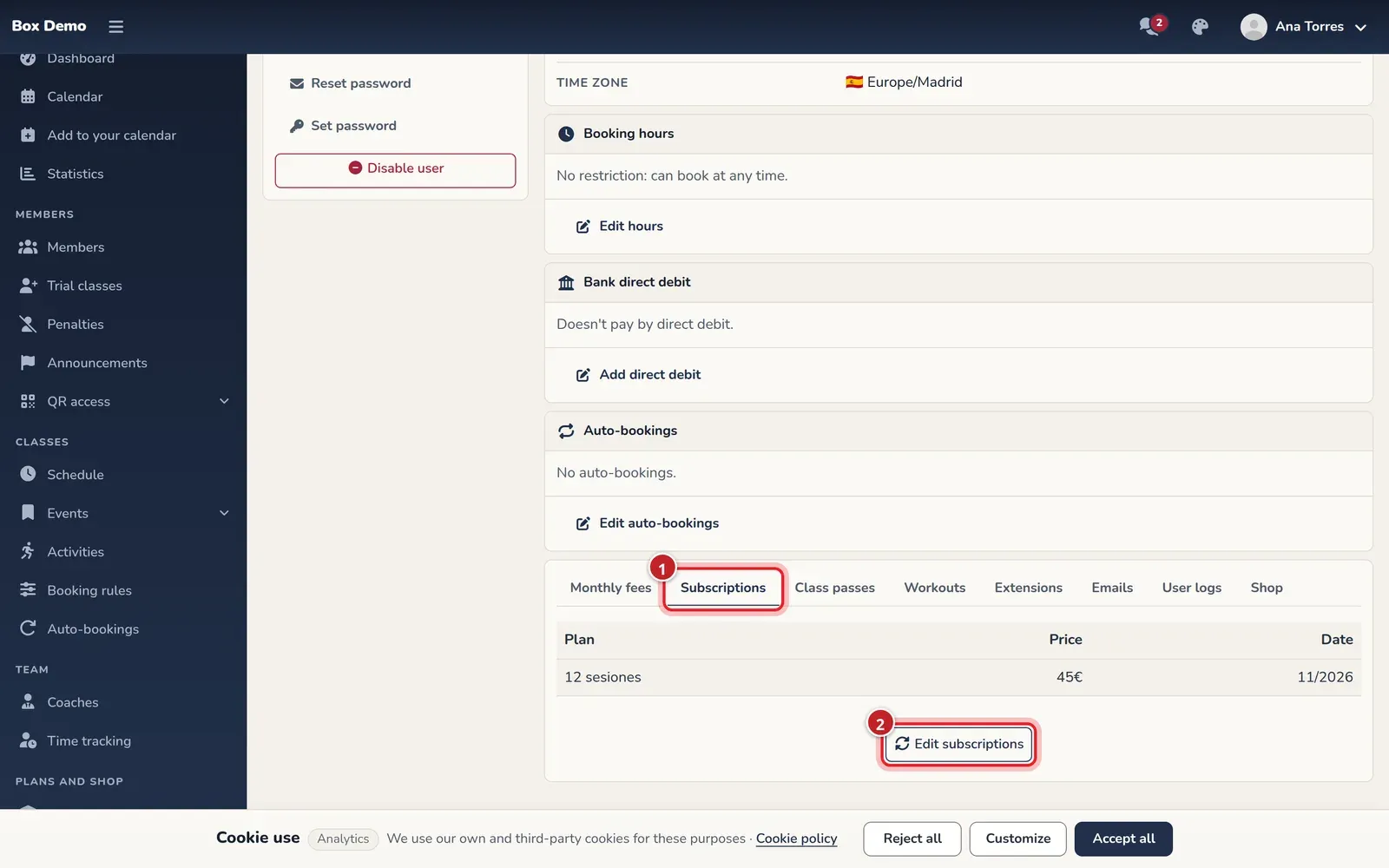
The tab shows the member's plans and their price. -
Check the plans you want them to have. The form shows each plan with its price.
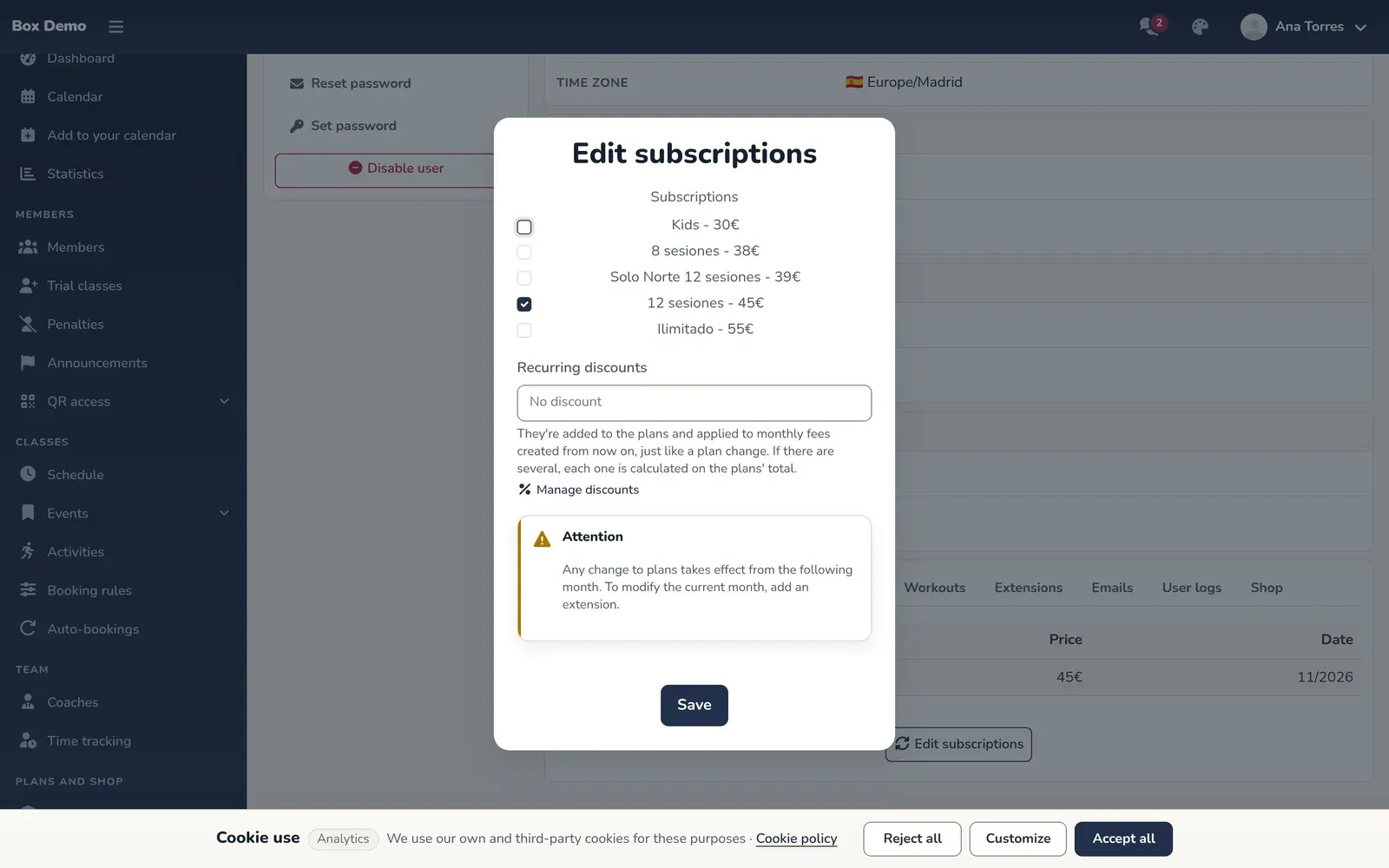
One checkbox per plan and the notice about when it applies. -
Tap Save.
Change plans
Section titled “Change plans”Check the new one and uncheck the old one in the same window. RoninBox notes there that any plan change takes effect starting next month.
To change what’s already underway this month, you have two options:
- Add an extension to the current month, from the Extensions tab.
- Add the plan to the current monthly fee. In the Monthly fees tab, an “Add ‘plan name’ to the current monthly fee” button appears when the member has an assigned plan that isn’t yet in this month’s monthly fee.
Depending on how your gym is set up, members can also change plans on their own from their Billing screen. It’s covered in the member section.
Remove a plan
Section titled “Remove a plan”Open Edit subscriptions, uncheck the plan and save. With no boxes checked, the member is left without a plan.
And monthly fees
Section titled “And monthly fees”A monthly fee is each billing period for a member. Each one keeps the plans the member had during that period, which is why assigning a new plan doesn’t rewrite past monthly fees. Details on billing, periods and unpaid fees are in Monthly fees.
Common mistakes
Section titled “Common mistakes”- I change the plan and this month stays the same. That’s expected: the change applies starting next month.
- A plan doesn’t appear in the list. Class pass plans don’t show up here; class passes are added in their own tab (A member’s class passes).