
Monthly fee type: Monthly or Natural Month
The monthly fee type decides how billing periods are counted for the whole gym. There are two options, and their names are misleading, so read them carefully before choosing.
It’s in Gym settings ▸ Payment settings, in the Monthly fee type field.
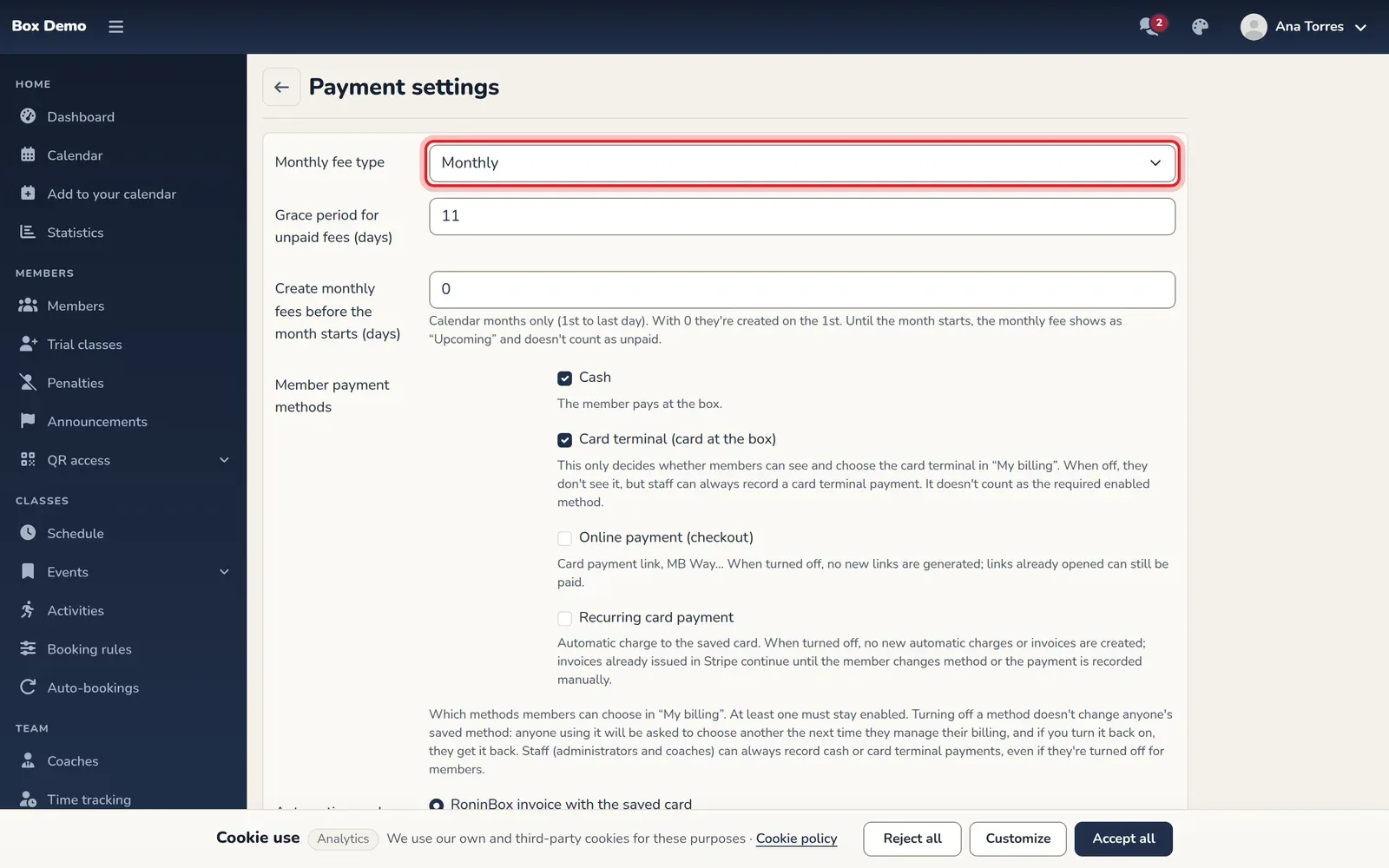
How each option works
Section titled “How each option works”Monthly: calendar month
Section titled “: calendar month”- Each monthly fee starts on the 1st and ends on the last day of the month.
- All members change period on the same day.
- Example for October and November: October 1 to 31 and November 1 to 30. In February it ends on the 28th (or the 29th).
- When you create monthly fees manually, you don’t choose a start date: each month you select starts on the 1st.
- Periods can’t be moved or shortened with the date buttons.
- The underlying rule is that a period lasts one month: it ends one month after it starts, minus one day. So if a monthly fee starts on another day (for example, one created another way on the 2nd), it will end on the 1st of the following month. Monthly fees created by the monthly fees dialog and the monthly process always start on the 1st.
Calendar month: period from the member’s start date
Section titled “: period from the member’s start date”- Each monthly fee starts on the day the member starts, or the date you choose when creating it, and ends 28 days later. Since both the start day and the end day are counted, each period covers 29 days.
- The next period starts the day after the previous one ends. Each member has their own cycle, and members’ dates don’t line up.
- Example: a member starts on October 5. Their first period runs from October 5 to November 2. The next runs from November 3 to December 1. The next starts on December 2.
- RoninBox prepares the next period about two weeks before the current one ends.
- When you create monthly fees manually, you choose the start date: Now or a Monday in the coming weeks.
- If the member has already used all their classes, they can move up the start of the next period (see Online payments), and you can do it from the create monthly fees dialog. The current period closes the day before, and its remaining days are lost. An unlimited plan is never shortened.
- When paying online, the member can delay the start of their period by up to 28 days, and only as long as no payment has been recorded.
Other things change depending on the option:
| Monthly | Calendar month | |
|---|---|---|
| Period | Calendar month | 28 days from the member’s start |
| Period column in the profile | Month name | Start and end date |
| Edit date buttons | No | Yes |
| Create monthly fees dialog | No start date | With start date |
| Unpaid fees | Any unpaid previous month blocks bookings | The monthly fee covering the class day counts |
The last row is explained in Unpaid fees and grace days.
Change the option
Section titled “Change the option”-
Open Gym settings ▸ Payment settings.
-
In Monthly fee type, choose Monthly or Calendar month.
-
Save the form.
Edit the dates of a period (Natural Month only)
Section titled “Edit the dates of a period (Natural Month only)”With Calendar month, each row in the Monthly fees tab of the member’s profile has two buttons, a pencil and a calendar, before the trash can:
- Edit monthly fee start: opens a dialog with the start date. When you save, the end is recalculated: 28 days after the new start.
- Edit monthly fee end: opens a dialog with the end date. It only changes the end and doesn’t touch the start.
-
Open the member’s profile and go to Monthly fees.
-
Tap the period’s pencil to change the start, or the calendar to change the end.
-
Type the date in day/month/year format or pick it on the calendar.
-
Tap Save.
Example: the period from October 5 to November 2. If you change the start to October 8, the end becomes November 5. If you then change only the end to October 31, the period runs from October 8 to 31.
RoninBox rejects the change and tells you why if:
- the end falls before the start;
- the period would end before the last class the member has already attended or booked in it;
- the period would overlap another monthly fee of the same member.
When you move the dates, the period’s classes adjust to the new dates.
Common mistakes
Section titled “Common mistakes”- I chose “Natural Month” thinking it was the calendar month. If all your members should pay on the 1st, your option is Monthly.
- I don’t see the pencil or the calendar in the row. They only appear with Calendar month.
- I want to extend a period and get an overlap error. The member’s next period already starts before the new end date. If that next period is an extra monthly fee, delete it first: it won’t be created again, and then you can extend the end date without overlap (see Monthly fees).