
How to log an RM and manage movements
To log an RM in RoninBox, choose the movement, the record type and the values, then save. An RM is a member’s personal record in a movement, which is an exercise from the gym’s catalog, like the squat or pull-ups. This guide covers the movement catalog, RMs, the records board and the percentage calculator.
The movement catalog
Section titled “The movement catalog”Gym staff manage movements in RMs ▸ Movements. The list shows the name, the type and the edit and delete buttons.
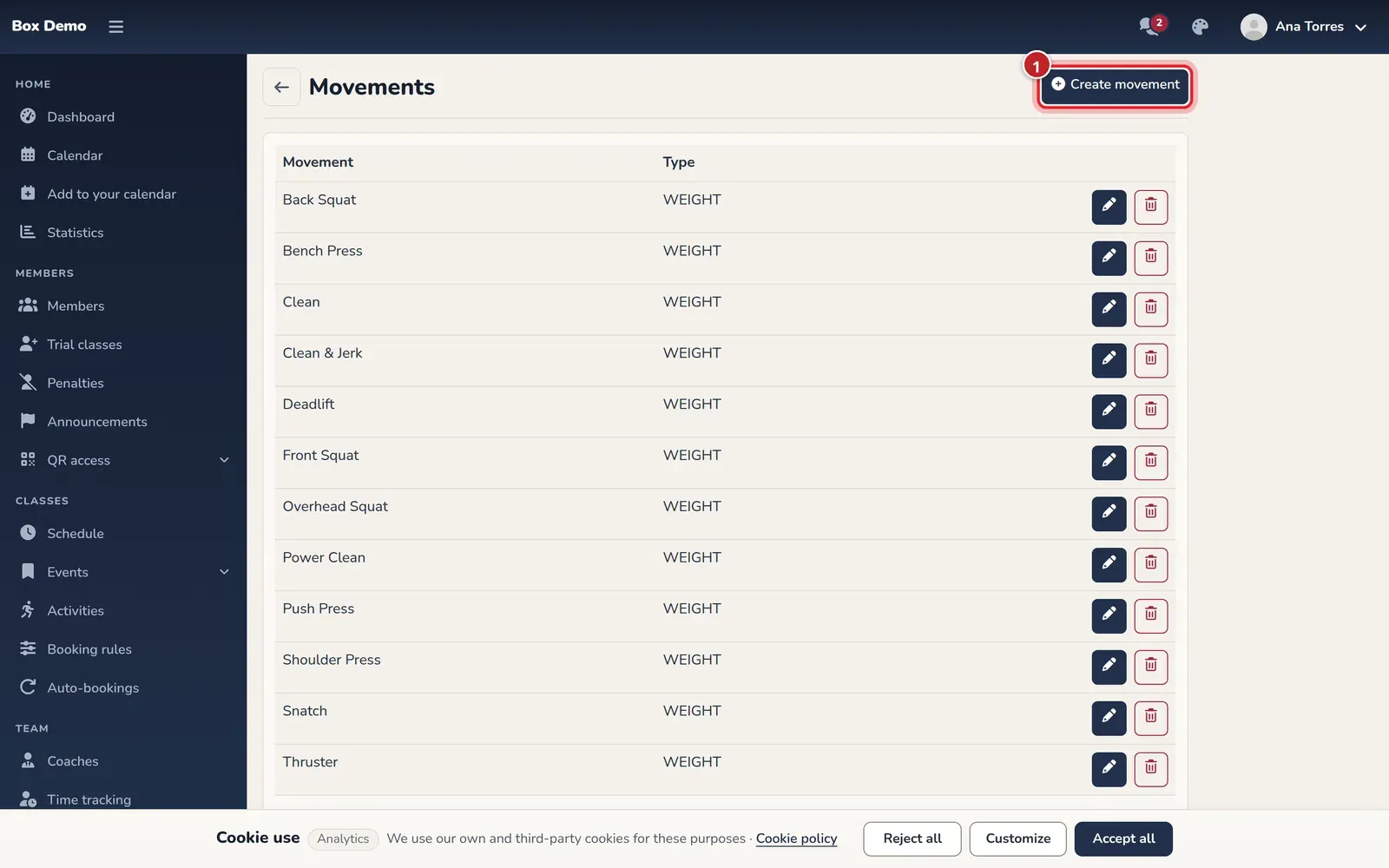
- Tap Create movement (mark 1), enter the Name and choose the Movement type. A window opens, and when you save, the movement is added to the list.
- The pencil edits the name and type.
- The trash can asks for confirmation. A movement that already has RMs can’t be deleted: RoninBox warns you that it’s in use.
How to log an RM
Section titled “How to log an RM”-
Open RMs ▸ RMs and tap Add RM.
-
If you’re an admin or coach, choose the User (mark 1). Type at least three letters of their name, username or email. Members don’t see this field: their record is always their own.
-
Choose the Movement (mark 2). It’s also a three-letter search.
-
Choose the RM type (mark 3): weight, reps or time. The type determines which table the record appears in.
-
Fill in the values (mark 4): the Reps, the Weight with its unit (Kg, LB, BodyWeight or Pood) and, for a time record, the minutes and seconds.
-
Add a Comment if you like (mark 5) and tap Save (mark 6).
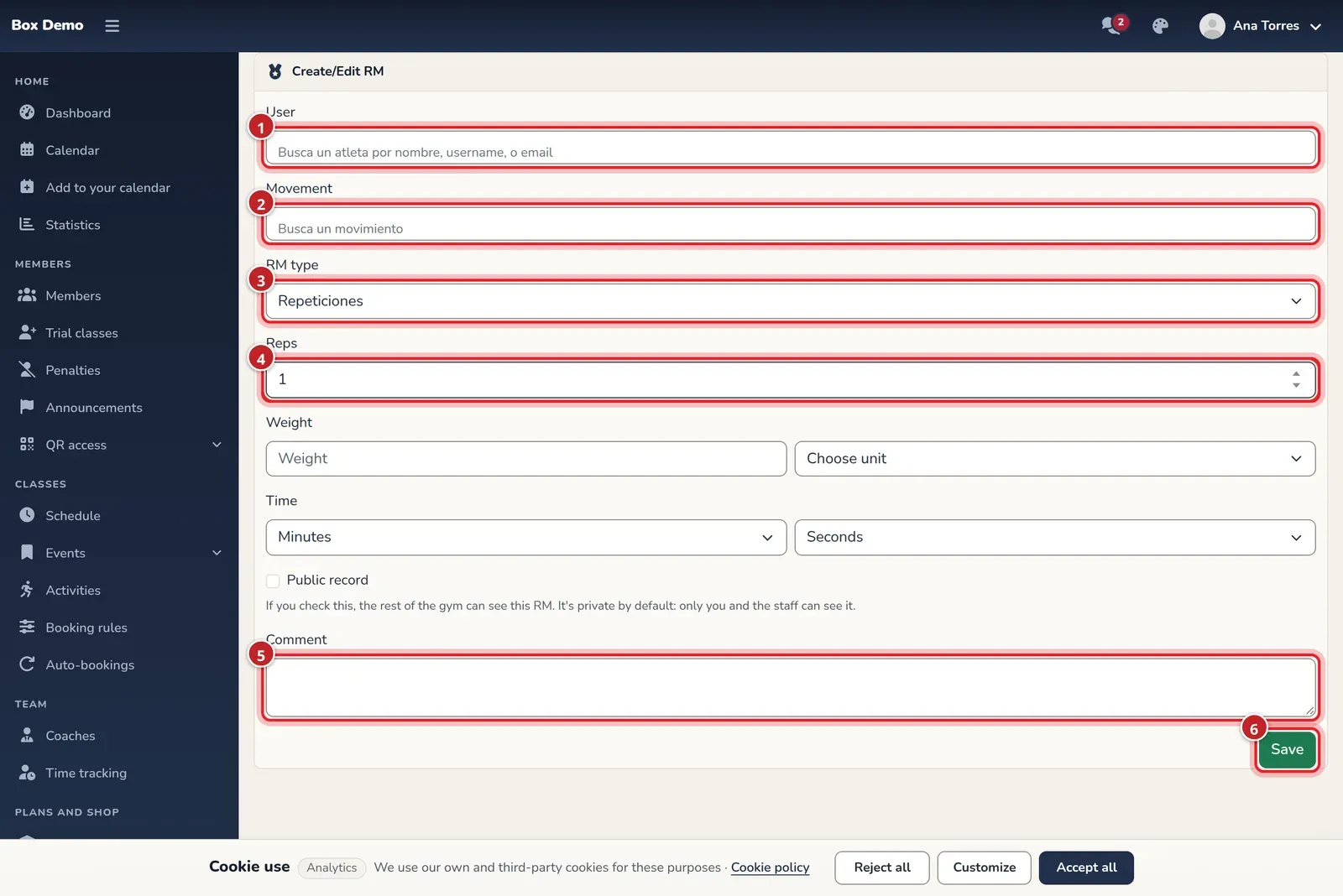
The RM form. Only gym staff see the user field.
When you save, RoninBox opens the list of records for that movement. You can also tap the plus sign on a board card: the form opens with that movement already selected.
The records board
Section titled “The records board”RMs ▸ RMs shows one card per movement with the latest record logged at the gym: who set it, the date, the reps and the weight. Each card has these buttons:
-
The eye (View RMs) opens the records for that movement, split into three tables: Weight RM, Time RM and Reps RM.
-
The plus sign adds a new record for that movement.
-
The pencil and trash can edit or delete the record. Only gym staff and the record’s owner see them. Deleting asks for confirmation.
-
My RMs is the same, but only with your records.
-
Admins and coaches have an athlete search above the board to open a specific member’s records.
-
In a movement’s Weight RM table, the eye on each row opens "% of RMs": an estimated one-rep max and the percentages of that record.
The percentage calculator
Section titled “The percentage calculator”Open RMs ▸ % Calculator, enter the weight of your best one-rep record, in kilos, and tap Calculate. Two tables appear: the percentages of that weight and the equivalent weights for different rep counts.
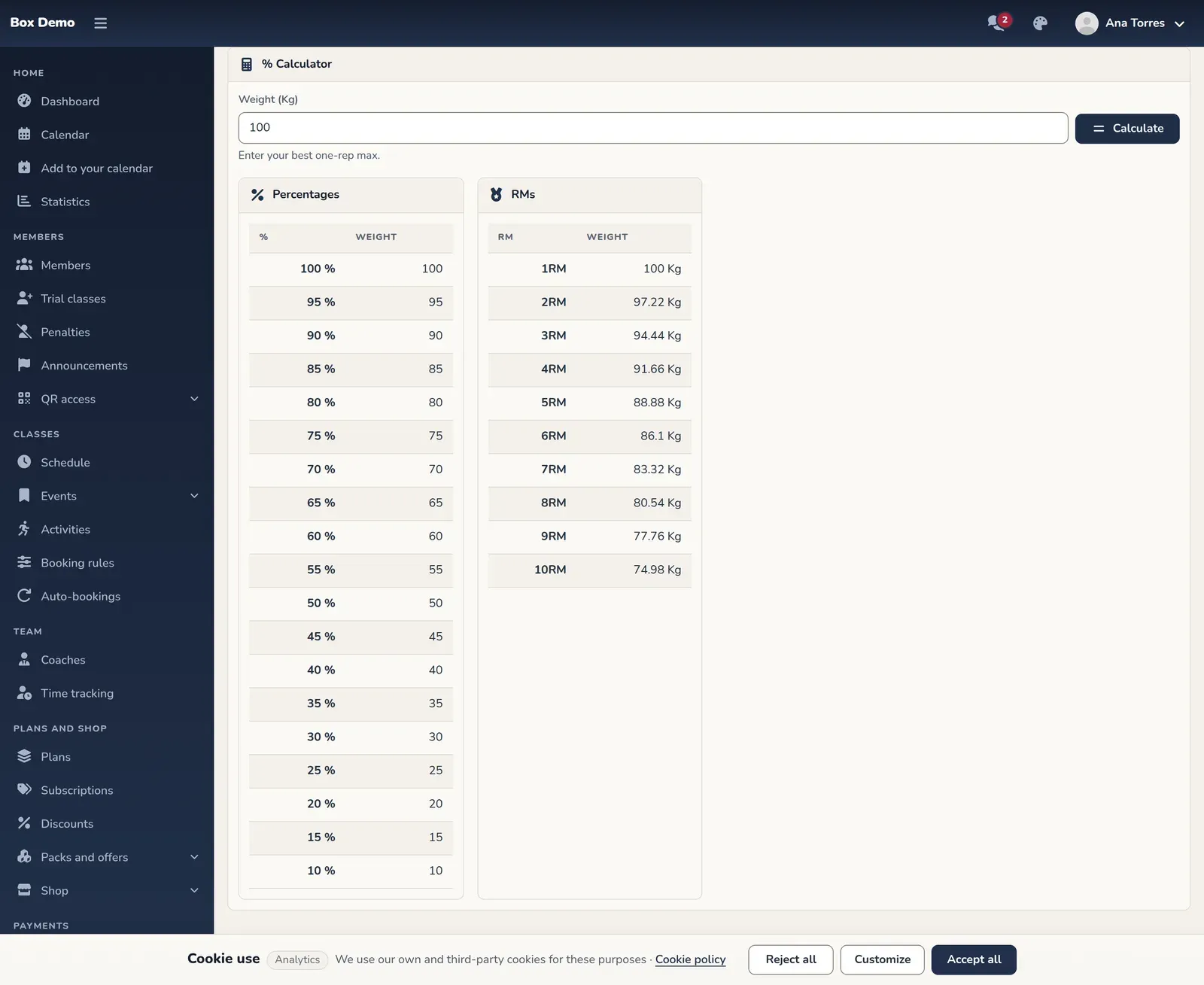
The calculator doesn’t save anything: it’s for working out loads on the spot.
Common issues
Section titled “Common issues”- I don’t see Movements in the menu. It only appears for admins and coaches.
- I can’t find the movement when logging an RM. Type at least three letters. If it doesn’t exist, create it in the catalog first.
- I logged the RM for the wrong member. Edit it with the pencil and change the User, or delete it and create it again.