
How to set up automatic bookings in RoninBox
Automatic bookings sign a member up for the same class every week without them having to book: “Monday, Wednesday and Friday at 07:00, CrossFit.” RoninBox signs them up as soon as that week opens for bookings, with the same rules and the same credit as a regular booking.
Who can do it and where
Section titled “Who can do it and where”Rules are created by an administrator on the member’s profile: Members ▸ Members ▸ the member ▸ Auto-bookings card. Other staff can see the card but can’t edit it. Members see their active rules on their profile.
Each rule is one class of the week: a day, a time and an activity. If your gym has several locations, also the Location, or Any location. A member can have up to 21 rules.
How to create a member’s rules
Section titled “How to create a member’s rules”-
Open the member’s profile and find the Auto-bookings card. Tap Edit auto-bookings (marker 1).
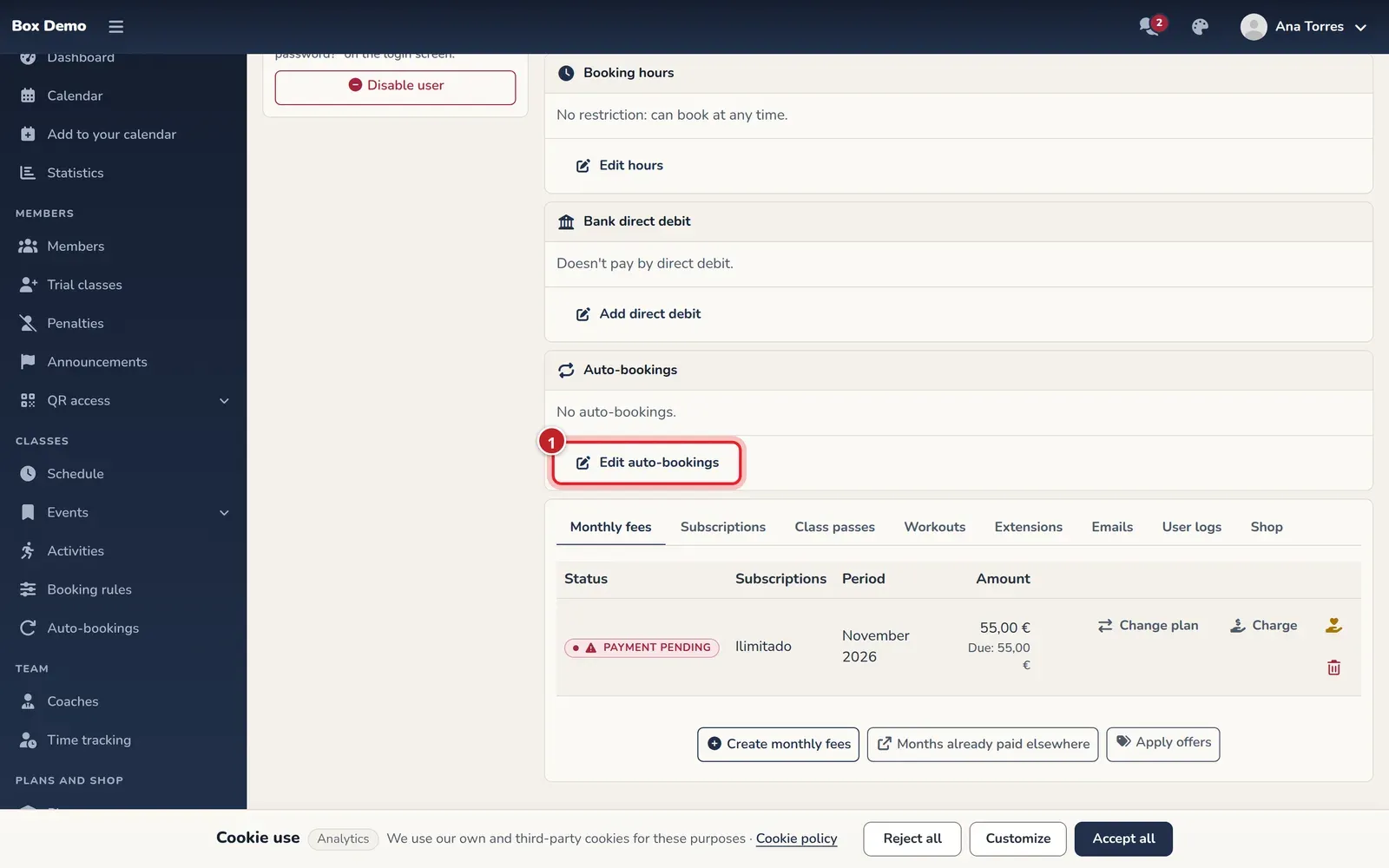
The automatic bookings card on the member's profile. -
Tap Add rule (marker 1). A new row appears.
-
Choose the Day, enter the Time in 24-hour format (for example 07:00) and choose the Activity. If the Location field appears, choose the member’s location or leave it set to Any location.
-
Leave the Active box checked. If you uncheck it, the rule stays saved but paused.
-
Add one row for each class of the week (three rows for Monday, Wednesday and Friday) and tap Save rules (marker 2).
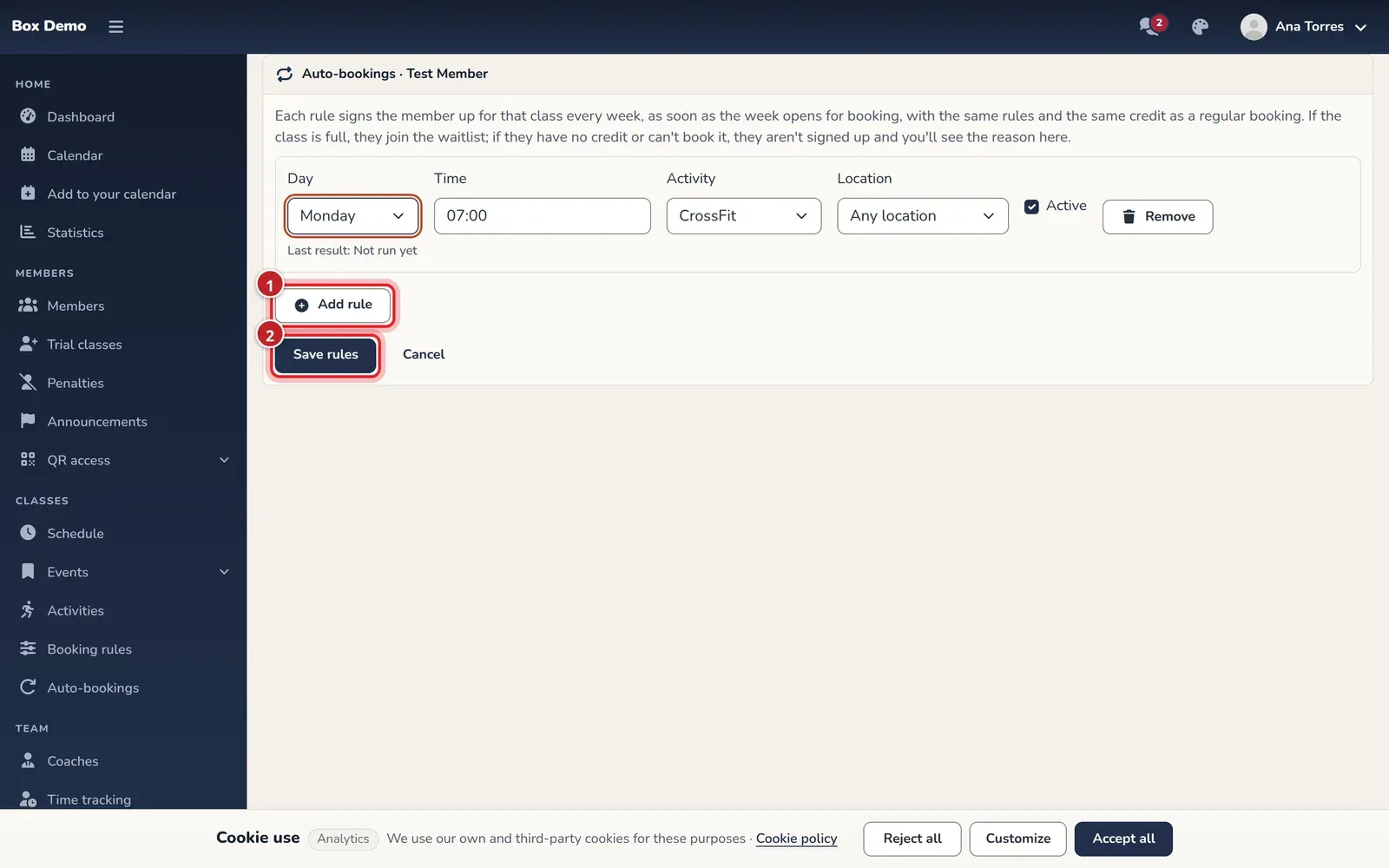
Each row is a rule: day, time, activity and whether it's active.
To remove a rule, tap Remove on its row and save.
What happens next
Section titled “What happens next”- When it books. If your gym uses weekly opening (Booking rules), the rule books in the minute that class’s week opens. If the member has a delay for canceling late, it waits for their own opening. Without weekly opening, it books as soon as the class is 7 days away or less.
- With the usual rules. It uses one credit for that activity and respects capacity, the member’s booking schedule, their plan’s location and pending payments. If the member couldn’t book by hand, the rule won’t book either.
- If the class is full, it adds them to the waitlist, if they can join it.
- Once a week. Whatever happens, the rule won’t try again that week. The following week, it will.
- If several members want the last spot, it goes to the one whose rule was created first.
On the profile card, each rule shows its Last result and when it ran:
| Result | What it means |
|---|---|
| Booked | The member is in the class. |
| On waitlist | The class was full and the member is on the waitlist. |
| No credit | They had no classes left for that activity. No booking is made and no debt is created. |
| Couldn't book | Another rule prevented it: their booking schedule, their plan’s location, an unpaid monthly fee or a closed class, among others. |
| No class | There was no class at that time that day: a holiday or a schedule change. |
| Class full | The class was full and the member couldn’t join the waitlist either. |
| Inactive member | The member is disabled or no longer belongs to the gym. Nothing is booked. |
| Error | Something went wrong. It will try again the following week. |
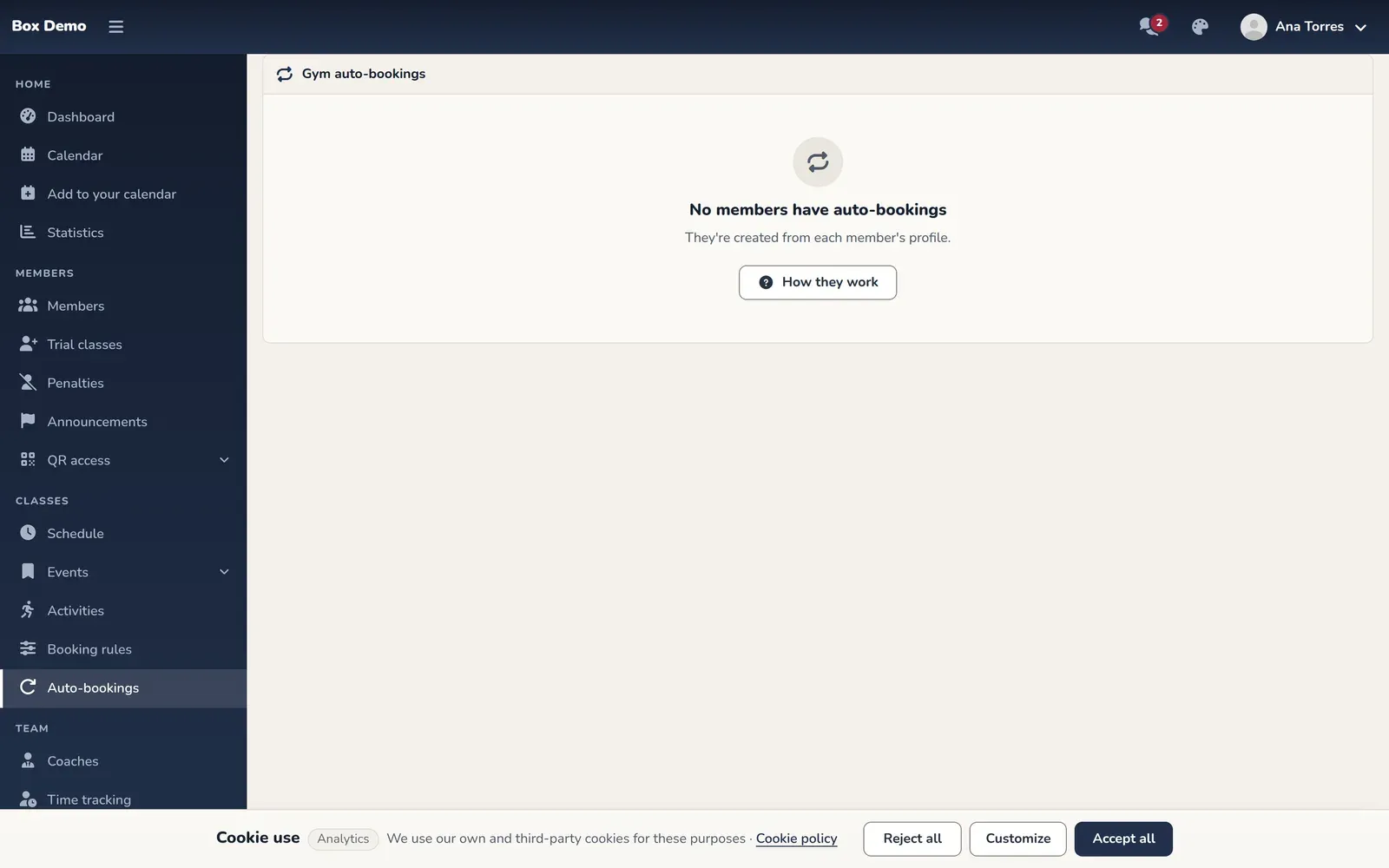
To see all members’ rules at once, open Classes ▸ Auto-bookings. From there, each member’s name links to their profile.
Common issues
Section titled “Common issues”- It says "No credit". Check that the member has a plan or class pass with classes for that activity for that week.
- It says "No class". Check that the rule’s time exactly matches the class time in the schedule.
- It hasn’t booked yet. If the week hasn’t opened yet, the rule is waiting. Check the opening time in Booking rules.
- A duplicate rule warning appears when saving. Two rows have the same day, time, activity and location. Delete one.