
How to create a member in RoninBox
To create a member in RoninBox, you start with their email and then fill in their details. When you save, the member gets a welcome email with a link to activate their account and choose their password.
Transcript
In the side menu, open Members. To sign up a new member, tap Add User.
The first step asks only for the email. RoninBox checks whether that person already has an account. If they do, it links it to your gym without asking you for more details.
If the email is new, the details form opens. Only the name is required, plus the location if your gym has more than one. Everything else is under More details. You don’t type the username: RoninBox generates it.
Tap Save. The member gets a welcome email to activate their account and choose their password.
Gym admins and coaches can create members. Only admins can sign up a coach.
The two steps of creating a member
Section titled “The two steps of creating a member”- Email. RoninBox checks whether that email already has an account.
- Details. Only if the email is new, the full form opens.
How to create a member
Section titled “How to create a member”-
Open Members ▸ Members and tap Add user (marker 1).
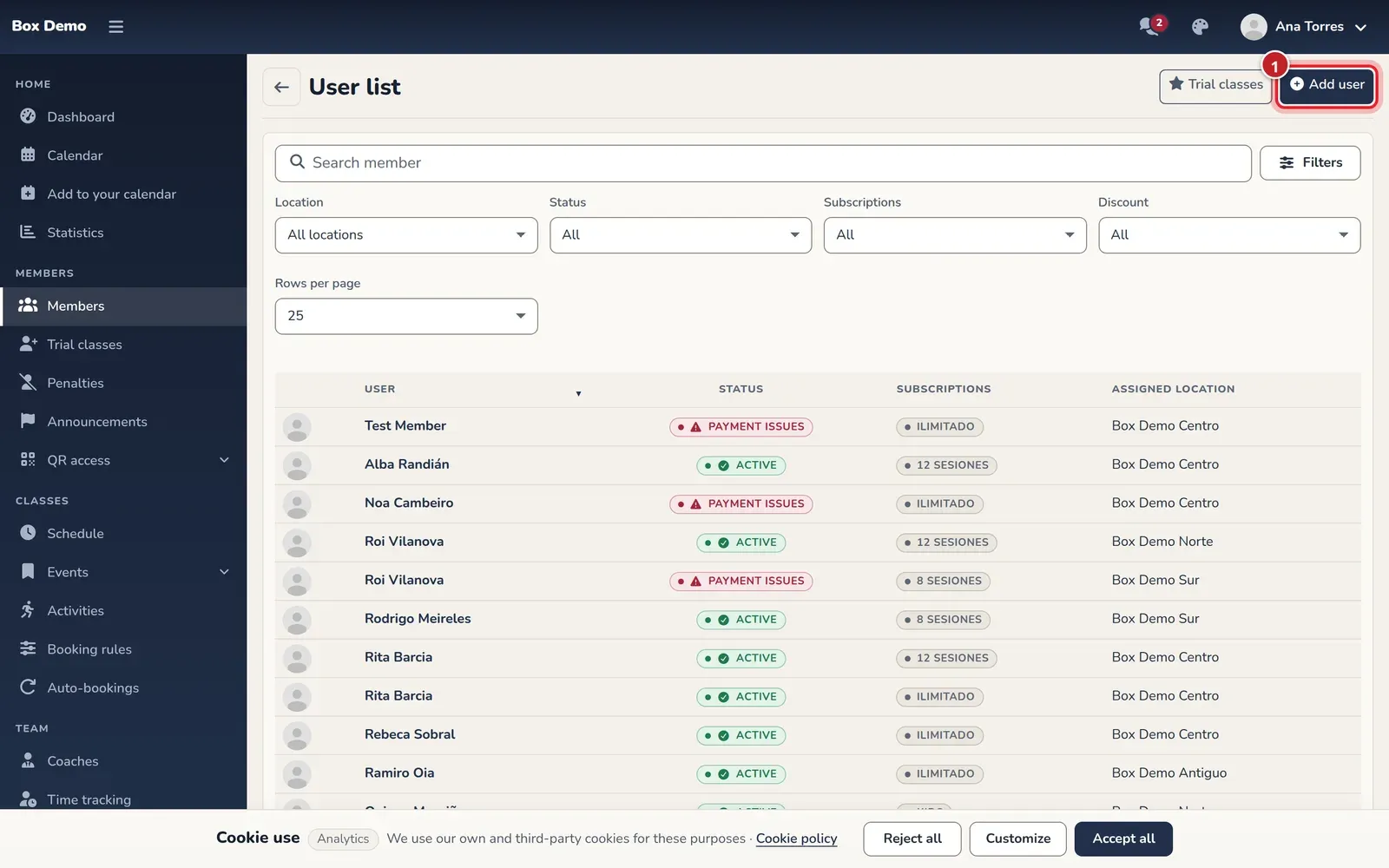
The member list. The button to create one is at the top right. -
Enter the member’s email (marker 1) and tap Continue (marker 2).
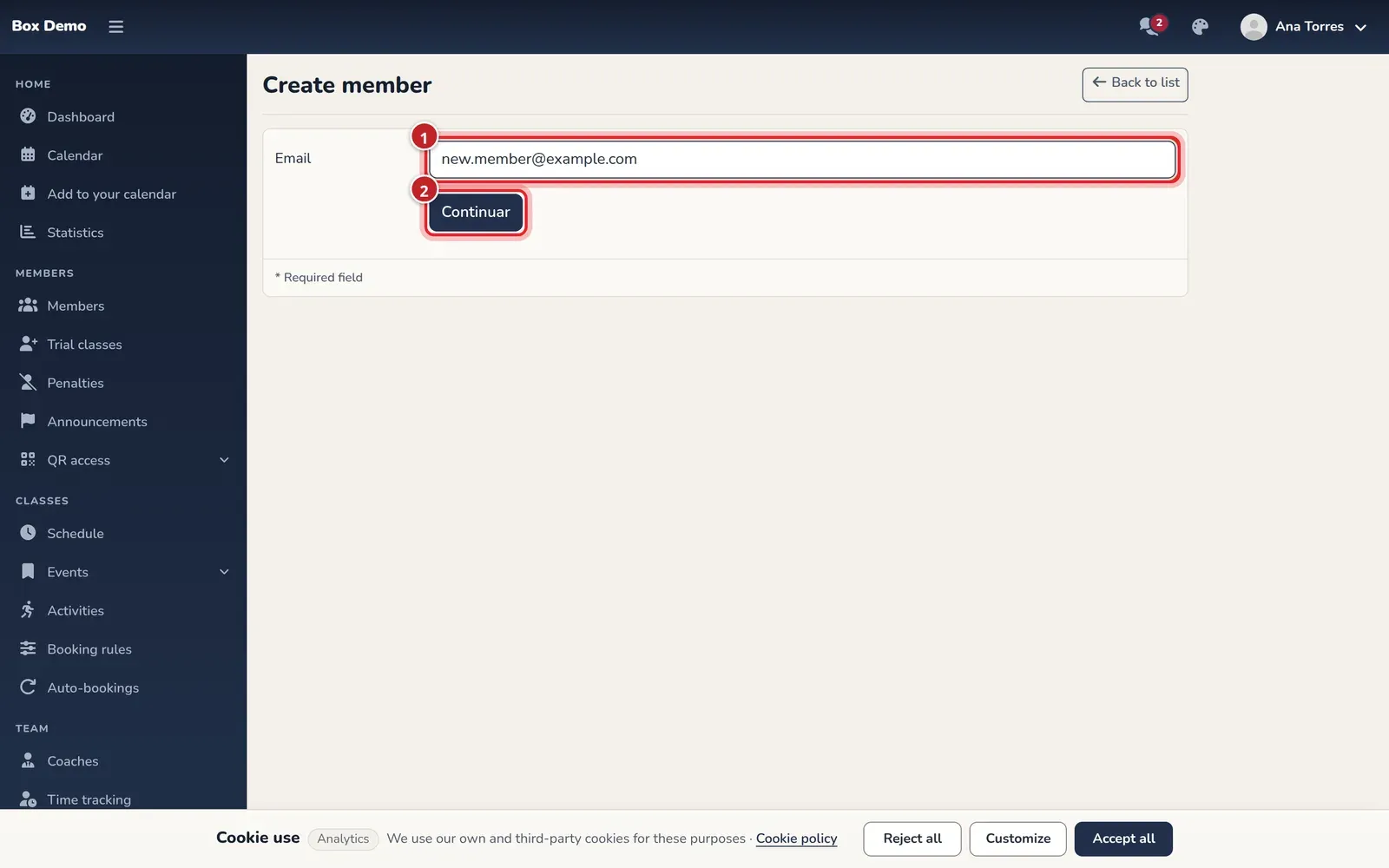
First step: just the email. -
If the email is new, enter their First name. The Email is already filled in. If your gym has several locations, choose their Assigned location: none is selected by default.
The rest is collapsed under More details: Last name, Nickname, Gender, Date of birth, Phone, DNI, Language and Time zone. All of it is optional. Language and time zone already match your gym’s.
Below, you select their Plans. If they’re coming to a trial class, leave them unselected and give them the class from their member page: Trial class.
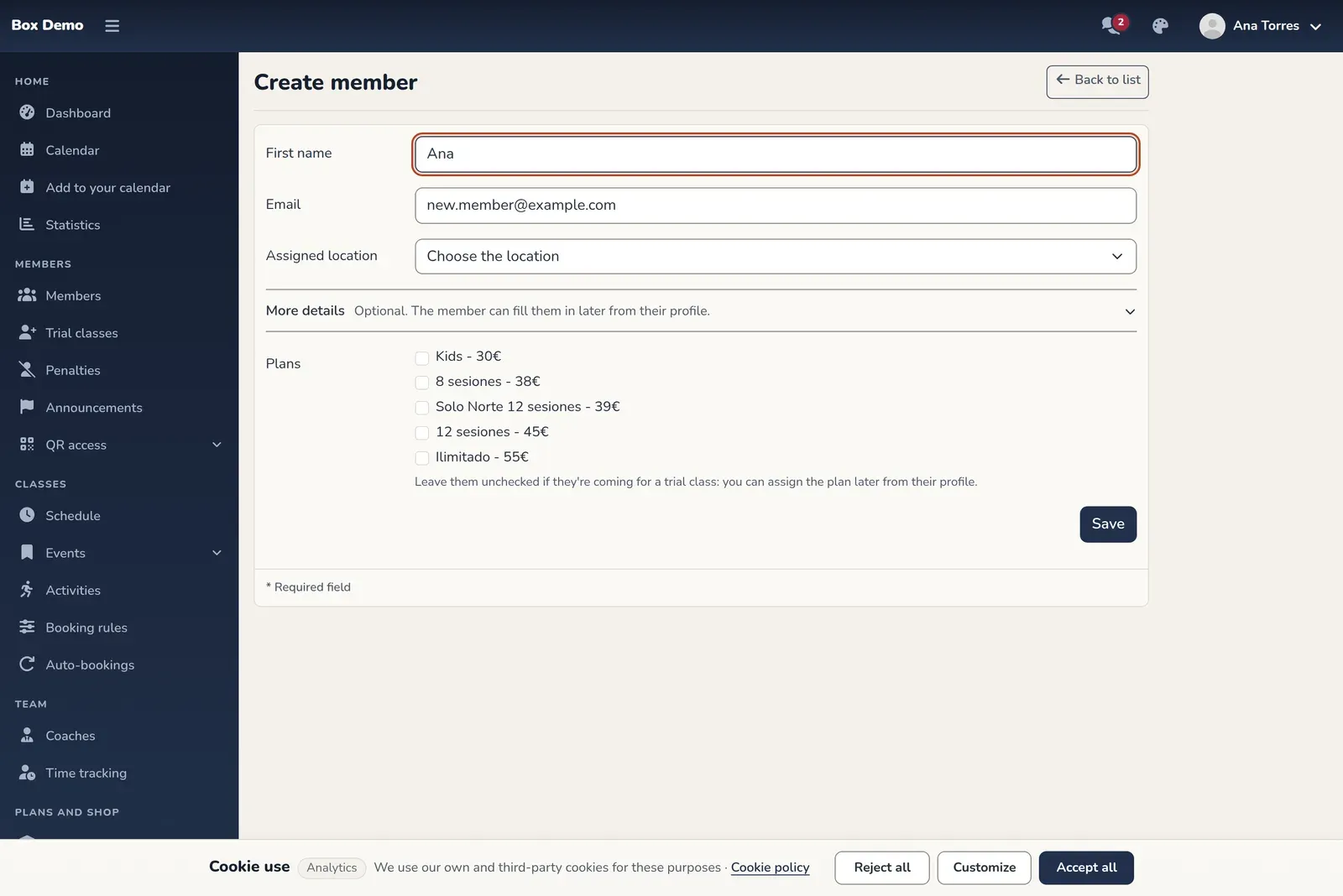
Second step: the member's details. The email is already filled in. -
Tap Save. The new member’s page opens.
Only the name, the email and, if your gym has several locations, the location are required. Everything else is optional.
What happens if the email already exists
Section titled “What happens if the email already exists”- They’re already a member of your gym. RoninBox doesn’t create anything and lets you know that email already exists in your gym.
- They have a RoninBox account, but not at your gym. RoninBox links it to your gym right away, with no details form and no welcome email, and takes you to their member page. The member logs in with the password they already had.
- It doesn’t exist. You go on to the second step.
What the member receives
Section titled “What the member receives”When you save a new member, RoninBox sends them a welcome email with their username and a button to activate their account. Until the member activates it, their status is Inactivo. What the member sees when opening the link is covered in Activate and recover your account.
Next steps
Section titled “Next steps”- If you didn’t select one when creating them, assign them a plan: Assign a plan to a member.
- Get to know their page: The member profile.
Common mistakes
Section titled “Common mistakes”- The email is misspelled. The welcome email gets lost. Fix it in Edit profile and resend the link with Reset password.
- I create a member and they can’t book. They still need a plan assigned.