
How to change my profile, language and password
To change your profile, open Profile in the bottom bar and tap Edit. Profile is the hub of your account: it holds your details, your photo, the language, the password and links to everything that doesn’t fit in the bottom bar.
What you see in Profile
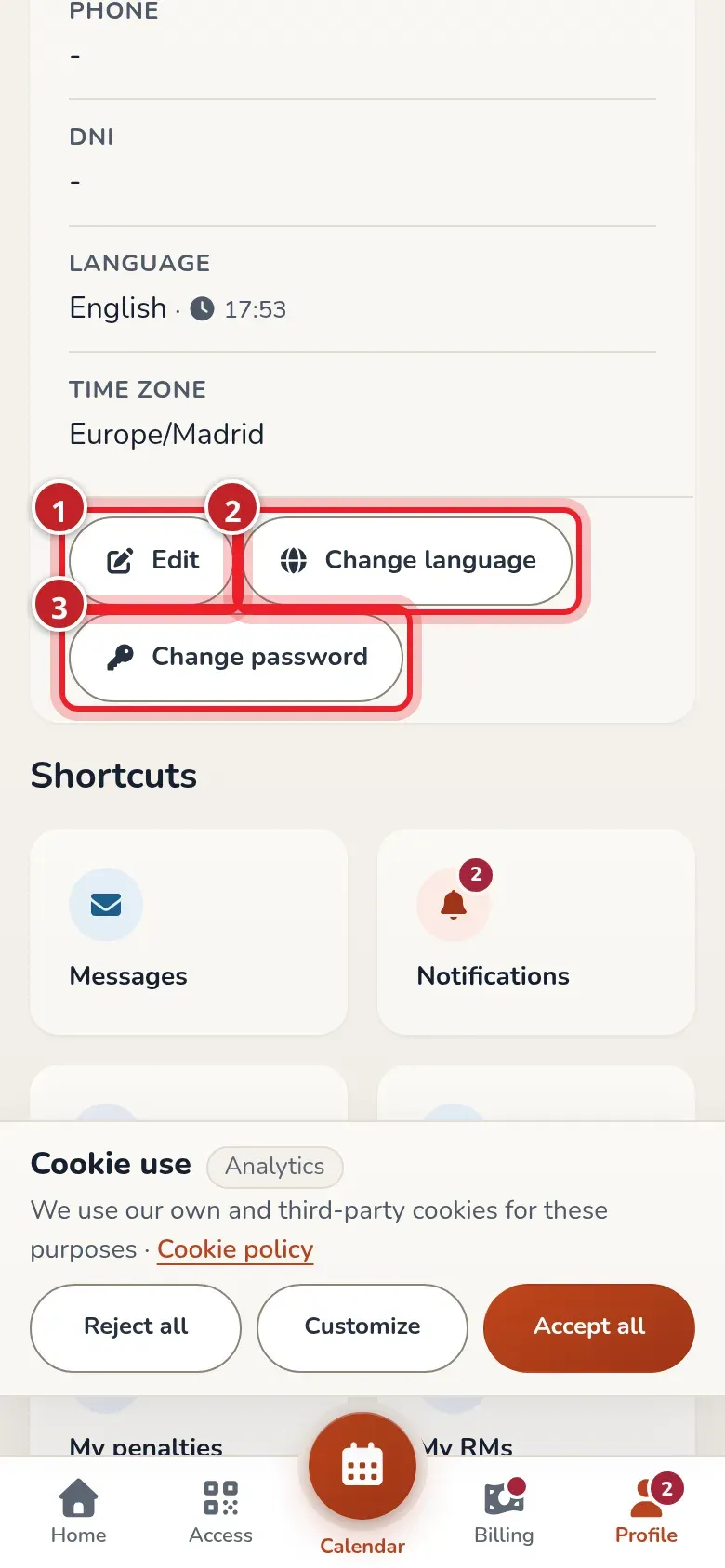
Section titled “What you see in Profile”At the top you see your photo, your name, your username and how long you’ve been a member. Below, the User information card shows your status (for example, Pagos Pendientes), your first name, last name, username, email, phone, DNI, language and time zone. At the end of the card are the buttons below.
Edit my details
Section titled “Edit my details”-
Open Profile and tap Edit (marker 1).
-
Change whatever you need: first name, last name, username, email, date of birth, gender, phone, DNI or your Nickname, which appears next to your name in the box’s lists.
-
Tap Save. You go back to Profile with the new details.
Your first and last name are the ones that appear on your receipts and invoices: write them in full.
Change my photo
Section titled “Change my photo”Tap your photo at the top of Profile. The app lets you upload a new photo or delete the current one. JPG, PNG, GIF, WEBP or BMP files up to 10 MB are accepted.
Change language, time zone and location
Section titled “Change language, time zone and location”-
Tap Change language (marker 2 in the previous image).
-
Choose the Language (marker 1): Spanish or Portuguese.
-
Choose the Time zone (marker 2): Europe/Madrid or Europe/Lisbon.
-
If your box has several locations, choose the Calendar location (marker 3). It’s the location the app suggests when you open the calendar. It doesn’t change the location your box has assigned to you. See Calendar and locations.
-
Tap Save (marker 4).
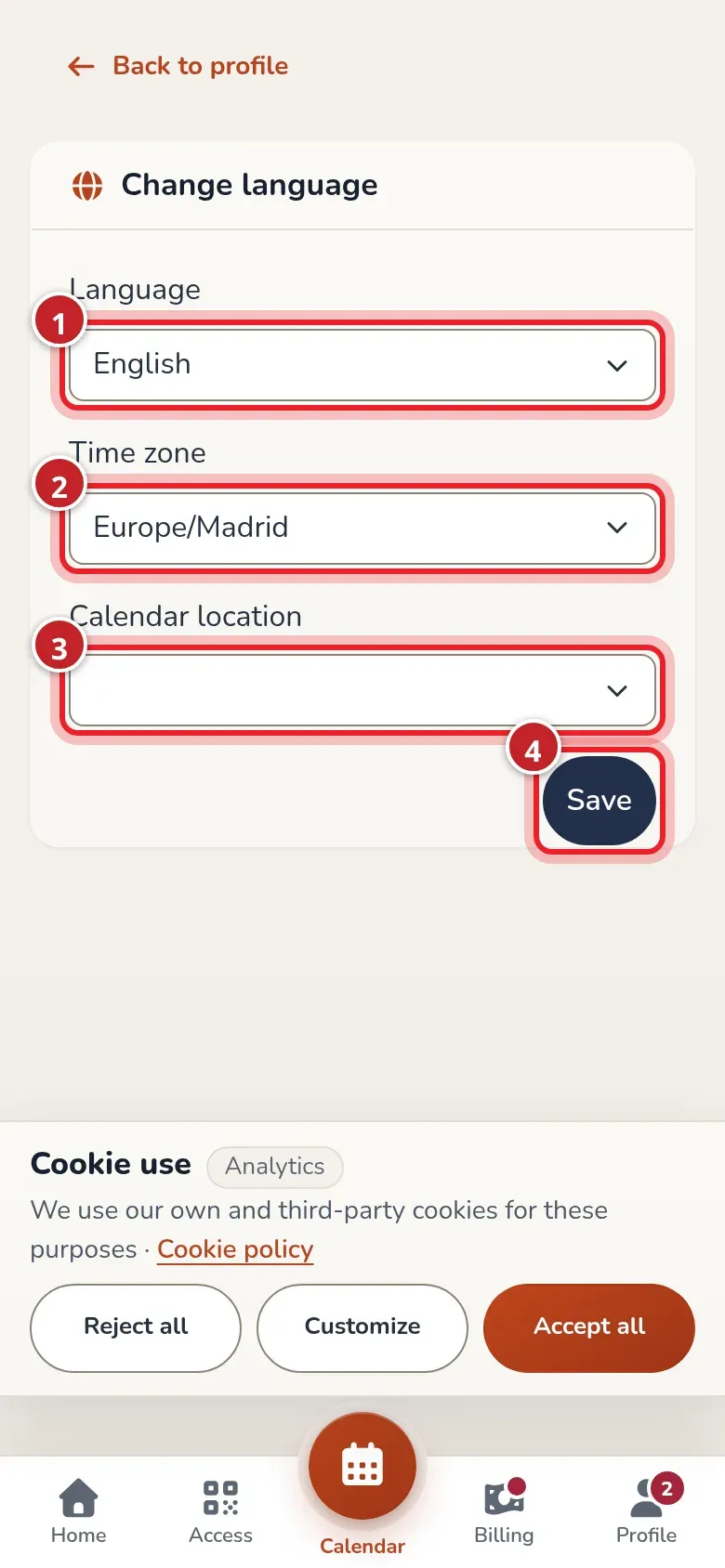
The language, time zone and default location screen.
Change my password
Section titled “Change my password”- In Profile, tap Change password (marker 3 in the first image).
- Type the New password and repeat it in Repeat password. It must be between 8 and 72 characters long.
- Tap Save.
Switch box
Section titled “Switch box”If you use the general RoninBox app and belong to more than one box, Profile shows the Switch box button. It takes you to the list to choose another one. If your box has its own address, the button doesn’t appear.
Shortcuts and logging out
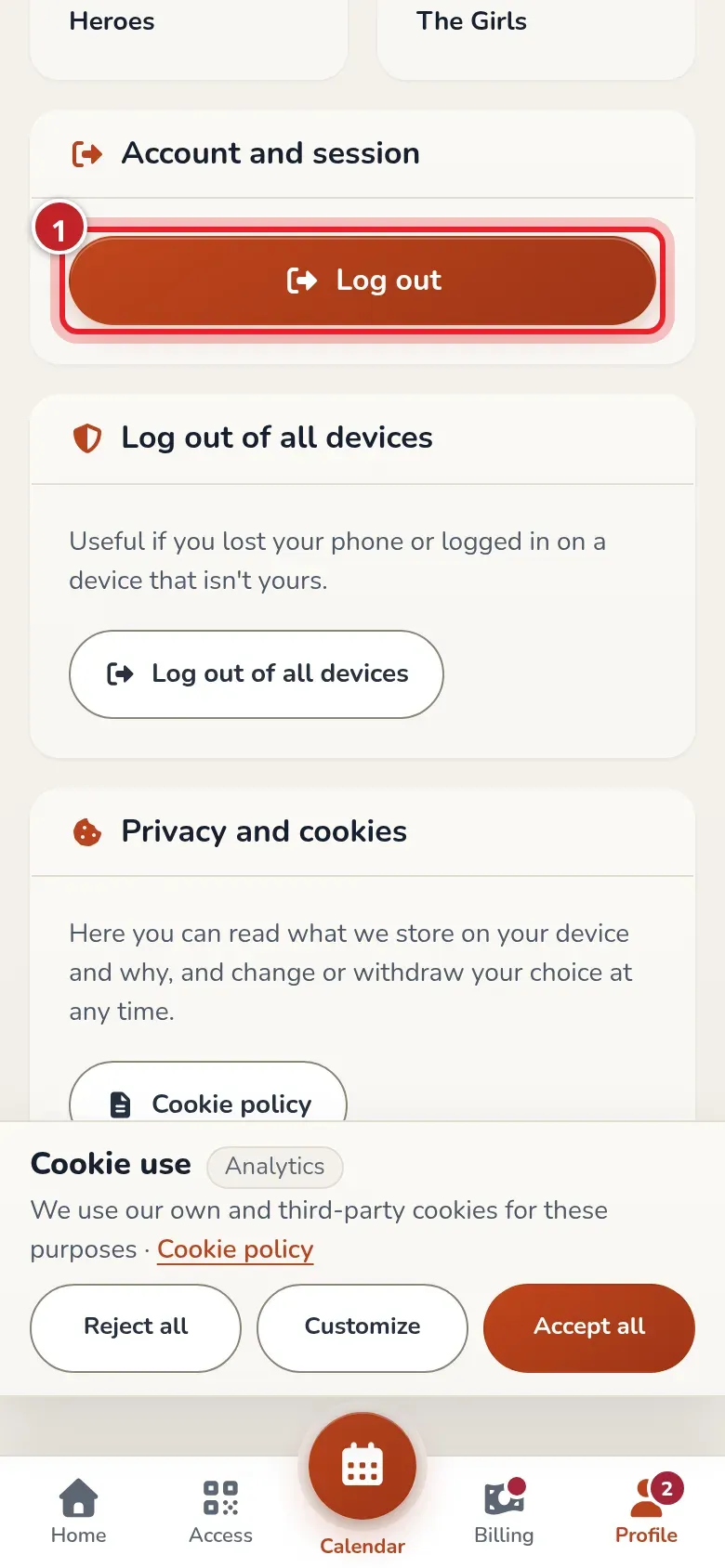
Section titled “Shortcuts and logging out”Further down, Shortcuts gathers what isn’t in the bar: Messages, Notifications, My RMs, RMs, % Calculator, E.D.D, Heroes and The Girls. They’re explained in Messages and notifications and My RMs and WODs.
Below, in Account and session, is the Log out button to log out. Further down is Privacy and cookies, explained in Privacy and cookies.
Common mistakes
Section titled “Common mistakes”- I don’t see Switch box. It only appears in the general RoninBox app and when you belong to more than one box.