
Shop sales: charge or cancel a sale
Shop sales appear in a list where you can see which ones are awaiting payment, open any of them and, if one is pending, charge it or cancel it. A sale is what you recorded in Counter sale: always under a member’s name.
The sales list
Section titled “The sales list”Open Shop ▸ Sales. At the top, the Payment pending card adds up what members owe you for unpaid sales (marker 1). The Payment status selector filters by Payment pending or Paid (marker 2). You can search by number, name or email.
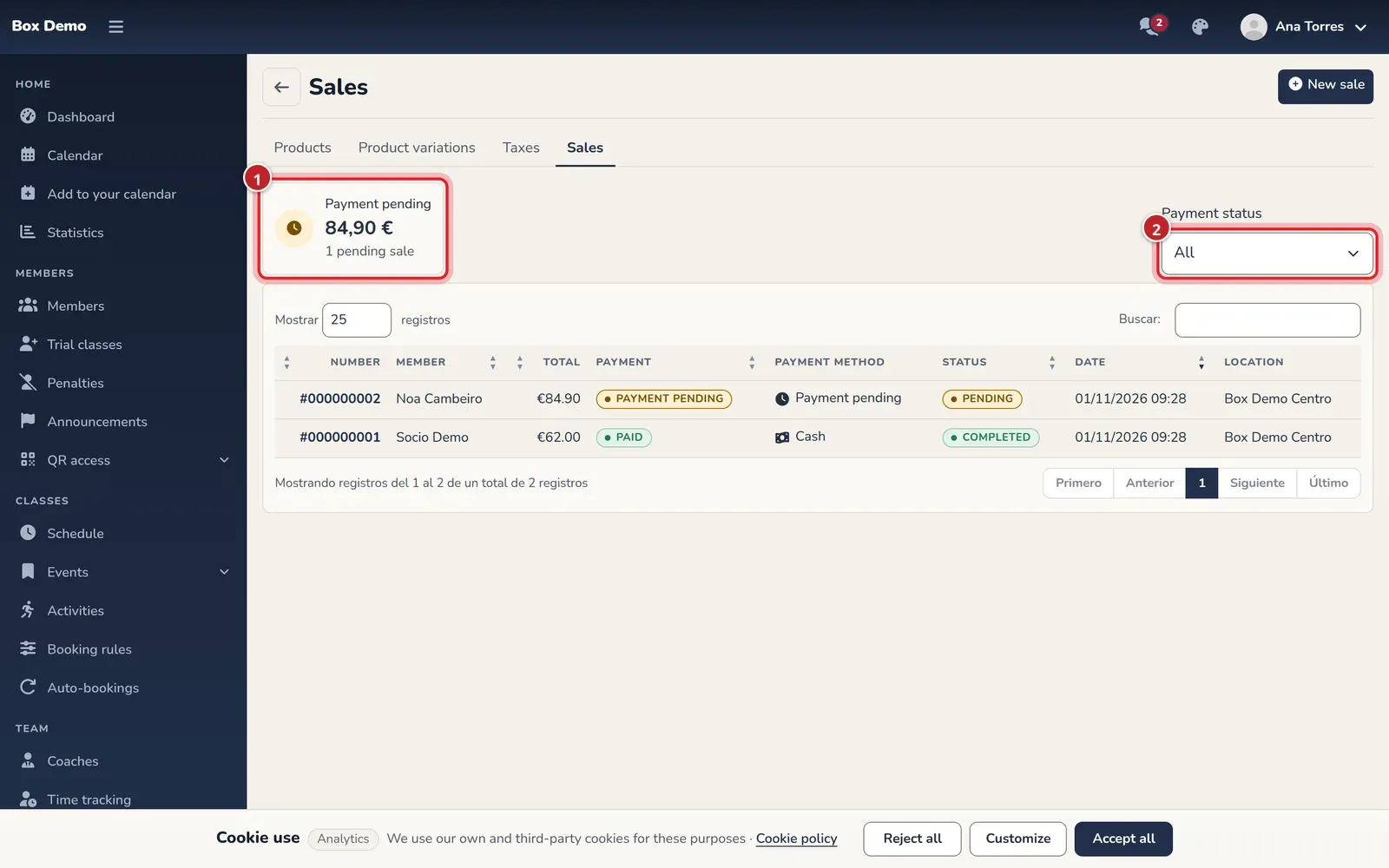
Each row shows the number, member, total, payment, payment method, status and date.
What the statuses mean
Section titled “What the statuses mean”Each sale has two statuses. The sale status tells you where it stands:
- Pending: created but not paid.
- Completed: paid and closed.
- Canceled: canceled.
The payment status tells you whether it has been paid: Payment pending, Paid or Payment voided when a pending sale is canceled. The payment method can be Cash, POS (card), Bank transfer, Direct debit or Payment pending.
Charge a pending sale
Section titled “Charge a pending sale”-
Filter by Payment pending and open the sale by tapping its number.
-
In the details, check the member, the items and the total.
-
Tap Charge in cash (marker 1). For another payment method, tap the arrow next to it and choose Charge by POS, Charge by bank transfer or Charge by direct debit.
-
Confirm in the window that opens: "Record the payment?". The payment for the total is recorded with that method and the stock is deducted.
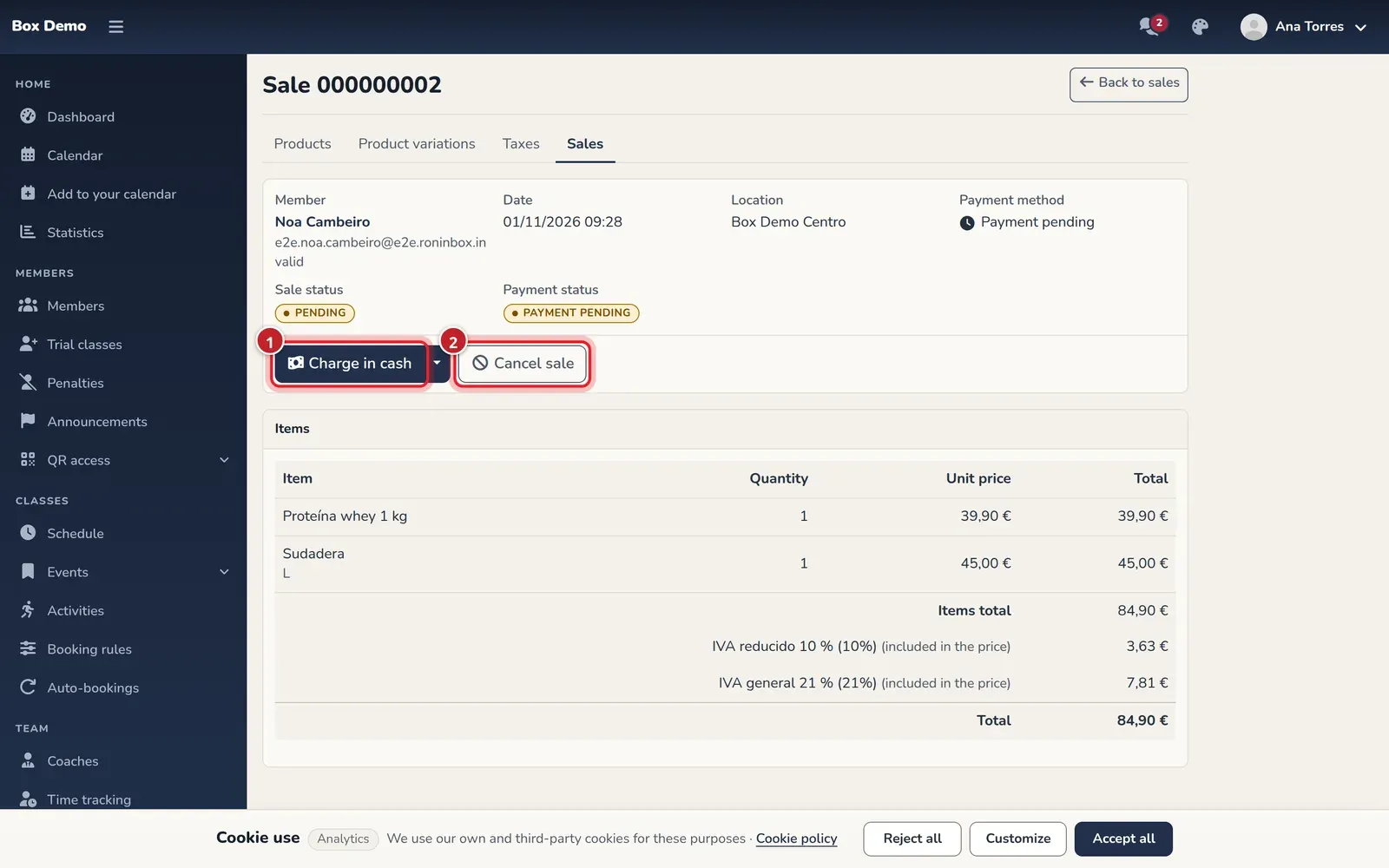
The details of a pending sale. The numbers match the text.
RoninBox shows "Payment recorded." and the sale is marked as paid. The charge buttons only appear if the sale has a pending payment.
You can also charge it from the Shop tab on the member’s profile: there you’ll see what they owe and the charge buttons. See Member profile.
Cancel a sale
Section titled “Cancel a sale”Tap Cancel sale (marker 2) and confirm. The sale is canceled and the reserved stock becomes available again. You can only cancel a sale that hasn’t been paid yet: "You can only cancel a sale that hasn't been paid yet."
What you see in the details
Section titled “What you see in the details”The details show the member (with a link to their profile), the date, the payment method, both statuses, each item with quantity, unit price and total, the tax breakdown (included or added) and the total. To charge the member for other things, such as their monthly fees, see Charge in cash or by card terminal. Terms are explained in the glossary.
Common errors
Section titled “Common errors”- I don’t see the charge or cancel buttons. The sale has already been paid or canceled.
- “This sale has no pending payment.” Someone already charged it. Reload the list.
- The shop isn’t set up. If you see a notice instead of the list, ask RoninBox to enable the gym’s shop.