
Manage team vacation in RoninBox
To manage team vacation in RoninBox, open Team ▸ Time tracking ▸ Vacation. There you approve or decline what your team requests, see who is out each month and, from each person’s profile, assign vacation or adjust their balance.
Who can do this
Section titled “Who can do this”Gym admins and managers handle it. The Labor policy tab, where vacation days are set, is admin only.
Vacation is part of time tracking: the people who request vacation are the ones you’ve added to it, with tracking turned on. Staff time tracking explains how to add someone. How to request your vacation explains how your team requests it.
Before you start: how many days they get
Section titled “Before you start: how many days they get”In Labor policy you have three vacation settings:
- Vacation days per year (marker 1): the days for a full year.
- How vacation days are counted (marker 2): Calendar days counts every day; Working days counts only working days, excluding the gym’s holidays.
- Working days for vacation (marker 3): which days of the week are working days. Only used if you count in working days. If your team works Saturdays, check it.
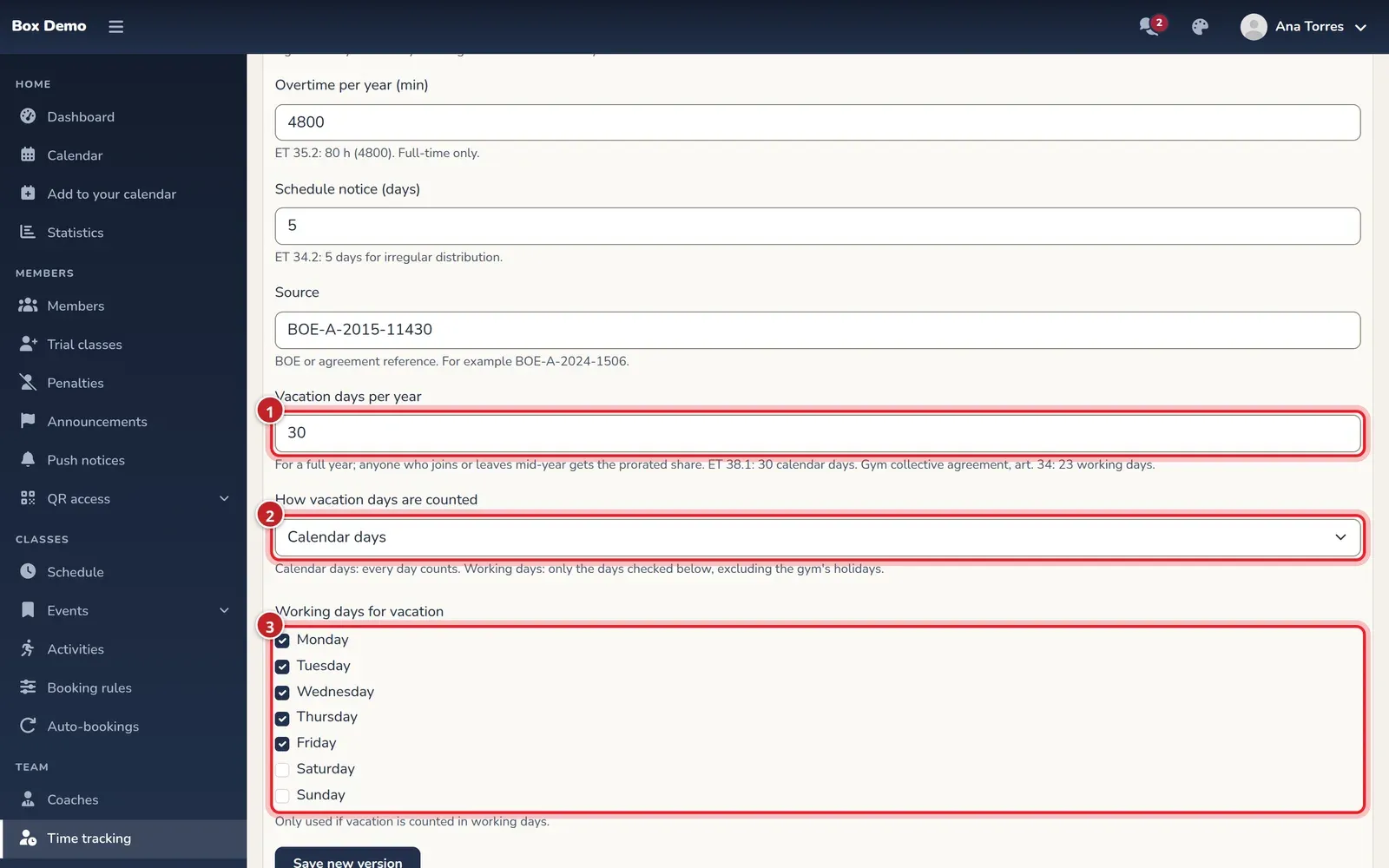
The two reference values RoninBox includes are:
| Reference | Days per year | How they’re counted |
|---|---|---|
| General rules: Workers' Statute (art. 38) | 30 | Calendar days |
| 5th Collective Agreement for Sports Facilities and Gyms (art. 34) | 23 | Working days |
Loading one of them also fills in the vacation days. Save the policy so it takes effect.
Holidays. If you count in working days, holidays that close all your locations aren’t deducted—the same ones you use to close the class schedule. The count doesn’t know about a holiday at just one location, or one when you stay open: correct the days when you approve.
How the balance is calculated
Section titled “How the balance is calculated”Each person’s balance for each year is:
- What they’re entitled to: the days in the policy. If they joined or left mid-year, the prorated share (for example, someone who joins on July 1 with 30 days per year gets 15).
- Plus or minus the adjustments you’ve recorded on their profile.
- Minus what’s approved and what’s pending.
Vacation that spans December 31 deducts each day from its own year. The balance never stops anyone from requesting or approving: if someone goes over, you’ll see a warning.
Approve or decline requests
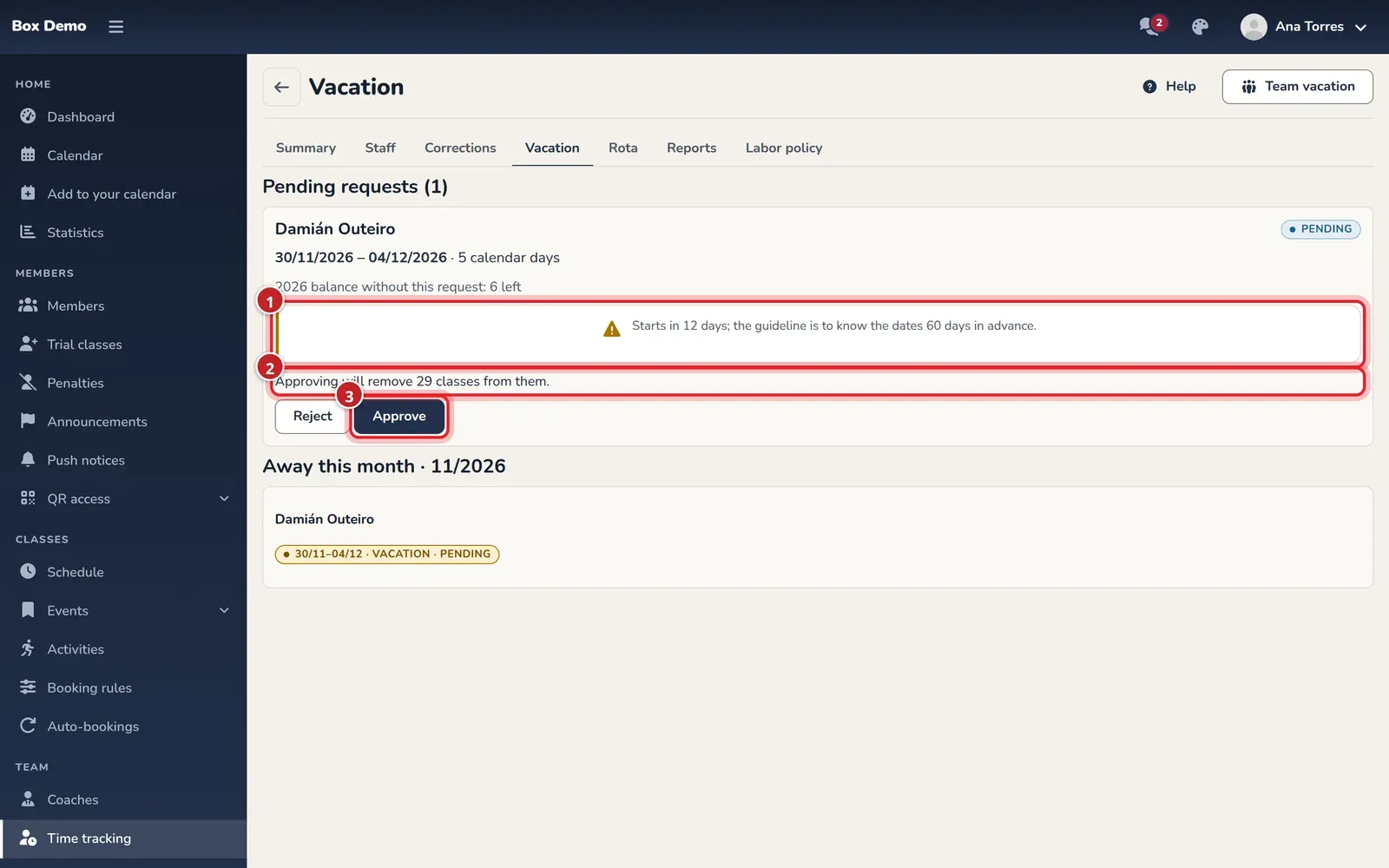
Section titled “Approve or decline requests”When someone requests vacation, admins and managers get a notification on their phone. Requests wait in the Vacation tab, with the dates, the days, the balance that person has left and the warnings (marker 1): that it exceeds the balance, that it starts with less than two months’ notice or that it starts on a rest day. Below you see how many classes they would stop coaching (marker 2).
-
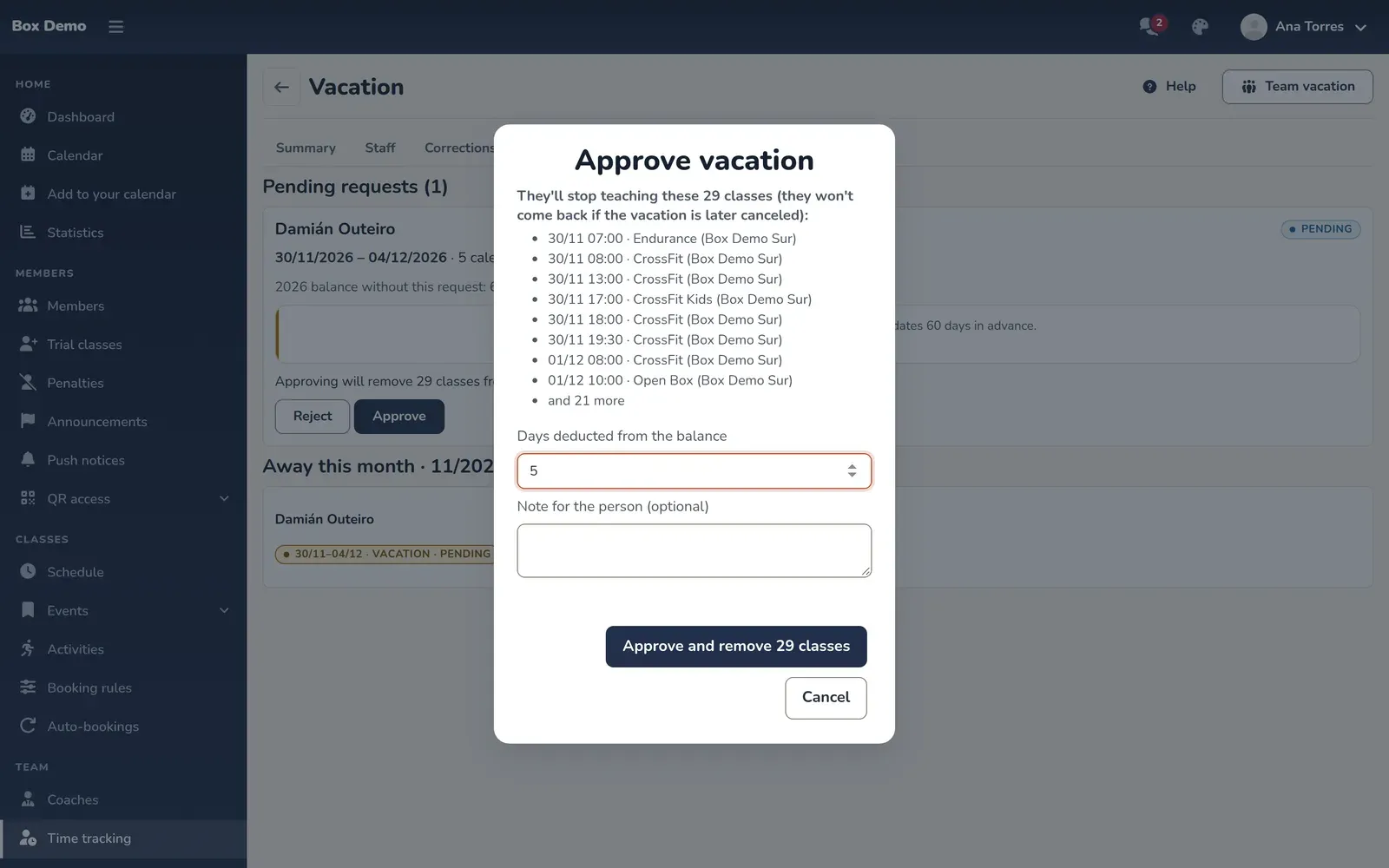
Tap Approve (marker 3). A window opens with the classes that person will stop coaching.
-
Review the days deducted from the balance. Change them if the count doesn’t know about a holiday or if you’re giving them an extra day.
-
Write a note if you like and confirm. The person gets a notification on their phone and an email with the dates.
To decline, tap Reject and write the reason: it’s required and the person will read it in the notification and the email.
If you’re a manager and you approve your own vacation, it’s marked as approved by the same person.
Classes of someone going on vacation
Section titled “Classes of someone going on vacation”When you approve, the person stops coaching their classes on those days that haven’t started yet:
- If the class had other coaches, they keep coaching it.
- If they were the only one, the class is left without a coach.
Assign them to someone else from Coaches ▸ Roster or from the class itself in the calendar. On the person’s profile, each approved vacation keeps the list of classes they left, with a link to each day in the calendar.
Coach rules won’t assign them new classes during those days either. If a rule rotates among several coaches, their week is left without a coach and the rotation for the others doesn’t change.
Assign vacation, cancel it and adjust the balance
Section titled “Assign vacation, cancel it and adjust the balance”From Staff, open the person’s profile. On the year’s vacation card you have:
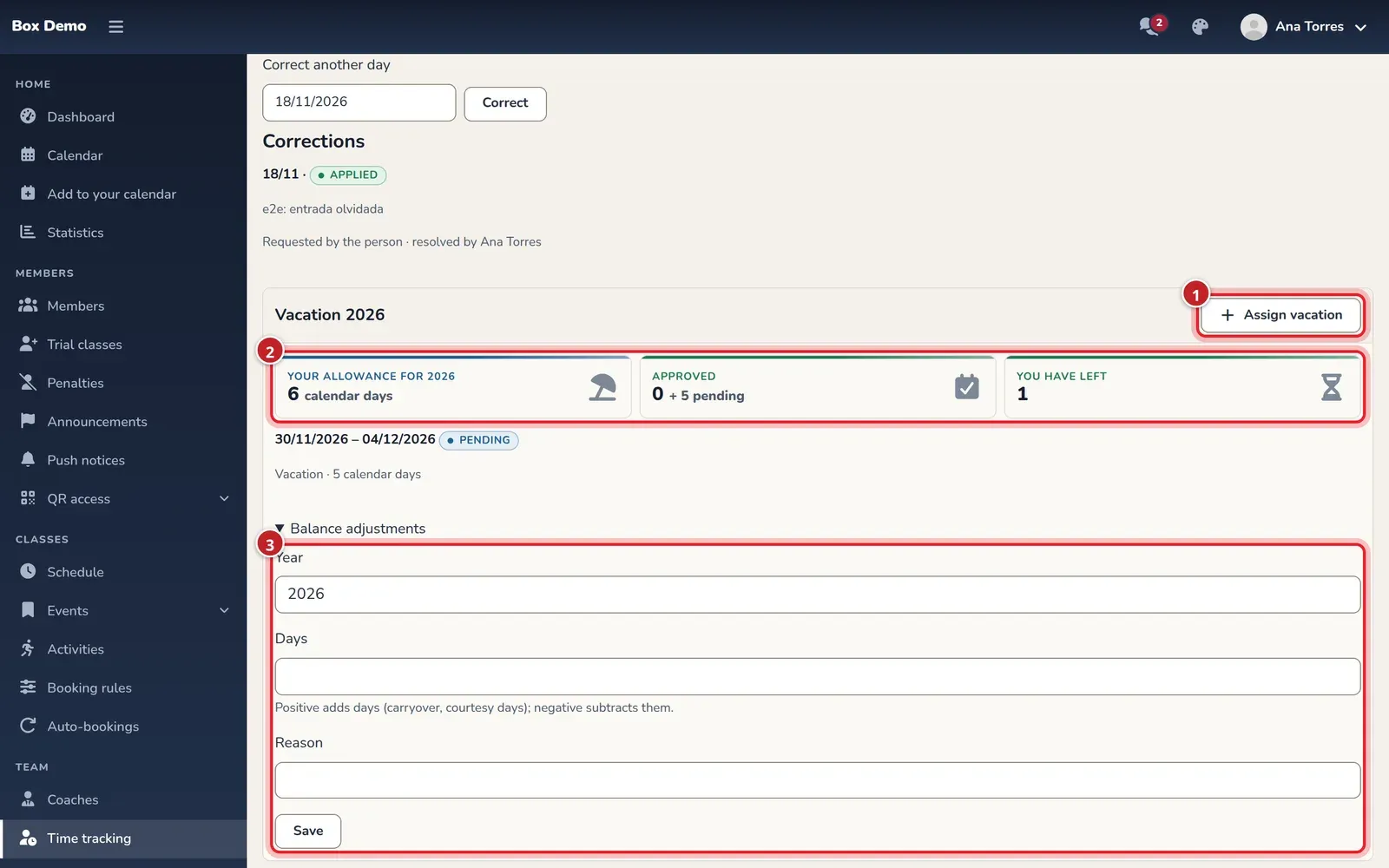
- Assign vacation (marker 1): record vacation agreed outside the app. It’s approved when you save it, removes their classes on those days and the person gets the notification and the email.
- The year’s balance (marker 2) and the list of their vacation, with a Cancel button on approved ones that haven’t ended yet.
- Balance adjustments (marker 3): add or subtract days for a year with a reason. Use it for days carried over from the previous year, a courtesy day or a correction. An adjustment can’t be deleted: if you make a mistake, add another one in the opposite direction.
Plan the month: who is out
Section titled “Plan the month: who is out”Tap Team vacation to see, month by month, who has vacation. You also see pending requests, marked as such; your team sees only approved vacation and only the dates.
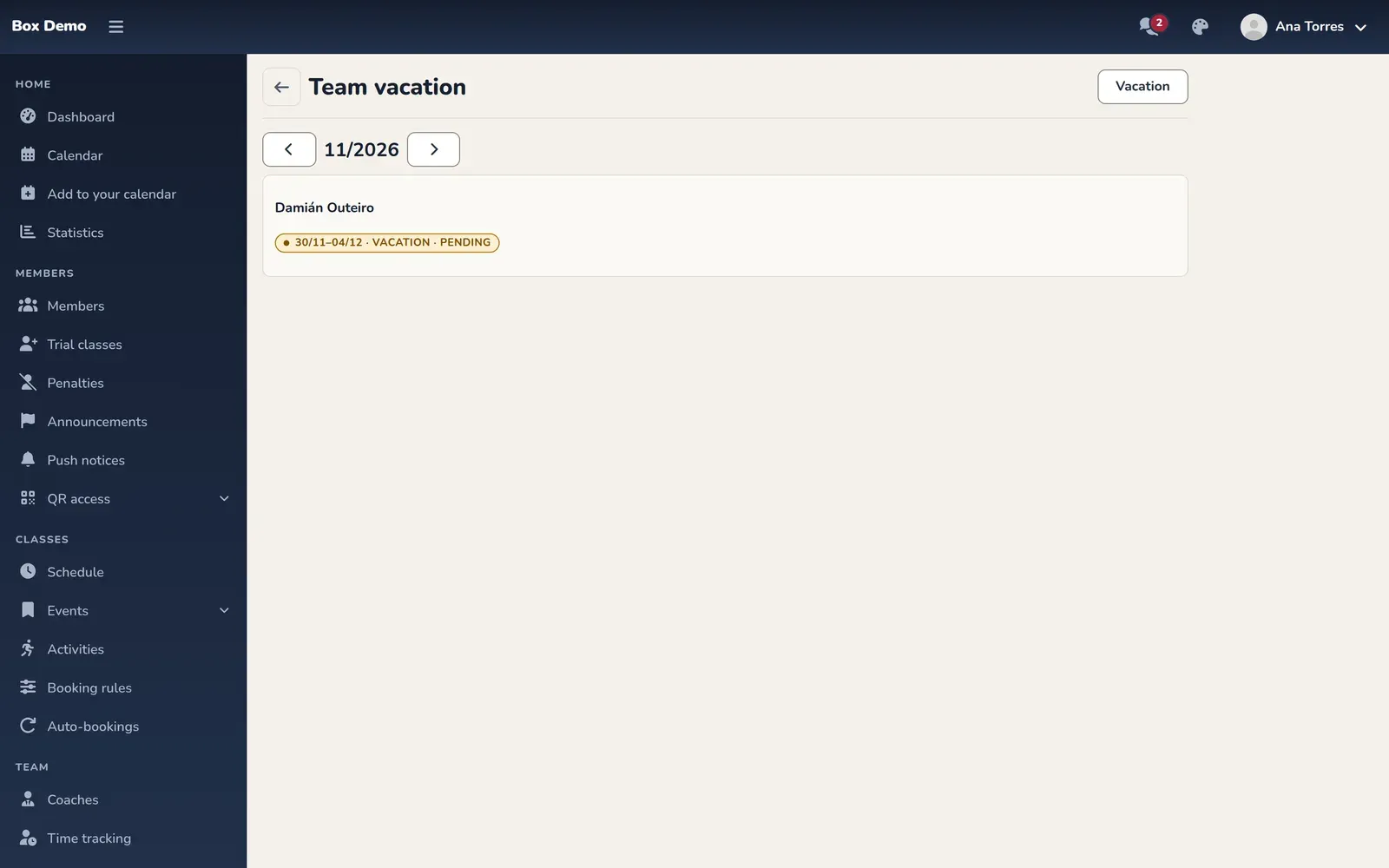
If someone has non-coaching blocks in the work roster (opening, cleaning, front desk) on a vacation day, the roster warns you. If someone clocks in on a vacation day, that person sees a warning when clocking in. Vacation days are marked in their monthly record and in the PDF.
Self-employed staff
Section titled “Self-employed staff”Someone registered as self-employed doesn’t request vacation: they enter the days they won’t work and those apply immediately, with no approval or balance. You get a notification and their classes on those days are left without a coach. This way you avoid treating a self-employed person like an employee who is granted vacation.
Best practices
Section titled “Best practices”- Publish the vacation calendar early. The Workers’ Statute requires each person to know their dates at least two months in advance (art. 38.3), and the gym collective agreement requires setting the calendar in the first quarter of the year (art. 34). RoninBox warns you if vacation starts with less than two months’ notice.
- Vacation can’t be exchanged for money unless the contract ends before it’s taken. When someone leaves, check their balance.
- Look at the team’s month before approving, so too many people aren’t out at the same time.