
How to change the fixed schedule in RoninBox
The fixed schedule is your gym’s standard week: the classes that repeat every week. To change the fixed schedule, open Schedule ▸ Recurring schedule, tap the class and say when the change starts. Earlier weeks don’t change, and before saving you see what will happen to classes already created and to automatic bookings.
If you only want to change one specific week, use Edit a week.
Who can do it and where
Section titled “Who can do it and where”The admin does it, in Classes ▸ Schedule, Recurring schedule tab. Coaches can too, if the gym allows it (Let coaches edit the schedule): they go through Profile ▸ Schedule or through Edit week in the calendar, and switch tabs.
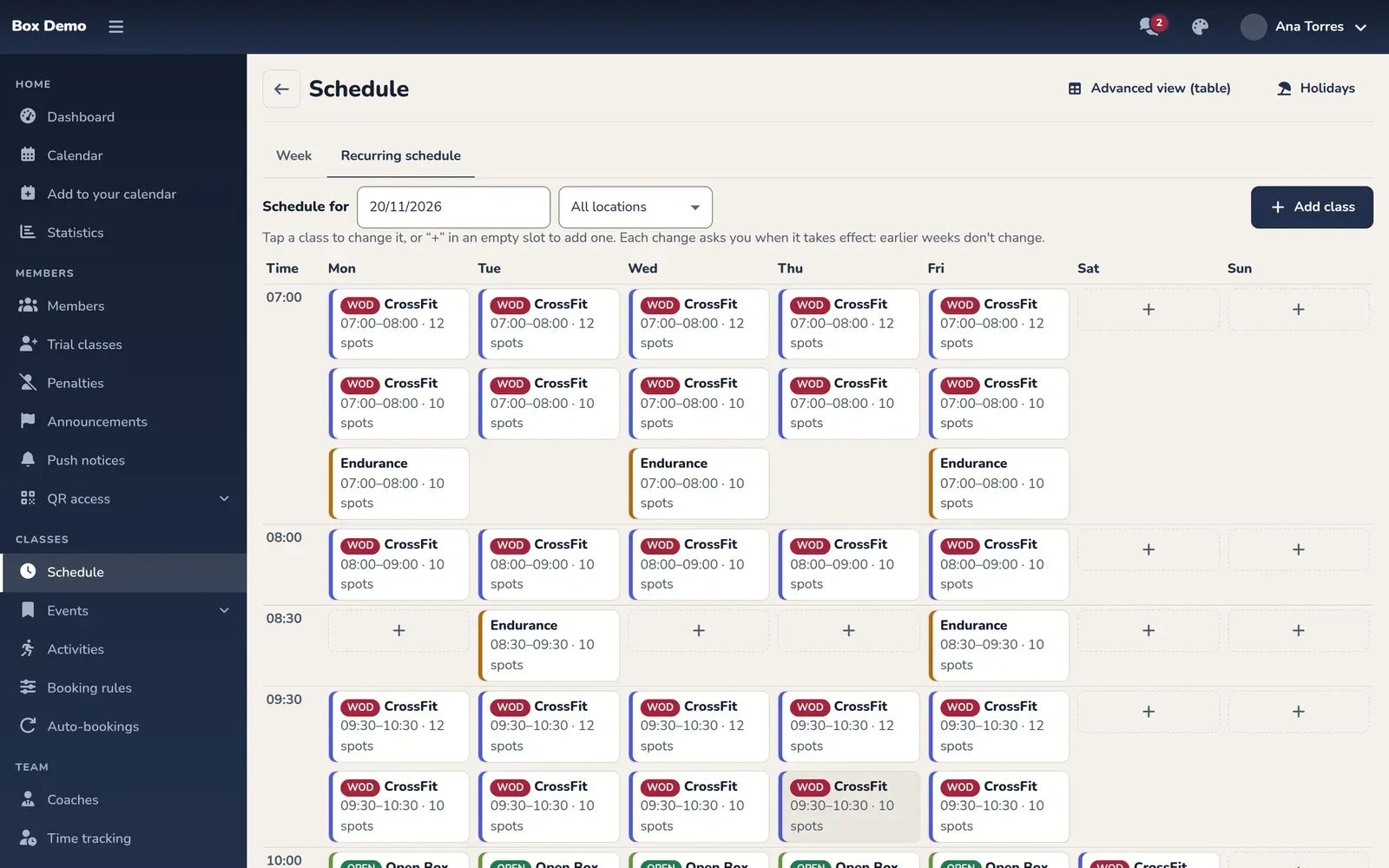
At the top you have:
- Schedule for: a date to see what the schedule looks like that day. Useful for reviewing a change that starts later.
- The location selector, if your gym has several.
- Add class, for a new class.
In the grid, a class with a scheduled change has a label with the date it starts or ends. If a class clashes with another rule, it’s marked with Conflicts with another rule.
How to change a class in the schedule
Section titled “How to change a class in the schedule”-
Tap the class. The Change class sheet opens.
-
Change whatever you want: Activity, what time it Starts and Ends, the Spots, the Location or the Prefix.
-
In Days, the day of the class you tapped is already checked. The checked days change together. Check more days if you want the change to apply to them too.
-
In Starting when?, choose Next week (the default: next Monday), Tomorrow or Choose date to type the date in From. It can’t be earlier than today.
-
If the change is only temporary, fill in Until (optional). If you leave it empty, the change stays forever. If you set a date, the previous schedule returns the day after.
-
Read What will happen. RoninBox recalculates it every time you change something; Save becomes active when the preview is ready.
-
Tap Save. You’ll see Schedule saved with a summary of what was done.
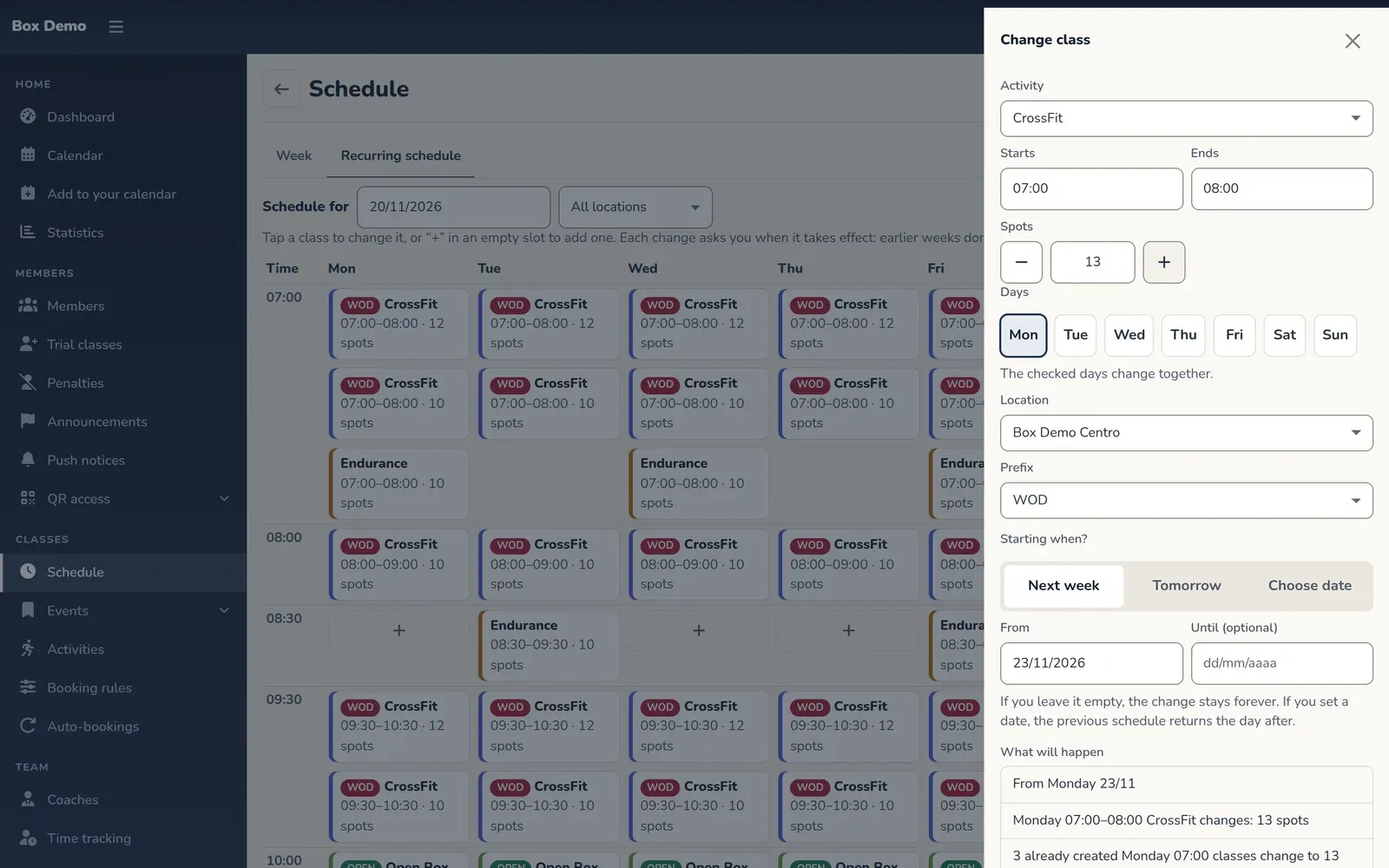
A class's sheet: the changes, when they start and the preview.
You can close the sheet with Cancel without saving: the preview doesn’t change anything.
What happens to classes already created
Section titled “What happens to classes already created”A schedule class is actually created the first time someone opens it or signs up. Those that already exist from the change date onward are handled like this, and the preview tells you before you save:
- You only change the spots. Classes already created switch to the new spots. If one has more people signed up than those spots, it keeps the spots it needs.
- You change the time, activity, location or prefix. Classes already created with no one signed up are removed and the new class appears in their place. Those that have people stay as they were, at the old time, and the preview lists them with their sign-ups. You decide what to do with them: leave them or move them one by one (How to manage a class).
- Automatic bookings. Those of members who attend that class move to the new time. If that person already has another automatic booking at that time, it doesn’t move. If you remove the class, the automatic bookings are left without a class. See Automatic bookings.
Weeks before the change date are not touched.
Add a class to the schedule
Section titled “Add a class to the schedule”Tap Add class, or the + on a free time slot in the grid to start with that day and time already set. The New class sheet opens with the same fields. Choose when it starts, review the preview and tap Save.
If the schedule is empty, the screen offers you Add the first class.
Remove a class from the schedule
Section titled “Remove a class from the schedule”-
Tap the class and tap Remove this class, at the very bottom.
-
Choose when it’s removed from. It's removed from the chosen date. Already created classes with nobody signed up are removed; those with people stay.
-
Tap Remove this class from the schedule. If you change your mind first, tap Don't remove.
Advanced view and holidays
Section titled “Advanced view and holidays”At the top right you have two links:
- Advanced view (table): the classic list of rules. There you turn a whole rule on or off, see its exceptions and the calendar view with clashes. It’s explained in How to set up the class schedule. When a change starts after the rule started, you’ll see that the old rule ends on that date and a new rule applies from it.
- Holidays: the days without classes. See Holidays and days without classes.
Below the grid, Recent changes shows who changed the schedule and when.
Common errors
Section titled “Common errors”- It won’t let me save because another rule already sets that class. There’s another rule with the same activity on that day and time slot for those dates. Check it in Advanced view (table).
- That time slot is no longer in the schedule. Reload the page. Someone changed that class while you had the sheet open.
- I changed the time and this week’s class is still the same. It already had people signed up, so it stays at the old time. Move it yourself or leave it.
- The change doesn’t show in the calendar. It starts on the date you chose: look at that week’s calendar, or use Schedule for.