
The admin calendar in RoninBox
The RoninBox admin calendar shows all of the gym’s classes by day, with their activity, prefix and spots. From it you can open any class to see who’s signed up, change the spots, close it or sign up a member. You’ll find it in Calendar.
Transcript
Open Calendar in the menu. You’ll see the whole month, with each day’s classes and the spots taken.
If your gym has several locations, pick the location in the dropdown to see only its classes.
Use the Month and Day buttons to change the view. In Day you see the classes for a single day, hour by hour.
Go back to Month whenever you want the big picture.
Tap any class to open it. In the window you see who’s signed up and the waitlist, and from there you manage the class.
What you see on the screen
Section titled “What you see on the screen”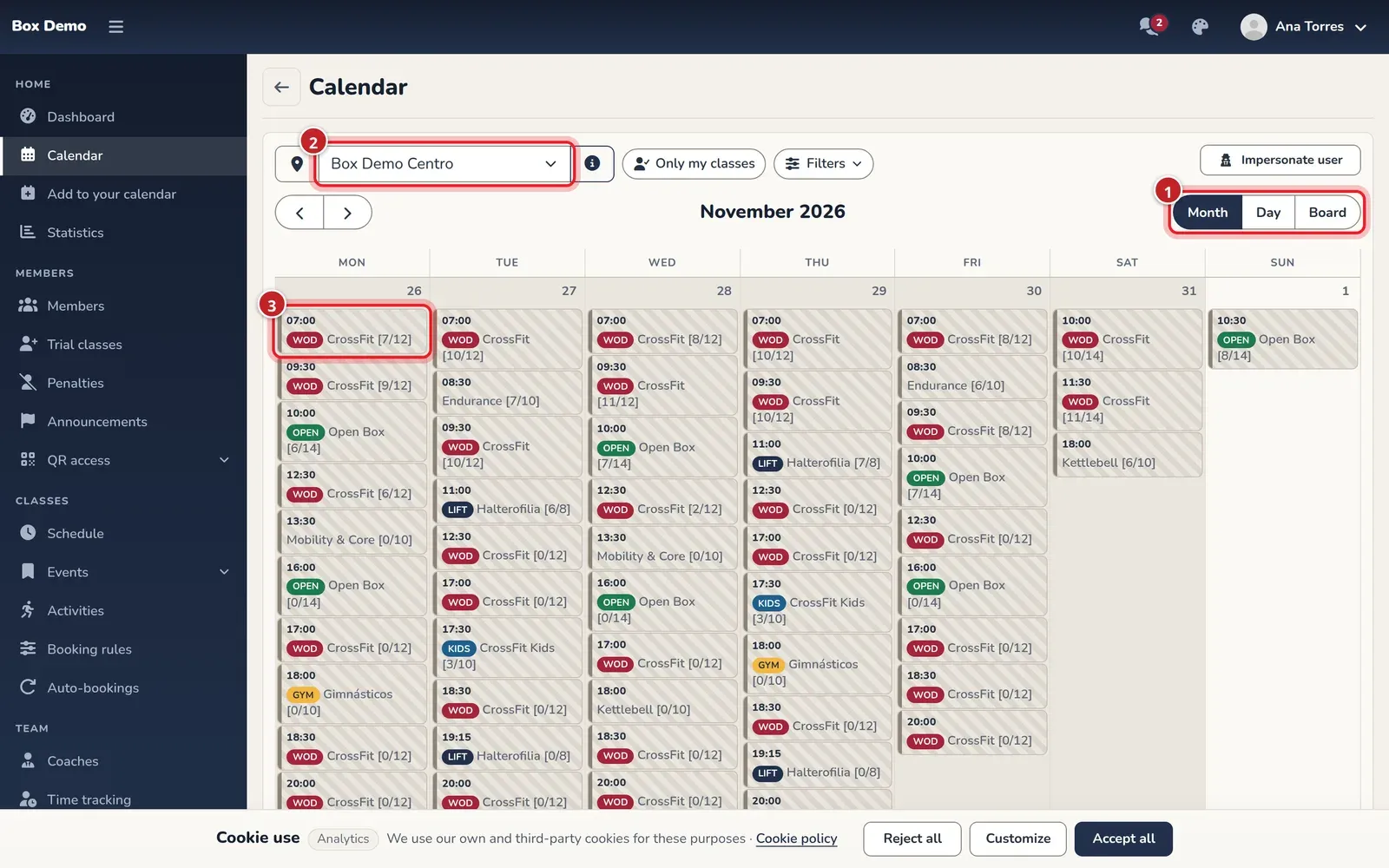
- Views: at the top right, the “month” and “day” buttons. In month view you see the whole month. In day view you also see each class’s coaches. On a phone it opens in day view. RoninBox remembers the last view you used in that browser. The arrows go to the previous and next month or day.
- Location: only in a gym with several locations. The selector switches location and the info button opens the location’s details. See Locations.
- Classes: each block is a class. Here’s how to read it:
- first comes the prefix badge, if it has one (Class prefixes);
- then the name and, in brackets, the spots taken and the total;
- the color shows the activity;
- a class that has already started, is full or is closed shows in gray with stripes;
- an asterisk (*) at the end means it’s a schedule slot that hasn’t been saved yet.
On the left, the Events guide lists the activities with their colors. Below it is Impersonate user, a member search by name, username or email that lets you view and book as another member (How to sign up a member).
If the time zone notice appears, times are shown in the time zone chosen in the profile.
Where the calendar’s classes come from
Section titled “Where the calendar’s classes come from”The calendar mixes two things: classes already saved and the slots offered by the schedule that aren’t saved yet. Schedule slots not yet saved have an asterisk (*) at the end of the title. A slot is saved when you tap it, right before its window opens. Holidays remove slots from the schedule (Holidays and days without classes).
A class’s window
Section titled “A class’s window”Tap a class. Its window opens.
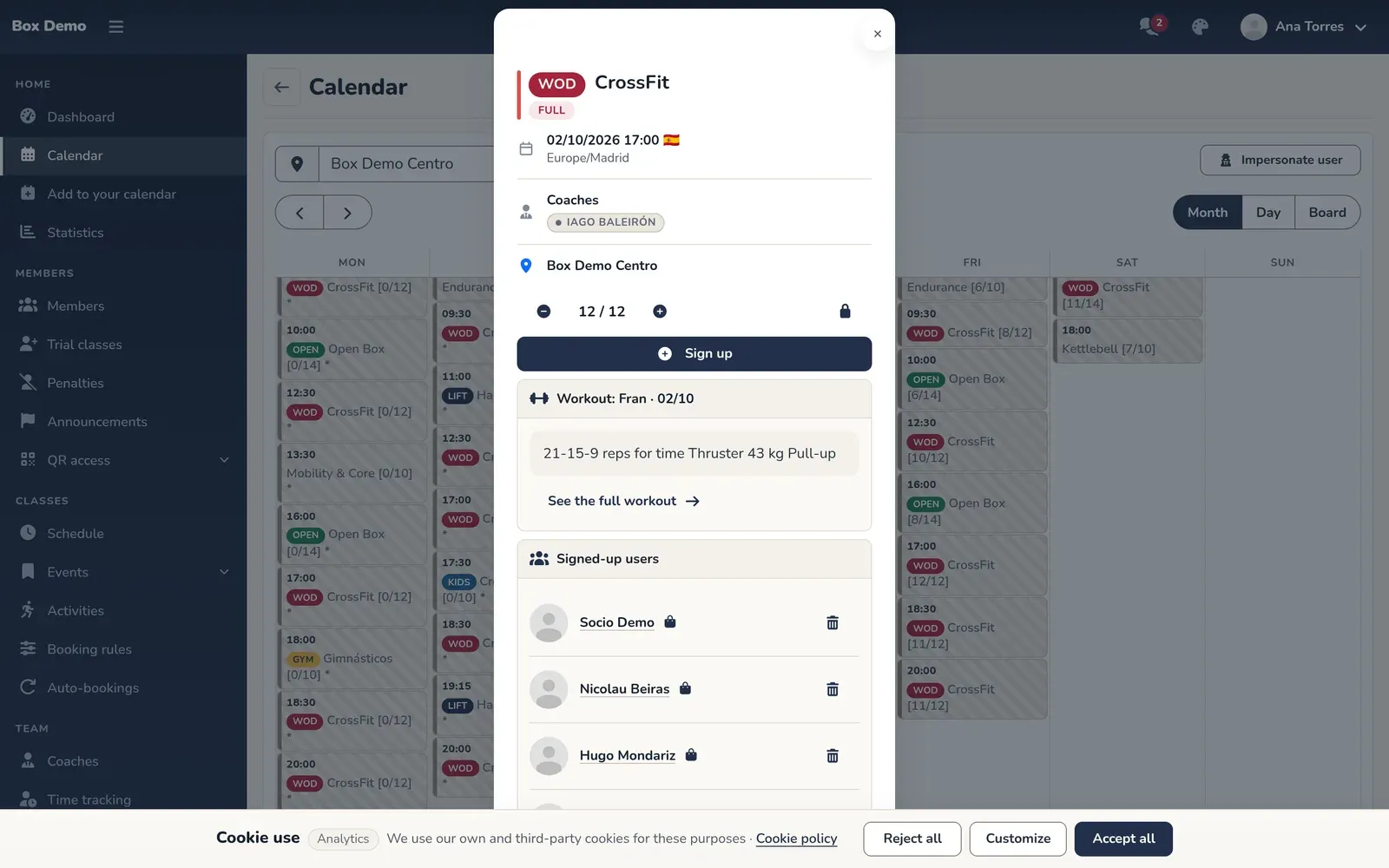
From top to bottom:
- The name with its prefix and the activity’s color bar.
- The open spots, or Full if none are left. If the class is closed, "Class closed" is added.
- The date and time, in the gym’s time zone, the coaches and the location.
- A row of controls for administrators only: reduce spots, add spots and close class. They’re explained in How to manage a class.
- The buttons to sign up, cancel or join the waitlist.
- Signed-up users: who’s signed up, with a trash can for each member.
- Waitlist, if anyone is on it (The waitlist).
Common mistakes
Section titled “Common mistakes”- I can’t see another location’s classes. Change the location in the selector.
- I tap a class and it takes a while to open. If it comes from the schedule, RoninBox saves it before opening it.