
How to send a message to your gym in RoninBox
To send a message to your gym, open your profile, go to Messages and tap New thread. Each conversation is a topic: a subject and, below it, the chat with the gym. Start one topic per subject so different things don’t get mixed up. Separately, there are notifications, which are announcements the gym sends to all members.
Where they are
Section titled “Where they are”Both are in Profile, under Shortcuts. The Profile icon shows a counter when you have unread messages.
Start a new topic
Section titled “Start a new topic”-
Open Profile and tap Messages.
-
Tap New thread (marker 1).
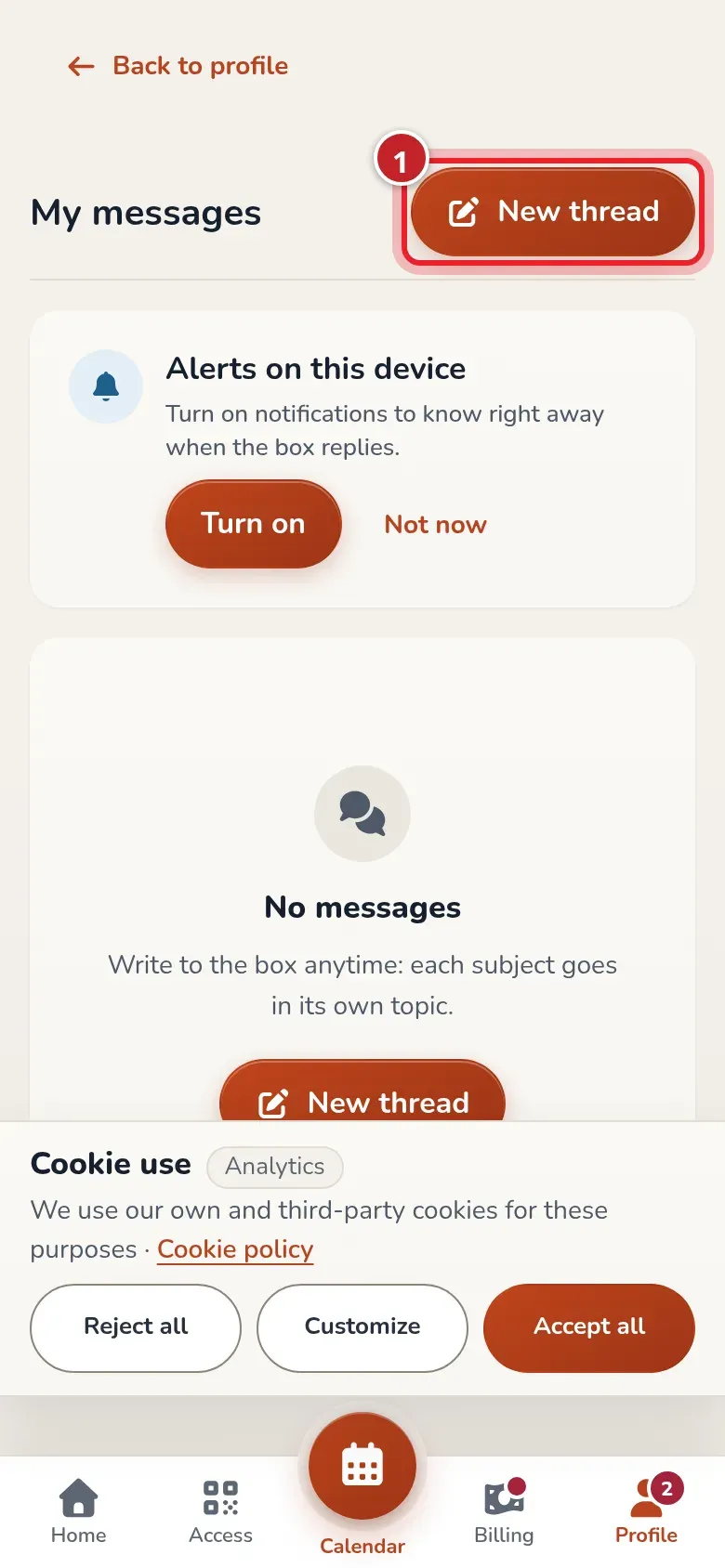
Your topics with the gym. Those with new messages show a counter. -
Enter the Subject (marker 1).
-
Choose Who reads it? (marker 2): Anyone at the box or Management only.
-
Write your message (marker 3). If you like, Add images (marker 4). For a video, paste its link in the text.
-
Tap Send (marker 5).
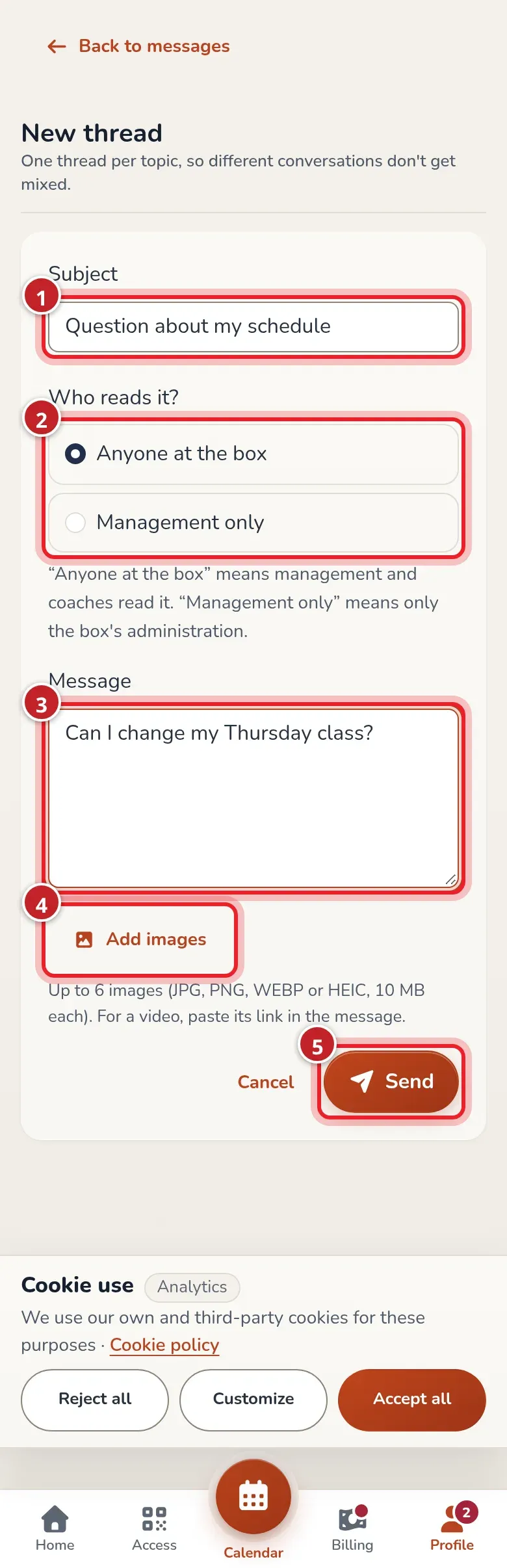
The new topic form.
Read and reply
Section titled “Read and reply”Tap a topic to see the chat: your messages on the right, the gym’s on the left with the name of whoever replied. Type at the bottom and tap send; your message appears right away. If the gym replies while you have it open, their reply shows up on its own.
When the gym reads your message, it shows Read underneath.
Closed topics
Section titled “Closed topics”A topic closes when the gym marks it as resolved or after 30 days with no messages. You can still read it, but to talk again tap New thread.
Phone and email notifications
Section titled “Phone and email notifications”In the message list you’ll see the Alerts on this device card. Tap Turn on and allow the permission to get an alert when the gym replies. On iPhone, first add the app to your home screen.
In Message alerts (from your profile) you choose whether you want notifications Email and Phone notification.
Archive a topic
Section titled “Archive a topic”In the list, each topic has the Archive button. It removes it from your list; the gym still sees it. If the gym replies, it shows up again.
View notifications
Section titled “View notifications”Open Notifications. Each announcement is a card with its title, date, status (Unread or Read) and text. Tap Mark as read to mark it as read. Only announcements published in the last month are shown.