
Gym settings in RoninBox
Gym settings decide how the dashboard looks, which modules you use and how monthly fees are charged. Only administrators can change them, and they’re at the bottom of the side menu, in the Gym settings section. This article covers two of its screens: General and Payment settings.
The deadlines for booking and canceling aren’t here: they’re in Classes ▸ Booking rules, in the Booking windows card. See Booking rules.
The Gym settings screens
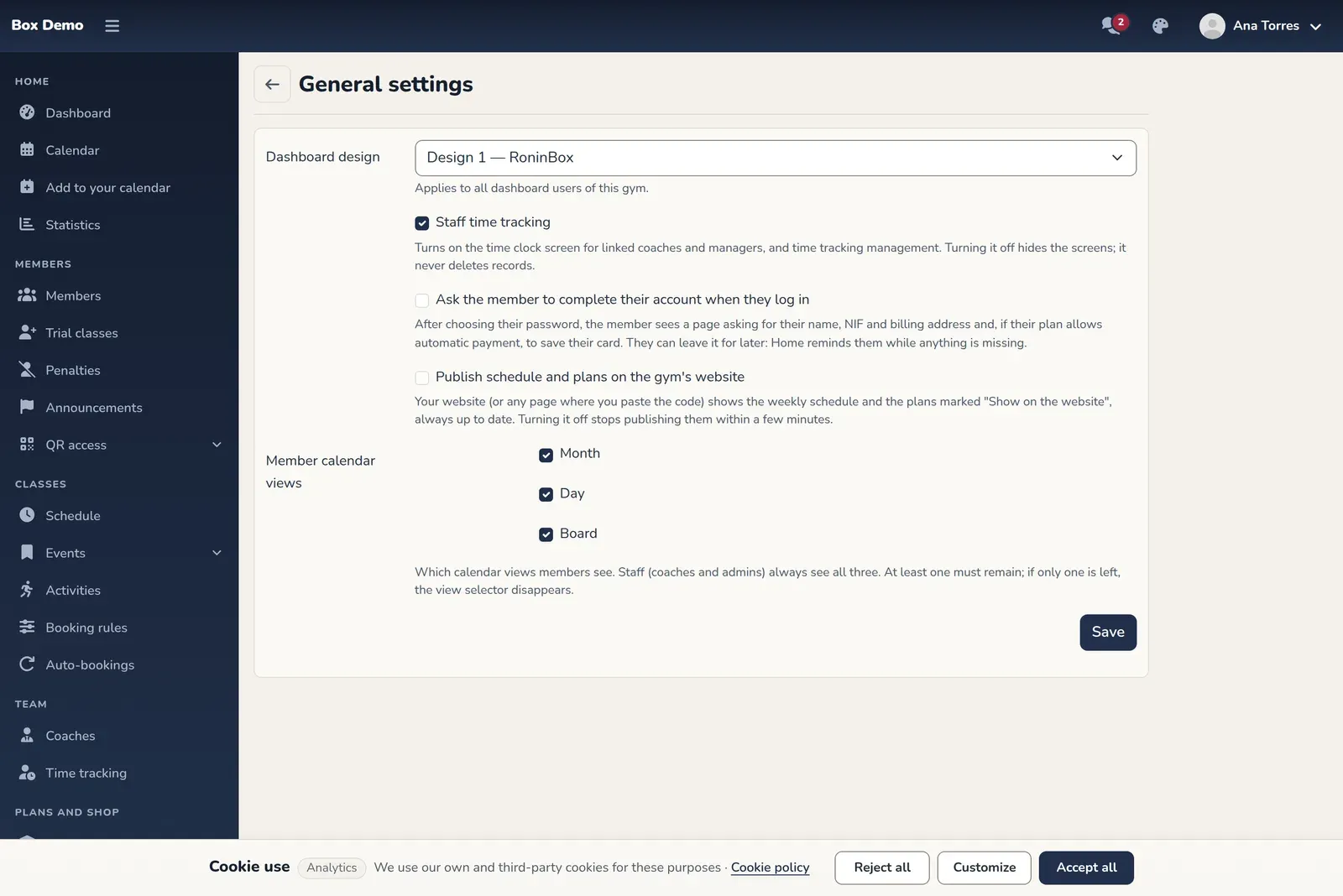
Section titled “The Gym settings screens”- General. The dashboard design, time tracking, the screen where members complete their account, the gym’s website and the members’ calendar views. The screen is titled General settings. When you save, you go back to the home dashboard.
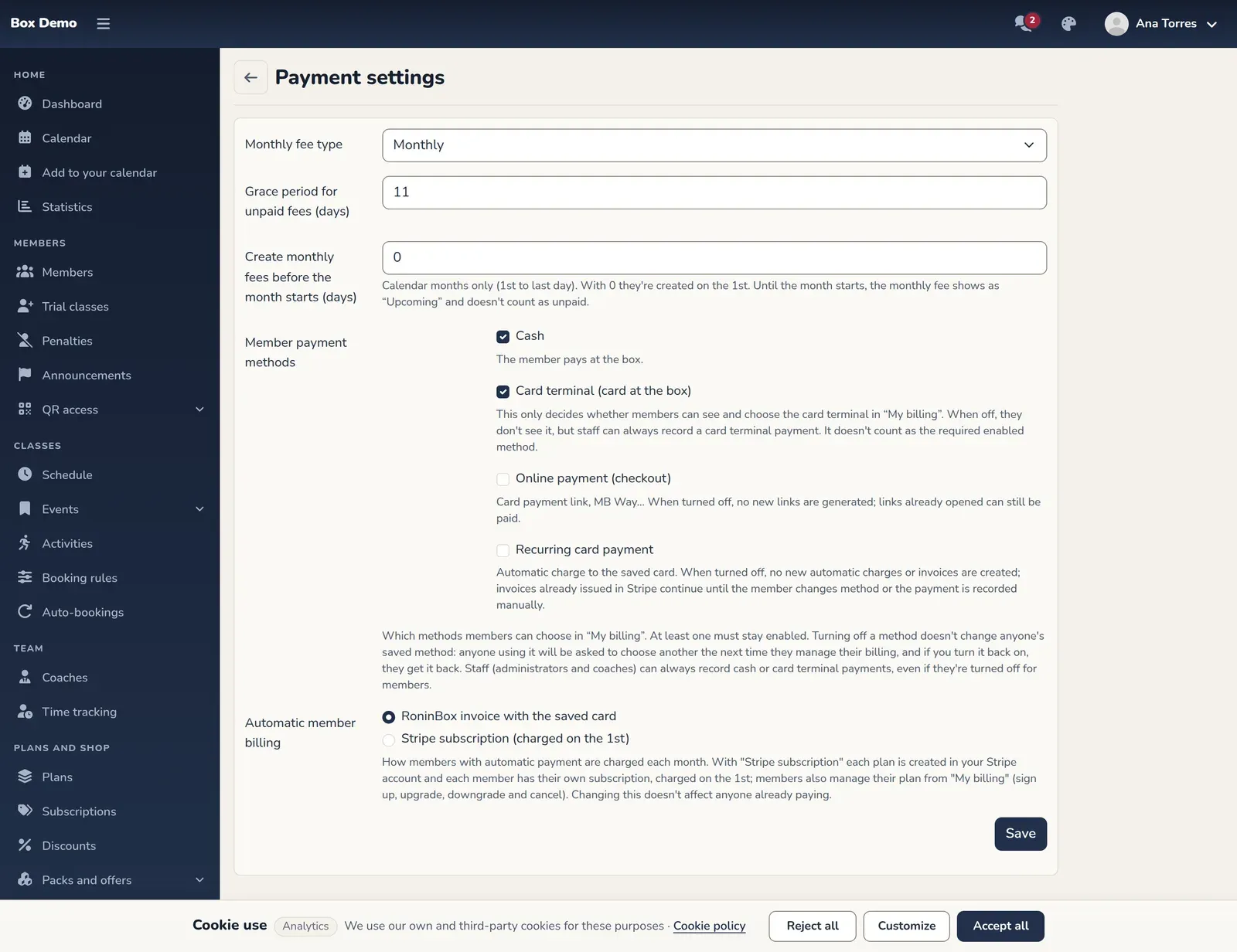
- Payment settings. The monthly fee type, grace days, how far in advance monthly fees are created, members’ payment methods and automatic billing. When you save, you stay on the same screen.
- The rest of the section has its own article: Locations, Gym branding, Import from WodBuster and My subscription.
How to change a setting
Section titled “How to change a setting”-
In the side menu, scroll down to Gym settings and open General or Payment settings.
-
Change the fields you want. Numbers accept the values listed below.
-
Tap Save. Each screen saves only its own fields.
What’s in General
Section titled “What’s in General”Dashboard design
Choose the dashboard look: Design 1 — RoninBox or Design 2 — La Bodega. It applies to every dashboard user at this gym. You can also change it with the palette icon in the top bar.
Staff time tracking
Section titled “”Turns on the screens where coaches and managers clock their hours, plus time tracking management. Turning it off hides those screens but never deletes records. The whole module is covered in Time tracking.
Ask the member to complete their account when they log in
Section titled “”Meant for when you bring your members over from another system. When it’s on, after choosing their password the member sees the “Complete your account” screen, which asks for their first name, last name, NIF and billing address and, if your gym charges with a Stripe subscription and their plan allows it, to save their card: nothing is charged today and the first payment is on the 1st. They can leave it for later; Home reminds them while anything is missing. The welcome email mentions it too. Off by default. What the member sees is in Complete my account.
Publish schedule and plans on the gym's website
Section titled “”Publishes the weekly class schedule and the plans you mark with "Show on the gym's website" on your gym’s website, always up to date. Off by default. Once you turn it on and save, the next time you open this screen you’ll see the Code for your website card below the form, with the code to paste into your website. If you turn it off, the schedule and plans disappear from your website within a few minutes. All the steps are in Schedule and plans on your website.
Member calendar views
Section titled “”Decide which calendar views your members see: Month, Day and Board. All three are on by default. Turn off the ones you don’t want to offer, but keep at least one: RoninBox won’t let you save with all three off. If only one is left, your members no longer see the view selector and the calendar opens straight in that view.
Coaches and administrators always see all three, whatever you set here.
What’s in Billing settings
Section titled “What’s in Billing settings”Monthly fee type
Section titled “”Decides how a monthly fee period is counted. It has two values, and the names don’t tell the whole story:
- Monthly. The period is the calendar month: from the 1st to the last day of the month.
- Calendar month. The period starts on the day each member starts and ends 28 days later, so it covers 29 days counting the start and end days. It doesn’t follow calendar months.
Grace period for unpaid fees (days)
Section titled “”If a monthly fee has outstanding payments, the member can keep booking classes for this many days from the start of their period. After that, they can’t book until they pay. Accepts 1 to 28. Default: 11. More details in Unpaid fees and grace days.
Create monthly fees before the month starts (days)
Section titled “”Only applies with the Monthly fee type. With 0, each month’s fees are created on the 1st. With a higher number, they’re created that many days before the month starts. For example, with 7, November’s fees appear on October 25.
Until the month starts, that fee shows as "Next" and doesn’t count as unpaid: the member isn’t listed as unpaid and can book their classes. They can pay it in advance if they want. On the 1st it becomes a regular monthly fee. Accepts 0 to 27. Default: 0.
If a member asks to cancel their membership when next month’s fee has already been created and they haven’t paid it yet, that fee is deleted.
Member payment methods
Section titled “”This section only appears if your gym has online payments turned on. If you don’t see it, ask RoninBox to turn them on. Choose which methods members can use in "My billing":
- Cash. The member pays at the gym.
- POS (card at the gym). Only decides whether members see and can choose POS in "My billing". When it’s off, they don’t see it, but staff can always record a POS payment.
- Online payment (checkout). A payment link for card, MB Way and other methods.
- Recurring card payment. An automatic charge to the saved card.
At least one method must stay on. Turning one off doesn’t change anyone’s saved method: members who had it will be asked to choose another the next time they manage their billing. Staff can always record cash payments, even if cash is off for members, and POS doesn’t count as the required method: see Take cash payments.
Automatic member billing
Section titled “”Only appears if your gym takes online payments and uses the Monthly fee type. Decides how members on automatic payment are charged each month: RoninBox invoice with the saved card or Stripe subscription (charged on the 1st). Changing it doesn’t affect anyone who’s already paying. See Automatic subscriptions.
Booking deadlines
Section titled “Booking deadlines”Minimum sign-up time (minutes) and Maximum booking window for classes (days) are changed in Classes ▸ Booking rules, in the Booking windows card. How late a member can cancel, and what it costs them, is in the Cancellations card on that same screen. See Booking rules.
Common mistakes
Section titled “Common mistakes”- The numbers give me an error when I save. Each field has its range: 1 to 28 for grace days and 0 to 27 for monthly fee advance days.
- I don’t see payment methods or automatic billing. They only appear in Payment settings for gyms with online payments, and automatic billing also requires the Monthly fee type.
- I can’t find the minimum time to book or cancel. It’s no longer on these screens: it’s in Booking rules, in the Booking windows card.
- A member can’t cancel at the last minute. It’s a blocking tier in Cancellations; the class details tell them from what time. An administrator can cancel for them.