
Import time clock records from WodBuster to RoninBox
To import time clock records from WodBuster, download the clock-in log as a CSV there and upload it in Time tracking ▸ Import from WodBuster. RoninBox shows you each person, the contract they’re missing and what will be imported, and only writes to time tracking once you confirm. That way your team’s records start with their full history.
Before you start
Section titled “Before you start”- Time tracking has to be turned on: Gym settings ▸ General ▸ Staff time tracking. See Staff time tracking.
- An administrator or manager does this, from Team ▸ Time tracking.
- The people on your team must already exist in RoninBox, with their coach or manager role.
Download the CSV from WodBuster
Section titled “Download the CSV from WodBuster”-
Sign in to WodBuster and open Informes ▸ Log fichajes.
-
In Desde, enter a date far back, before your gym’s first clock-in. That way the file includes the full history and not just the last month.
-
Tap Descargas ▸ CSV and save the file. Don’t open or save it in Excel before uploading: upload it as is.
Upload the file
Section titled “Upload the file”-
Open Time tracking and go to the Import from WodBuster tab.
-
In CSV file, choose the CSV. It must be a .csv file up to 5 MB.
-
Tap Upload and review.
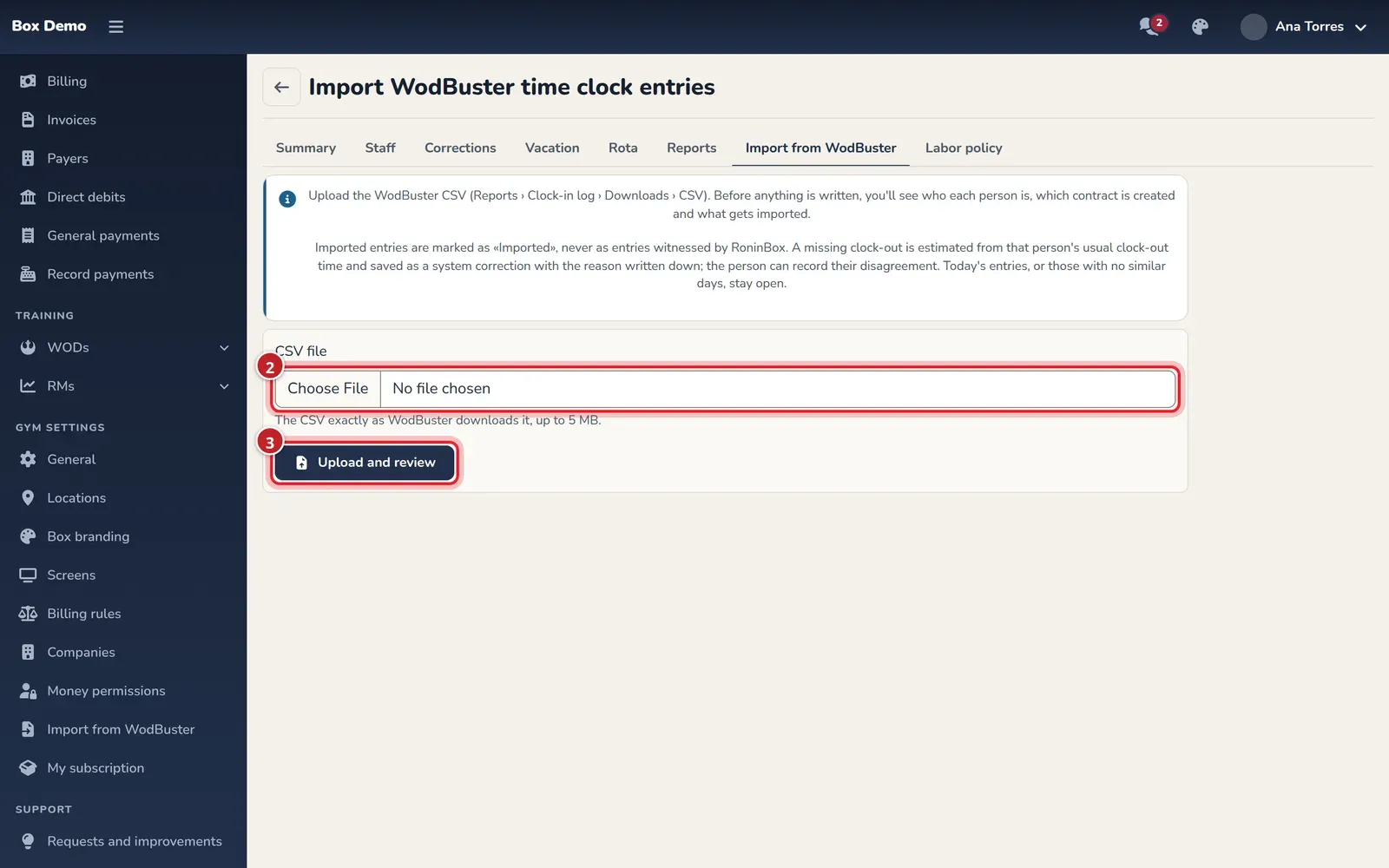
If the file isn’t the WodBuster clock-in log, RoninBox tells you which columns are missing or extra and saves nothing.
Review the import
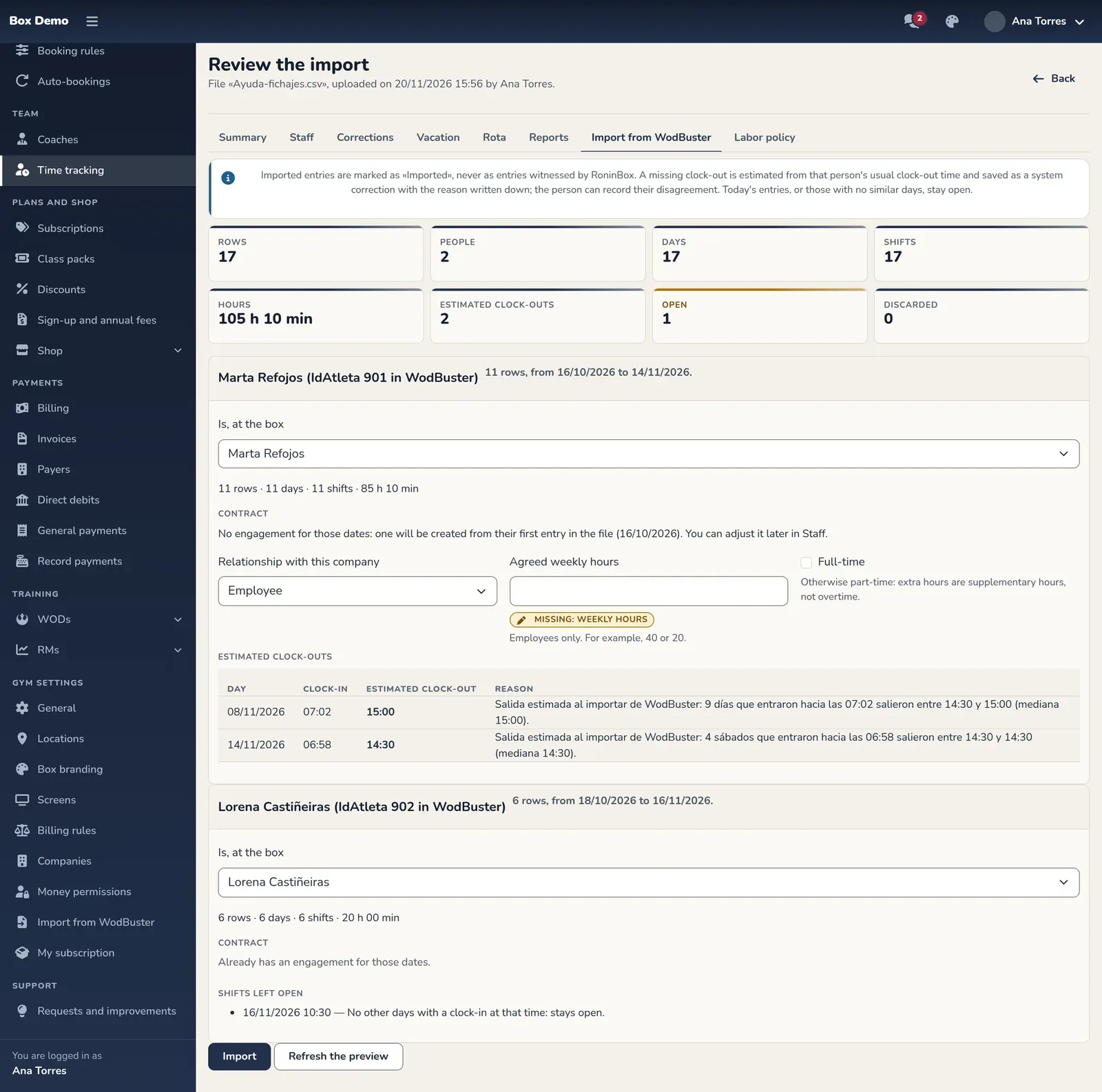
Section titled “Review the import”After uploading, Review the import opens. At the top you have the totals: Rows, People, Days, Shifts, Hours, Estimated clock-outs, Open and Discarded. Below, there’s a card for each person in the file.
-
Check who each person is. In Is, at the box, the team member with the same name is preselected. If it’s not the right one, change it. To leave someone out, choose Don't import this person.
-
Fill in the missing contract. If that person has no engagement for those dates, the card tells you one will be created starting from their first record in the file. Choose the Relationship with this company (Employee or Self-employed), the Agreed weekly hours and whether it’s Full-time. For an employee, hours are required: until you enter them, the field shows Missing: weekly hours next to it.
-
If you changed anything, tap Refresh the preview. The numbers and lists are recalculated with your changes.
-
Review the lists for each person (explained below).
-
Tap Import.
If something is missing (two people in the file matched to the same gym member, or a contract with no hours), when you click Refresh the preview or Import a summary of what you need to review appears at the top and nothing is imported.
WodBuster doesn’t store the contract type or hours, so RoninBox asks you for them. You can adjust them later in the Staff tab. If the person already has an engagement but it starts after their first record, the card warns you: records before that date aren’t imported.
What each list means
Section titled “What each list means”Estimated clock-outs
These are shifts with no clock-out in WodBuster. RoninBox looks for other days when that person clocked in at the same time (within 15 minutes, preferably on the same weekday) and uses the median of those days’ clock-outs. Each one shows the Reason, for example: “Clock-out estimated on WodBuster import: 3 Mondays clocking in around 06:50 clocked out between 14:10 and 14:31 (median 14:24).”
That clock-out isn’t saved as if the person had clocked out: it’s stored as a system correction with that reason written down. The person sees it in their monthly record as Written by the system on import and can tap I disagree to put their disagreement in writing (How to clock in and out).
Shifts left open
Section titled “”Shifts with no clock-out that RoninBox doesn’t estimate: today’s, those with no other days clocking in at that time, and those that would overlap another record. They’re imported open. Close them later with a correction from Summary (Suggest clock-out) or ask the person to request one.
Corrections made in WodBuster
Section titled “”Records that were corrected in WodBuster. They’re imported as already applied corrections, with the reason written there.
Discarded rows
Section titled “”Rows that aren’t imported, each with its reason: the person isn’t matched, the date is after today, it falls outside their engagement, or it overlaps a record already in time tracking. If any line in the file can’t be read, it’s listed separately in Unreadable lines.
After importing
Section titled “After importing”The screen switches to Import applied with what was written: records, corrections, estimated clock-outs and new engagements. RoninBox also keeps a copy of the original file with the import.
On the upload screen, the Imports table lists every import with its status: Pending confirmation or Applied. Tap the file name to view it again.
Uploading again is safe
Section titled “Uploading again is safe”You can upload the CSV again, or a newer one with the latest weeks. Records that were already imported aren’t written again or changed, and each person’s card says how many were already there.
One exception: if a previous import estimated a clock-out and WodBuster now has the real one, RoninBox doesn’t change it on its own. The row appears among the skipped ones with WodBuster’s clock-out; correct it manually if needed.
Common issues
Section titled “Common issues”- I don’t see the tab or it says time tracking is off. Turn on Staff time tracking in your gym’s settings.
- Only the last few weeks were imported. WodBuster downloads the log from the Desde date. Download it again with an earlier date and upload it: what’s already imported isn’t repeated.
- A person shows up unmatched. Nobody on your team has that name. Choose them manually in Is, at the box or create them first as a coach (Coaches).
- There are open shifts from months ago. Those are the ones that couldn’t be estimated. Close them with a correction.