
Change a member's plan in RoninBox
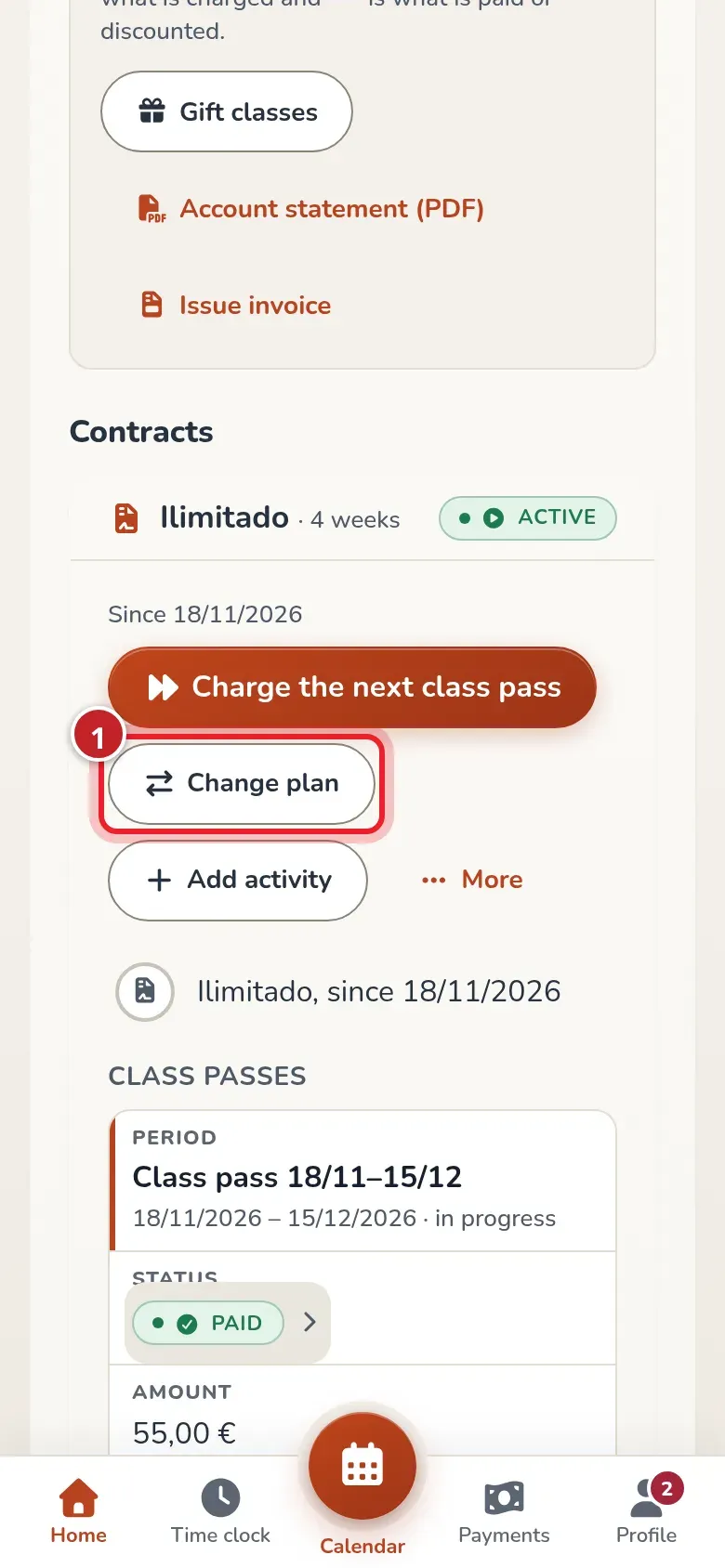
To change a member’s plan, open their profile and go to Plan and class passes. On the contract card you’ll find Change plan. Choose the plan and when it starts: each option tells you, with that member’s numbers, what happens to their month.
Find your case in the 24-video guide to changing plans: upgrades, downgrades, refunds, dates and scheduled changes, with audio and subtitles separately.
Choose the plan and when it starts
Section titled “Choose the plan and when it starts”- Tap Change plan. It’s available on active, pending, paused contracts or ones with a scheduled cancellation, depending on the status and your permissions.
- In Plan, choose the new plan. Below it you’ll see their current plan, its price and whether the month is paid.
- In Starting when?, select one of the four options. Each one calculates what the month costs, what they already paid, what they will owe (or have in credit) and the classes they gain or lose:
- From the start of the month: they pay the whole month at the new plan and get all its classes.
- From today: the month is charged by day, the old plan until yesterday and the new one from today, and they get the share of classes for the remaining days.
- From a specific date: the same, from the day you choose. A day before the sign-up date also corrects the sign-up date.
- Next month: this month doesn’t change. This option is selected by default.
- If you want to round what you charge for the days (for example, €5 instead of €4.67), enter it in To charge now (€). It only appears when the prorated month leaves them something to pay.
- Confirm with Change plan. If they still owe something for that month, Charge opens with the amount filled in, even if the change is for a day that hasn’t arrived yet: they can pay it now. If you close it without charging, the month stays pending; with a future date it doesn’t count as unpaid (or block their bookings) until that day plus the gym’s grace days.
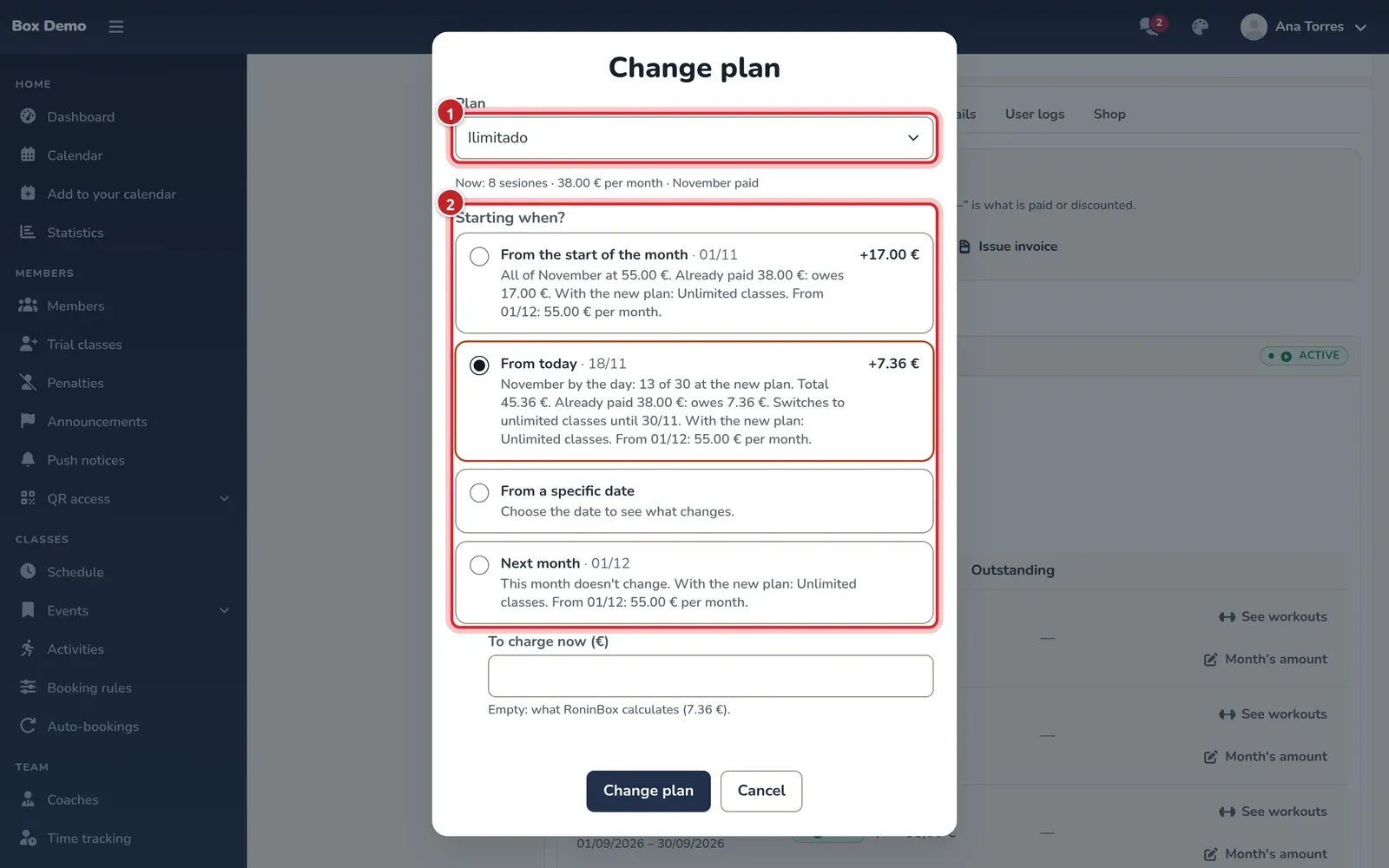
An option that doesn’t apply to that contract is disabled with the reason, for example when the month is inside a block. If that month is charged in full (the gym doesn’t prorate, or their first month was charged in full), the card warns you: that month’s price doesn’t change and the new plan is charged from the following month. If they already had a scheduled change, choose the same plan to change the date, or a different one to replace it: the card tells you which of the two it does. Archived plans aren’t available to choose.
Correct the date of a pending change
Section titled “Correct the date of a pending change”If you chose the wrong day and the change hasn’t started yet, go back to Change plan, keep the same plan and choose the correct day with From a specific date. The history keeps the periods with their dates.
Transcript
Roi was supposed to move from 8 sessions to Unlimited starting in November. The change was set for December and November was voided by mistake. Ana first restores the month, with a reason: it’s pending again for €38. Then she chooses the same Unlimited plan from November 1. The month becomes €55 and the earlier charges stay in the history.
From next month
Section titled “From next month”This is the usual option for downgrading at the end of the month. The current month keeps its price and classes; the next one uses the new plan. The change doesn’t refund any money from this month.
For example, with “Unlimited” at €55 and “8 sessions” at €38, a change for December 1 leaves November paid at €55 with unlimited classes. The next month may not appear in the table yet: it depends on the advance days set up for the gym.
The header may already show the new name. Check the periods in the history to confirm the dates of each plan.
Transcript
Marta changes a contract from Unlimited to 8 sessions starting next month’s 1st. The history keeps Unlimited until the last day of this month. The paid month keeps the €55 and unlimited classes.
From today, mid-month
Section titled “From today, mid-month”The price is prorated by day across both plans: the old one until yesterday, the new one from today. If the month was already paid and the new plan costs more, the difference stays pending in the account balance and in that month’s row, where you can use Charge to charge it. With a cheaper plan, the difference becomes credit in their favor, subject to the permissions required for the adjustment.
When upgrading, they get the share of classes for the remaining days, the same share they pay the difference for; the card tells you how many. When downgrading, the month already underway doesn’t lose classes. That’s why downgrades usually start next month.
If they have several months in a block
Section titled “If they have several months in a block”The general plan change doesn’t modify the months included in a block paid up front: the Next month card starts at the first month outside the block, and that’s the date it saves. Find that block in the history and use Extend block or Shorten block.
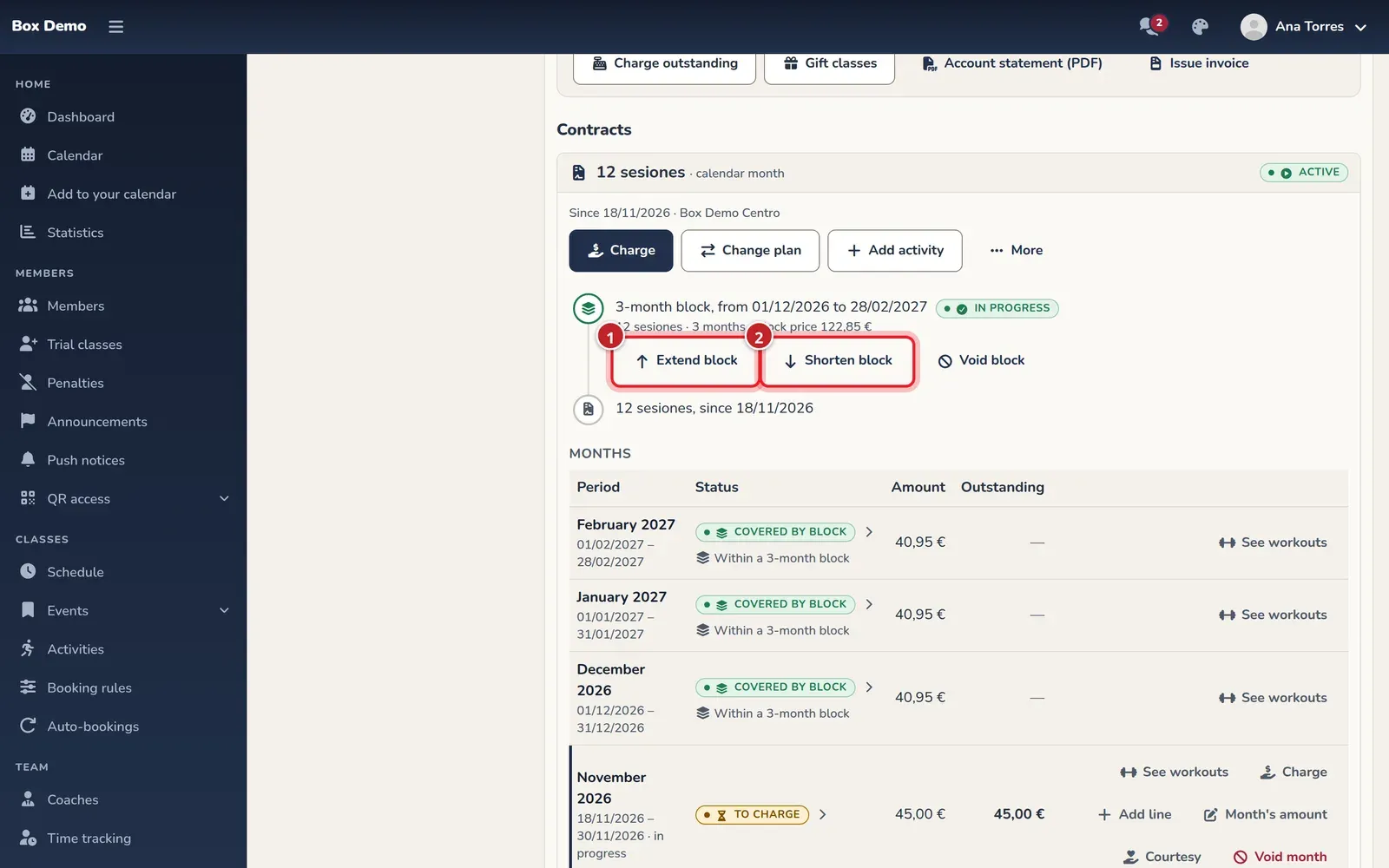
Choose the target plan. The remaining months move to it and the difference is charged or credited according to the operation and the gym’s rules. The previous block stays in the history. Review the specific months included, the price of the new block and the entire pending balance, which may include months outside the block.
When downgrading, also check the cancellation rule: with the no-refund option, no refund is issued. Rules are set up in Payment rules and permissions.
Four-week passes and member changes
Section titled “Four-week passes and member changes”On a four-week pass contract, the change applies from the next pass. The member sees the new price on their Home screen.
Members can also change their plan themselves from Billing with Change plan. A more expensive plan can start Now, this month or next month; an equal or cheaper one starts next month. See My billing.
Check what changed
Section titled “Check what changed”The history keeps each plan with its dates. The money difference appears in Transactions. Before charging, check the full balance and which periods it covers.
Video: Change the plan of a prepaid block
Section titled “Video: Change the plan of a prepaid block”Transcript
Inés prepaid three months of 12 sessions
Now she wants Unlimited for the rest
The old block stays in the history; the new one is Unlimited
She only pays the difference for the remaining months
Charge the difference and you’re done
The block’s months are now Unlimited
To downgrade, use “Downgrade block”
Video: Upgrade to a more expensive plan mid-month
Section titled “Video: Upgrade to a more expensive plan mid-month”Transcript
This member pays for “8 sessions” and has already paid for the month
This month has 8 classes
Today they want to switch to Unlimited
The change can start today
The contract keeps both plans with their dates
This month is prorated: they only owe the difference
The difference goes to their account
This month’s classes don’t change; next month, unlimited
The difference is charged from the month itself
Video: Change plans on a pass contract
Section titled “Video: Change plans on a pass contract”Transcript
Elba wants more classes: she’s moving from 8 to 12 sessions
By default, the change starts with her next pass
Her current pass stays the same, with what she already paid
Done: from 12/04, 12 sessions
The contract keeps both plans, each with its dates
Elba now sees on her Home screen what her next pass will cost
And the next pass is charged at €45, with 12 classes