
How to set up your class schedule in RoninBox
To set up your box’s class schedule, you create rules: each rule says which activity is held, on which days of the week, at what times and with how many spots. From there, the calendar offers those classes week after week, without you having to create them one by one. This screen is called Event configurator.
Transcript
In the side menu, under Classes, open Schedule. Each row is a schedule rule: an activity, some days and some times.
To add a new rule, tap Add Configuration.
Tap Add Schedule and choose the start time and end time of the class.
Check the days of the week the class repeats, for example Monday, Wednesday and Friday.
Choose the activity and the capacity, that is, how many spots the class has.
When you tap Save, RoninBox will offer this class on the calendar every week, starting on the activation date.
From the list you can also open the calendar view. It shows you how the week looks and marks conflicting rules in red.
How the schedule becomes classes
Section titled “How the schedule becomes classes”- A rule isn’t a class: it’s the template for many.
- The calendar draws every slot an active rule schedules, starting on its "Active since" date. As long as nobody touches it, that slot isn’t saved.
- The class is actually saved the first time someone opens it on the calendar or signs up for it. When it’s saved, it takes the activity, capacity, prefix and location from the rule.
- Only box staff can see past slots. A member can’t see or book classes that have already happened.
- If you change the rule later, classes already saved aren’t modified: edit them one by one in How to create a one-off class.
- Holidays remove slots from the schedule: Holidays and days without classes.
The list of rules
Section titled “The list of rules”Open Classes and go to Schedule. Each row is a rule.
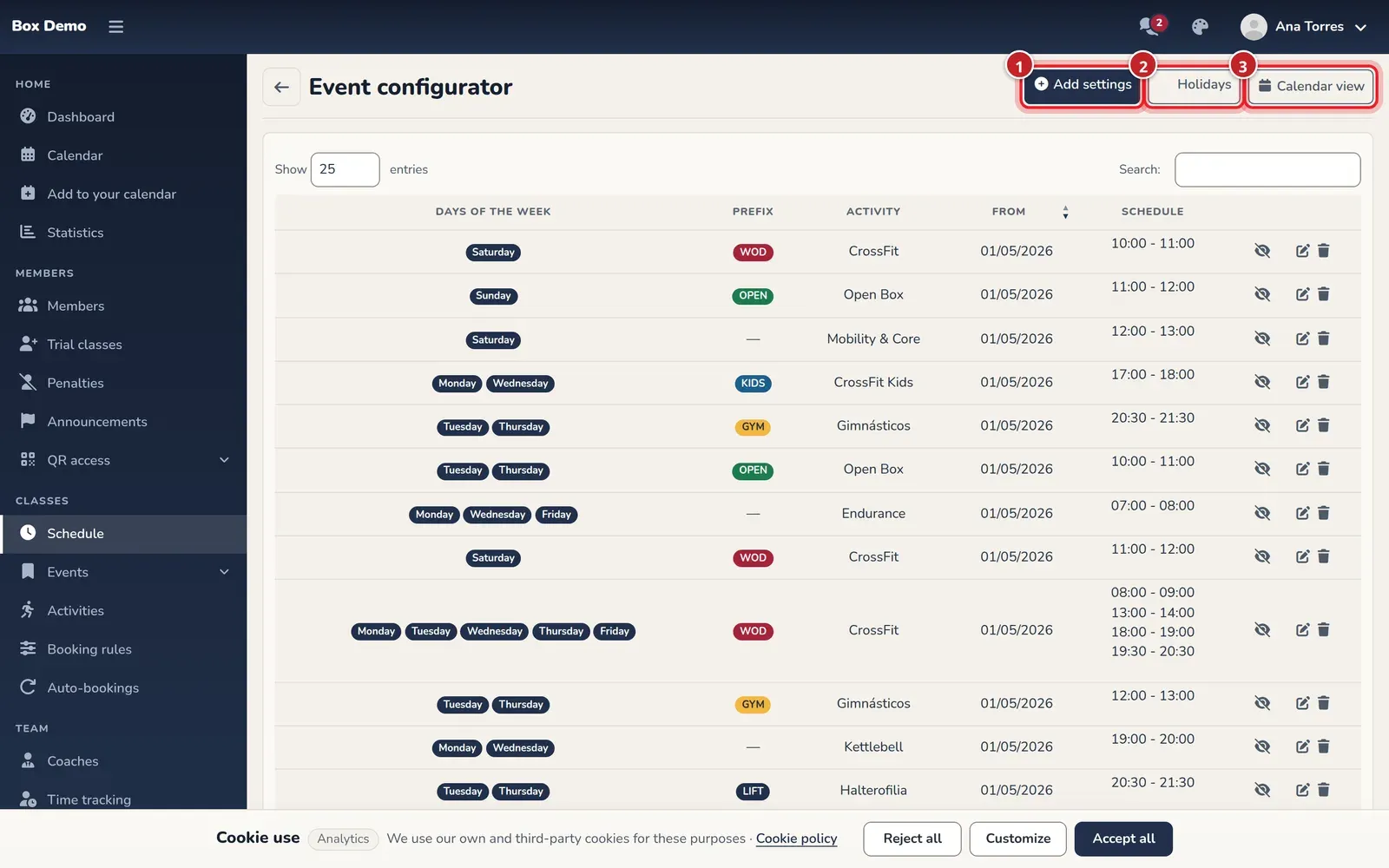
The columns are Days of the week, Prefix, Activity, From and Schedule. The days of an active rule appear in color and those of an inactive one in gray; the rest of an inactive rule’s row appears crossed out. At the end of each row there are four icons:
- Eye: Disable rule or Enable rule (the crossed-out eye deactivates). When you reactivate, RoninBox checks that it doesn’t conflict with another rule.
- Calendar with an X: Exceptions, to remove a date range from that rule.
- Pencil: Edit.
- Trash can: Delete. Deletes the rule instantly, without asking for confirmation.
If a row is shaded in yellow, that rule conflicts with another one (see “Calendar view” below).
How to create a rule
Section titled “How to create a rule”-
In Event configurator, tap Add settings (marker 1 in the first image).
-
Check the days of the week the class is held, from Monday to Sunday.
-
Choose the Activity. You must have created it first in Activities.
-
Enter Max users: the number of spots in each class.
-
Enter Active since, the date the rule takes effect. If you leave it empty when creating it, today’s date is used.
-
Check Active if the rule should generate classes right away. It comes unchecked.
-
If you want, choose a Prefix. They’re managed in Class prefixes.
-
Tap Add schedule for each time slot. Choose the Start time and the End time. A rule can have several time slots.
-
If your box has several locations, choose the Location; "All locations" applies to all of them. See Locations.
-
Tap Save.
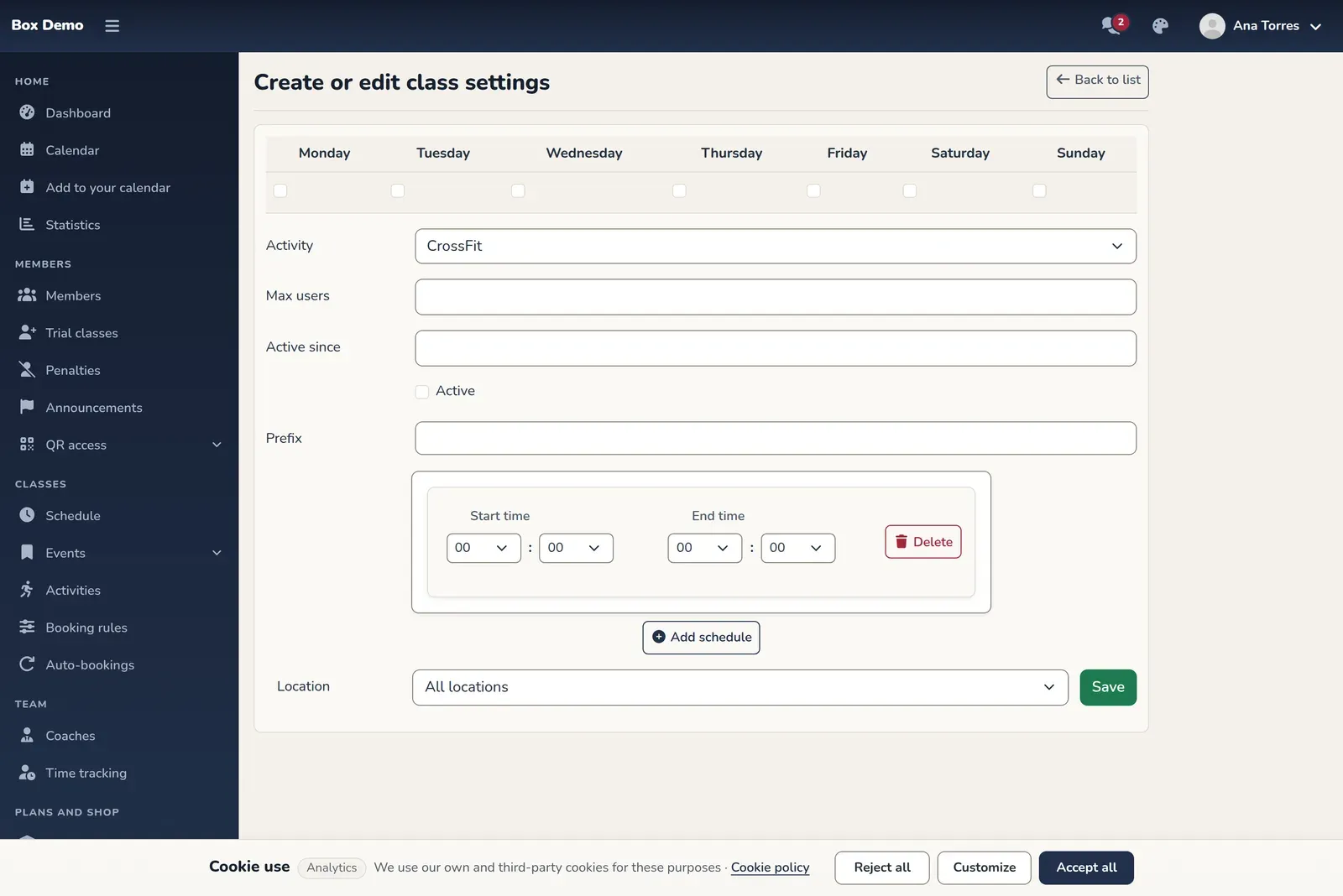
A rule's form, with one time slot added.
RoninBox won’t save an active rule that repeats the activity, prefix, location, day and exact time slot of another active rule whose dates overlap. You’ll see the warning “Ya existe otra configuración activa para esa actividad, prefijo y sede en el mismo día y franja horaria.”.
Edit a rule and delete a time slot
Section titled “Edit a rule and delete a time slot”Tap the rule’s pencil. The form is the same and shows the current time slots.
If you edit an old rule that had Active since empty and you leave it empty, the rule still won’t generate classes. Enter a date so it takes effect.
Calendar view: see the conflicts
Section titled “Calendar view: see the conflicts”Tap Calendar view (marker 3). Calendar preview opens: a Monday-to-Sunday grid with the start times of all active rules, each with its prefix, activity and time slot.
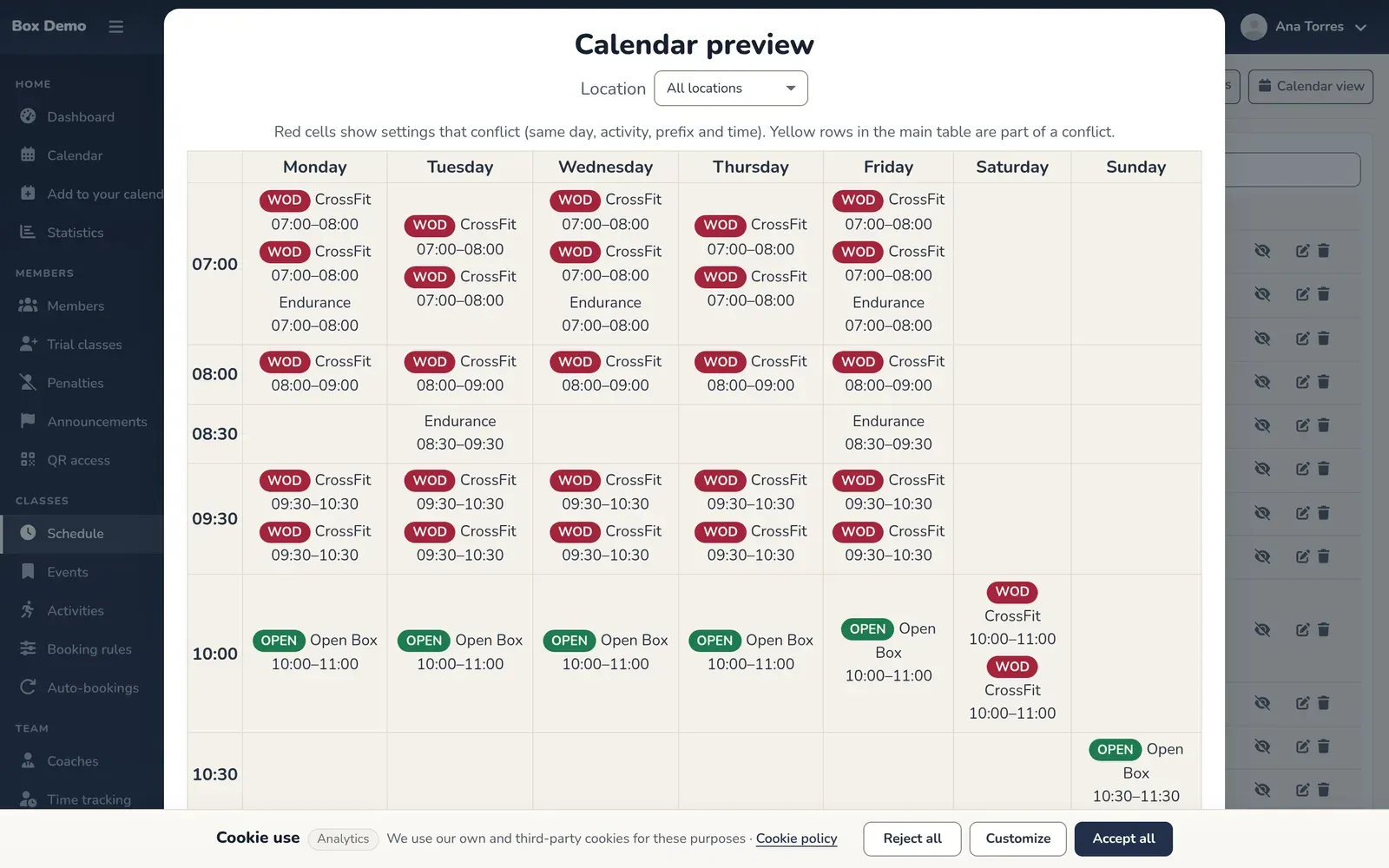
Red cells are rules that match on day, activity, prefix, location and time slot, with overlapping dates. Yellow rows in the main list are the ones involved in a conflict.
Common errors
Section titled “Common errors”- I created the rule and don’t see any classes. Check that it’s active, that Active since isn’t a future date and that it doesn’t fall on a holiday.
- I deleted a time slot by mistake. It was deleted instantly: add it again.
- I get an error when reactivating. There’s another identical active rule; deactivate or change one of the two.