
How to set up product sizes and colors
To set up sizes and colors in RoninBox, you create a variation (also called an option), such as Size or Color, and add its values: S, M, L or Red, Black. Then you select it on each product sold that way, and RoninBox generates a variant for each combination. Usually you create them once and reuse them.
Where to find them
Section titled “Where to find them”Open Shop ▸ Product variations. The list shows each option with its values. Each row has a pencil to edit and a trash can to delete.
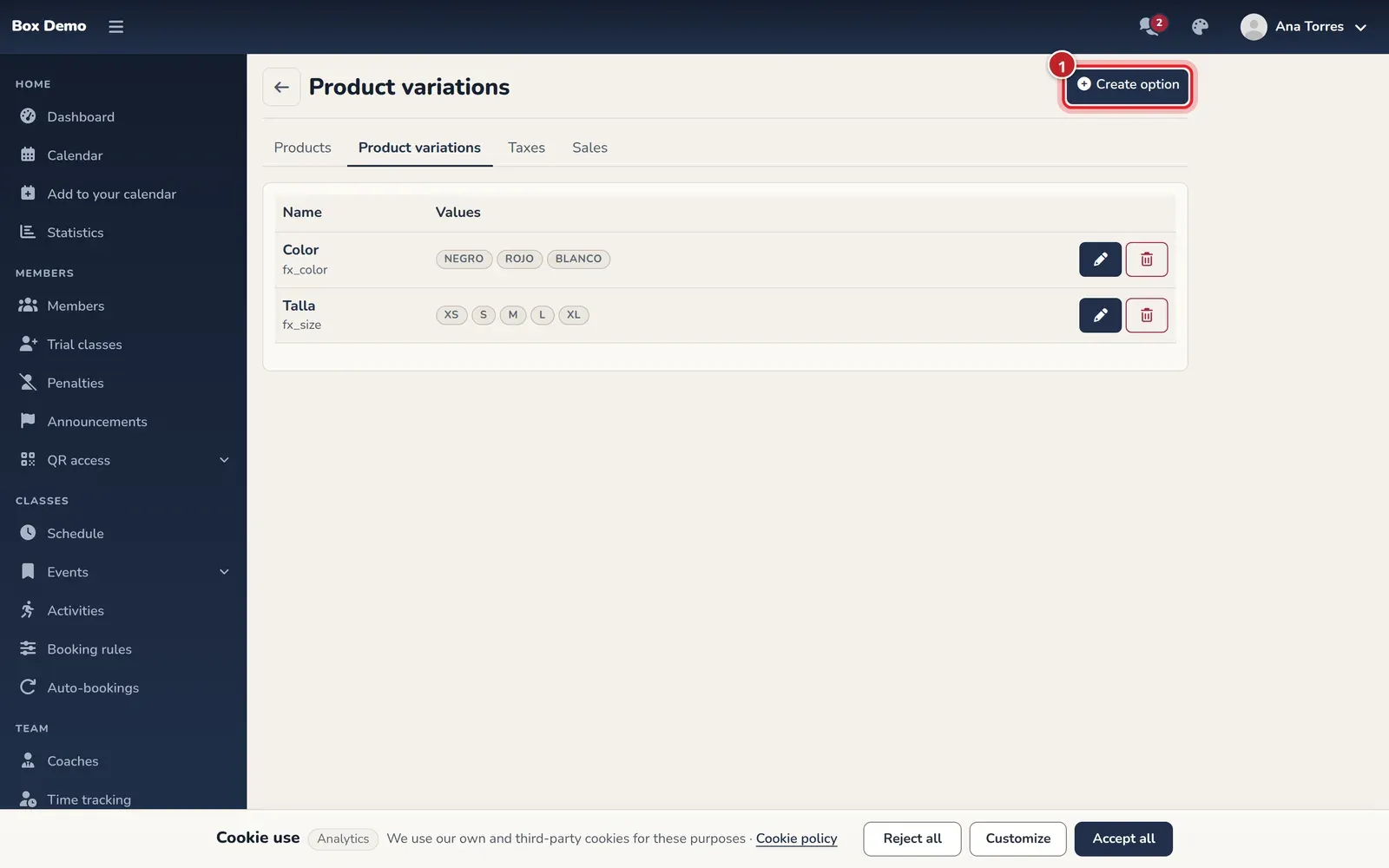
Create a variation
Section titled “Create a variation”-
Tap Create option (marker 1).
-
Enter the Name, for example Size or Color (marker 1 on the form).
-
Under Values, enter the first value and tap Add value for each additional value (marker 2). The trash can next to each value removes it.
-
Tap Save.
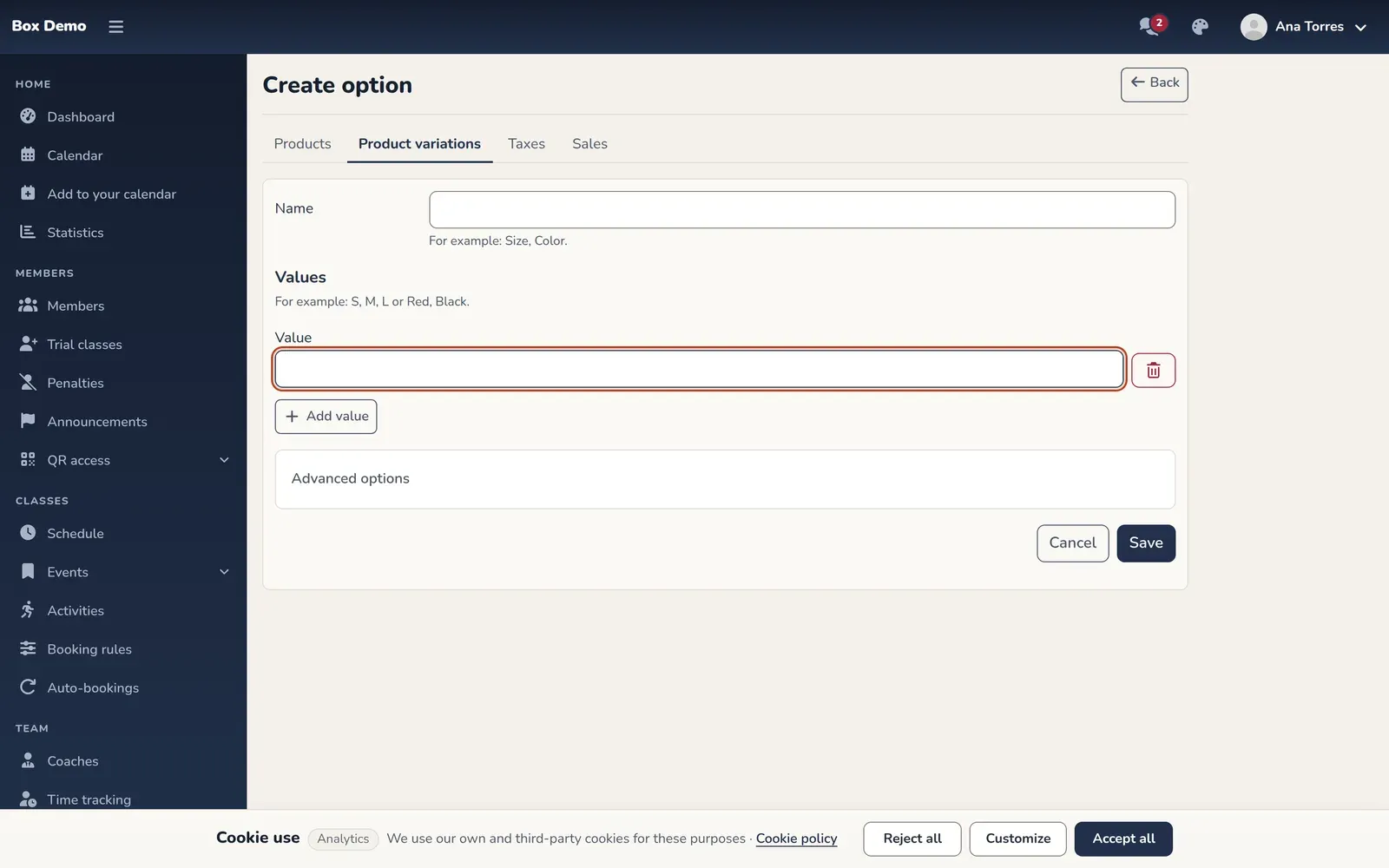
The form for a new option, with an empty first value.
Under Advanced options you’ll find the internal code. If you leave it blank, it’s generated from the name.
Use it on a product
Section titled “Use it on a product”When you create a product, select the options it’s sold in and generate its variants. If an option has no values, no combinations can be generated.
Edit or delete
Section titled “Edit or delete”- You can add new values to an option at any time. To create the new variants on an existing product, use Generate the missing combinations in its variants step.
- You can’t remove a value that variants already use or delete an option that products use: RoninBox tells you how many.
Common mistakes
Section titled “Common mistakes”- My size doesn’t show up on the product. A product’s options can’t be changed once it has variants. Create a new product or add the value to the existing option.
- I have duplicate options, like two “Size” options. Each one is independent. Use the same one across all your products to avoid duplicating values.