
Member calendar and locations in RoninBox
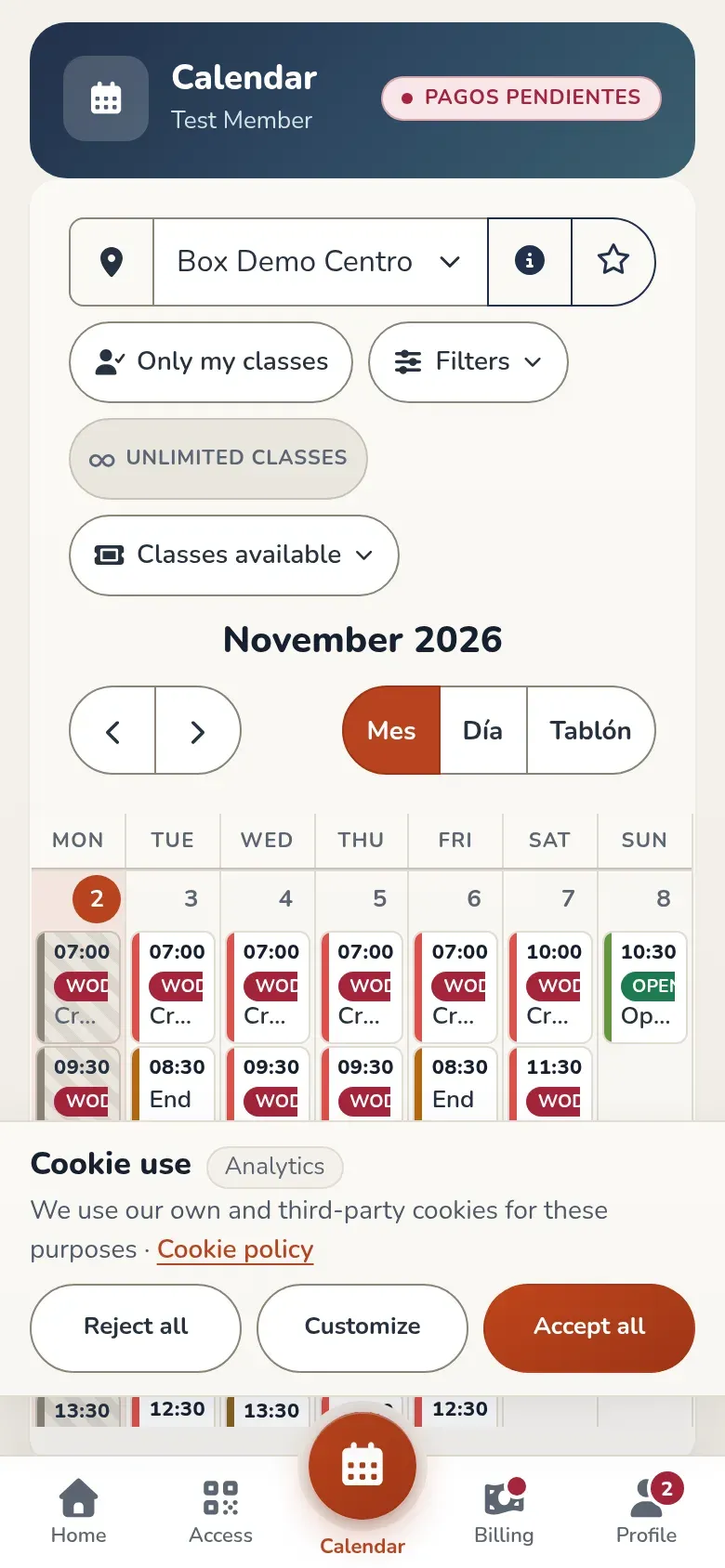
The member calendar is the screen where you see your box’s classes and where you book them. It’s the first screen when you open the app, and you can also open it with the Calendar button on the bottom bar. You can view it by month or by day and, if your box has several locations, choose which one to look at.
Month and day
Section titled “Month and day”At the top right there are two buttons, Month and Day:
- Month shows the whole month. Each class is a pill with its time and name. Today is highlighted. It opens on the current week, and you scroll through the weeks inside the calendar itself.
- Day shows a single day, in more detail.
Use the arrows, or swipe left or right on the calendar, to move to the previous or next month or day. Your box decides which views it offers members: if it only offers one, you won’t see the buttons and the calendar opens in that view. On a phone the calendar starts in day view; the app remembers the view you used last.
Tap a class to open it. How to book is explained in book a class.
Filter the activities you care about
Section titled “Filter the activities you care about”If your box has more than one activity, Activities you see appears above the calendar: one chip per activity, with its color and name. Use it to remove what you don’t do from the calendar and see only your usual classes.
-
Tap an activity’s chip to hide it (marker 1). The chip dims, the name is crossed out and its classes disappear from the calendar right away.
-
Tap the chip again to show it again.
The activity chips: a dimmed, crossed-out chip is a hidden activity.
Your choice is saved to your account: you’ll see it the same way on your phone, on your computer and in the app. Classes you’ve signed up for, or are on the waitlist for, are always shown, even if you hide their activity. If you hide every activity, the notice “You've hidden all activities: you'll only see classes you're signed up for.” appears.
Board time index
Section titled “Board time index”Besides month and day, the calendar has the board view: the day’s classes as cards, with the faces of the people signed up and the button to book.
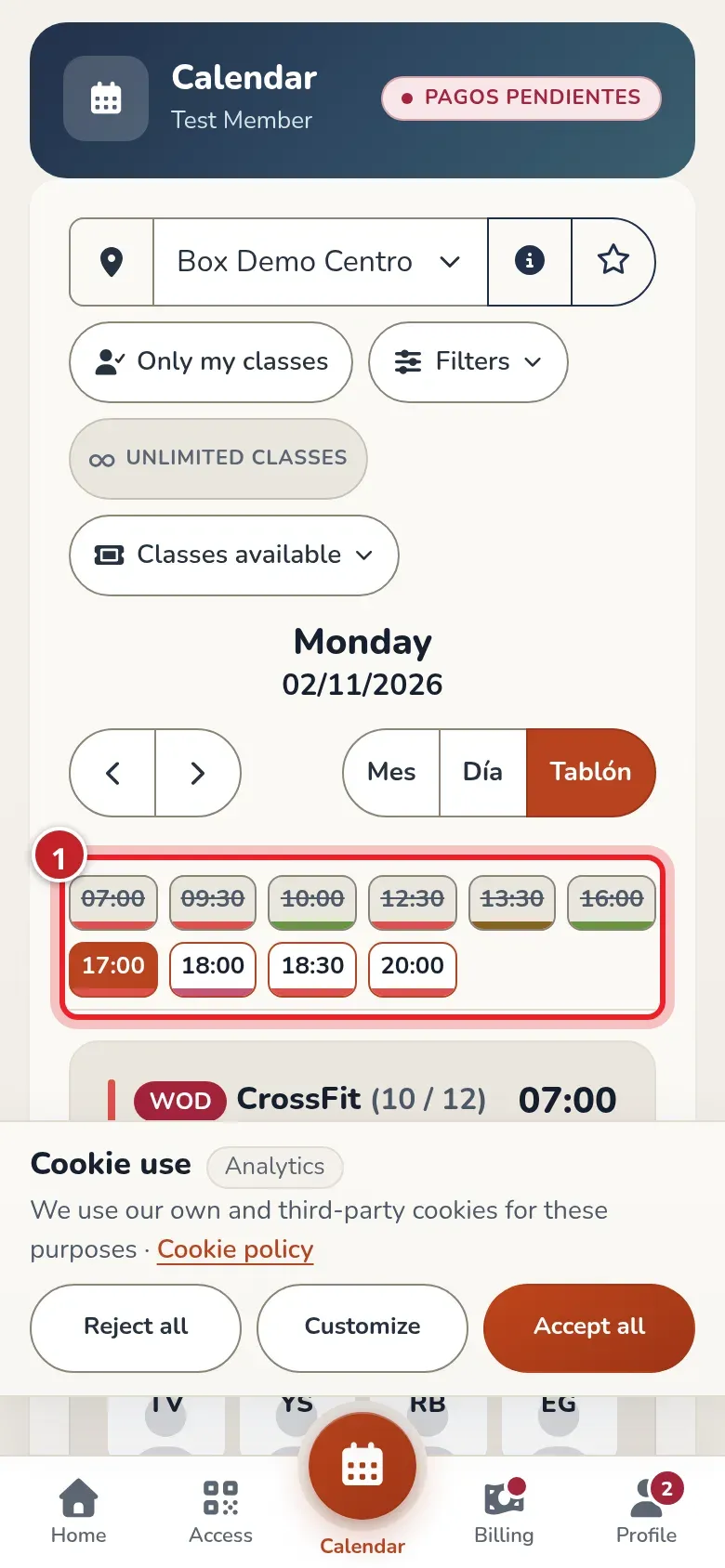
At the top of the board is the Times of day row: one chip per class with its time. Tap a time and the board scrolls down to that card, without going through all the ones before it. The row stays pinned at the top as you scroll.
Each chip shows the class status: Your class if you’re signed up, Full if there are no spots left, Finished if it has already started, or how many open spots are left. The first class that hasn’t started yet is highlighted. Activities you hid don’t show up here either.
Past classes: who went
Section titled “Past classes: who went”With the arrows you can go to past days and months. There you see all the classes that took place, not just yours, and on the board each class shows the faces of the people who were signed up: who went.
- A class that has already started has a dimmed background and the Finished button. It can’t be booked.
- If you were signed up, the card says You attended. If you were on the waitlist, You were on the waitlist.
- Open spots aren’t shown: they no longer count.
Tapping a past class opens its details with the list of people signed up. If you were there, You attended appears too.
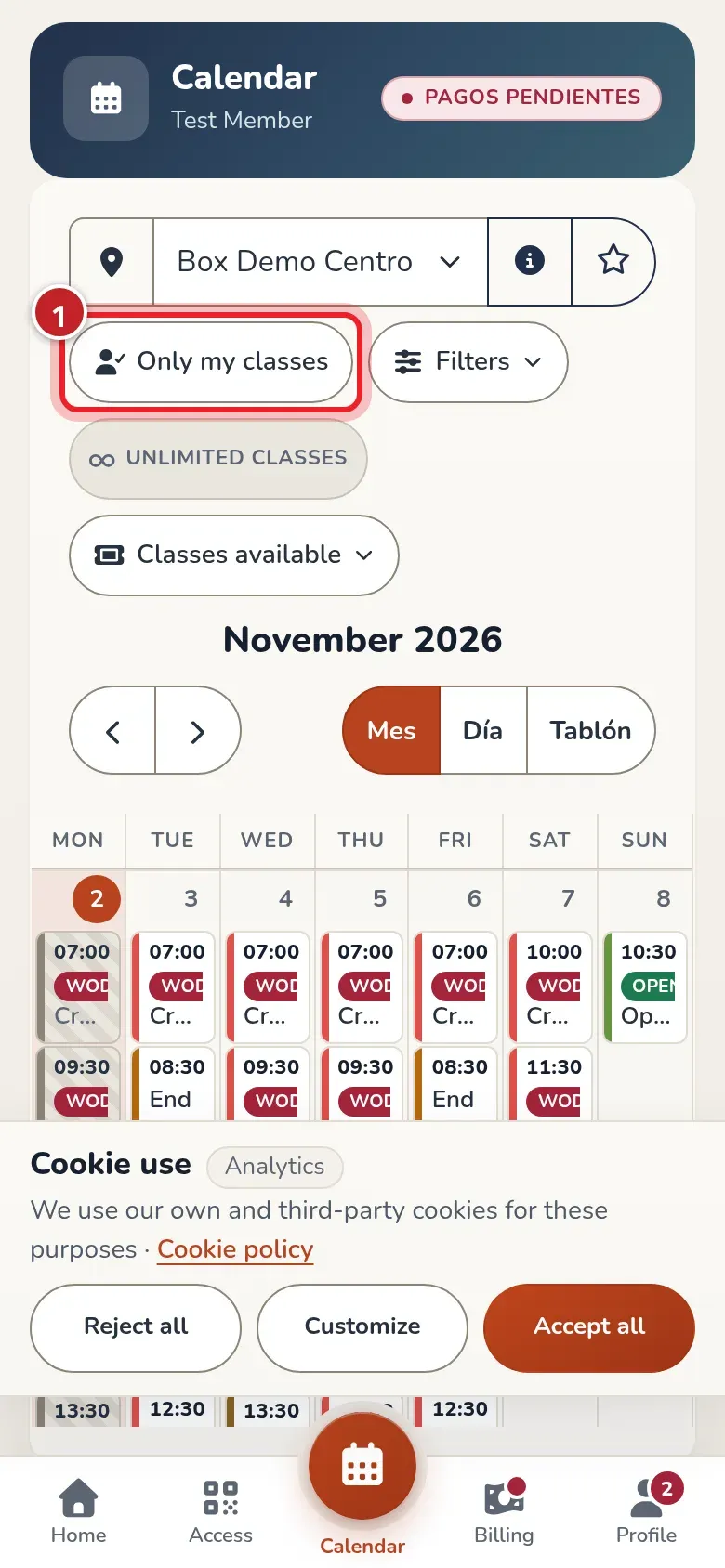
Only my classes
Section titled “Only my classes”Above the calendar is the Only my classes chip. Tap it and the calendar shows only the classes you’re signed up for or on the waitlist for, past ones included: your class history. Tap again to see everything. While it’s on, the notice “You're only seeing your classes: if you're not signed up for any on these dates, the calendar will be empty. Tap "Only my classes" to see everything.” appears.
Like the activity filter, it’s saved to your account and applies on all your devices. The board time index also shows only your classes.
A day with no classes
Section titled “A day with no classes”On the board and in day view, a day when the box has no classes at all shows an illustration and the notice No classes on this day, instead of a blank screen. Use the arrows to try another day.
If the day does have classes but your filters hide them all (the activities you removed or Only my classes), that notice doesn’t appear, because it wouldn’t be true: Your filters hide this day's classes. appears instead, and the filter notice at the top stays where it is.
A week that hasn’t opened yet
Section titled “A week that hasn’t opened yet”If your box opens bookings week by week, for classes in a week that hasn’t opened yet the board card says Sign-up isn't open yet, with a countdown and the opening date, and in the time index the class has a clock. When it reaches zero, the button turns on by itself. Book a class explains it in detail.
Choose a location
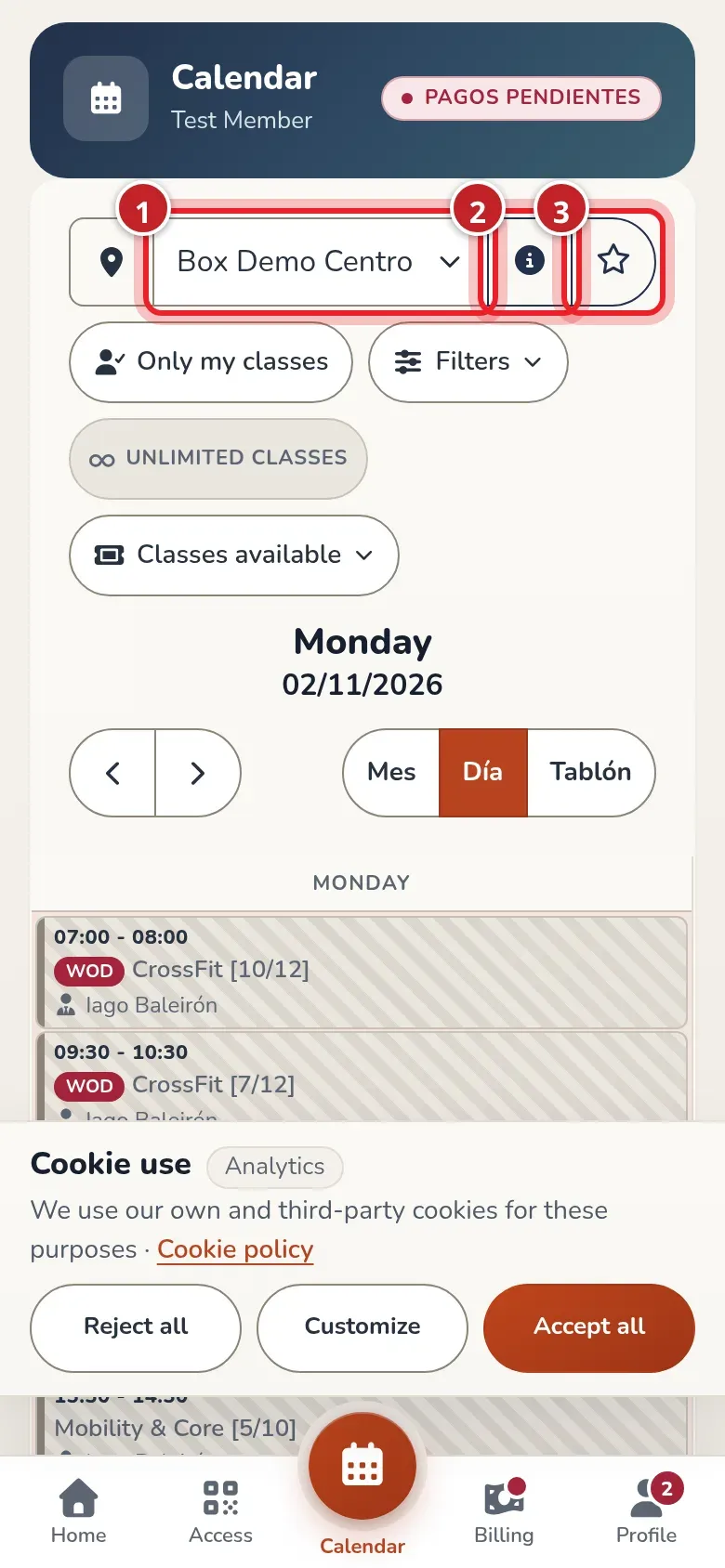
Section titled “Choose a location”If your box has two or more visible locations, the location selector appears above the calendar. If it only has one, you won’t see it.
-
Open the list and choose the location (marker 1). The calendar only shows that location’s classes.
-
Tap the info icon (marker 2) to see the location’s details: address, phone, description and a link to view it on the map.
-
Tap the star (marker 3) to set it as your default location. When the star is filled in, it’s yours and you’ll see the notice “This is your default location”.
The location selector, the details and the default location star.
When you sign in, the calendar starts at your default location. If you haven’t set one, it starts at the location your box assigned you and, if there isn’t one, at the first one in the list in alphabetical order.
The location not included notice
Section titled “The location not included notice”Some plans limit bookings to a single location. If you look at another one, this notice appears at the top of the calendar: “Your subscription doesn't include this location. You can see the classes but not book them.”. You can see the classes, but you won’t be able to sign up for them. To book, switch to the location your plan includes.
The Event Guide
Section titled “The Event Guide”Next to the calendar (below it on a phone) is the Events guide card. For each month or period of your plan, it shows each activity with its color and the classes you have left for it. At some boxes the number appears as “3 of 12” (the ones you have left out of those your plan includes). An infinity symbol means you have no limit. If you don’t have an active monthly fee, the card tells you so instead of showing numbers.
If you have a pending payment, the Payment information card also appears below it, with the months that have issues. More about payments in My billing.
Common issues
Section titled “Common issues”- I don’t see any classes. Check that you’re on the right location and month, and that you haven’t hidden the activities in the chips above the calendar.
- The location selector doesn’t appear. Your box has only one visible location.
- I can see the class but can’t sign up. See book a class, which explains the reasons.