
How to sign a member up for a class in RoninBox
To sign a member up for a class in RoninBox, you open the calendar “as if you were them” and use the sign-up button. If the member has no classes left, the Create extension and sign up button gives them one and signs them up at the same time. You can also reassign a credit they already have to a class, from their profile.
How to see the calendar as a member
Section titled “How to see the calendar as a member”-
Open Calendar.
-
On the Impersonate user card on the left, type at least three letters of their name, username or e-mail and pick them from the list.
-
The calendar reloads with their name in the header. Everything you do in a class window is done on behalf of that member. Classes they’re already signed up for are highlighted in the calendar.
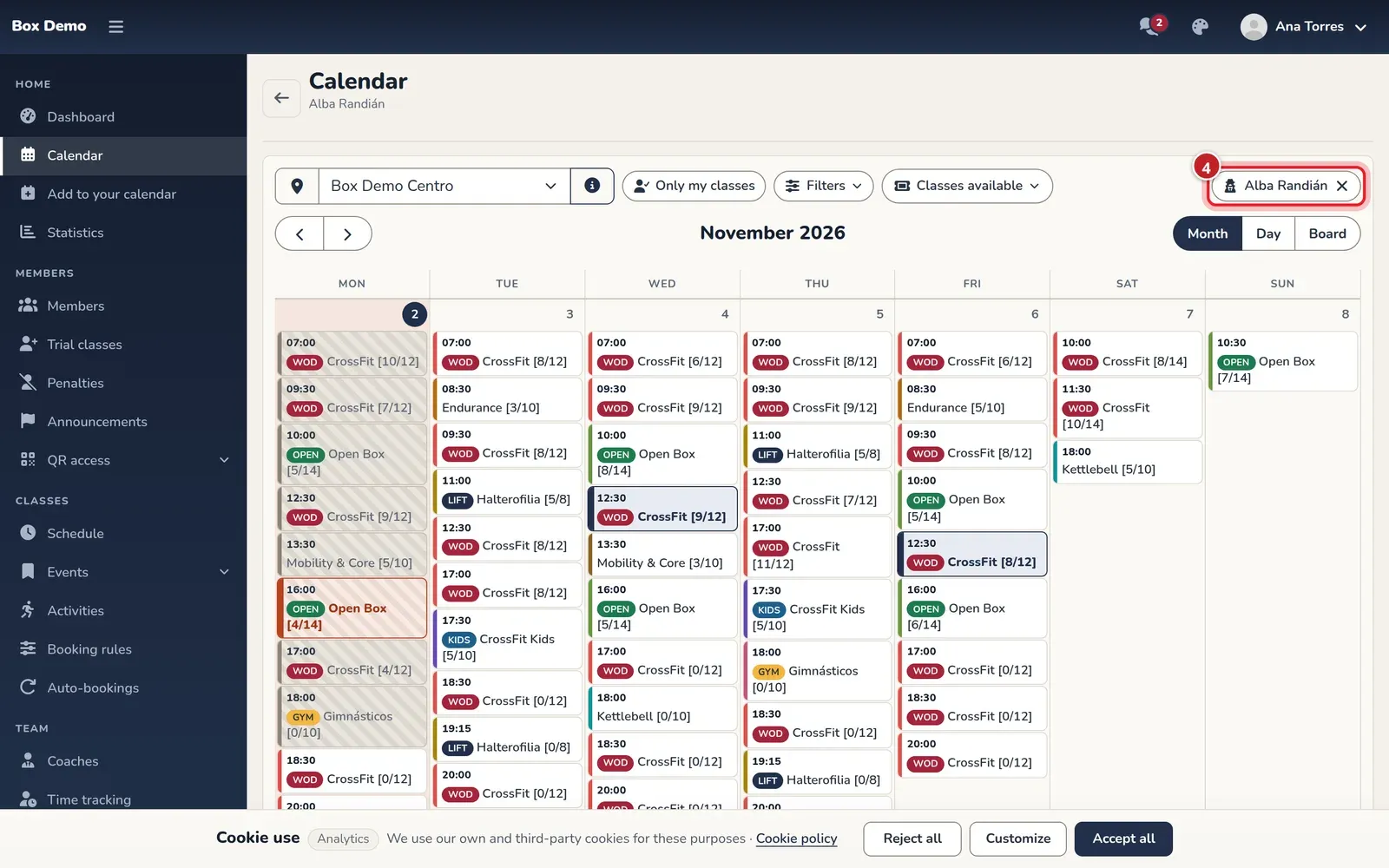
The calendar seen as a member. -
To go back to your calendar, click Stop impersonating (mark 4 in the image), next to the member’s name.
How to sign them up
Section titled “How to sign them up”- With the member selected, click the class.
- Click Sign up. The class uses one credit from their monthly fee, class pass or extension.
- To remove them, use Cancel or the trash icon in Signed-up users. Since an administrator does it, they get the credit back and aren’t penalized.
As an administrator, RoninBox doesn’t apply the member’s booking rules to you, such as the weekly opening or the sign-up deadline. See Booking rules.
When they have no classes left: create extension and sign up
Section titled “When they have no classes left: create extension and sign up”If the member has no credit available for the class’s activity, the sign-up button is Create extension and sign up. When you click it, RoninBox:
- creates a one-class extension for that activity, priced at zero, called “Extension Automática para …”, within their monthly fee for the month;
- if the member had no monthly fee that month, it creates the monthly fee too;
- signs the member up for the class.
If the member canceled that class too late and lost the credit, RoninBox won’t let you sign them up for it again.
If the member doesn’t have a plan yet and is coming to try it out, use the Trial class button instead: it gives them the class for free, notifies them by e-mail and lets you see later whether they take a plan. See Trial class.
Reassigning a credit from the member’s profile
Section titled “Reassigning a credit from the member’s profile”Sometimes a member attended a class without using any credit. This happens, for example, if they were signed up manually. On their profile, the Workouts tab shows a red notice with the number of unmatched classes. The top of the tab lists each of the member’s credits: "Free" if it’s unused, or the class it’s already assigned to. See The member profile.
-
Open the member and go to the Workouts tab (mark 1).
-
Each Unbalanced class row has a Assign a class dropdown. Pick one of their available credits.
-
Click the green check mark button. The page reloads and the class is assigned to that credit.
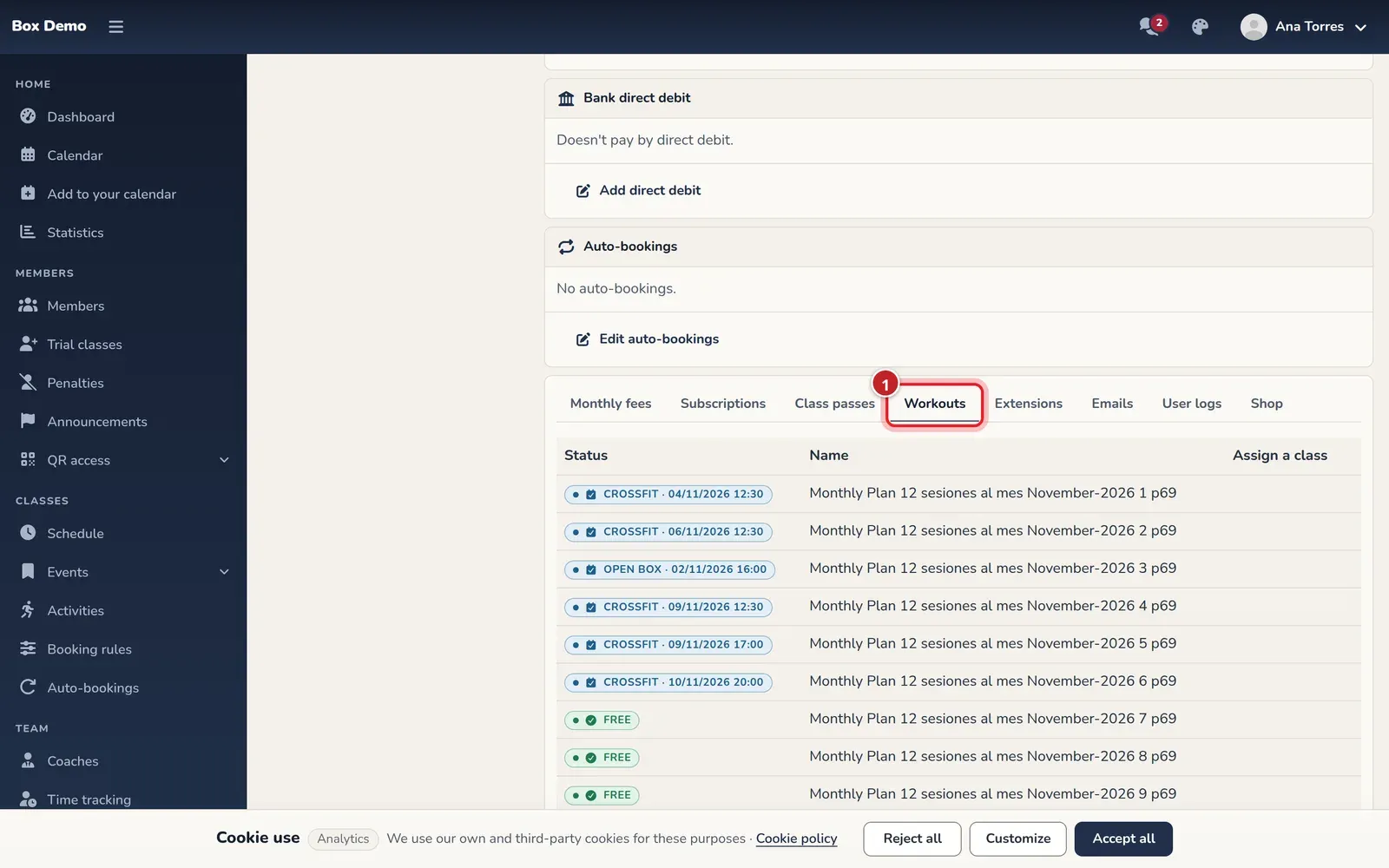
The Workouts tab of a member's profile.
The credit must be for the same activity as the class and can’t start more than one month after the class. Otherwise, RoninBox shows “No se ha podido asignar la clase” with a code.
Common errors
Section titled “Common errors”- I don’t see the sign-up button. Check whether they’re already signed up, whether they lost the credit for that class, or whether you’re viewing your own calendar instead of theirs.
- I get an error when reassigning. The credit is for a different activity or starts too late for that class.