
Class schedules for a gym: rules and calendar
Class schedules for a gym in RoninBox are built with rules, not individual classes: a rule says which activity is offered, on which days, at what time and with how many spots, and the calendar offers those classes week after week. Then you handle one-off changes with holidays, one-off classes and coaches. This guide explains how it all fits together.
Rules: the weekly schedule
Section titled “Rules: the weekly schedule”A rule in Event configurator includes:
- the days of the week the class runs;
- the activity and the number of spots;
- one or more time slots;
- the date it applies from and whether it is active;
- an optional prefix and, if you have multiple locations, the location.
A rule is not a class: it is the template for many. Until someone touches a slot, it is not saved. The class is saved the first time someone opens it on the calendar or signs up, and at that point it takes the activity, capacity, prefix and location from the rule. If you change the rule later, classes already saved do not change. See Schedule builder.
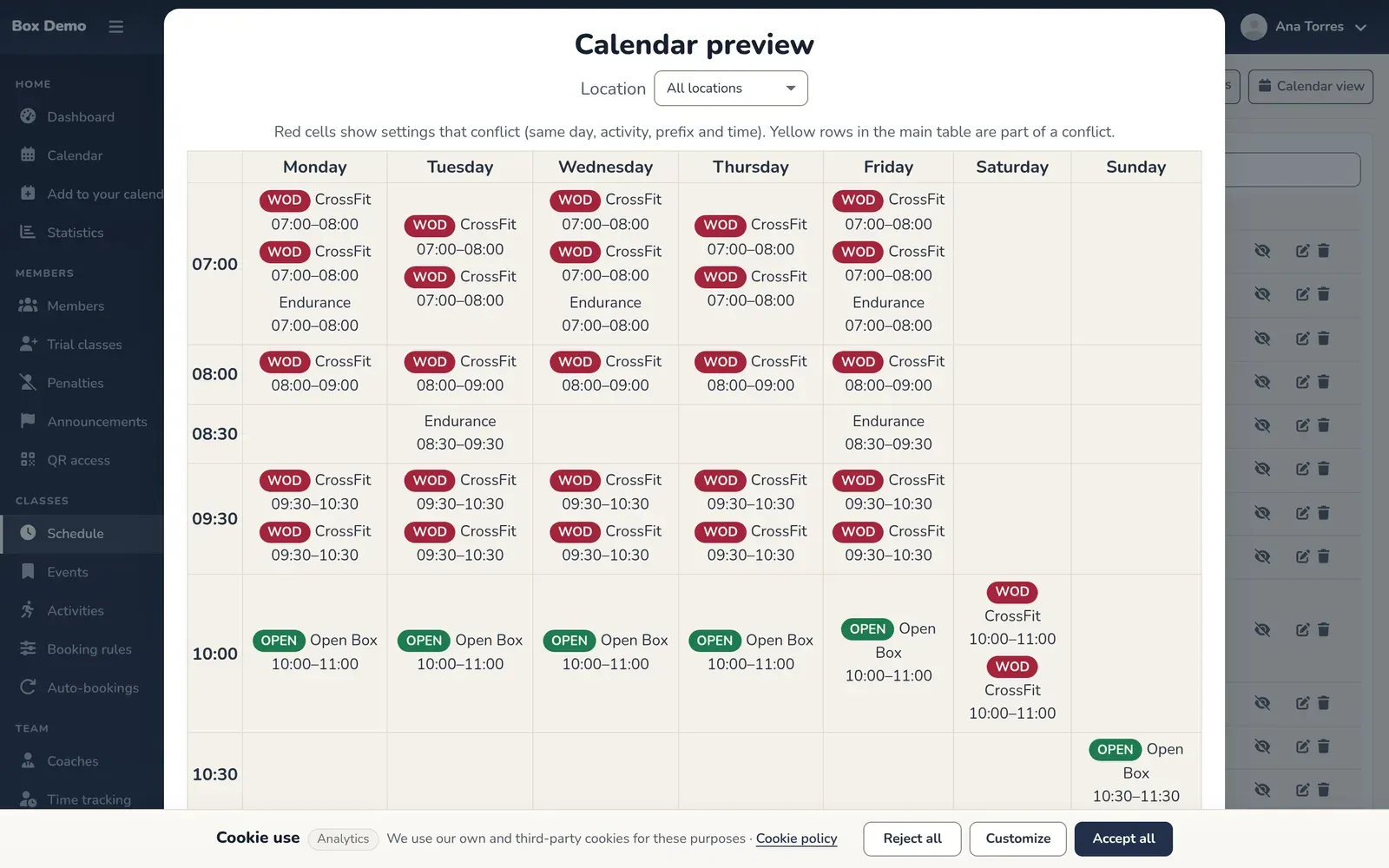
RoninBox won’t let you save an active rule that repeats the activity, prefix, location, day and time slot of another one, and the calendar view marks those clashes in red.
Prefixes: telling session types apart
Section titled “Prefixes: telling session types apart”A prefix is a colored tag with short text, like “OPEN”, in front of the class name. It helps you tell different types of sessions apart within the same activity. See Class prefixes.
Holidays and days without classes
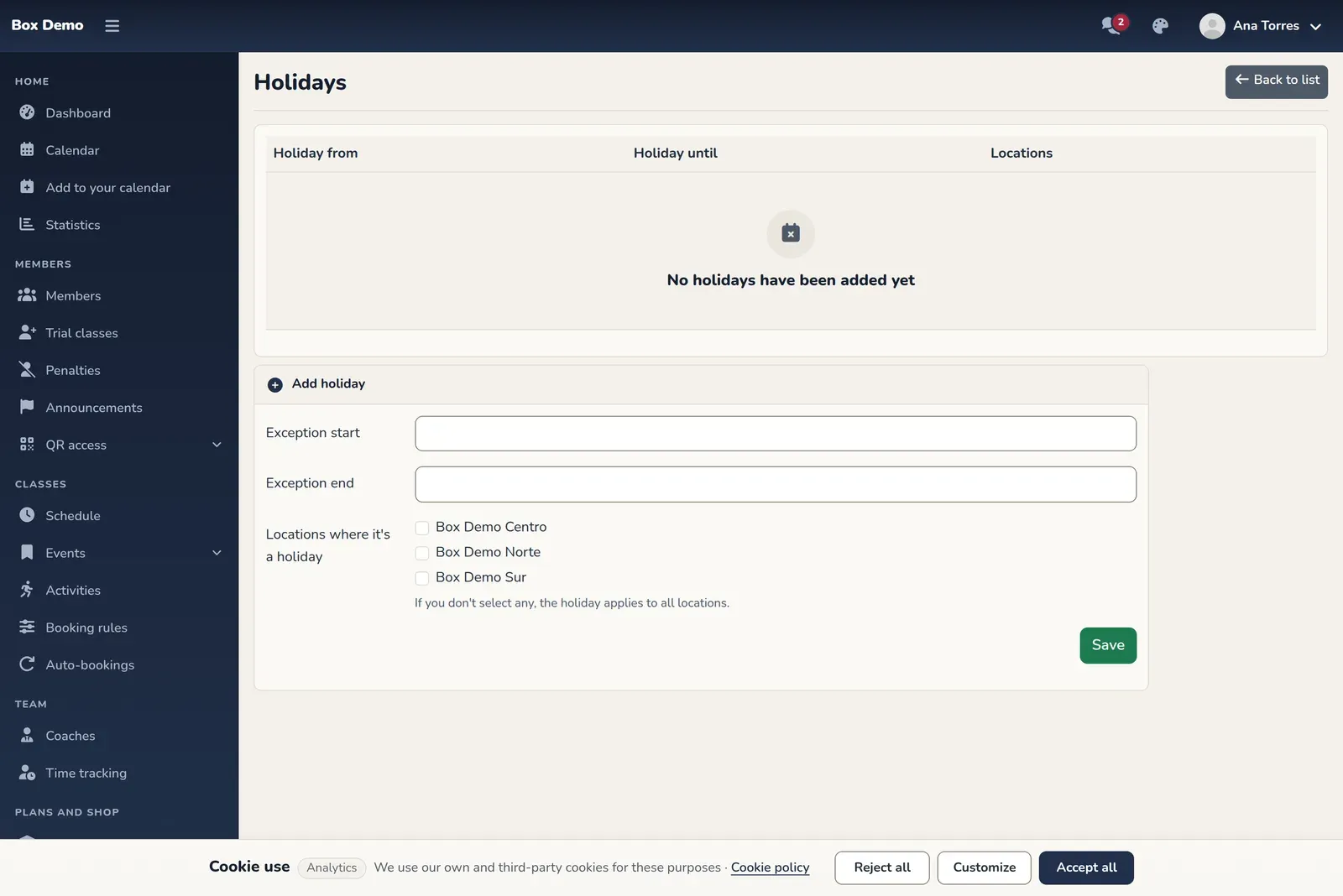
Section titled “Holidays and days without classes”A holiday is a date range during which the schedule offers no classes, for the whole gym. The end date is not included: if you close from December 24 to 26, set the end to the 27th. It does not delete classes that were already saved, and it does not notify members. See Holidays and days without classes.
Classes that don’t repeat
Section titled “Classes that don’t repeat”- One-off class: a workshop or a special session. See Create a one-off class.
- Several at once: a closed block, like a summer camp, with a date range. If the schedule already offers those classes, you’ll end up with duplicates. See Several classes at once.
The calendar
Section titled “The calendar”The admin calendar shows all classes by month or by day, with their prefix, their activity in color and their booked spots. Classes that have already started, are full or are closed appear in gray with stripes. From there you can open any class to see who has signed up, change spots, close it or sign up a member. See Admin calendar and Manage a class.
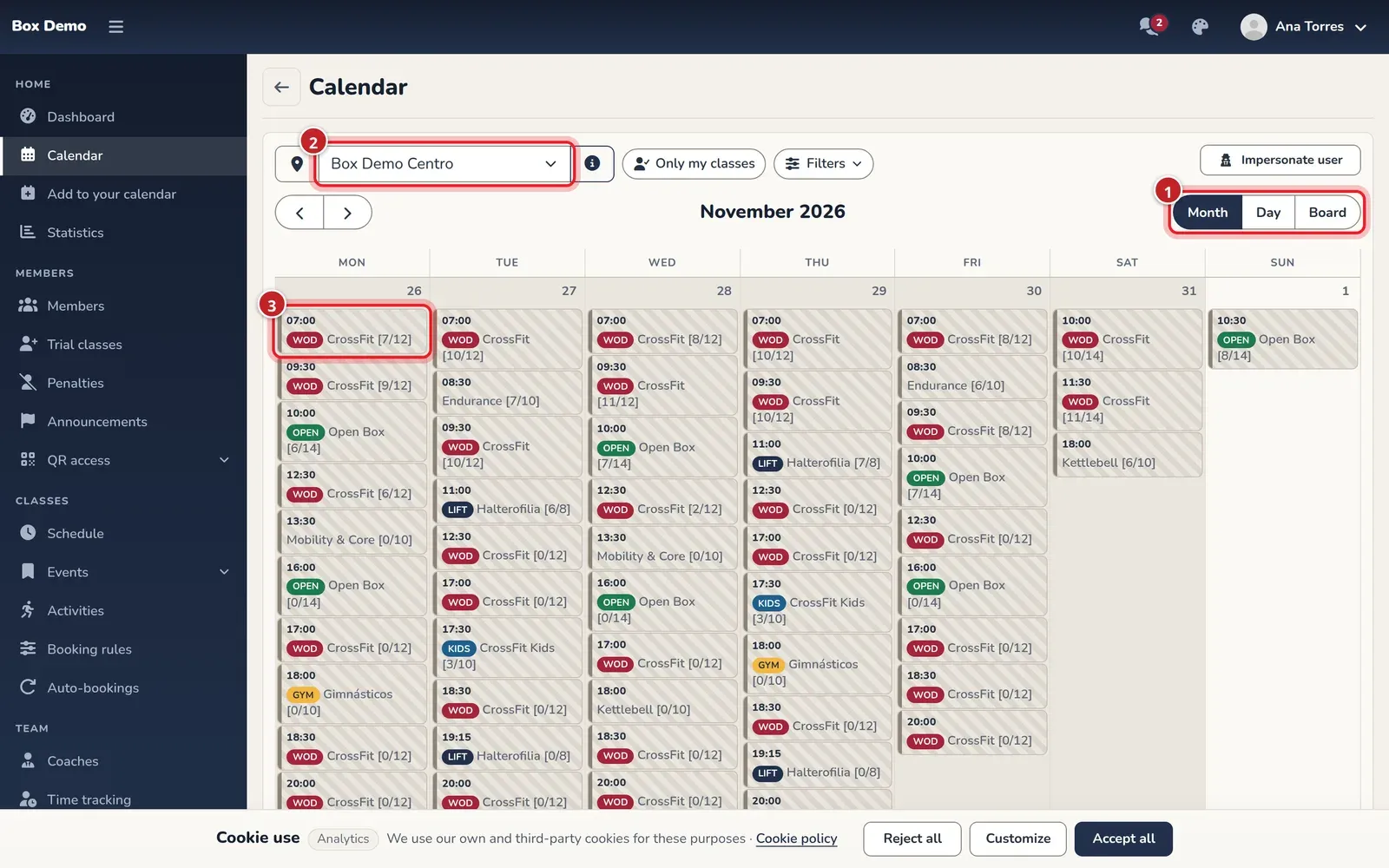
Members see the upcoming classes they can book on the calendar, not past ones.
Multiple locations
Section titled “Multiple locations”With two or more visible locations, each class, schedule and plan can belong to one location. The calendar, dashboard and statistics can be filtered by location, and members can set theirs as their default location. A plan restricted to one location only allows booking classes at that location. Each extra location is billed according to your subscription. See Locations.
Coaches on the schedule
Section titled “Coaches on the schedule”Coach rules, with optional rotation, decide who teaches each class, and the weekly roster lets you manually set a one-off change. See Coach rules and Roster.
When classes can be booked
Section titled “When classes can be booked”The schedule decides which classes exist. Booking rules decide when they can be booked: weekly opening, deadline to sign up and to cancel. See Bookings with waitlist and penalties.
Next step
Section titled “Next step”To see your schedule set up in RoninBox, get in touch with the RoninBox team at roninbox.com.