
Members' online payments: Stripe and methods
Online payments let your members pay their monthly fees from the app, by card or other means, without going to the front desk. This guide explains what your members see in My billing, which payment methods they can choose and what you decide.
What the member sees in My billing
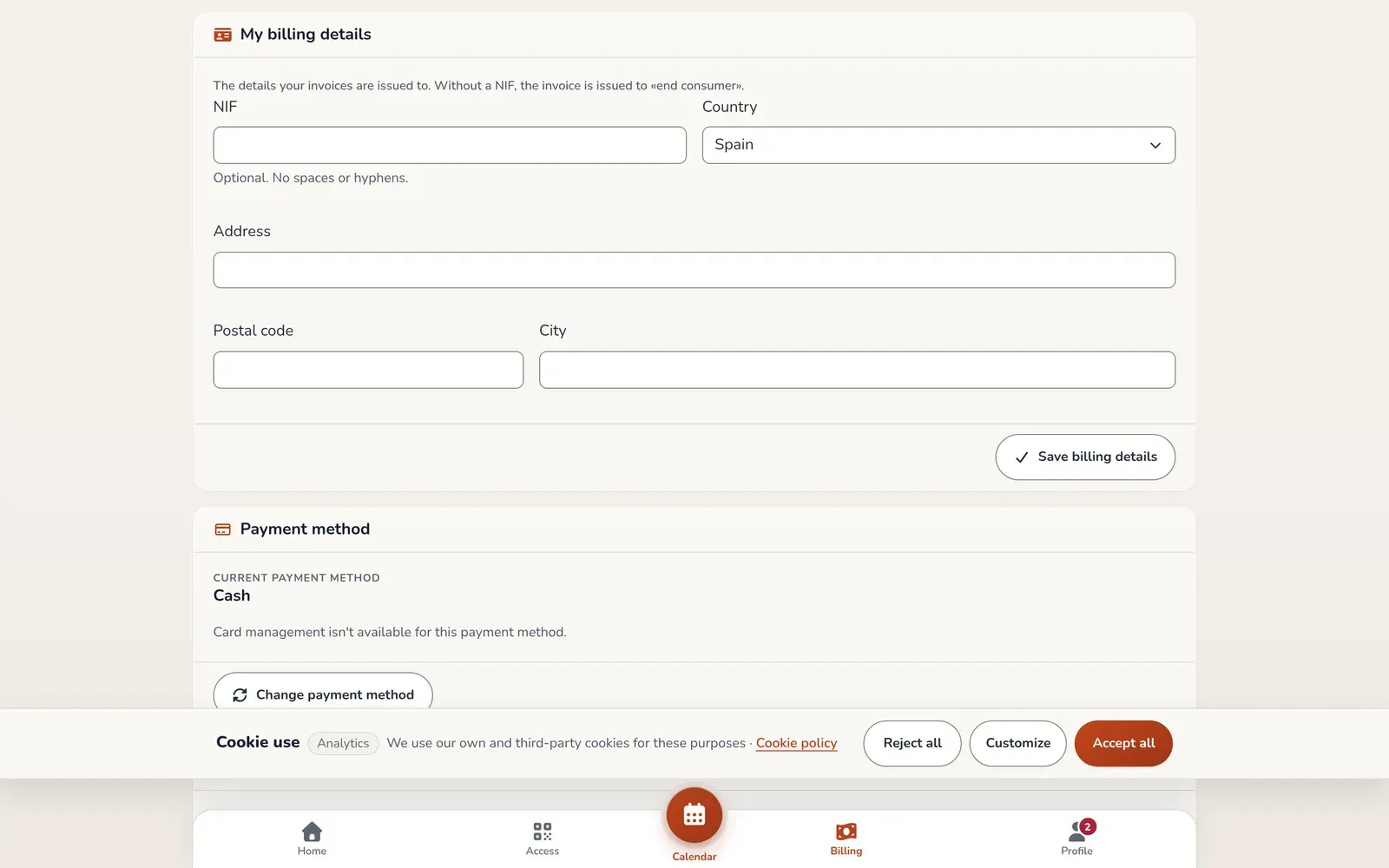
Section titled “What the member sees in My billing”The member opens Billing in their app (a notification dot appears when they owe something). The My billing screen shows:
- The Payment method card, with the current method, their saved cards and the buttons to change it.
- The Start the next period card, which tells them when their next period can start.
- A card to Change plan, only when they can do so.
- The Buy drop-in classes button.
- The list of their monthly fees, with the month, the plan and extras, discounts, the total and the status: Paid or Pending.
Paying a pending month
Section titled “Paying a pending month”The member taps the Pending status of a month. The Payment information window shows the amount due and their current payment method, and suggests the next step depending on the method:
- Cash. It tells them to pay cash at the box. The box staff record the payment when they receive it (see Take cash or card terminal payments).
- POS (card at the gym). It tells them to pay by card at the box’s card terminal. Staff record the payment the same way as cash.
- Checkout. They tap Pay now and the app takes them to a secure Stripe payment page, where they choose card, MB Way, Bizum or other means depending on what’s available. If the box uses Calendar month, they can first choose a slightly later start for that period, within a margin and only if no payment has been recorded yet.
- Recurring. The payment is charged automatically to their saved card. If the box also offers online payment, they can pay right away with the link.
If the box no longer offers the member’s saved method, the window asks them to choose another one before paying.
You can generate a payment link for a member from their monthly fee details (Online payment tab) and send it to them. This is explained in Monthly fees.
Payment methods
Section titled “Payment methods”Each member has a saved payment method and can change it in My billing with Change payment method:
| Method | What it means for the member |
|---|---|
| Cash | Pays at the box. |
| Card terminal (card at the box) | Pays by card at the box’s card terminal. |
| Online payment (checkout) | Pays each month by card, MB Way, Bizum or other methods. Gets a reminder to complete the payment for each renewal. |
| Recurring card payment | Automatic card payment: the period is charged automatically every month. |
Which methods your box offers
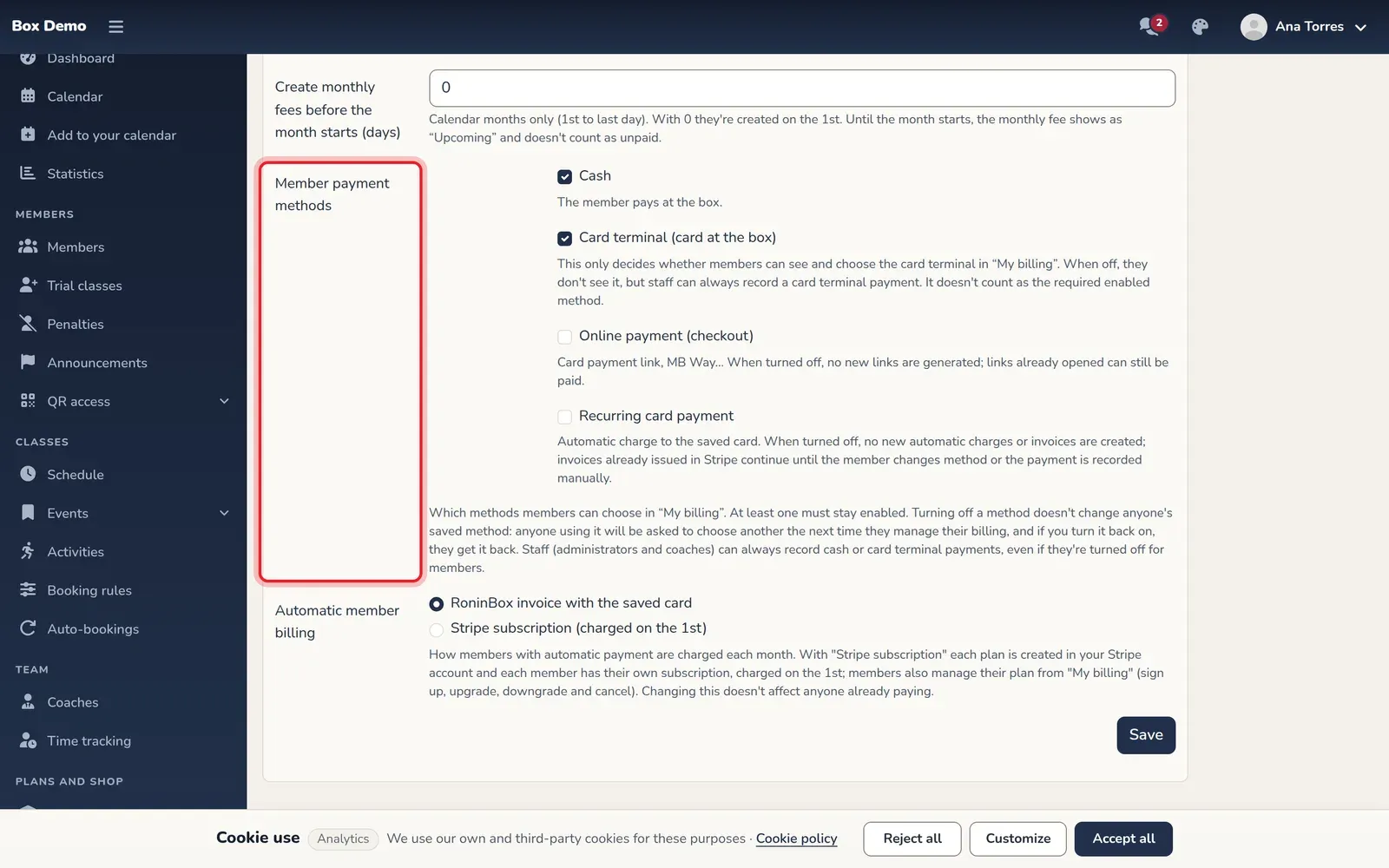
Section titled “Which methods your box offers”In Gym settings ▸ Payment settings you’ll find the Member payment methods section, only if your box has online payments turned on. It has one checkbox per method. The card terminal is off by default: turn it on if you want your members to be able to choose it.
-
Open Gym settings ▸ Payment settings.
-
In Member payment methods, check the methods you want to offer.
-
Save the form.
What you should know:
- At least one method must stay on among cash, online payment and recurring payment. The card terminal doesn’t count toward that minimum.
- Turning off a method doesn’t change any member’s saved method. When that member manages their billing, they’ll be asked to choose another one. If you turn the method back on, they get it back.
- When you turn off Online payment (checkout), no new links are created, but links already opened can still be paid.
- When you turn off Recurring card payment, no new automatic charges or invoices are created. Invoices already issued go ahead until the member changes method or you record the payment manually.
- Staff (administrators and coaches) can always record cash or card terminal payments, even if those methods are off for members.
Saved cards
Section titled “Saved cards”With recurring payment, the member sees their saved cards in Payment method and can manage them with Edit cards. That button opens the Stripe customer portal, where they add, change or remove cards. It’s a Stripe page, not a RoninBox one. If the member has no card, the app lets them know: without a saved card, recurring payment can’t be charged.
Buying single classes
Section titled “Buying single classes”The Buy drop-in classes button lets the member buy a class pass on their own.
- Only the box’s class passes with a price above zero are offered (see Create a plan and Create a plan option).
- The member needs the Recurring or Checkout method. With cash or card terminal, they can’t buy.
- With a saved card, they’re charged right away. Otherwise, they’re taken to the Stripe payment page.
- The pass classes are granted when the payment is confirmed.
- If the member has pending monthly fees, the app warns them that they can buy the pass but can’t book classes until they pay them.
Start my next period now
Section titled “Start my next period now”The Start the next period card tells the member when their next period can start. If the box uses Calendar month and the member has already used all the classes in their period, the Start my next period now button appears so they can move it up. The current period ends the day before and any remaining days are lost: the app warns them before they confirm. The new period starts unpaid and is charged with their payment method or with the payment link.
In all other cases the card is informational only, and the button doesn’t appear:
- if they have classes left in the current period;
- if their plan is unlimited;
- if they already have a class booked in the next period;
- if the box uses Monthly, where the next period always starts on the 1st.
Switching plans
Section titled “Switching plans”The member can switch the plan for their period with Change plan. The change applies to that period and the following ones. It’s only offered if:
- the period hasn’t been paid yet, isn’t in the past and has only one plan;
- the plan isn’t unlimited and the period doesn’t have a class discount;
- the new plan covers the activities they’ve already attended and gives them at least as many classes as they’ve used.
Class passes and zero-price plans aren’t offered for this switch.
Common issues
Section titled “Common issues”- The member doesn’t see the pay button. Check their payment method in My billing: with cash or card terminal there’s no online payment. Also check whether the box has online payment turned on.
- It was paid but doesn’t show up. Wait for Stripe to confirm it. You’ll see it in the monthly fee details, with the Stripe label.
- I can’t find the payment methods section in Billing settings. It only exists if RoninBox has turned on online payments for your box.