
Booking rules: opening and cancellations
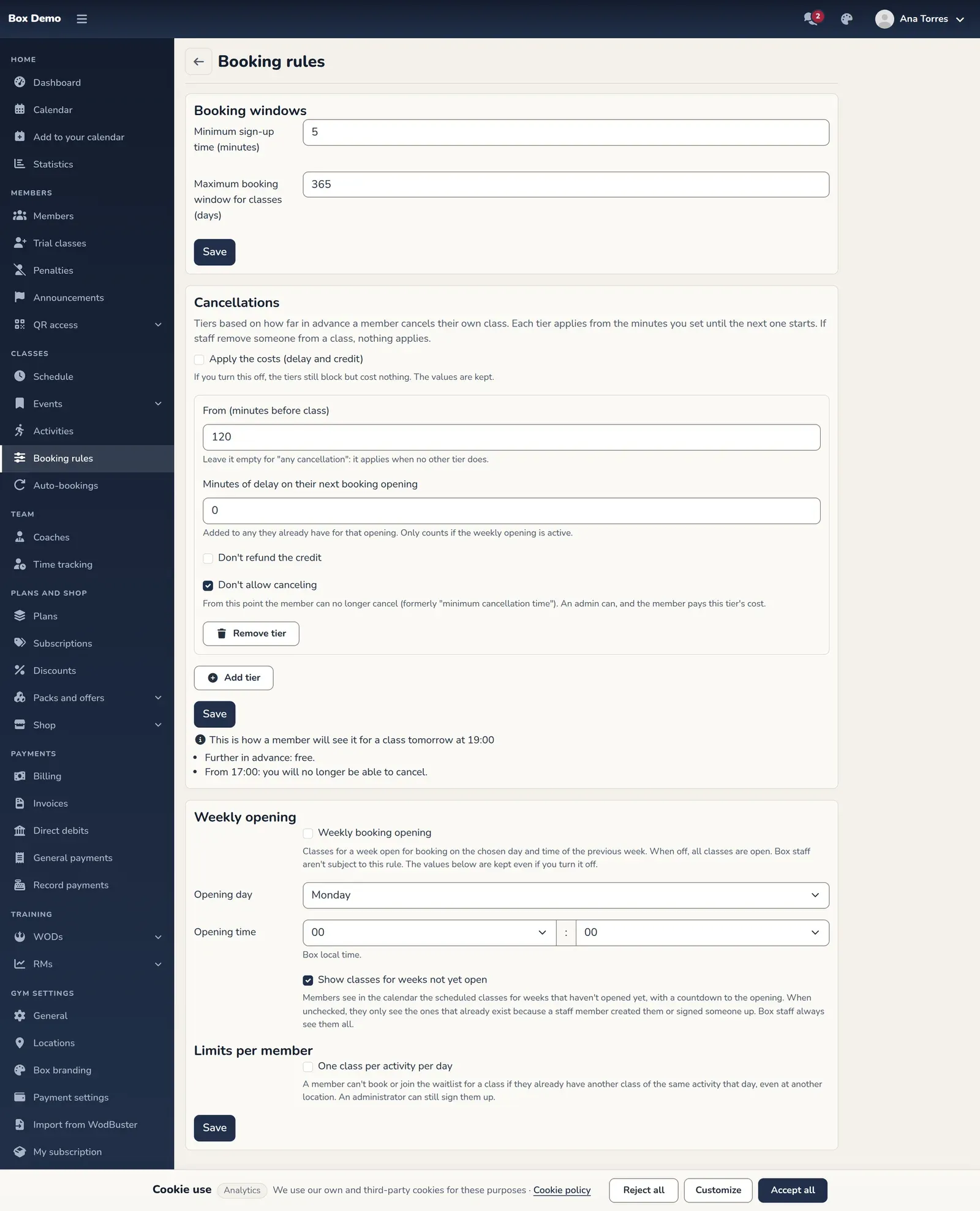
RoninBox booking rules decide when your members can book and cancel. Everything is on a single screen, Classes ▸ Booking rules, with three sections:
- Booking windows. How long before class booking closes, and how many days in advance members can book. Only administrators see and change this card, which has its own save button.
- Cancellations. The tiers that decide what canceling costs depending on how far in advance it happens, and from when it’s no longer allowed. Only administrators change them; they also have their own button.
- The weekly opening, which decides when members can book the following week’s classes.
The tiers and the opening apply to the whole box (each location can also have its own opening).
Transcript
In the side menu, under Classes, open Booking rules. At the top are the booking deadlines; below, cancellations and the weekly opening.
Start with the weekly opening. Check it to limit when the following week’s classes open, and choose the day and time, in your box’s local time.
Click its Save button. Each card is saved separately. Cancellation delay minutes only count if the opening is active.
In Cancellations you decide what canceling costs depending on how far in advance it happens. Each tier applies from the minutes you set until the class starts.
Remove the tiers you don’t want with Remove tier.
Click Add tier. If you leave the minutes empty, it applies to any cancellation: here, a one-minute delay on their next booking opening.
Add another tier from 60 minutes before: a five-minute delay, and check Don’t refund the credit. Anyone who cancels in the last hour loses the class.
Don’t allow canceling closes cancellation from that tier on: the member can no longer cancel on their own, and the class page tells them from what time. Here we leave it unchecked.
Check Apply the costs and click Save. It applies to the whole box from that moment on.
Below the tiers you can see how a member will read it for tomorrow’s class: what canceling costs them now and from what time they lose the credit.
How to set them up
Section titled “How to set them up”-
Open Classes and go to Booking rules.
-
If you’re an administrator, review the Booking windows card at the top. If you change anything there, click its own Save button: it saves only those two fields.
-
If you’re an administrator, adjust the Cancellations card: add or remove tiers and click its Save button. Below, you’ll see how a member will read it for a sample class.
-
In the Weekly opening section, check Weekly booking opening if you want to limit when bookings open. Choose the Opening day and the Opening time.
-
Click the Save button at the bottom to save the rules.
When you save, the app may show you warnings. They don’t prevent saving; they just tell you that some value has no effect. They’re explained further down.
Booking deadlines
Section titled “Booking deadlines”The Booking windows card is the first one on the screen. Only administrators see it; a coach sees the rest of the screen as before. It has two fields:
- Minimum sign-up time (minutes). Booking for a class closes this many minutes before it starts. Accepts 1 to 999. If the box hasn’t changed it, it’s 5 minutes.
- Maximum booking window for classes (days). How many days ahead members can book. Accepts 1 to 999. Default: 365.
How late a member can cancel is no longer set here: it’s a Cancellations tier.
Cancellations: the tiers
Section titled “Cancellations: the tiers”Each tier says what happens when a member cancels their own class from a certain point on. A tier applies from the minutes you set before the class until the next tier, closer to the class, begins. Canceling right at the limit already counts for that tier.
Each tier has:
- From (minutes before class). 0 to 10080 (one week). Empty means “any cancellation”: it applies when no other tier does. There can only be one like this.
- Minutes of delay on their next booking opening. 0 to 999. They’re added to that member’s next weekly opening; if they cancel several times before the same opening, they add up. They require the weekly opening to be on.
- Don't refund the credit. The member doesn’t get back the credit for that class and can’t sign up for it again.
- Don't allow canceling. From that point on the member can no longer cancel (this is the old minimum cancellation time). Later tiers must also block. An administrator can still cancel their own booking and pays the tier’s cost.
Also, no member can cancel a class that has already started or that the box has closed. There can be up to six tiers.
For example, this box charges one minute for any cancellation and, in the last hour, the credit and five minutes, but allows canceling until the start:
| From | Delay | Credit | Blocks |
|---|---|---|---|
| (any cancellation) | 1 min | refunded | no |
| 60 min before | 5 min | lost | no |
The Apply the costs (delay and credit) checkbox turns the costs of all tiers on or off at once. When it’s off, blocking tiers still block and the values are kept.
What the member sees
Section titled “What the member sees”On the page of a class they’re signed up for, the member reads what canceling would cost them at that moment (“If you cancel now: …”). When they tap Cancel, the cancellation happens right away, with no further questions, and a notice tells them what was applied. If they can no longer cancel, the class page tells them why and from what time.
Who it applies to
Section titled “Who it applies to”Only to people canceling their own booking. If an administrator or coach removes another member from a class, the member gets their credit back and there’s no delay. If a class is deleted, all credits are returned, including those lost by canceling.
Each cancellation with a cost leaves a row on the Penalties screen, where staff can change the minutes, refund the credit or lift it. By default the list hides small ones (under five minutes and with the credit refunded).
Weekly booking opening
Section titled “Weekly booking opening”With the rule off, all classes are open for booking (within the maximum advance booking set in the booking deadlines). With the rule on, a week’s classes open on the chosen day and time of the previous week.
For example, if you choose Sunday at 8:00 p.m., the entire following week opens on Sunday at 8:00 p.m.
- Opening day. Monday through Sunday.
- Opening time. In the box’s local time.
- The current week is always open. The rule only closes classes in future weeks.
- Staff aren’t subject to this rule. Administrators and coaches can always book.
- Changing the rule moves all upcoming openings. Bookings already made aren’t affected.
- Each location can have its own opening. If your box has several locations, on each one’s page you can check "Location-specific booking opening" and choose a different day and time, or turn the opening off for that location only. Those that don’t check it follow this rule. Locations explains it.
- Show classes for weeks not yet open. When checked (the default), members see on the calendar the classes of weeks that haven’t opened yet, with a countdown to the opening. When unchecked, those classes don’t appear to them until the opening; they only see the ones that already exist because a staff member created them or signed a member up. Staff always see them.
If a class isn’t open yet, the member sees it on the class: "Booking for this class opens for you on %date%.".
Warnings when saving the tiers
Section titled “Warnings when saving the tiers”- "Some tiers have delay minutes, but no location has the weekly opening active: the delay will have no effect." No location has a weekly opening, so the delay minutes do nothing.
- "There's a tier with no cost that doesn't block: from that point, canceling becomes free again." A tier neither costs anything nor blocks: from that point on, canceling is free again.
- "Costs are turned off: the tiers only block." Costs are turned off.
Common mistakes
Section titled “Common mistakes”- A tier won’t let me save. Read the error under the field: two tiers at the same minute, “any cancellation” set to block, or a tier that allows canceling after one that blocks.
- I set a delay but the weekly opening is off. The delay does nothing without it. Turn on the weekly opening.
- I can’t see the tiers form. Only administrators see it; a coach sees the sample class.
- I can’t see the booking deadlines card. Only administrators see it.
- A booking deadline number gives me an error when saving. Both accept 1 to 999.
- A coach isn’t affected by the opening. That’s expected: staff can always book.