
How to run a CrossFit gym step by step
To run a CrossFit gym with RoninBox, a short routine each week is enough: check upcoming classes, handle pending payments, review your team and let members know about anything that changes. The app does almost everything else on its own once the schedule and plans are set up. This guide gives you that routine, with the screen for each task.
If your gym is new, start with Getting started. Here we assume you already have activities, plans and a schedule.
What RoninBox does for you
Section titled “What RoninBox does for you”- Offers the classes on your schedule every week, without creating them one by one.
- Generates the monthly fee for each member with a plan.
- Emails the waitlist when a spot opens up.
- Blocks bookings for anyone with unpaid fees past the grace days.
Every day: 5 minutes
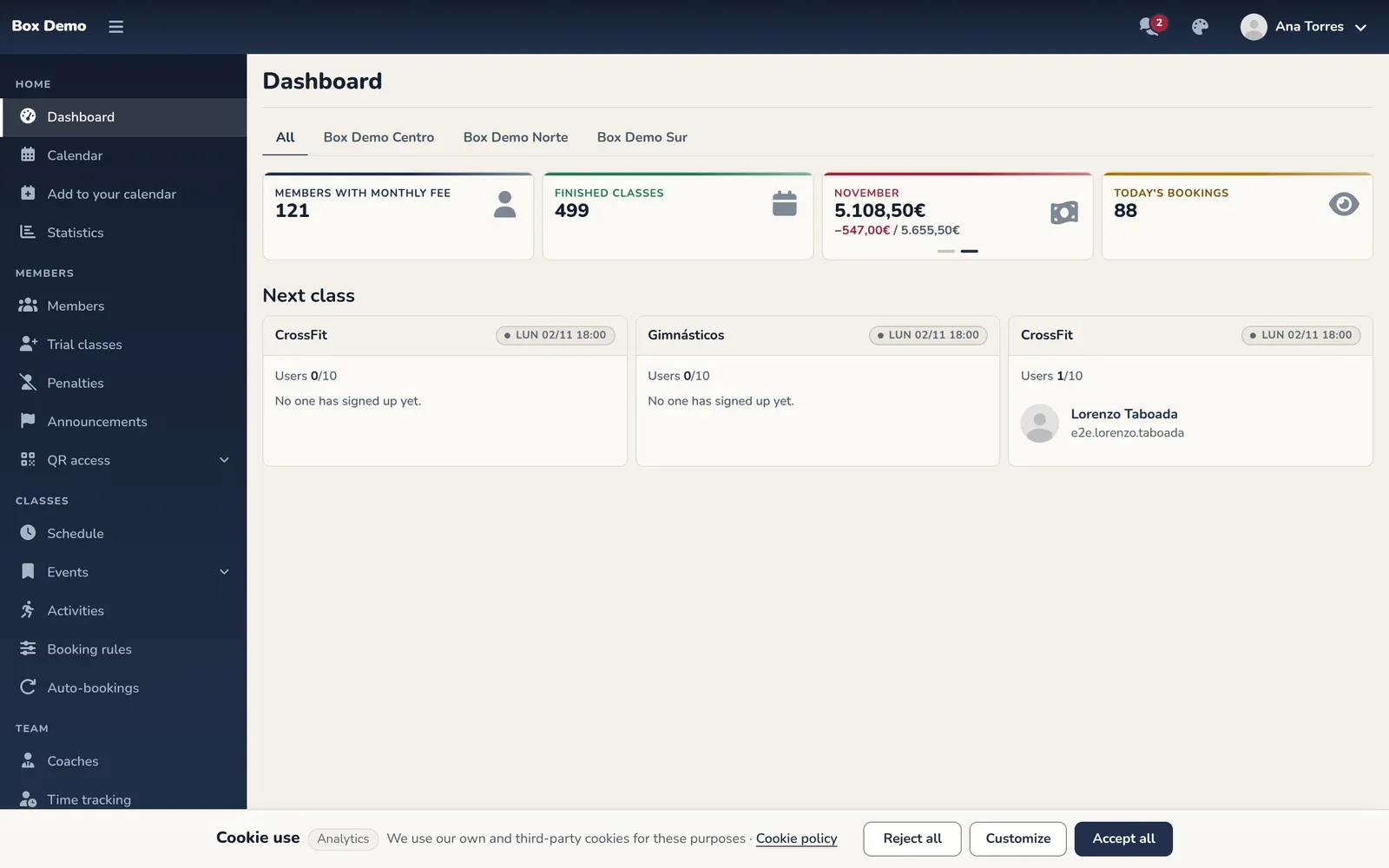
Section titled “Every day: 5 minutes”- Open the home dashboard. It shows upcoming classes, how many people are signed up versus capacity, and flags in red any class with more people than spots. See Home dashboard.
- Check the class about to start. From the calendar you can see who’s coming and add or remove someone. See Managing a class.
- Take payments at the counter. Find the member and record the cash or card terminal payment. Coaches can do this too. See Charging in cash or by card terminal.
Every week: 15 minutes
Section titled “Every week: 15 minutes”Schedule and bookings
Section titled “Schedule and bookings”- Review next week’s calendar. If a class isn’t going to happen, close or delete it from the event list. See Admin calendar.
- If the gym closes for a holiday, create a holiday. See Holidays and days without classes.
- If you have weekly opening turned on, remember that next week’s classes open on the day and time you chose. See Bookings with waitlist and penalties.
Coaches
Section titled “Coaches”The roster shows the week with who teaches each class. Coach rules fill it in automatically, and you can manually assign anyone you want for a one-off change. See Coach roster and Coach rules.
Payments
Section titled “Payments”Filter the member list by pending payments and check who owes. A member with an unpaid monthly fee can keep booking during the grace days you’ve set. See Unpaid fees and grace days.
WOD and communication
Section titled “WOD and communication”- Publish the WODs. Members can’t see WOD-type entries until they have a publish date. See Creating a WOD.
- If something changes for everyone (a closure, a rule), create an announcement. See Announcements.
- To talk to one person, use a message. See Messages.
Every month: 20 minutes
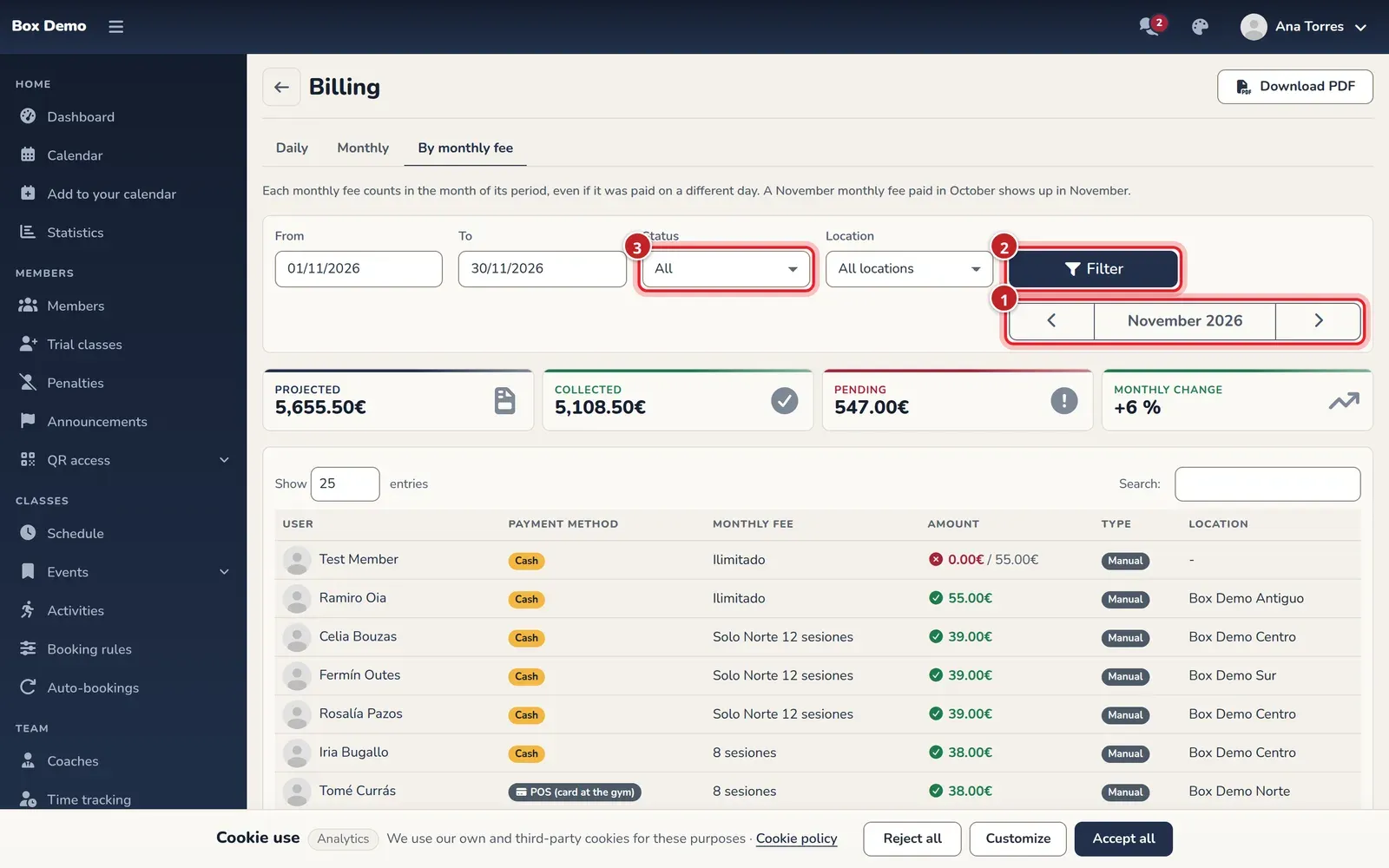
Section titled “Every month: 20 minutes”- Open monthly billing. Check what’s projected, collected and pending for the month. See Monthly billing.
- Record income outside monthly fees, like a T-shirt or a registration fee, as generic payments. See Generic payments.
- Check the statistics for plans, new sign-ups and daily attendance. See Gym statistics.
- Review your team’s numbers: classes, hours and attendees per coach. See Coach statistics.
- Update prices if needed, with a chained plan: members switch to the new one on their next monthly fee. See Chained plans.
When something goes wrong
Section titled “When something goes wrong”Most everyday problems (a member who can’t book, a payment that doesn’t show up, a class that doesn’t appear) are covered in Troubleshooting.
Next step
Section titled “Next step”If you’d like to see how this routine would look with your gym’s classes and plans, get in touch with the RoninBox team at roninbox.com.