
Requests and improvements: talk to RoninBox
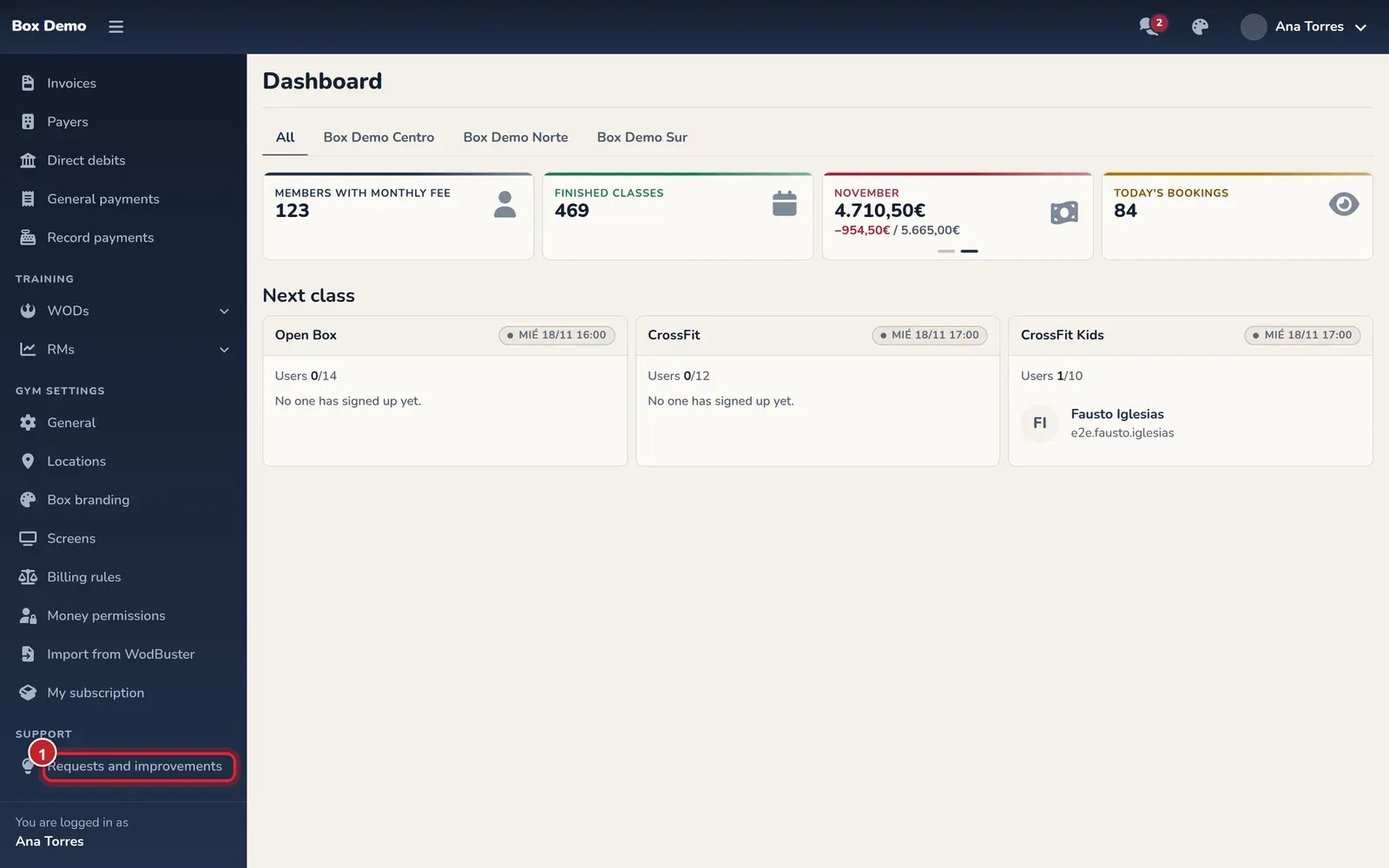
Requests and improvements is where you tell RoninBox what your gym is missing, what you’d improve or what isn’t working. You open it from your own RoninBox, under Support ▸ Requests and improvements, without creating another account.
Who can get in
Section titled “Who can get in”Gym administrators and managers. Coaches and members don’t see the entry. Everyone signs in under their own name, so the RoninBox team knows who is asking for what.
How to get in
Section titled “How to get in”-
In the side menu, scroll down to Support and click Requests and improvements.
-
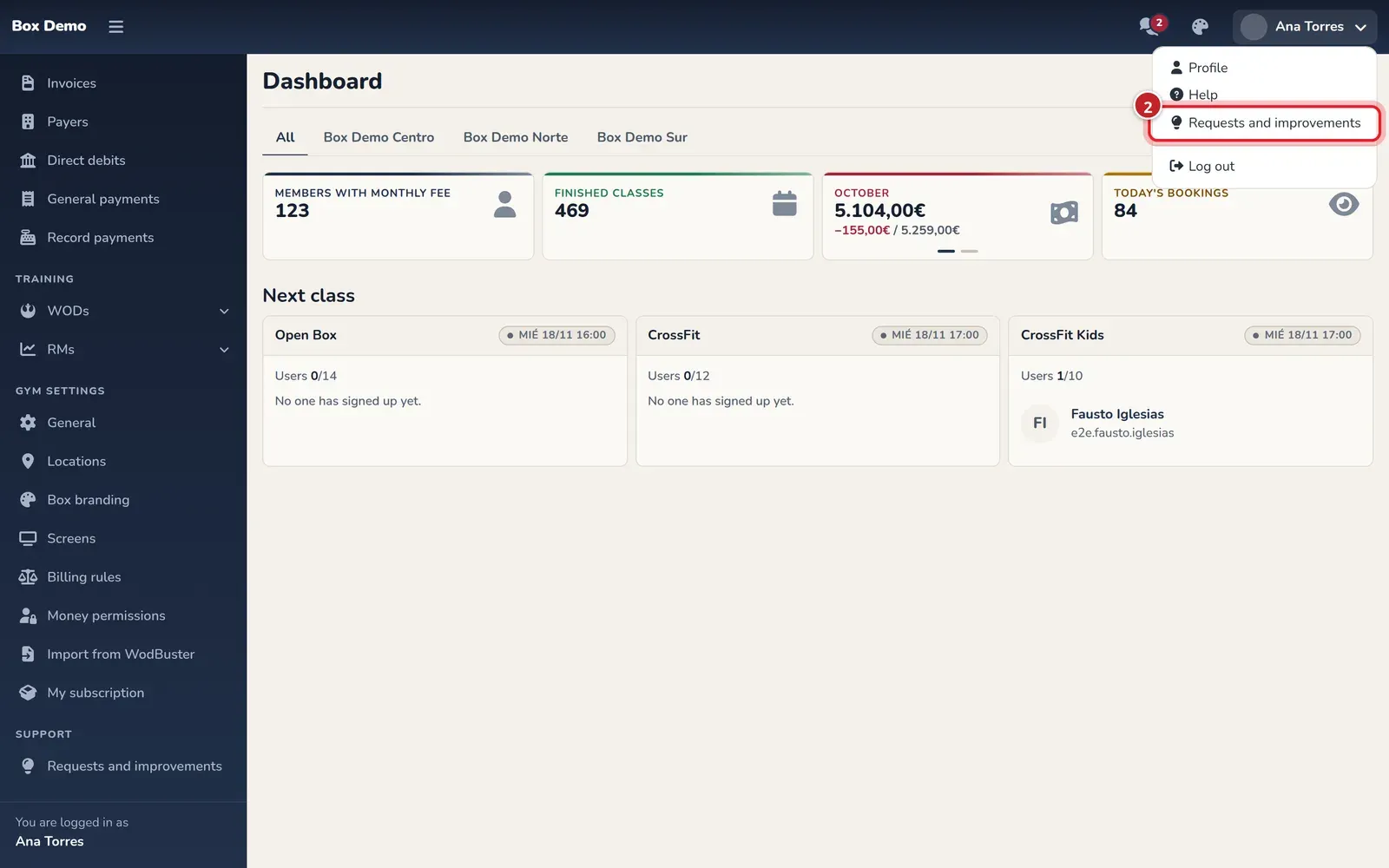
You’ll also find it in the menu under your name, at the top right, just below Help.
-
The portal opens in the same tab, already signed in with your name and your gym.
To go back, click «Volver a RoninBox» (Back to RoninBox) in the portal or use your browser’s back arrow. In the mobile app, the portal opens in the browser.
What you can do in the portal
Section titled “What you can do in the portal”The portal is in Spanish for now.
- Mis peticiones (My requests): everything your gym has asked for and where it stands. You can filter by status.
- Nueva petición (New request): choose what it is (a bug, an improvement, something RoninBox doesn’t do yet or a question), give it a title and a description and, if you like, attach screenshots or documents. One request per topic: that way each one gets answered and planned separately.
- Each request’s conversation: the RoninBox team replies there and by email, and you answer in the same request.
- Hoja de ruta (Roadmap): what RoninBox is working on and what’s coming soon, based on what all gyms are asking for.
Links in emails
Section titled “Links in emails”The emails you get about a request include a link to it. Opening it takes you through your RoninBox: if you’re not signed in, it asks you to sign in, and then it takes you straight to that request.
Common issues
Section titled “Common issues”- It asks you to add an email address. The portal needs your email to reply to you. Add it in your profile and sign in again.
- You don’t see the entry. Check that your user is a gym administrator or manager. See Roles and permissions.