
Billing: daily, monthly and by monthly fee
Your gym’s billing is in Payments ▸ Billing. It has three views, in tabs: Daily (always the one that opens first), Monthly and By monthly fee. All three have filters and a Download PDF button.
Transcript
In the menu, under Payments, open Billing. It opens in the Daily view: one day’s takings.
Use the arrows to move from one day to the next. The cards add up what was collected by payment method, and below is each payment with its time and its receipt or invoice.
In Monthly you see what was collected between two dates. You can filter by location, payment method and whether the payment has an invoice.
By monthly fee counts by the month of each monthly fee, even if it was paid on another day: projected, collected and outstanding.
When a member pays you in person, open Record payments, in the same Payments section.
Search for the member by name. When you select them you’ll see their outstanding monthly fees and can record the payment.
What each view counts
Section titled “What each view counts”- Daily and Monthly count by the day each payment was recorded: the money that came in. They include member payments (monthly fees, class passes and generic payments) and shop sales.
- By monthly fee counts by the month of the monthly fee, even if it was paid on another day. It only covers monthly fees.
Example: today, October 29, a member pays their November monthly fee. In Daily it shows up today, in Monthly it shows up in October and in By monthly fee it shows up in November.
Daily: the day’s takings
Section titled “Daily: the day’s takings”-
Open Payments ▸ Billing. Today opens.
-
Change the day with the Previous day and Next day arrows, by picking a date in the Day field, or on your phone by swiping left or right on the day. Today goes back to today. You can’t go past today.
-
If the gym has several locations, pick one in Location or leave All locations. With all of them, a table adds up each location’s totals.
-
To find a payment, type the member’s name, the description, the payment method or the amount in Search. The list keeps the matching ones and says how many there are out of the whole day; the totals at the top and the PDF still cover the whole day.
At the top you see what was collected by payment method and the total; if the shop sold anything, below each figure it shows how much came from members and how much from the shop. Below that, each payment with its time, the member, the description, the payment method, the location, the receipt or invoice and the amount.
Change the date of a payment
Section titled “Change the date of a payment”If you record a payment today that you received yesterday (in cash or by card terminal), you can move it to the day it was collected. Only administrators and managers can do this.
-
Find the payment in the Daily view or open the member’s monthly fee from their profile.
-
Tap the payment’s calendar button (Change date).
-
Choose the day and time and tap Save.
The payment moves to that day in Daily, in Monthly and in the cash close-out, and its receipt shows the new date. It’s logged in the member’s activity history.
This only works for payments recorded manually (cash, card terminal, bank transfer or direct debit) within the last 31 days, and only to a date within those same 31 days. An online payment always keeps the date of the charge, and a payment that’s already been invoiced can’t change date.
Monthly: what was collected between two dates
Section titled “Monthly: what was collected between two dates”Open the Monthly tab. By default it shows the current month; the arrows move to the previous or next month.
Filters: From and To (up to one year), Location, Payment method and Invoice (With invoice or Without invoice). Tap Filter.
The cards add up what was collected with those filters. Below are two lists: Member payments and Shop sales. Tap a payment’s amount to open its monthly fee.
By monthly fee: projected, collected and outstanding
Section titled “By monthly fee: projected, collected and outstanding”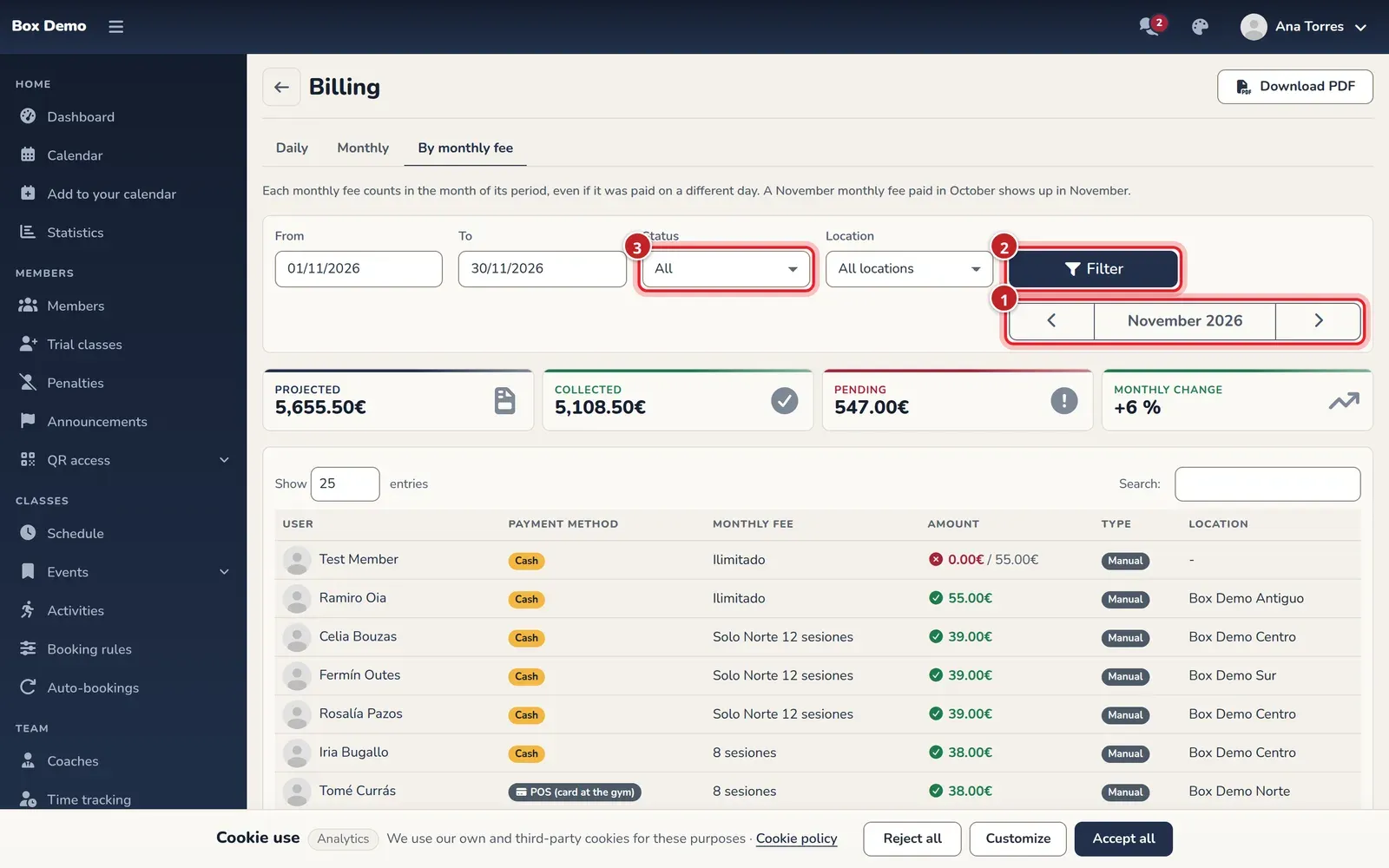
This is the screen that used to be called Monthly Billing. The cards refer to the month in the selector:
- Projected: what all of the month’s monthly fees should bring in. It adds up the plans, the extensions (discounts subtract) and the month’s generic payments.
- Collected: what has already been collected from those monthly fees, plus the generic payments.
- Pending: the difference. The card turns red while anything is owed and green when everything is paid up.
- Monthly change: how much the projected amount goes up or down compared with the previous month.
The table lists the month’s monthly fees with the member, the saved payment method, the plan, the amount collected and the total, and whether it’s charged through Stripe. Tap the amount to open the monthly fee and record a payment, as explained in Monthly fees. Filter by dates, by Status and by location; there’s a search by name.
Print to PDF
Section titled “Print to PDF”Each view has Download PDF at the top right. The PDF includes the applied filters, the totals and every line with its receipt or invoice number (in By monthly fee, the status of each monthly fee). A list of more than 5,000 lines is cut off and says so: narrow the dates.
Common mistakes
Section titled “Common mistakes”- What’s collected in Monthly doesn’t match By monthly fee. That’s expected: one counts by the payment day and the other by the month of the monthly fee.
- An old shop sale shows no location. Sales made before the sale location existed don’t have one; they only count under All locations.
- I want to record income that isn’t from a member. That goes in Generic payments.