
A member app for gyms with RoninBox
The RoninBox member app for gyms is the same website the owner uses, seen on a phone with a screen designed for members: a bar with five buttons at the bottom and no admin menus. With it, members book, cancel, check what they owe, log their records and read the WOD, without calling or messaging you. This guide sums up what they see and what they can do.
Install the app
Section titled “Install the app”There’s nothing to install. Members sign in with their username and password from their phone’s browser. If they want, they can install the member screen as an app: RoninBox shows them a prompt to install it and, on iPhone, the instructions to do so. See Install the app.
Their account is created when you sign up the member: they get a welcome email with a link to activate it and choose their password. If they forget their password, they can reset it themselves from the sign-in screen. See Activate and recover an account.
What members see
Section titled “What members see”The bottom bar has five buttons: Home, Access (or Notifications if the gym doesn’t use QR), Calendar, Billing and Profile.
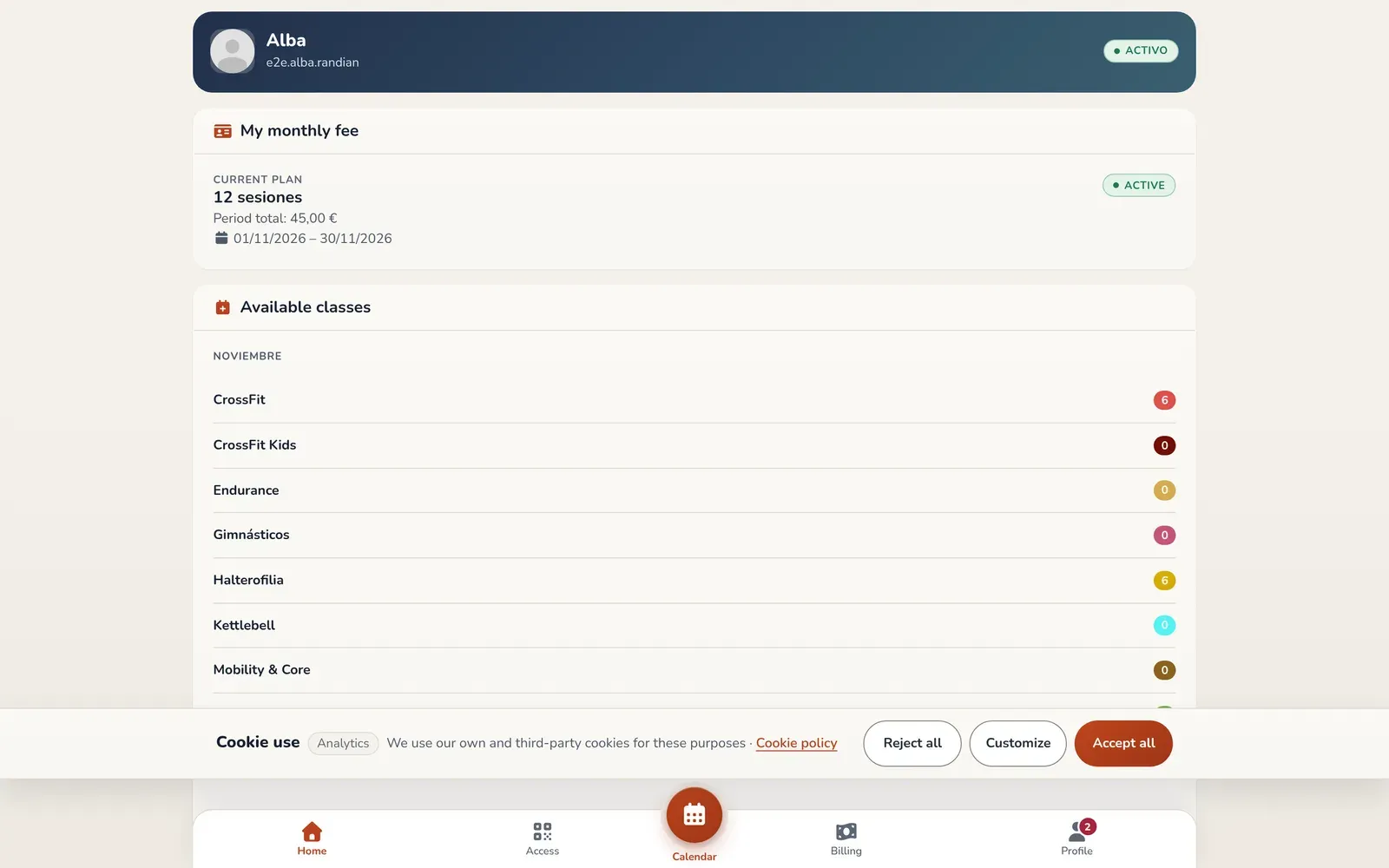
- Home. Their next class, what they owe and how many classes they have left for each activity. See Dashboard.
- Calendar. The gym’s classes, ready to book. See Book a class.
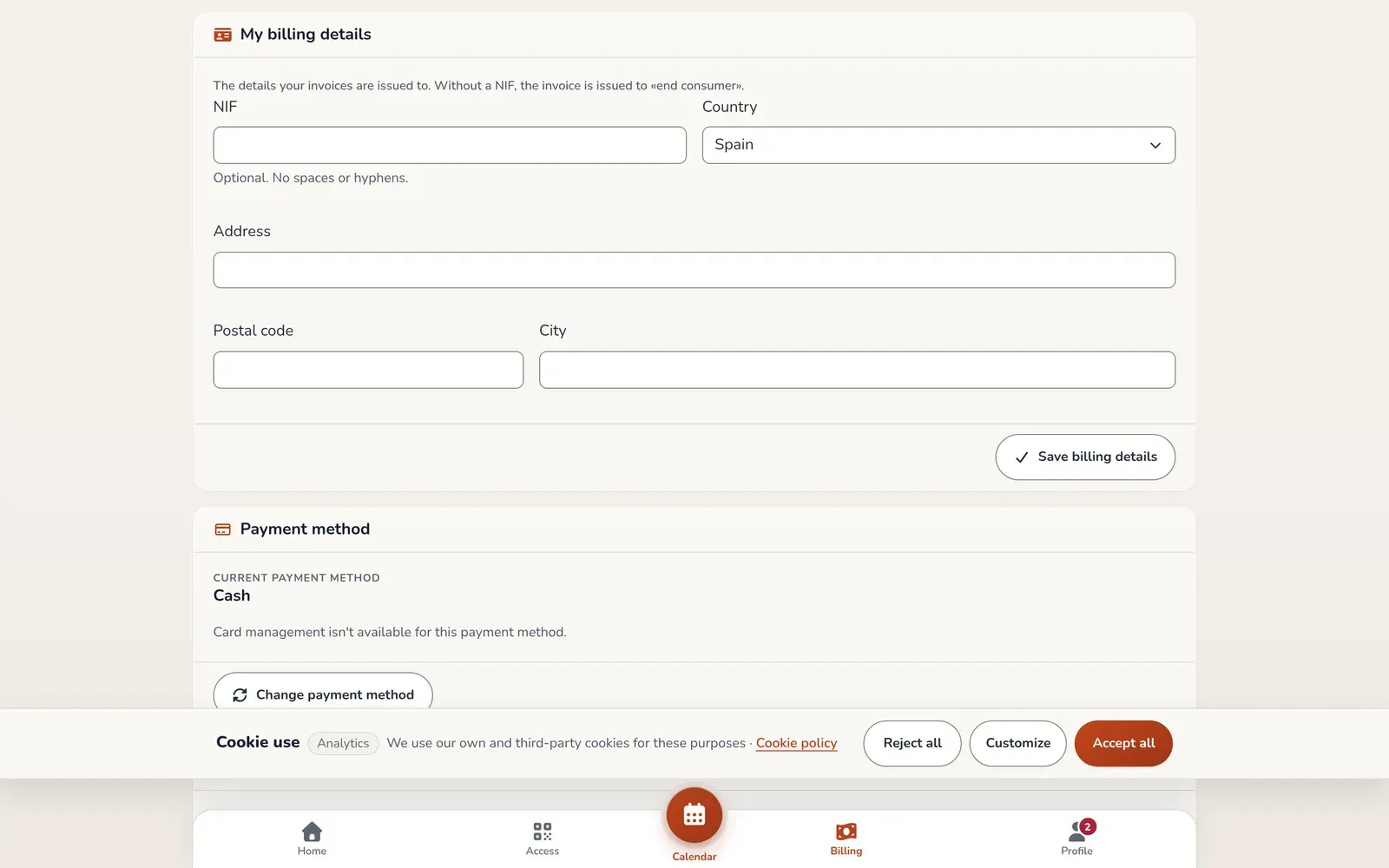
- Billing. Their monthly fees with the status of each one. See My billing.
- Profile. Their details, language, messages, notifications, RMs, the percentage calculator and the WOD lists. See Profile and account.
Book and cancel
Section titled “Book and cancel”Members open a class in the calendar and tap sign up. If it’s full, they can join the waitlist and get an email when a spot opens up. If they cancel within the late-cancellation window and the gym has a penalty, the app warns them of the cost before they confirm. You set the rules. See Cancel a booking and Bookings with waitlists and penalties.
At a gym with several locations, members can filter the calendar by location and set one as their default location.
Payments from the phone
Section titled “Payments from the phone”In My billing members see their monthly fees, with an alert dot if they owe anything. If RoninBox has enabled online payments for your gym, they can also:
- pay a pending monthly fee through a secure Stripe payment page;
- choose their payment method from the ones you offer;
- manage their saved cards;
- switch plans where allowed, or start their next period right away;
- buy a class pass with a price, if their method is online or recurring.
Without online payments, members only see the list of their monthly fees and pay at the gym. See Online payments.
QR check-in
Section titled “QR check-in”If your gym uses QR check-in, the bar includes Access: an entry or exit code that’s valid for 3 minutes and can be used once. If the member doesn’t meet the requirements, they see the reason instead of the code, for example pending payments. See QR code access and Member QR check-in.
RMs, WODs and communication
Section titled “RMs, WODs and communication”- RMs. Members log their records in weight, reps or time, see the gym’s leaderboard with other members’ usernames and use the percentage calculator. See My RMs and WODs and RMs and movements.
- WODs. They read published WODs and log their result, which they can make public or not. See Create a WOD.
- Messages and announcements. They get the gym’s announcements in Notifications and can message the gym. See Announcements and Messages.
Coaches
Section titled “Coaches”They use this same screen. In Profile they have extra shortcuts: My classes, the coach roster and taking cash payments. See Roles and permissions.
Next step
Section titled “Next step”If you’d like to see how your members would see it with your gym’s classes and plans, get in touch with the RoninBox team at roninbox.com.