
Gym discounts: create and assign
Gym discounts are created once and assigned to every member who needs them: the family discount, the student discount, or one from an agreement with a company. Each discount is a fixed amount or a percentage subtracted from the member’s plans in every new monthly fee.
Who can do it and where
Section titled “Who can do it and where”A gym administrator, in Plans and shop ▸ Discounts. Assigning them to a member is done from their profile: see Recurring discount for a member.
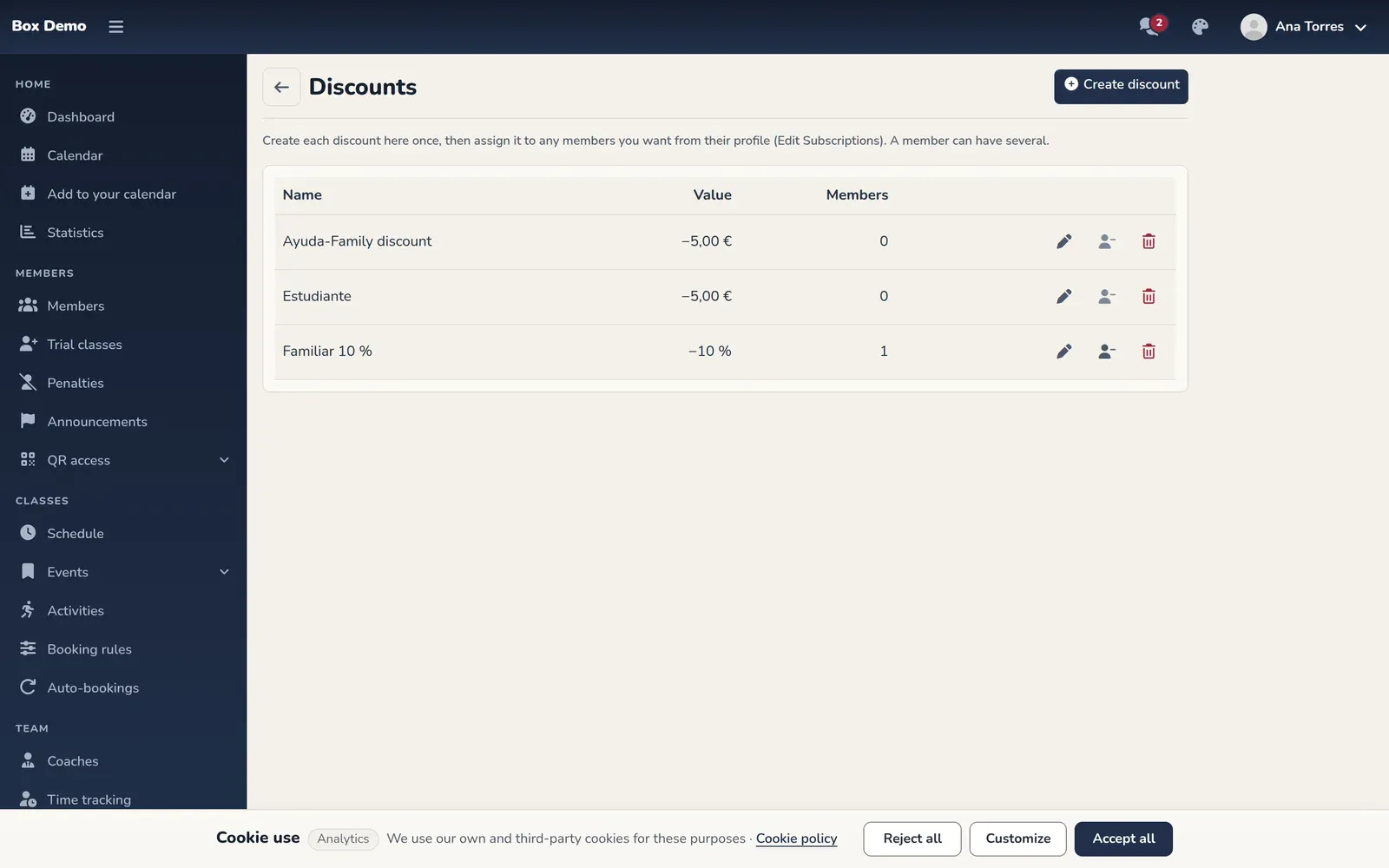
How to create a discount
Section titled “How to create a discount”-
Open Plans and shop ▸ Discounts and tap Create discount.
-
Enter the Name, for example “Family discount”. It’s the text of the line on the monthly fee.
-
Choose the Type: Fixed amount (€) or Percentage (%).
-
Enter the Value: greater than 0 and, if it’s a percentage, up to 100.
-
Tap Save.
Remove a discount from all members
Section titled “Remove a discount from all members”In the discount’s row, tap Remove from all members. The window tells you how many members you’ll remove it from; once you confirm, none of them have it and their upcoming monthly fees no longer include it. Fees already created don’t change.
Delete a discount
Section titled “Delete a discount”Tap the delete button in its row and confirm.
- If no one has it, it disappears.
- If any member has it, they keep it and it keeps being applied; the discount just can no longer be assigned. On those members’ profiles it shows as retired.
Common mistakes
Section titled “Common mistakes”- Editing a discount for a single member. The change reaches everyone who has it. If a member needs a different amount, create another discount.
- Entering the percentage as a fixed amount. A 10 as a fixed amount is €10 off, not 10%.