
Staff time tracking in RoninBox
RoninBox time tracking records your team’s clock-in, breaks, and clock-out every day, as required by the Spanish Workers’ Statute (art. 34.9), and the activity log of anyone who works as a freelancer. Your team clocks in from their phone and you manage it in Time tracking.
Who can do it and where
Section titled “Who can do it and where”It’s managed by gym administrators and managers. A manager is a coach who has been given that role with the Make manager button on their profile: they clock in like any coach and also manage the whole team’s record. Turning on the module and the Labor policy tab are for the administrator only.
It’s in the side menu: Team ▸ Time tracking. It has six tabs: Summary, Staff, Corrections, Rota, Reports, and Labor policy.
How each person clocks in is explained in How to clock your hours.
How to set it up
Section titled “How to set it up”You can prepare the policy and add your team before turning it on: while it’s off, no one can clock in.
-
Review the labor policy. In Labor policy, load the reference values that apply to you (General rules: Workers' Statute or 5th Collective Agreement for Sports Facilities and Gyms), check them against your collective agreement, and tap Save new version. Once you’ve reviewed it, tap Mark as reviewed. Until then, reports warn that the calculations aren’t validated.
-
Add your team. Tap Add to time tracking, choose the Person, the Relationship with this company (Employee or Self-employed), the From date, the Agreed weekly hours, and whether it’s Full-time. Tap Save.
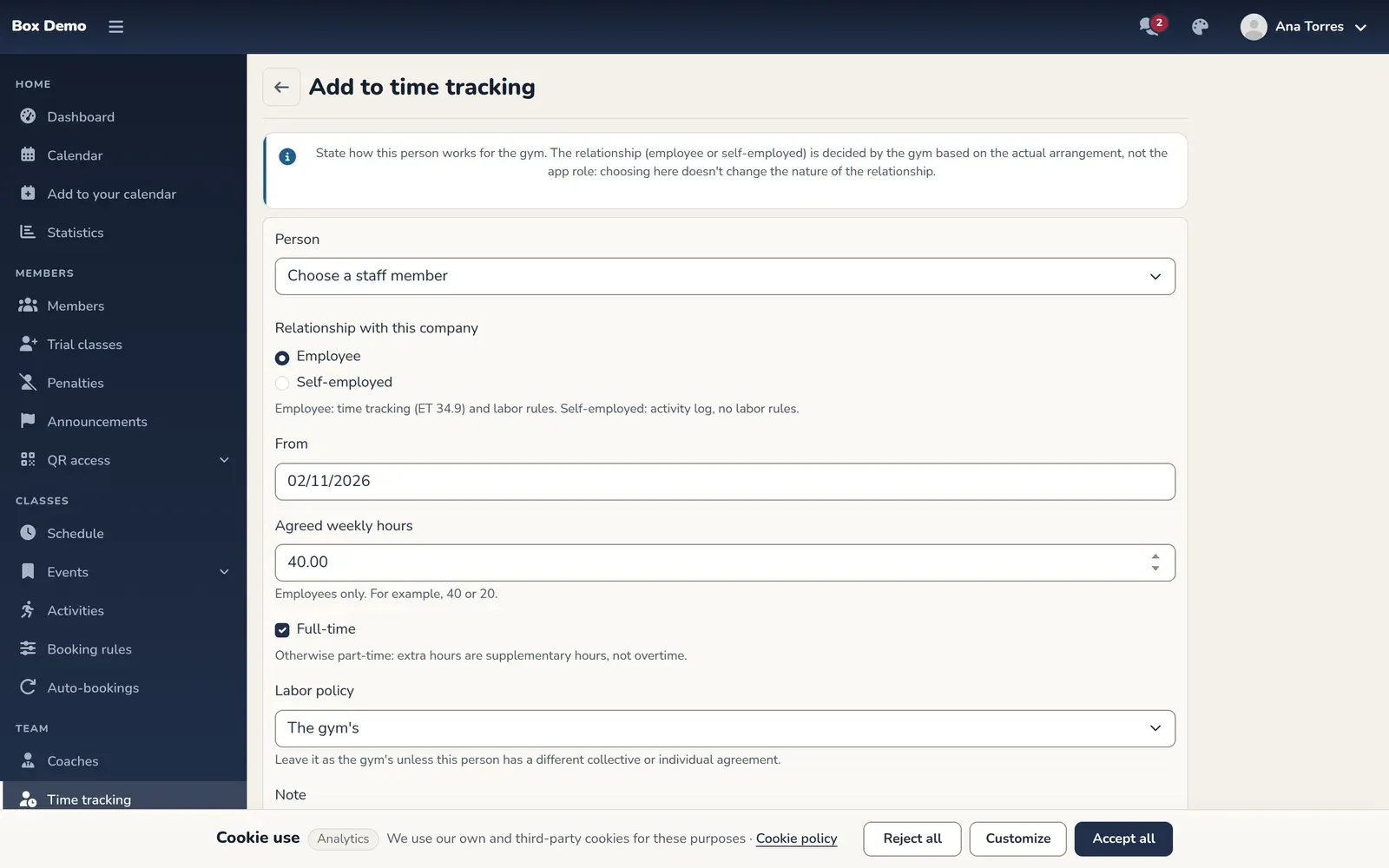
Adding a person to time tracking. -
Let your team know that from that day on they’ll clock in from RoninBox.
-
Turn it on. Open Gym settings ▸ General, check Staff time tracking (marker 1), and save.
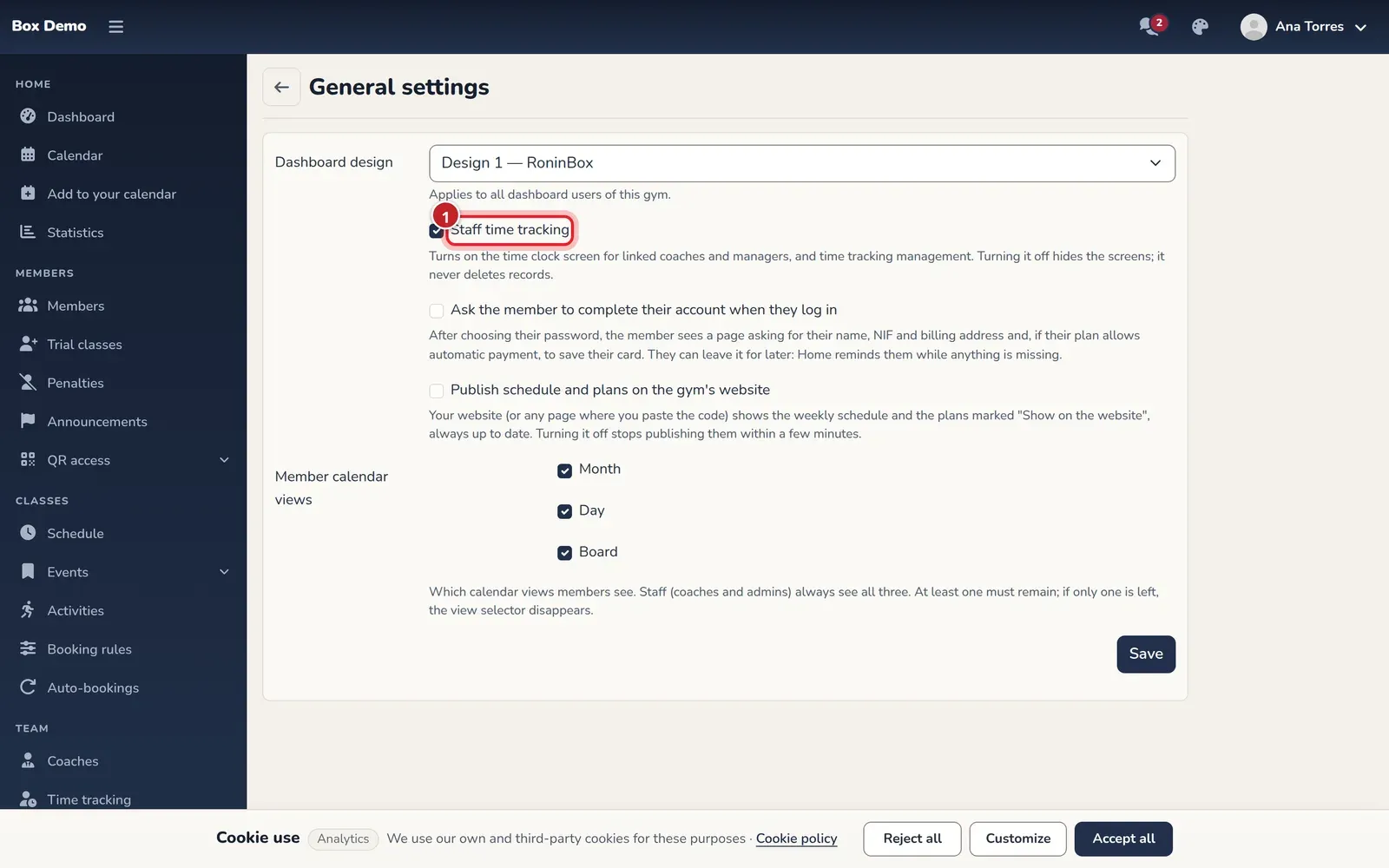
The option that turns on time tracking for the gym.
To clock in, the person also needs the coach or manager role. An administrator who isn’t a coach doesn’t clock in.
Day to day
Section titled “Day to day”- Summary: how many corrections are pending, open shifts longer than 16 hours (with the Suggest clock-out button), unpublished schedules, and who is working Now.
- Corrections: the corrections your team has requested. Open them, read the reason, and tap Apply or Reject, with a note if you like. If you resolve one of your own corrections, it’s marked as resolved by the person themselves.
- Staff: each person’s profile, where you change their conditions from a given date, end their relationship (nothing is deleted), or turn on the Legal hold if there’s a legal dispute.
- Rota: each person’s planned week. Classes come from Coaches and are only shown here. Add blocks that aren’t classes (Opening, Cleaning, Front desk, Other) and tap Publish: the person gets their schedule by email. If you change something afterward, it’s published as a new version.
Reports, month-end close, and Inspection
Section titled “Reports, month-end close, and Inspection”In Reports you see each person for the month with planned hours, countable working time, warnings, and the month’s status. Download their record as PDF or CSV from their row.
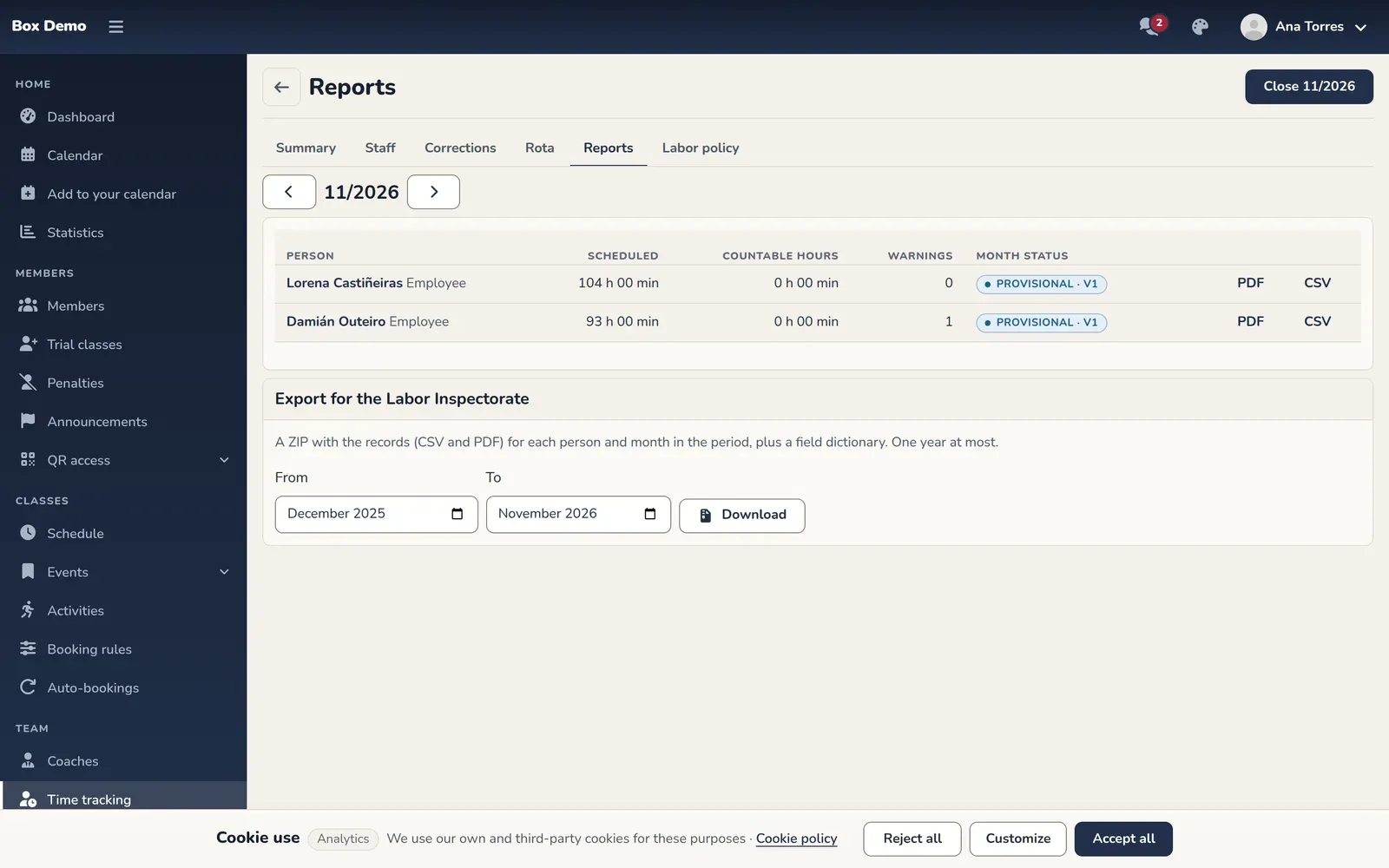
- Close the month. The button at the top (“Close” and the month) saves a snapshot of the month for the whole team. If a correction for that month is applied later, a new version is saved.
- Export for the Labor Inspectorate. Choose From and To (one year at most) and tap Download: a ZIP with each person’s record for each month, in CSV and PDF, plus a field dictionary.
Each person can also download their own monthly record from their screen.
Common mistakes
Section titled “Common mistakes”- Choosing the general framework when a collective agreement applies to you. The policy declares the framework; it doesn’t create it. Choose the one that really applies to you.
- Expecting RoninBox to fill in a forgotten clock-out. It never does. From Summary, propose the clock-out with a correction.