
How to create a one-off class in RoninBox
To create a one-off class in RoninBox, open Event list, click Create event and fill in the form. This is the way to add a class that doesn’t repeat. Classes that repeat every week are set up once in the schedule. In the admin menus we call it an “event”; for members it’s a class.
The event list
Section titled “The event list”Open Classes ▸ Events and go to Event list. The table shows the date, time, activity and spots taken out of the total (for example 12/14), with a pencil to edit and a trash can to delete.
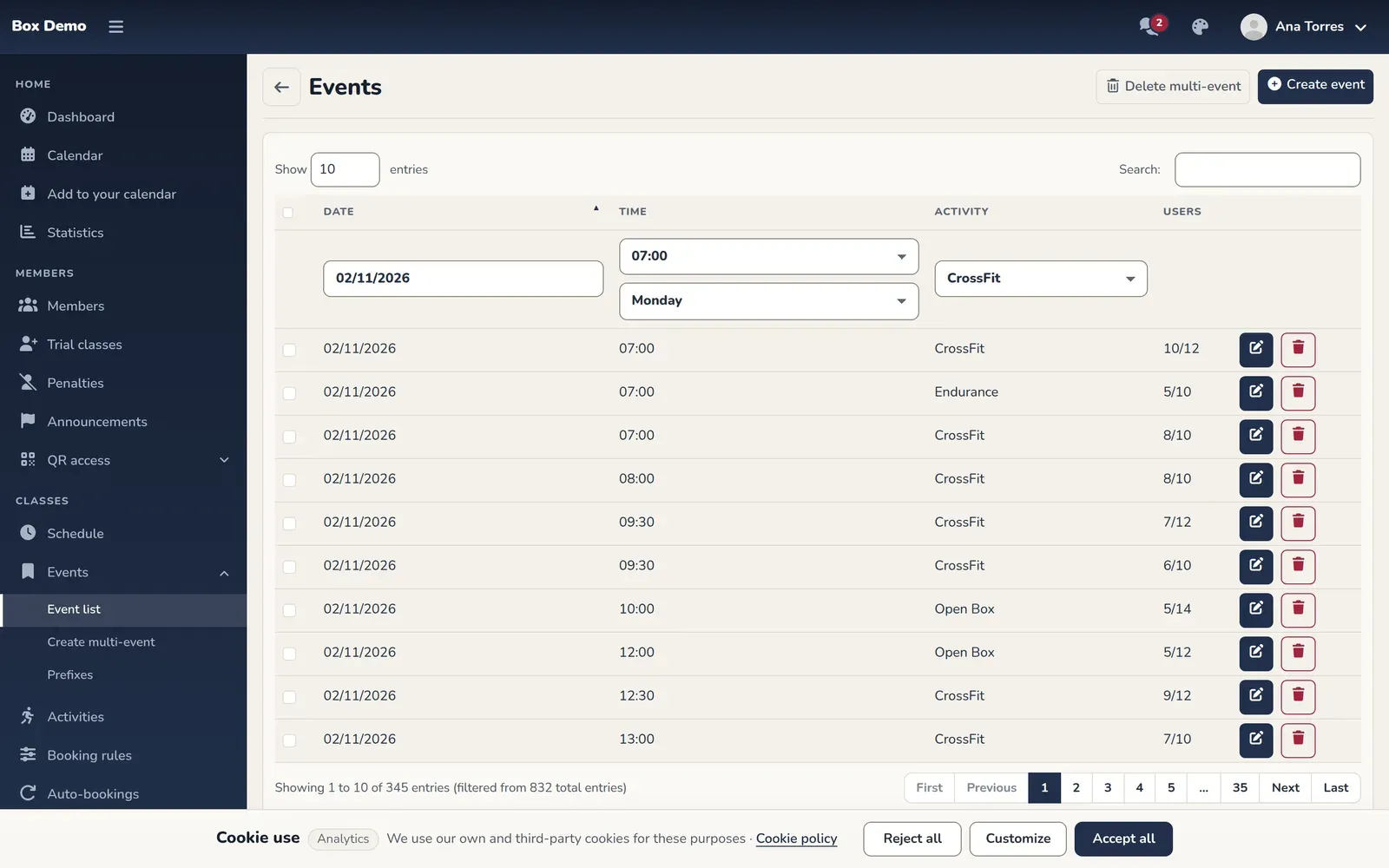
The list opens showing classes from today onward, sorted by date. Change the date range in the header or use the search box to find others. The time, weekday and activity selectors in the header don’t filter yet.
How to create a class
Section titled “How to create a class”-
In Event list, click Create event.
-
Enter the class Name.
-
If you want, choose a Prefix (Class prefixes).
-
Choose the Start date and End date: day and time.
-
Enter the Max users.
-
Choose the Activity. If you leave it as "Open event", the class has no activity.
-
If you want, choose one or more Coaches. When you choose them, the class is locked to those people and later changes to coach rules won’t change it; if you leave it empty, the rules decide the assignment. See Coach roster.
-
At a gym with several locations, choose the Location. "All locations" leaves it open to all of them.
-
Click Save. You return to the event list.
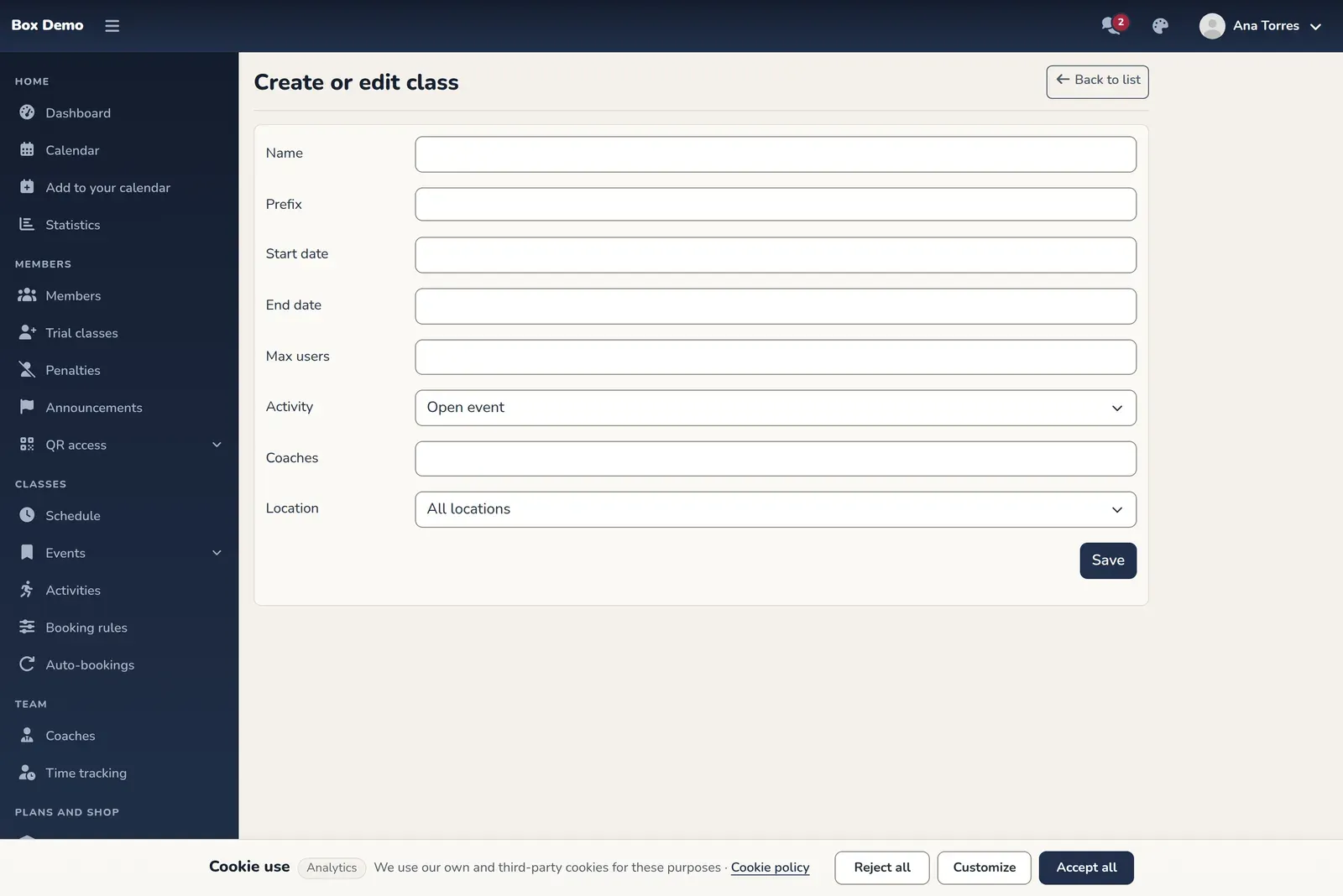
The class form.
Editing and deleting
Section titled “Editing and deleting”- Edit: click the pencil on the row. The form is the same. An older class that had the prefix typed into its name opens with the prefix already selected and the name cleaned up.
- Delete: click the trash can and confirm. RoninBox removes the members from the class and returns each class to their class pass or monthly fee, including members who canceled late. See How to manage a class.
Common issues
Section titled “Common issues”- The class doesn’t show up on the calendar. Check that the date and activity are correct and that you’re on the right location in the calendar selector.
- I can’t find my activity in the dropdown. Create it first in Activities.