
How to add a class pass to a member in RoninBox
To add a class pass to a member, open their profile, go to the Class passes tab and tap Add class pass. A class pass is a number of drop-in classes with an expiration date, bought separately from the plan. How to create them is covered in How to create a plan and Packs.
Only a gym administrator can add or remove class passes.
How to add a class pass
Section titled “How to add a class pass”-
Open Members ▸ Members and go to the member’s profile.
-
Open the Class passes tab.
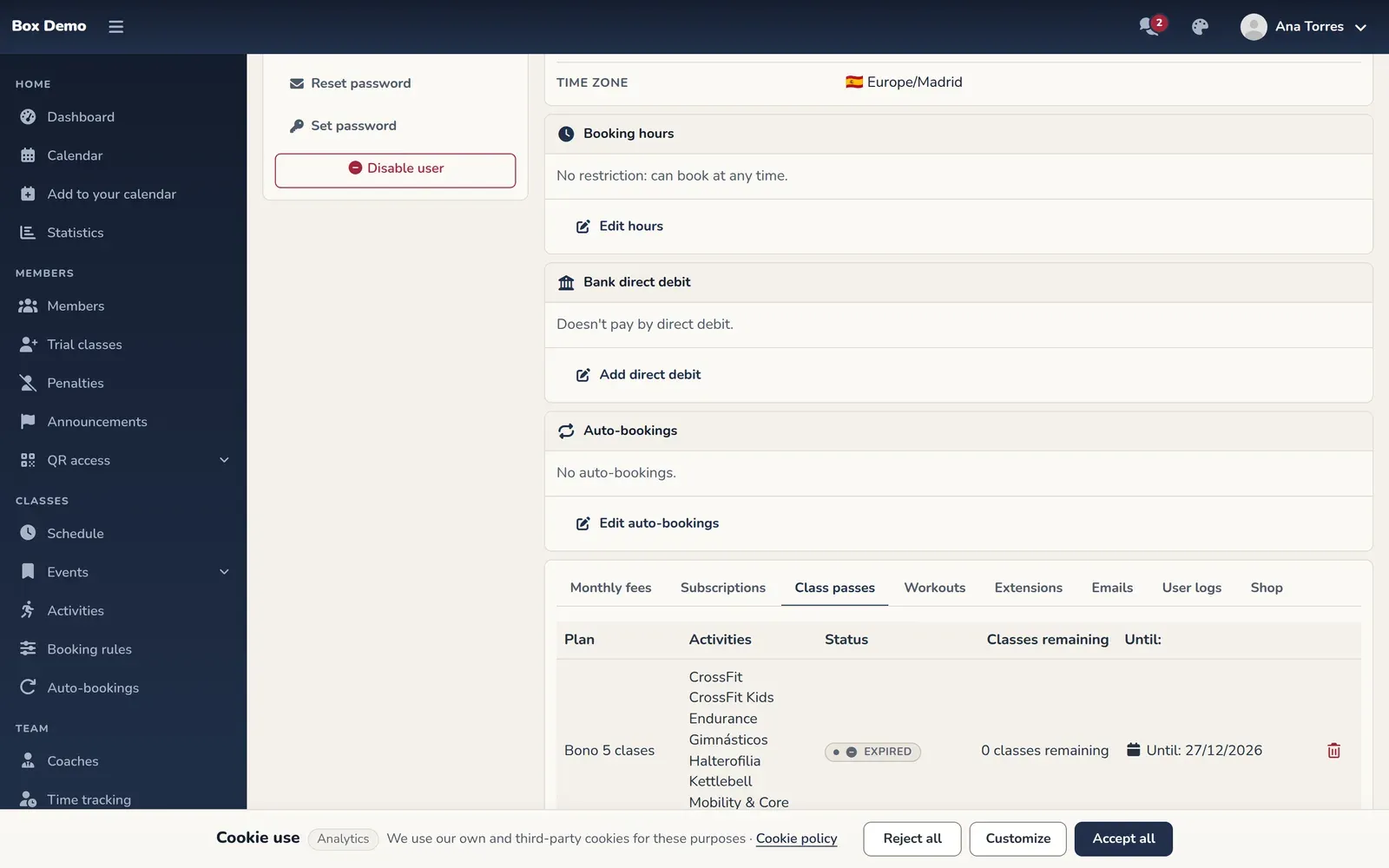
The Class passes tab: one class pass per row and the button to add another. -
Tap Add class pass and choose the class pass from the list.
-
Choose which monthly fee it’s charged to: Current month or Next month. Each option shows the dates of that monthly fee. If it doesn’t exist yet, the option tells you and RoninBox creates it when you add the class pass. Then tap Add class pass in the window.
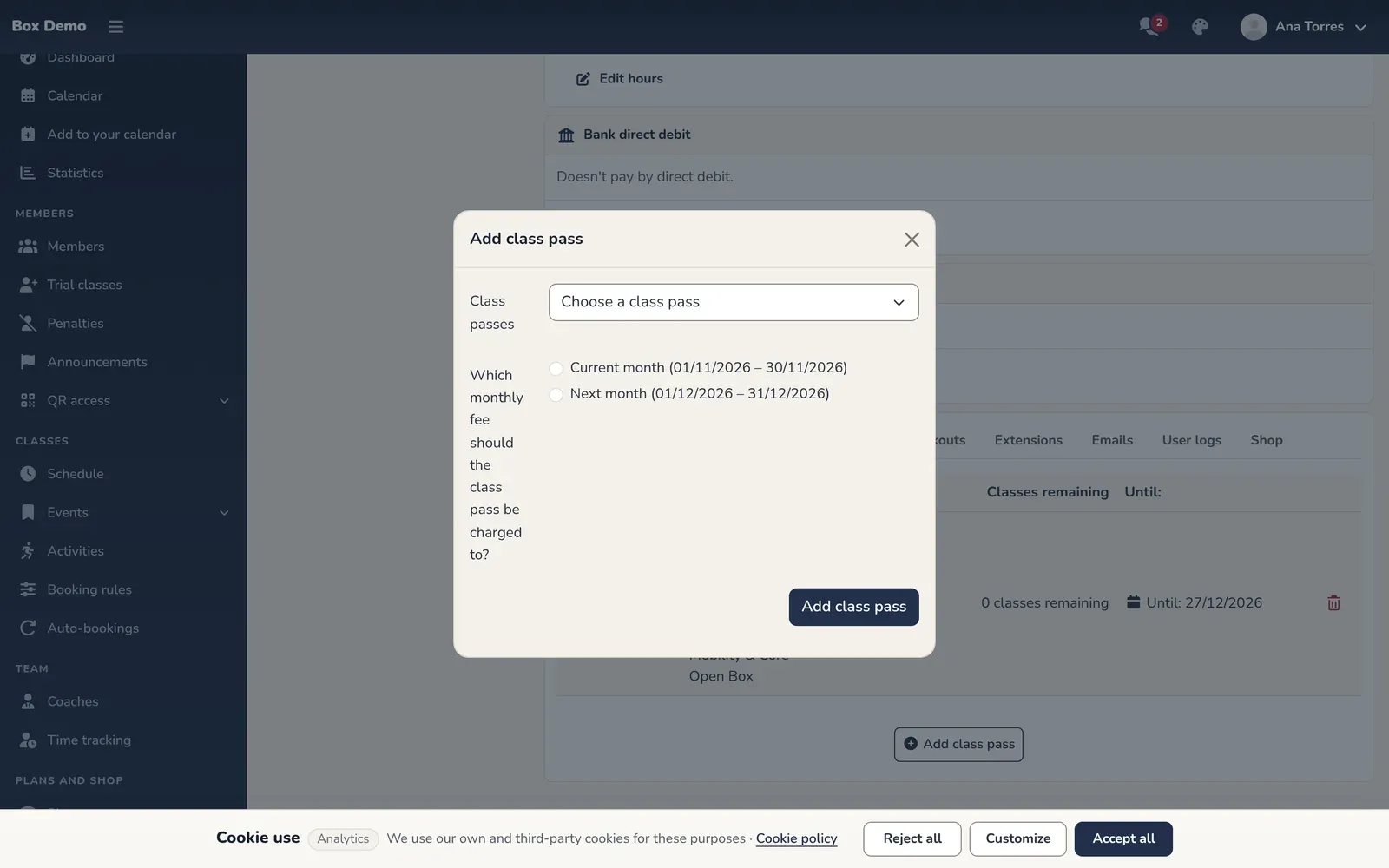
Choose one of the class passes you've created.
What RoninBox does when you add it
Section titled “What RoninBox does when you add it”- The member gets as many classes as the class pass includes.
- The end date is calculated from today, based on the class pass’s expiration.
- The price of the class pass is added as a charge to the monthly fee you chose. To collect it, see Collect cash payments.
- If you chose next month and its monthly fee didn’t exist, RoninBox creates it the same way automatic billing would: with the member’s plan, if they have one, plus the class pass.
- The classes in the class pass can be used starting today, whichever month you choose. The choice only decides where it’s charged.
Reading the class pass table
Section titled “Reading the class pass table”Each row shows the class pass plan, the activities it covers and:
- Status: Active or Expired.
- Classes left, with the number of remaining classes.
- Until: the end date for using the classes.
Removing a class pass
Section titled “Removing a class pass”Tap the trash icon in its row and confirm. RoninBox deletes the class pass along with its classes and recalculates the payments for the monthly fee.
Common mistakes
Section titled “Common mistakes”- The Add Pass button is missing. There’s no class pass for sale. Create a class pass plan with its price.
- The current month option doesn’t appear. The member has a plan and doesn’t have this month’s monthly fee yet. Create it in the Monthly fees tab or charge the class pass to next month.
- An error message appears when saving. Check that you’ve chosen a class pass from the list and the month it’s charged to.
- The class pass isn’t in the list. Create it first as a class pass plan.