
Member monthly fees: create, charge and edit
A member’s monthly fees are the periods RoninBox bills them for. Each monthly fee is a billing period: it combines the member’s plan, any extensions added to it and the payments received, and it has a start and end date. While the member owes money, it’s marked as pending. The classes the member can book come from their monthly fee.
Monthly fees are managed in the member’s profile, on the Monthly fees tab. Both the administrator and coaches manage them: they can open the details, charge, remove payments and delete monthly fees, including ones already charged. Every deletion is recorded in the member’s activity history, along with who did it.
How they’re generated
Section titled “How they’re generated”You don’t have to create them one by one. RoninBox generates the monthly fee for every member with a plan through a scheduled process, and also when the member opens the app and the next one is missing. If the member’s plan has a successor plan (see Chained plans), the new monthly fee is created with the successor.
How the dates work depends on the Monthly fee type option. It’s explained, with examples, in Monthly fee type.
Reading the monthly fees tab
Section titled “Reading the monthly fees tab”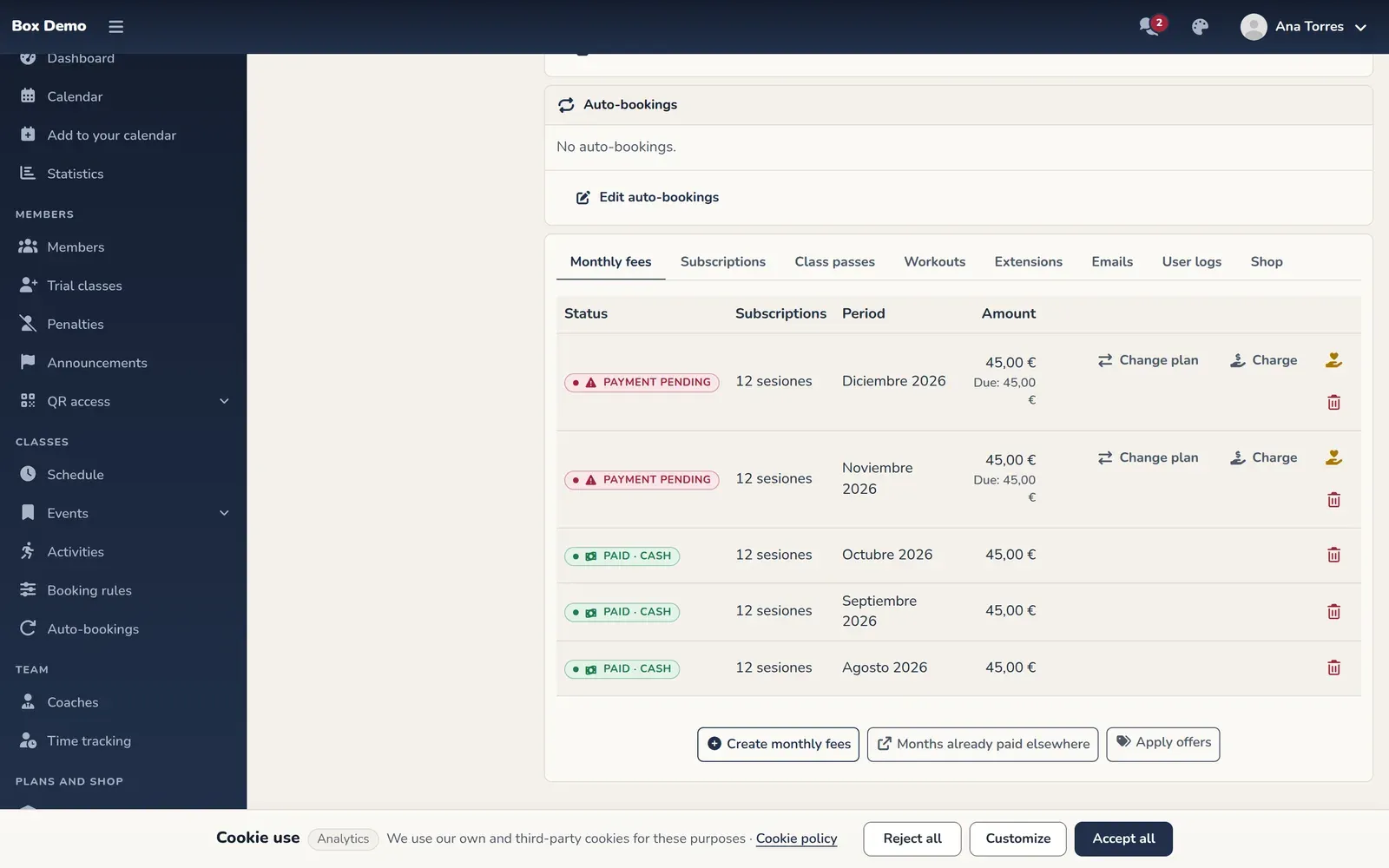
Each row is a period and shows:
- The status: Payment pending if the member owes money, or Paid followed by the payment method (Cash, POS (card) or Online (Stripe)) when all payments were made the same way.
- The plan (Subscriptions) it covers.
- The period: the month name or, depending on the monthly fee type, the start and end dates.
- The action buttons, on the right.
Viewing and charging a monthly fee
Section titled “Viewing and charging a monthly fee”Tap a row’s status to open its details.

The details have three sections:
- The period dates, at the top.
- On the left, the Subscriptions table with its price, the extensions (marked as extensions; discounts appear as negative amounts) and the Total. Each line has a trash icon.
- On the right, the payments table. Each payment has a label with the payment method (Cash, POS (card) or Online (Stripe)), its date and amount, and a trash icon.
If the monthly fee is owed, the Payment pending card appears below with the outstanding amount.
-
Open the details of the pending monthly fee.
-
Choose the Payment method: Cash (selected by default) or POS (card), if the member paid by card at the gym’s terminal.
-
Enter the amount in the Payment field or leave it empty: empty charges everything still owed on that monthly fee. You can record less than what’s owed.
-
Tap Generate payment.
The monthly fee becomes paid once the pending amount reaches zero. For counter payments there’s a handier screen, which coaches can also use: Charge in cash or by card terminal.
If the gym has online payments enabled, the pending card shows two tabs: Manual payment and Online payment. In the second, Generate payment link creates a card payment link you can open or copy to send to the member. If the gym uses monthly fees with a variable start date and no payment has been recorded yet, you also choose the start date there. More details in Online payments.
Creating monthly fees by hand
Section titled “Creating monthly fees by hand”Use this to bill months in advance or fill a gap.
-
On the Monthly fees tab, tap Create monthly fees.
-
In the Create monthly fees dialog, choose the Start date. This field only exists if the gym uses Calendar month. You can choose Now or one of next month’s Mondays.
-
Check the Months to create. The list offers six months starting from the chosen date. Months already covered are disabled with the notice «already exists».
-
If the member has a card saved for recurring payments, the Charge automatically when the period starts checkbox appears. When checked, RoninBox charges the period to their card when it starts.
-
Tap Save.
These are the rules you’ll see in practice:
- A member can’t have two overlapping monthly fees. If you try, the dialog tells you why and creates nothing.
- If you request several months and one fails, the earlier ones are already created and the message tells you how many.
- With Calendar month you can bring the next period forward when the member has already used all their classes. The dialog warns you that the current period will close early and the remaining days will be lost.
Changing what a monthly fee includes
Section titled “Changing what a monthly fee includes”- Remove a plan or an extension. Tap the trash icon on its line in the details. This changes what the member pays, so check the total afterward.
- Remove a payment. Tap the payment’s trash icon in the details. The monthly fee owes that amount again.
- Add a missing plan. If a monthly fee that has already started doesn’t include one of the member’s plans, a button with the plan name appears in the row’s middle column to add it.
- Add a class pass. On the profile’s Extensions tab, the add class pass button asks you to choose the monthly fee and the class passes. Class passes are explained in Class passes and extensions in Extensions.
- Change dates. Only available with Calendar month. See Monthly fee type.
To change the member’s plan permanently, see Assign a plan. Members can also change the plan for their own period from My billing, within their own limits (see Online payments).
Monthly fees paid on another platform
Section titled “Monthly fees paid on another platform”When a member already paid for some months outside RoninBox (for example, they’re coming from WodBuster with a six-month plan paid two months ago), those months shouldn’t be charged here. Mark them as paid on another platform: they’re set to €0 without recording any payment, so no receipt or invoice is issued and they don’t count as gym revenue. Only the administrator can do this.
- An existing monthly fee: open its details and tap Mark as paid on another platform. You can add a note (where or how they paid) and confirm. Only possible if it has no payments yet.
- The remaining months of an outside offer: tap Months already paid elsewhere, enter the description (for example «WodBuster six-month plan»), how many months are left and from which month. For the six-month plan in the example: 4 months starting next month. Missing ones are created and existing ones without payments are marked.
- Several months when creating them by hand: tap Create monthly fees, check the months and turn on Already paid on another platform. Automatic charging is turned off for those months.
What the member sees: at the top of their billing, «You’re paid up until …» with the number of months and the description, and each of those months says «Paid on another platform» with the note. Write the description with them in mind.
In the profile they appear with the Paid on another platform label, and in Billing ▸ By monthly fee you can filter by that status. If you make a mistake, open the details and tap Remove the mark: the monthly fee becomes pending again for its amount.
While it’s marked, its plans and lines can’t be changed: remove the mark first. If the member pays with an automatic subscription, a current or future month can’t be marked, because the subscription would charge it anyway.
To sell several months at once within RoninBox (a quarter, six months or a year), use offers.
Deleting a monthly fee
Section titled “Deleting a monthly fee”The trash icon at the end of the row deletes the entire monthly fee.
The member’s activity history gets one row for the monthly fee and another for each payment and extension deleted with it, with the amount, payment method and payment date. A payment that has already been invoiced can’t be deleted, no matter who tries.
Deleting the next monthly fee (Natural month)
Section titled “Deleting the next monthly fee (Natural month)”With Calendar month, if you delete the member’s last monthly fee, it won’t be created again automatically. The profile shows an automatic renewal stopped notice: no new monthly fee will be created after the previous one ends.
- To give the member more days, extend the end date of the previous monthly fee (see Monthly fee type). Renewal resumes automatically from the new end date.
- To go back to normal renewal without changing dates, tap Resume renewal in the notice.
- If you do nothing, the member gets no new monthly fees until you resume it. Shortening the end date doesn’t resume it either.
Both actions, stopping and resuming, are recorded in the member’s activity history.
Common mistakes
Section titled “Common mistakes”- I entered the wrong amount for a payment. The form in the details accepts any amount, even more than what’s owed. Delete the payment with its trash icon and record it again. The record payments screen does prevent charging more than what’s owed.
- It won’t let me create a month. Almost always because that month is already covered or overlaps another of the member’s periods.
- I can’t find the buttons to edit dates. They only exist if the Monthly fee type option is set to Calendar month.