
How to delegate your calendar to another member
To delegate your calendar to another member, give them permission from your profile. That person will be able to sign you up, cancel you, move you to another class, and manage your waitlists from their own account, without you sharing your password.
You can do this yourself, without asking the gym. The person you choose must belong to the same gym and have an active account. You keep using your calendar as always.
How to give permission to another member
Section titled “How to give permission to another member”If you are under a guardian’s care, your guardian already manages your calendar and you can’t share it with anyone else: the screen tells you who that is. And if you are a guardian, your children’s calendars already appear in your selector without them having to share access; My family explains how.
-
Open Profile in the bottom bar. Under Shortcuts, tap Delegate calendar.
-
In Choose a person, type the person’s first or last name, at least three characters, and tap Search. The search works by first or last name, not by email or username.
-
Check the name in the result and tap Delegate next to that person.
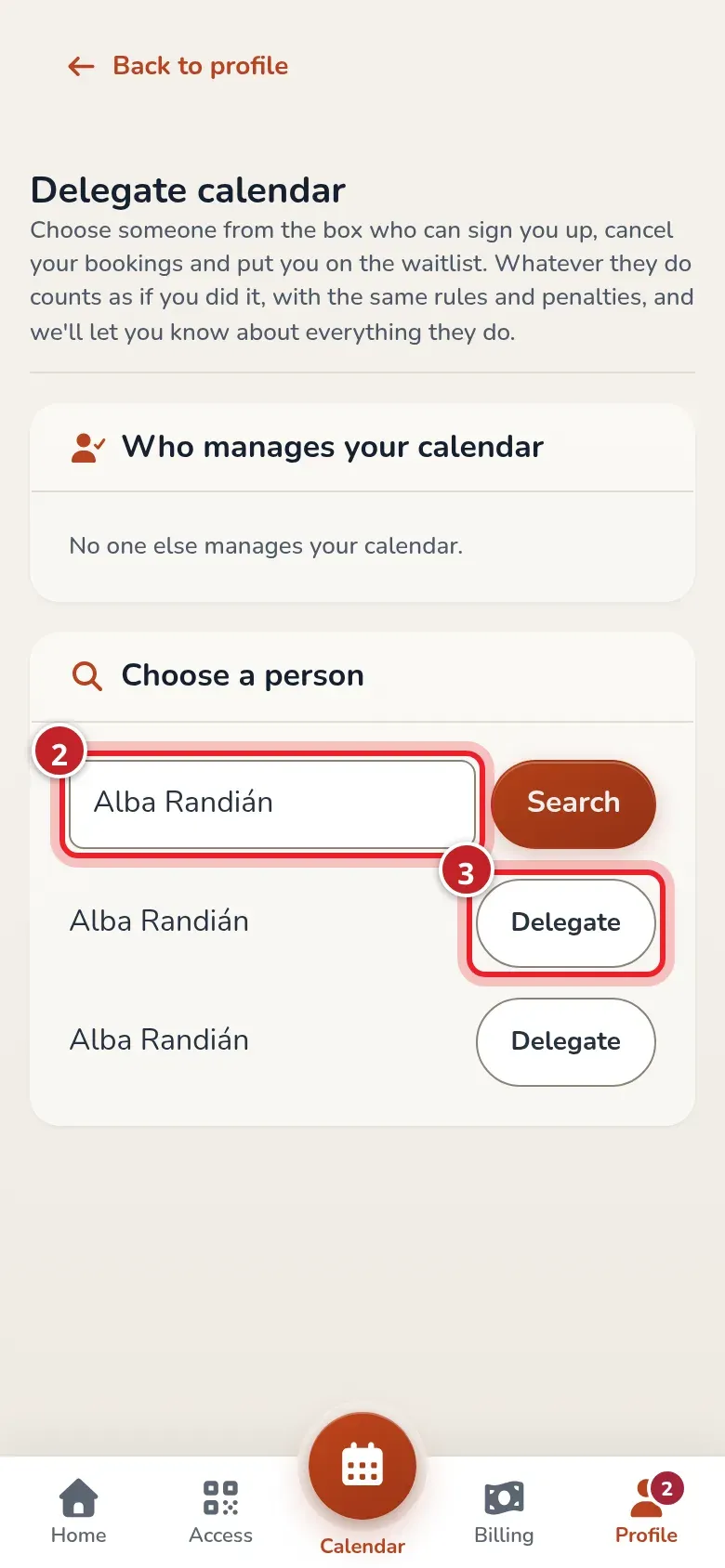
Search for the person by name and check the result before giving them permission.
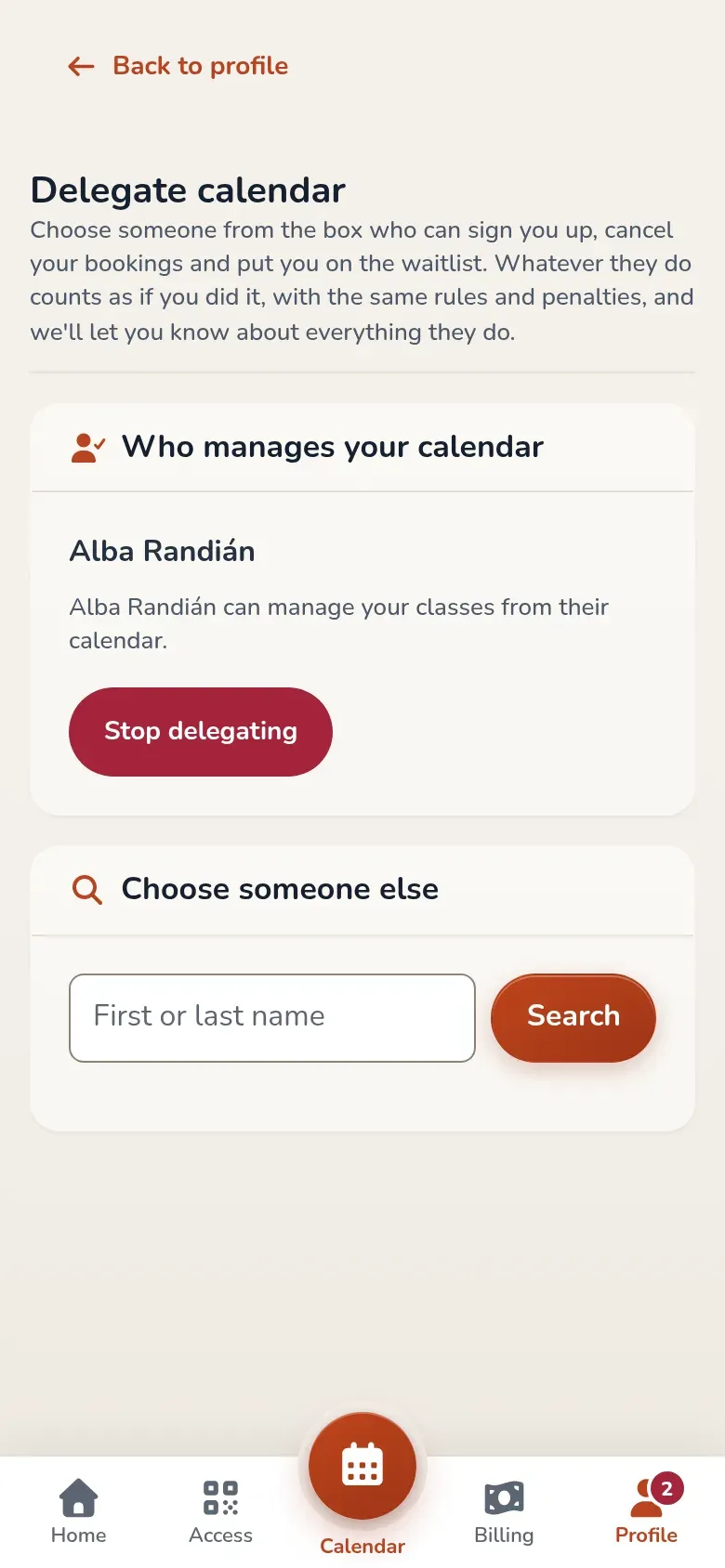
Once saved, their name appears under Who manages your calendar. From then on, they can manage your classes. They don’t need to sign in with your account, and you don’t need to sign out.
How to manage a calendar delegated to you
Section titled “How to manage a calendar delegated to you”These steps are done by the person who receives permission, signed in with their own account.
-
Open Calendar.
-
In the Delegated calendar selector, choose the name of the member who gave you permission. Check their name in the header before making a booking.
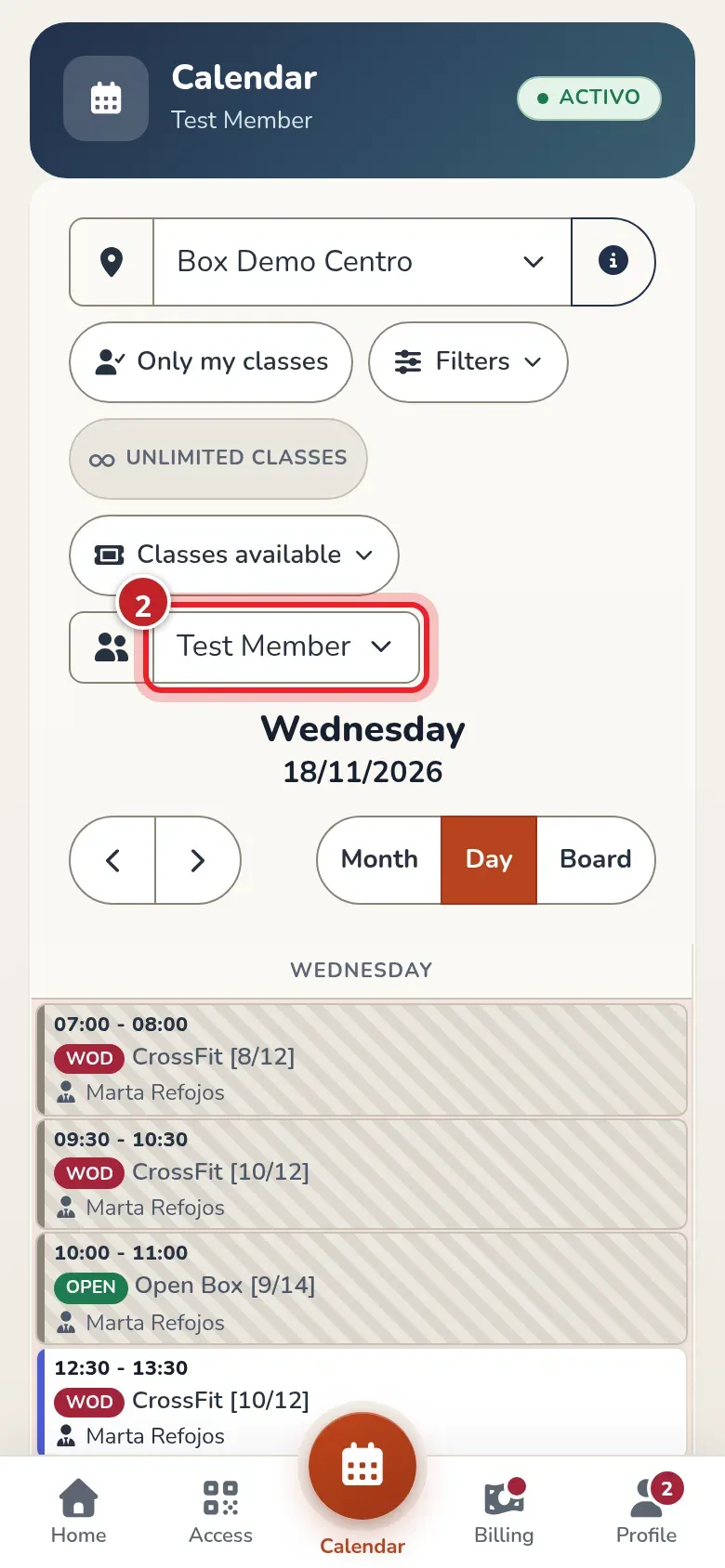
The name in the header tells you whose classes you're managing. -
Book, cancel, or join a waitlist just as you do in your own calendar. You’ll find the steps in Book a class and Cancel a booking.
-
To go back to your own classes, choose My calendar in the same selector.
You can also open Profile ▸ Delegate calendar. Under Calendars you manage, you’ll see links to the calendars you manage.
Notifications about what the other person does
Section titled “Notifications about what the other person does”RoninBox can notify you on your phone when that person signs you up, cancels you, moves you to another class, or adds you to or removes you from a waitlist. It also notifies the person receiving permission when you delegate your calendar to them.
To get them, turn on notifications on your phone and the Delegated calendar option in your preferences. This is explained in Messages and notifications.
Change the person or remove access
Section titled “Change the person or remove access”Go back to Profile ▸ Delegate calendar.
- To remove it, tap Stop delegating. That person can no longer manage your classes.
- To change it, search for another member in Choose someone else and tap Delegate next to their name. The new permission replaces the previous one.
Common problems
Section titled “Common problems”- I can’t find the person. Type at least three characters of their first or last name. They must be someone else at the same gym with an active account.
- I don’t see the selector in my calendar. Make sure the other member has already given you permission, then reopen the calendar.
- I’m seeing someone else’s classes. Check the name in the header and switch back to My calendar before booking for yourself.