
How to create class prefixes in RoninBox
Class prefixes are colored badges that RoninBox places before a class name in the calendar. They help you tell apart different types of sessions within the same activity: for example “OPEN” versus a regular class, or “GI” versus “NO GI”. You create them once and then pick them when you set up the schedule or create a class.
Where to manage them
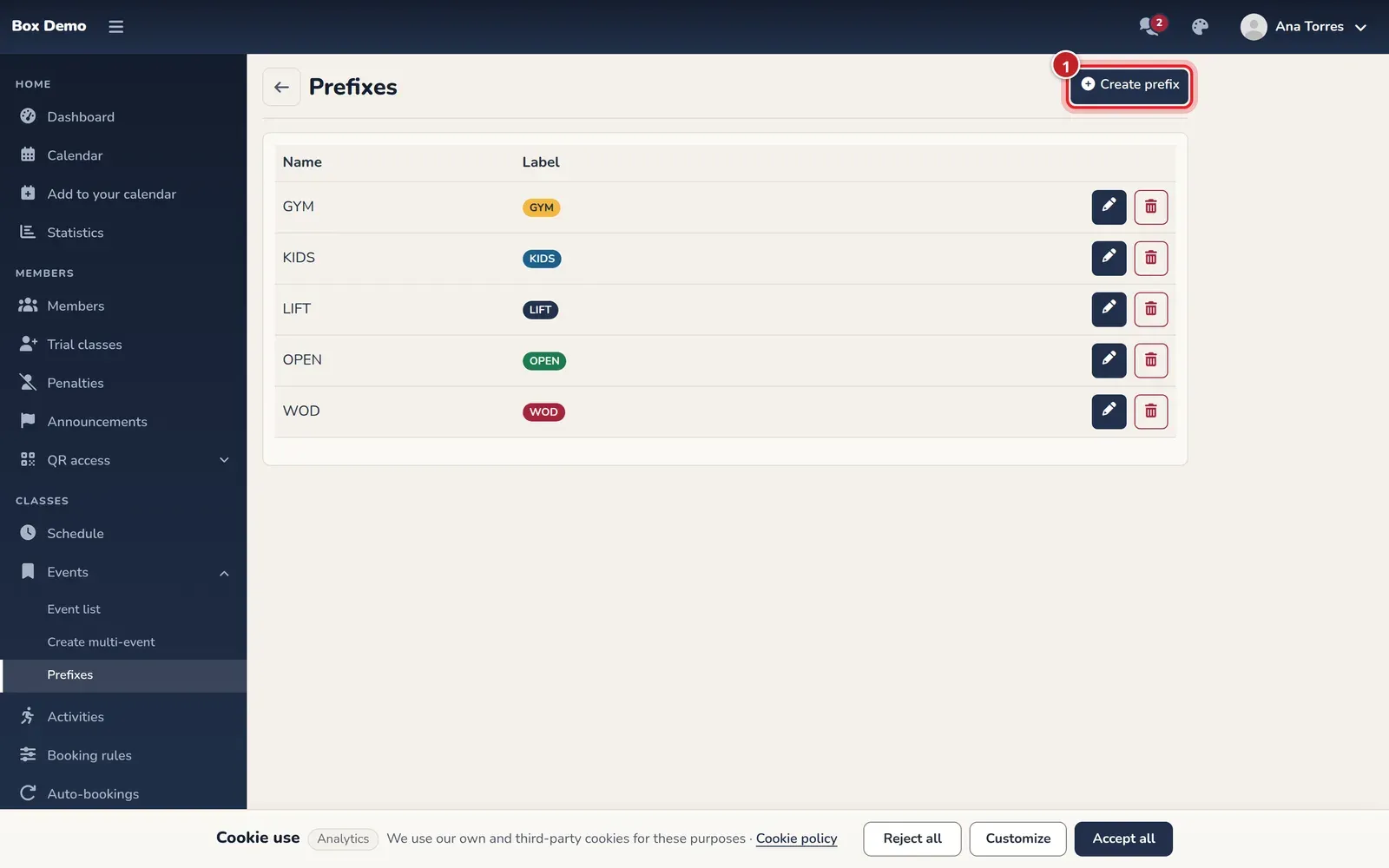
Section titled “Where to manage them”Open Classes ▸ Events and go to Prefixes. Only administrators see this menu. The list shows each prefix’s name, its badge exactly as it will look on screen, and the edit and delete buttons. If there aren’t any yet, you’ll see “No prefixes”.
How to create a prefix
Section titled “How to create a prefix”-
In Prefixes, tap Create prefix (marker 1 in the first image).
-
Enter the Name (marker 1 in the second image). This is the text shown inside the badge, so keep it short.
-
Fill in Label (marker 2). This field is required. The badge members see in the calendar is drawn with the name and the color.
-
Choose a Color (marker 3): Blue, Gray, Green, Red, Yellow, Cyan, Light or Dark. If you leave it on "No color", the badge shows in neutral gray.
-
Tap Save (marker 4).
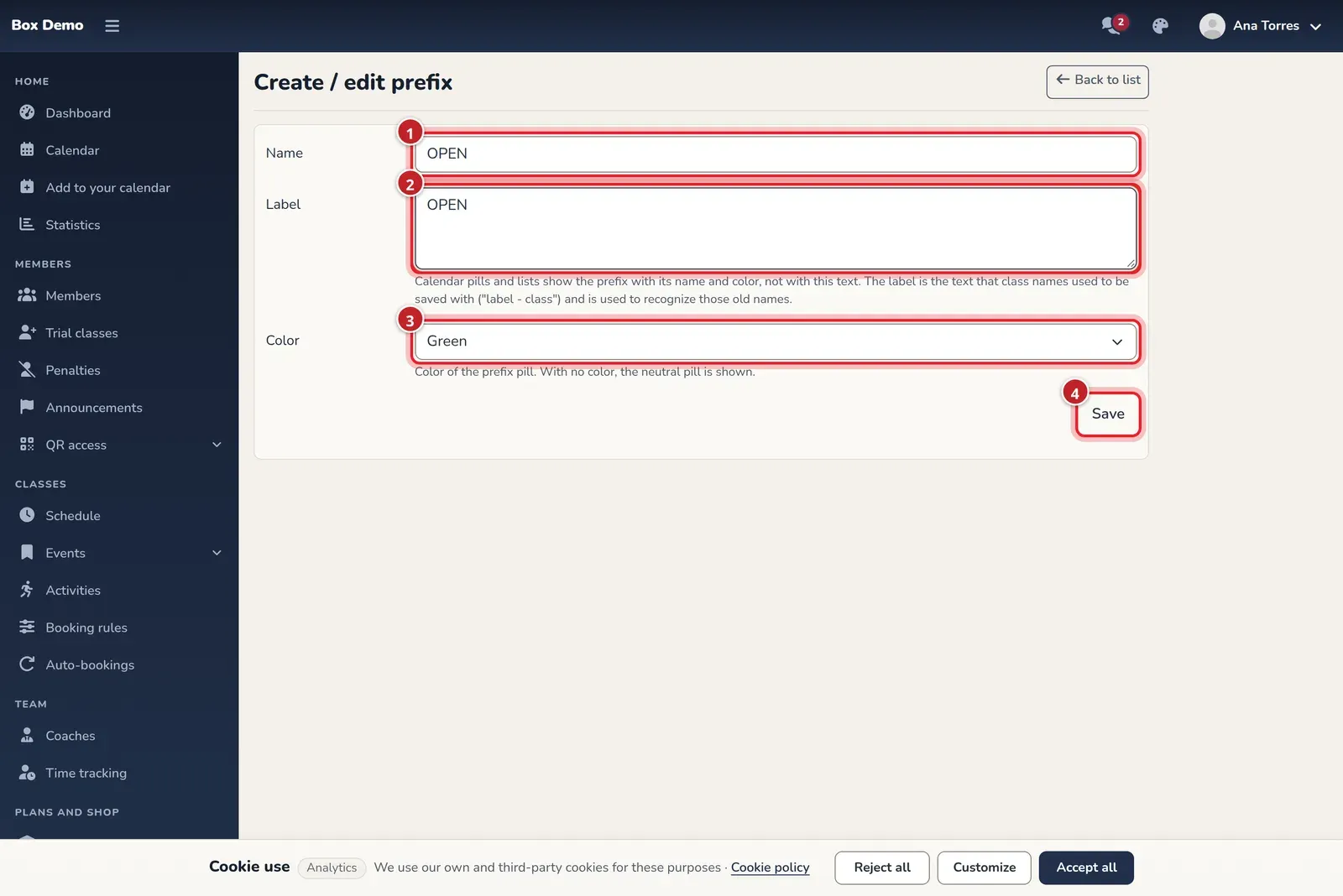
The prefix form. The numbers match the steps.
Where the badge appears
Section titled “Where the badge appears”- In the Event configurator list, in the Prefix column. See How to set up the class schedule.
- In the calendar, before each class name, and in the class window.
Editing or deleting a prefix
Section titled “Editing or deleting a prefix”Each row has a pencil to edit and a trash can to delete. RoninBox asks for confirmation before deleting. If any schedule rule uses the prefix, it stops appearing in the dropdowns but those rules keep it. If nothing uses it, it’s deleted completely.
Common issues
Section titled “Common issues”- The Label field won’t let me save it empty. It’s required; enter the same text as the name.
- I changed the color and the calendar looks the same. Reload the calendar page.