
Coach schedule: who teaches each class
The coach schedule shows the gym’s week in a grid, with the coach who teaches each class. You’ll find it in Coaches, tab Staff schedule. From there you can also assign coaches by hand to the classes you choose.
Transcript
Open Coaches in the menu. The first tab, also called Coaches, lists the whole team.
In Rules you decide who teaches each class automatically, by activity, day and time.
In Stats you see how many classes and hours each coach has taught.
And in Schedule you have the gym’s week in a grid, with the coach for each class. Use the arrows to change weeks.
To assign by hand, check the box for each class you want to change.
The bottom bar appears. Tap Assign coach to choose who teaches those classes. Back to rules returns them to automatic assignment.
How to read the schedule
Section titled “How to read the schedule”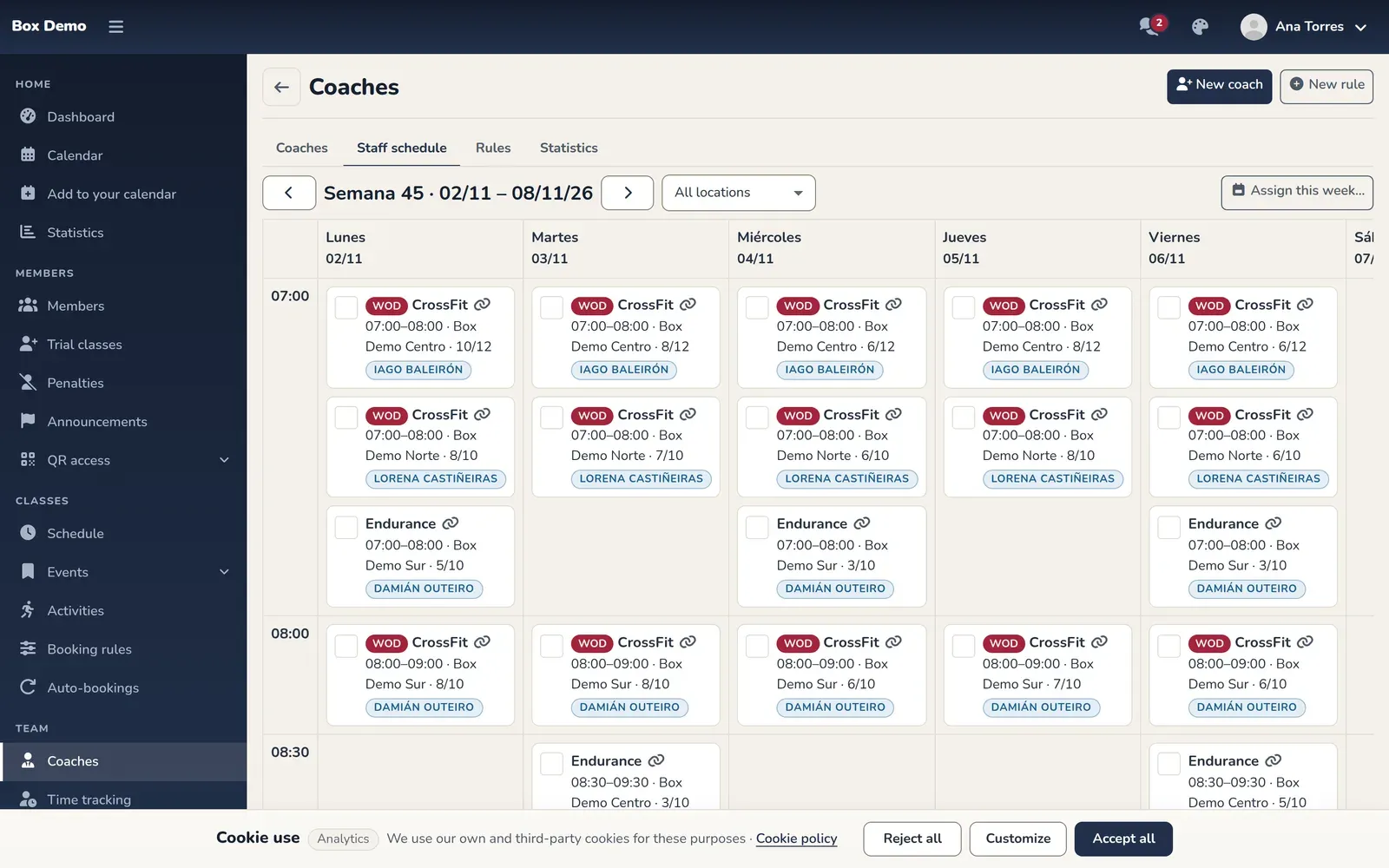
At the top you have the Previous week and Next week arrows and the week number. If your gym has several locations, a dropdown filters by location.
Each class shows who teaches it and why:
- By rule: %rule%: the coach comes from a rule.
- Assigned manually: you picked them by hand. It’s marked with a pushpin.
- No coach: no rule covers that class.
Assign coaches to specific classes
Section titled “Assign coaches to specific classes”-
Check the box for each class you want to change. A bar appears at the bottom with the number of selected classes (marker 1).
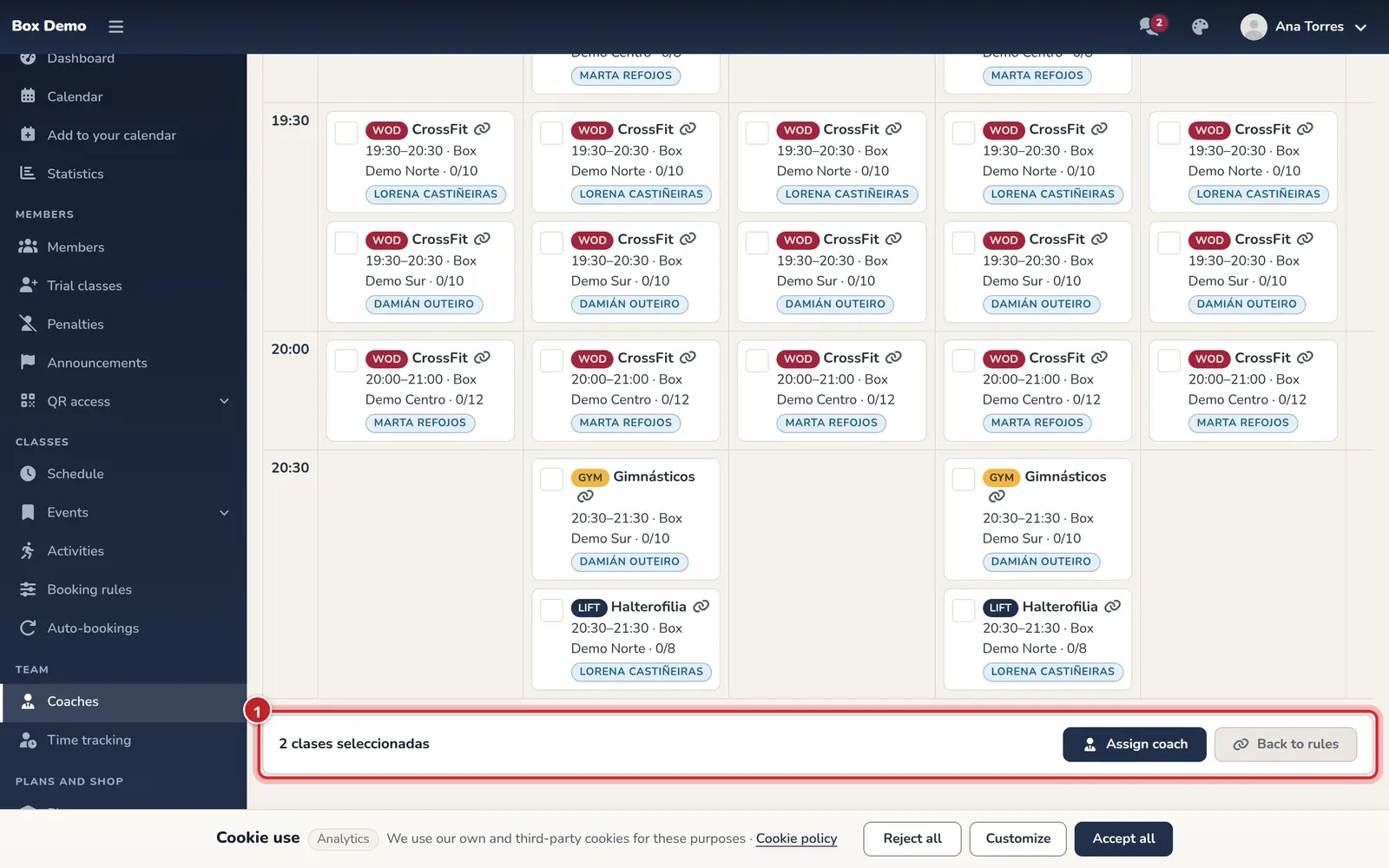
When you select classes, the assignment bar appears. -
Tap Assign coach.
-
In the Assign coach to selected classes window, choose one or more coaches and tap Assign.
Those classes become Assigned manually: the rules stop changing them.
Back to rules
Section titled “Back to rules”Select the classes assigned by hand and tap Back to rules. Each class is recalculated using the rules. The button is only enabled if at least one of the selected classes was assigned by hand.
Assign the whole week
Section titled “Assign the whole week”The Assign this week… button opens the rule form already filled in with that week’s dates. It’s the way to make a one-off change: see coach rules.
Common issues
Section titled “Common issues”- The class still has the old coach. If it was assigned by hand, the rules don’t touch it. Tap “Back to rules”.
- I don’t see checkboxes. Only the administrator can assign.