
RoninBox home dashboard: what it shows
The home dashboard is different for the admin and for members. Admins land on it when they log in to RoninBox; members and coaches go straight to the calendar and have their home in the Home tab. The admin sees how the gym is doing today; the member sees their next class and the classes they have left.
Transcript
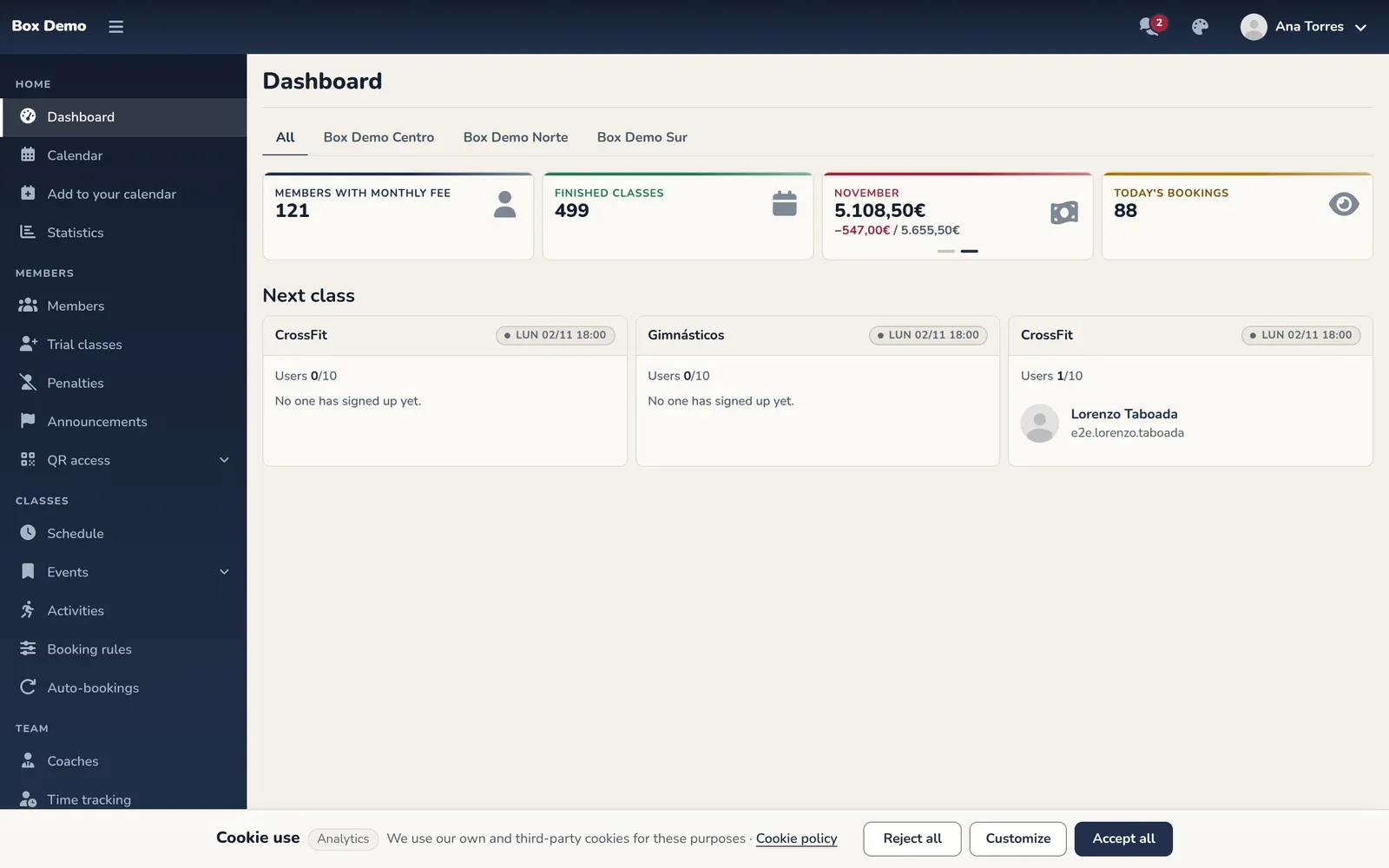
This is the admin’s home screen. On the left you have the menu and, in the center, how your gym is doing today.
The cards sum up your gym: members with an active monthly fee, classes already finished, this month’s revenue and today’s bookings.
The menu is organized by task: day-to-day items at the top and gym settings at the bottom.
Members holds your member list, trial classes, penalties and announcements.
Classes holds the schedule, events, activities, booking rules and automatic bookings.
Team holds your coaches and time tracking.
Plans and shop brings together plans, fees, class passes and offers, and the shop.
In Payments you see what was collected each month, invoices and generic payments, and you record cash payments.
Training stores WODs and RMs.
And at the bottom, Gym settings: general settings, locations, branding, payment settings and your RoninBox subscription.
Your own profile is in the user menu, top right.
To come back here at any time, tap Dashboard at the very top of the menu.
What the admin sees
Section titled “What the admin sees”It’s the Dashboard option in the side menu. You can also open it by tapping the logo in the top left.
The four cards
Section titled “The four cards”- Users. The number of members with an active monthly fee.
- Finished classes. The total number of classes that have already ended.
- Monthly revenue. A card that switches months on its own. It shows what has been collected. If money is still outstanding, the difference and the expected total appear below in red, for example «−1234.92€ / 9601€».
- Today's bookings. How many bookings there are today across all of the day’s classes.
Upcoming classes
Section titled “Upcoming classes”Below is a Next class block with the next classes (up to three). Each card shows the activity, the day and time, how many people are signed up versus capacity, and the list of who’s coming. If the class is full, you’ll see the Full label. If there are more people than spots, you’ll see Over capacity.
If there are no classes coming up, the block says so and offers the Create multi-event button. More on this in Calendar classes.
The over-capacity warning
Section titled “The over-capacity warning”When one of the upcoming classes has more people than spots, a red warning appears at the top: Classes over capacity. It says how many classes are in that situation. To fix it, open the class and check who’s signed up: see Manage a class.
If you have several locations
Section titled “If you have several locations”When the gym has two or more visible locations, a row of tabs appears at the top: All and one per location. Each tab repeats the four cards and the upcoming classes, but only with that location’s data. Hidden locations don’t show up. See Locations.
What the member sees
Section titled “What the member sees”Members land on Home, the first option in the bottom bar.
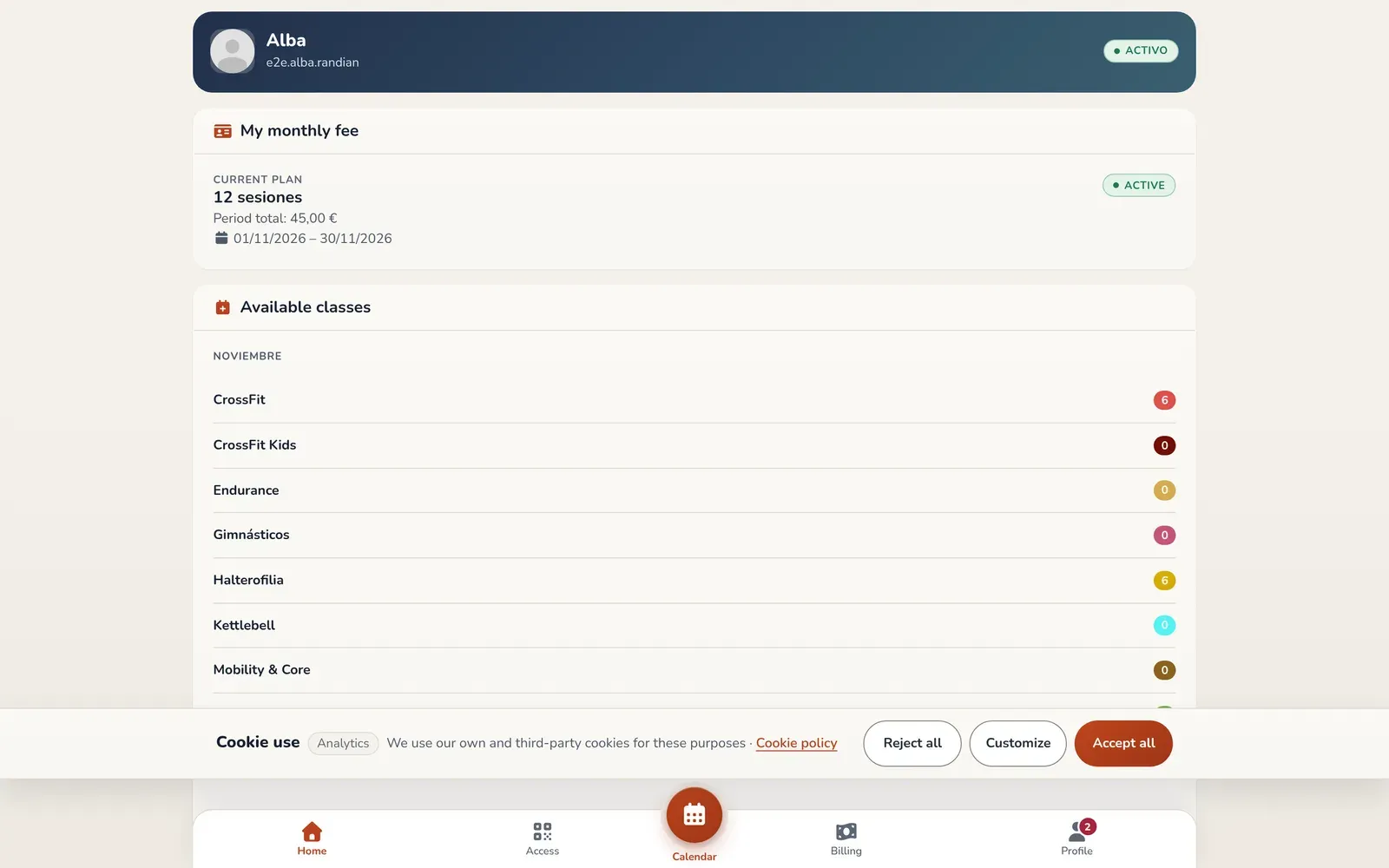
- Header with their name, username and status.
- Payment due notice. Only if they owe something: at the very top, with the total due and the unpaid monthly fee (or the number of unpaid monthly fees). If they pay online, the notice has the «Pay now» button, which opens the same payment as Billing; otherwise, the whole notice links to Billing.
- My monthly fee. Their plan, with the total for the period, the start and end dates, and its status: active, payment pending or about to start.
- Available classes. How many classes they have left for each activity in each period. An ∞ symbol means there’s no limit.
- My class passes and Upcoming booked classes, if they have active class passes or booked classes.
If the member has no active monthly fee, instead of their classes they see the No active monthly fee notice and a button that links to Billing.
Common issues
Section titled “Common issues”- The dashboard says there are no upcoming classes. Check that the schedule is active and has a start date: see Schedule builder.
- The Users card shows 0 and I have members signed up. The card only counts those with an active monthly fee.