
Collect payments from your phone as a coach
Collect payments from your phone as a coach without stepping away from your class. Open what’s owed from Payments, the Home search, or the calendar. All three paths lead to the same payment: check who you’re charging, what they’re paying for, and how much you receive.
From Payments
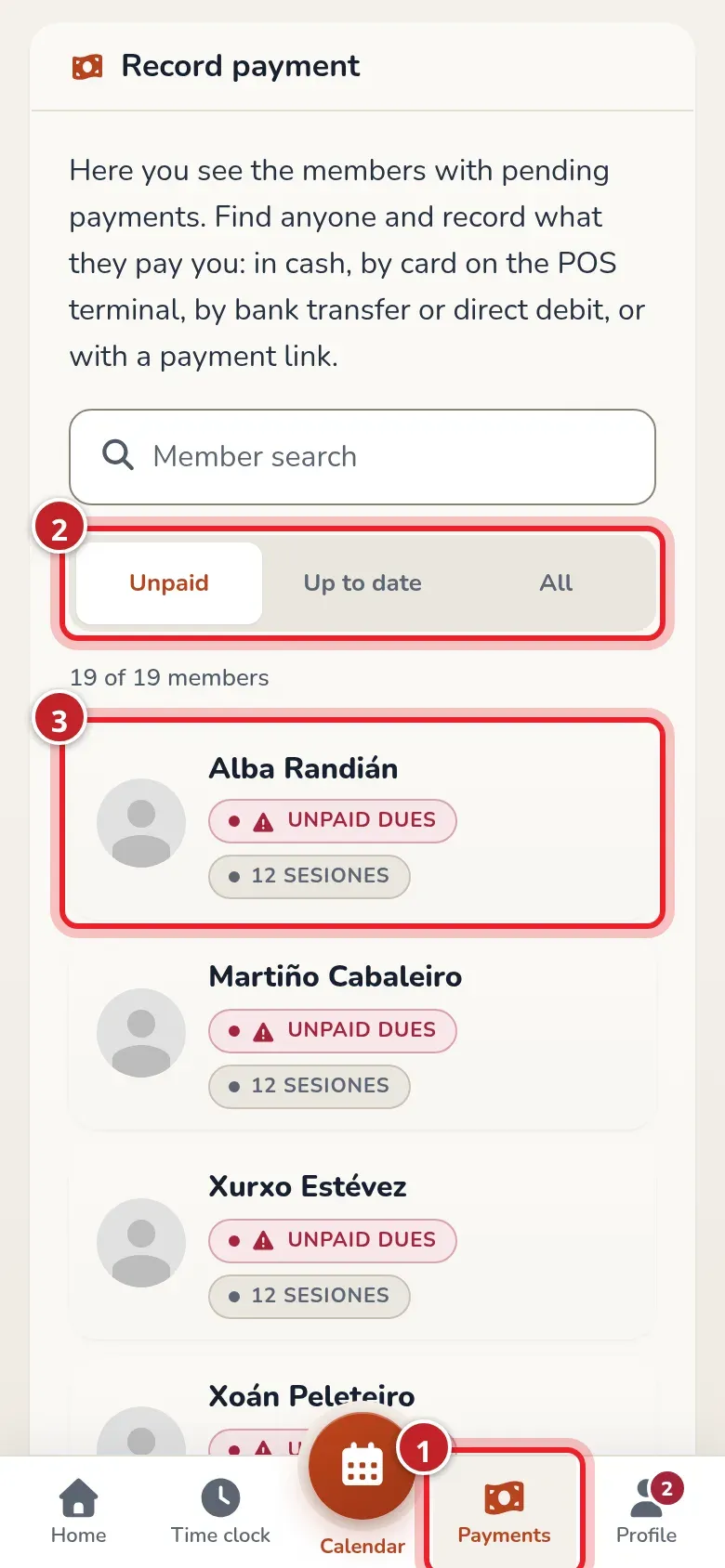
Section titled “From Payments”- Tap Payments in the bottom bar. The list opens on With issues. You can switch to Up to date or All.
- Use Find member to find the member. The filter and results update in the list.
- Open the member and tap Charge on the period they’re paying for.
From the Home search
Section titled “From the Home search”In Home, type the name or email in Member search and tap the result. The profile header has Charge. You can also go to Plan and class passes and charge the relevant month.
If the email isn’t in the gym yet, the search offers to create the member. The admin doesn’t need to create them first.
From the calendar, during a class
Section titled “From the calendar, during a class”Tap the member’s face on the board or their name in the class list. The quick menu shows whether they have Payment pending (marked as 1) and offers Charge (2).
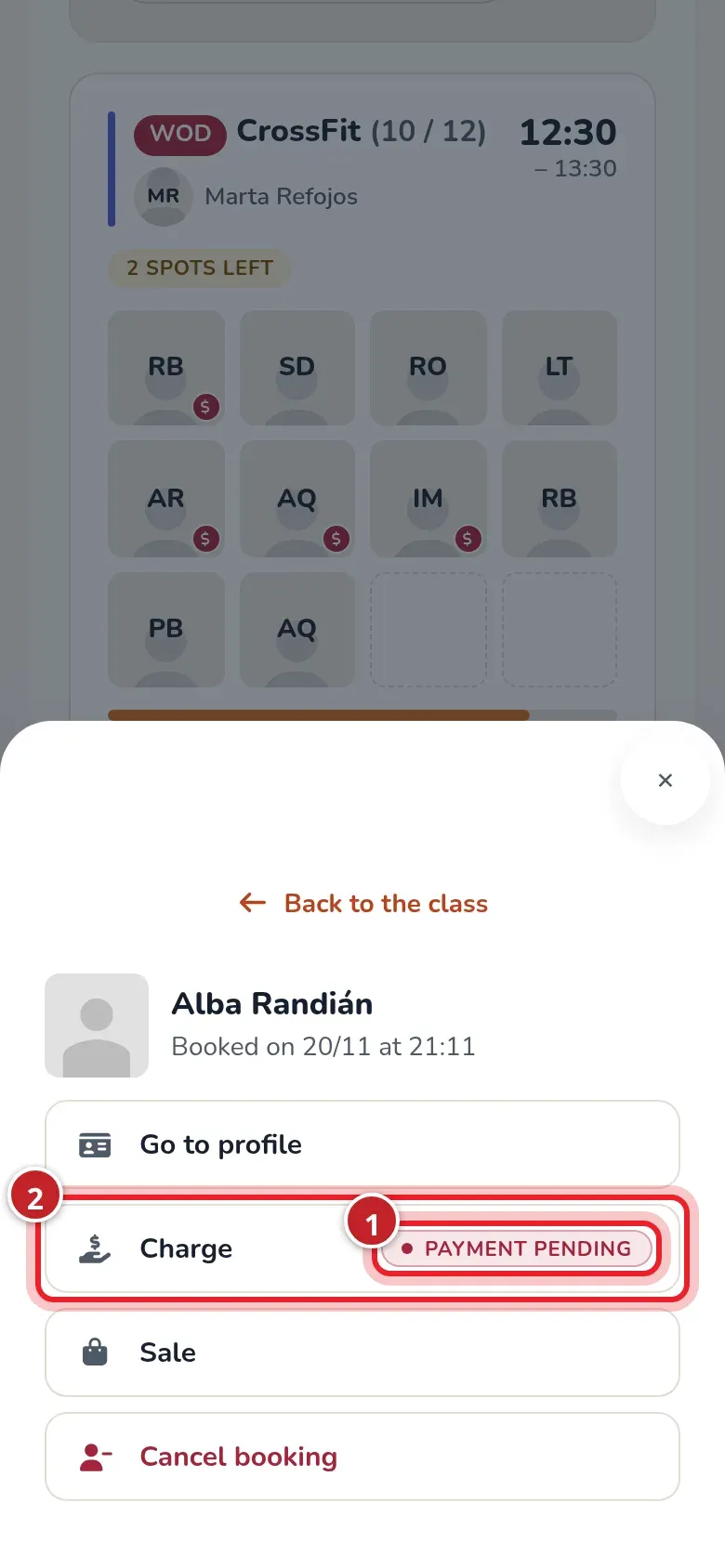
Depending on the situation, that menu also lets you open the profile, make a sale, remove the member from the class, and check injuries. A red dollar sign on a face means real debt; a 28-day class pass awaiting payment, unpaid and unused, doesn’t turn it on by itself.
Tap Charge and then Charge on what they owe. When you’re done, the header link takes you back to the calendar for the same day and location.
Review and record
Section titled “Review and record”The window uses the same controls as Charge a member: months (with the box’s % off when paying several), discounts, payment method, and amount. On a rolling-month contract, How many class passes? counts 28-day class passes.
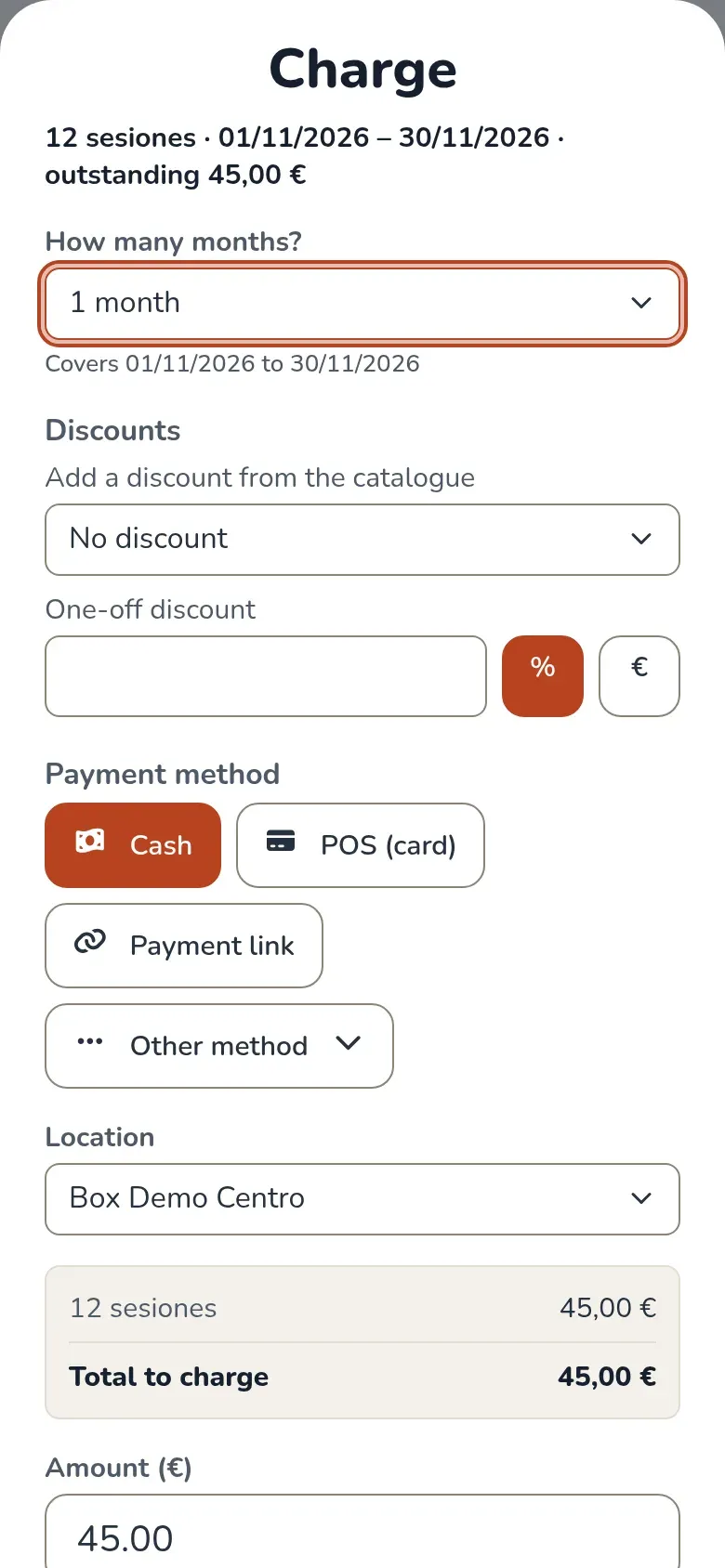
A smaller amount leaves the difference outstanding. When you confirm, the payment appears in Transactions with its receipt and the name of whoever recorded it.
Transcript
Marta opens a class list and checks what a member owes. She goes to the payment, chooses cash, and records it. She returns to the calendar through the header link and sees that the quick menu now shows the member as paid up.
What you can manage
Section titled “What you can manage”Besides collecting with the available methods, you can manage plans, multiple months, uncapped discounts, custom prices, marking months as paid on another platform, pauses, and cancellations; you can also void, refund, waive, and change dates from transactions. The administrator can restrict these actions in money permissions.
Gym rules, permission settings, and roles belong to the administration. To manage profiles of other staff members, ask the administrator to do it. Corrections keep the history: they don’t delete the original entry.
At a gym that uses 28-day class passes, you can also charge the next pass in the contract and move a pass’s date when the action is available. See Four-week class passes and The coach dashboard.
For a partial payment, see Charge part of the month. Charging the next pass is explained in Four-week class passes.