
How to create a class pass in RoninBox
To create a class pass in RoninBox, open Class packs, tap Create class pack and enter how many classes it includes, how long they last and its price. A class pass is paid once and gives a number of single classes; it isn’t charged every month like a plan.
Creating and changing the class passes in the catalog is up to the gym administrator. Coaches can also sell them to a member from the member’s profile, as explained in A member’s class passes. Members can also buy them in the app, under “My billing”, and when they sign up.
What a class pass includes
Section titled “What a class pass includes”- Name: the one the member will see, for example “10-class pass”.
- Classes: between 1 and 999.
- Validity: how long its classes last, from 1 week to 1 year, or Never expires.
- Price: in euros, with a comma for the cents (45 or 42,50).
- Activities: the ones that can be booked with it. If you check none, it’s valid for any activity.
- Locations (only if your gym has several locations): see class passes valid only at some locations.
- Show on the website and Website text (optional): to show the class pass on the gym’s website, see Schedule and plans on your website.
How to create a class pass
Section titled “How to create a class pass”-
Open Plans and shop and go to Class packs. You’ll see your class passes with their classes, validity and price.
-
Tap Create class pack (mark 1).
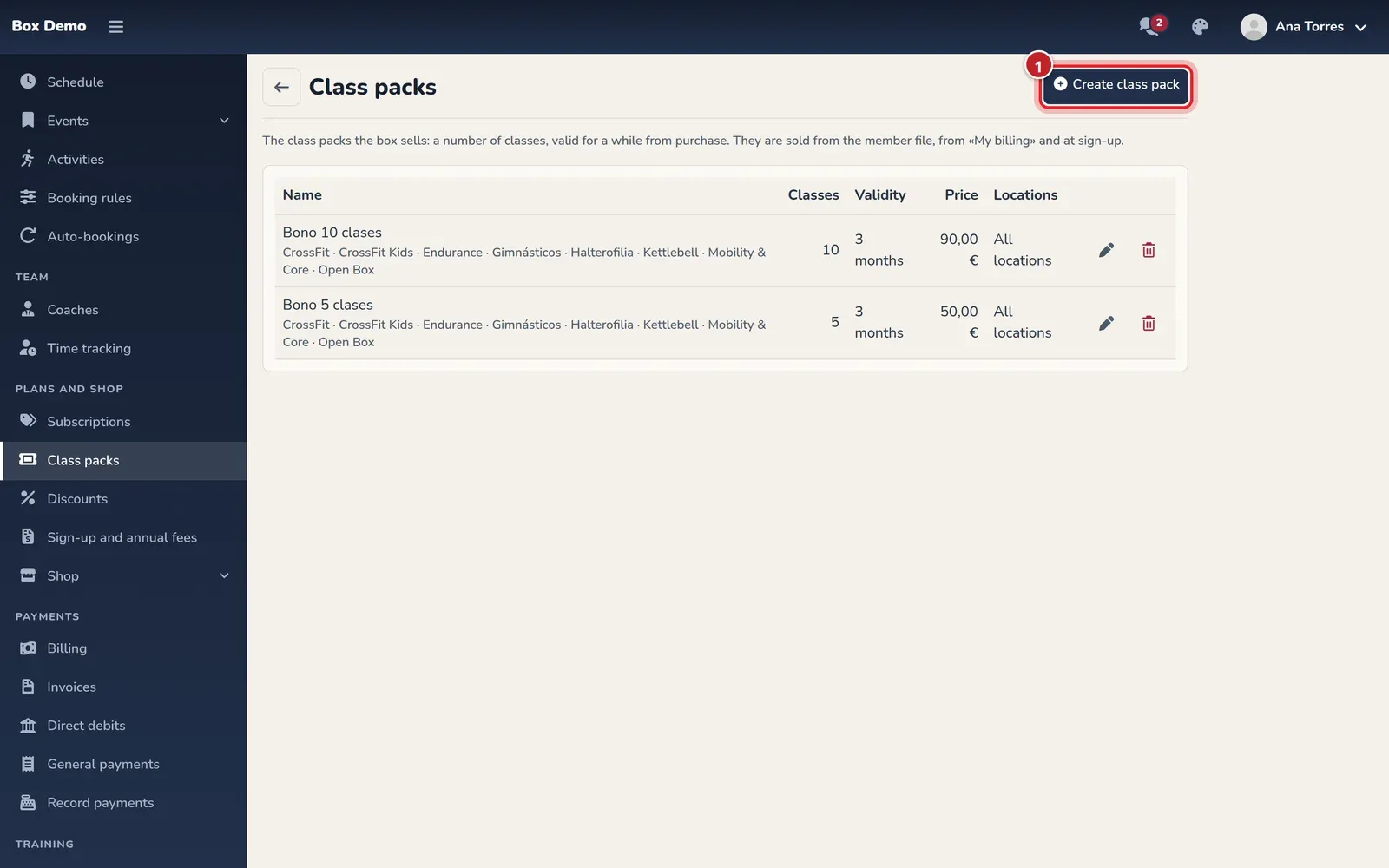
The gym's list of class passes. -
Enter the Name (mark 1) and the Classes (mark 2).
-
Choose the Validity (mark 3) and enter the Price (mark 4).
-
Check the Activities if the class pass isn’t valid for all of them (mark 5).
-
Tap Save (mark 6).
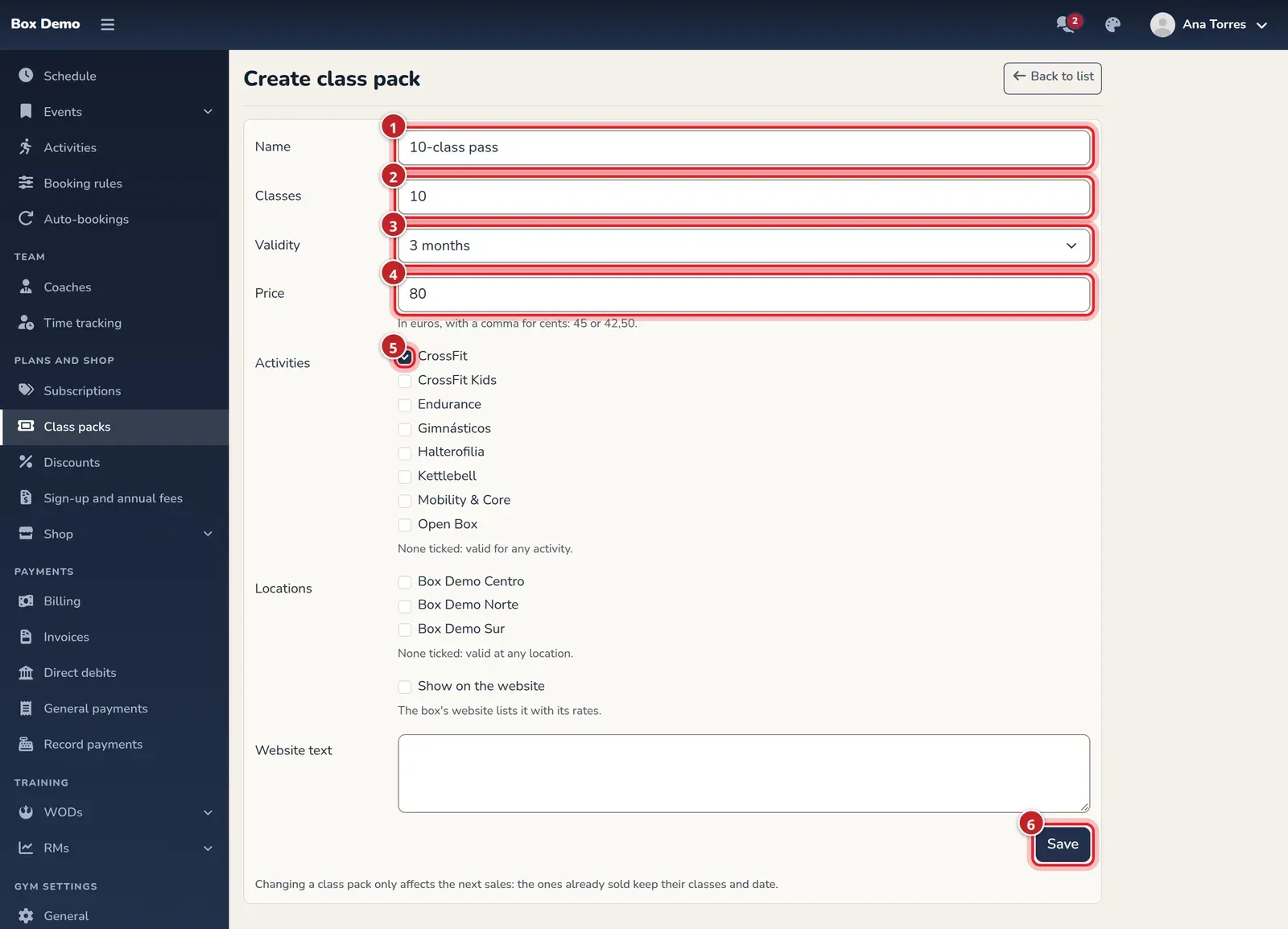
The class pass form. The numbers match the steps.
Once saved, the class pass can be sold.
Class passes valid only at some locations
Section titled “Class passes valid only at some locations”If your gym has several locations, the class pass form shows Locations: check the locations where its classes can be used.
- None checked: the class pass is valid at all locations.
- One or more checked: the class pass is only valid at those locations. Classes with no location (for example, a shared Open Box) can always be booked with it.
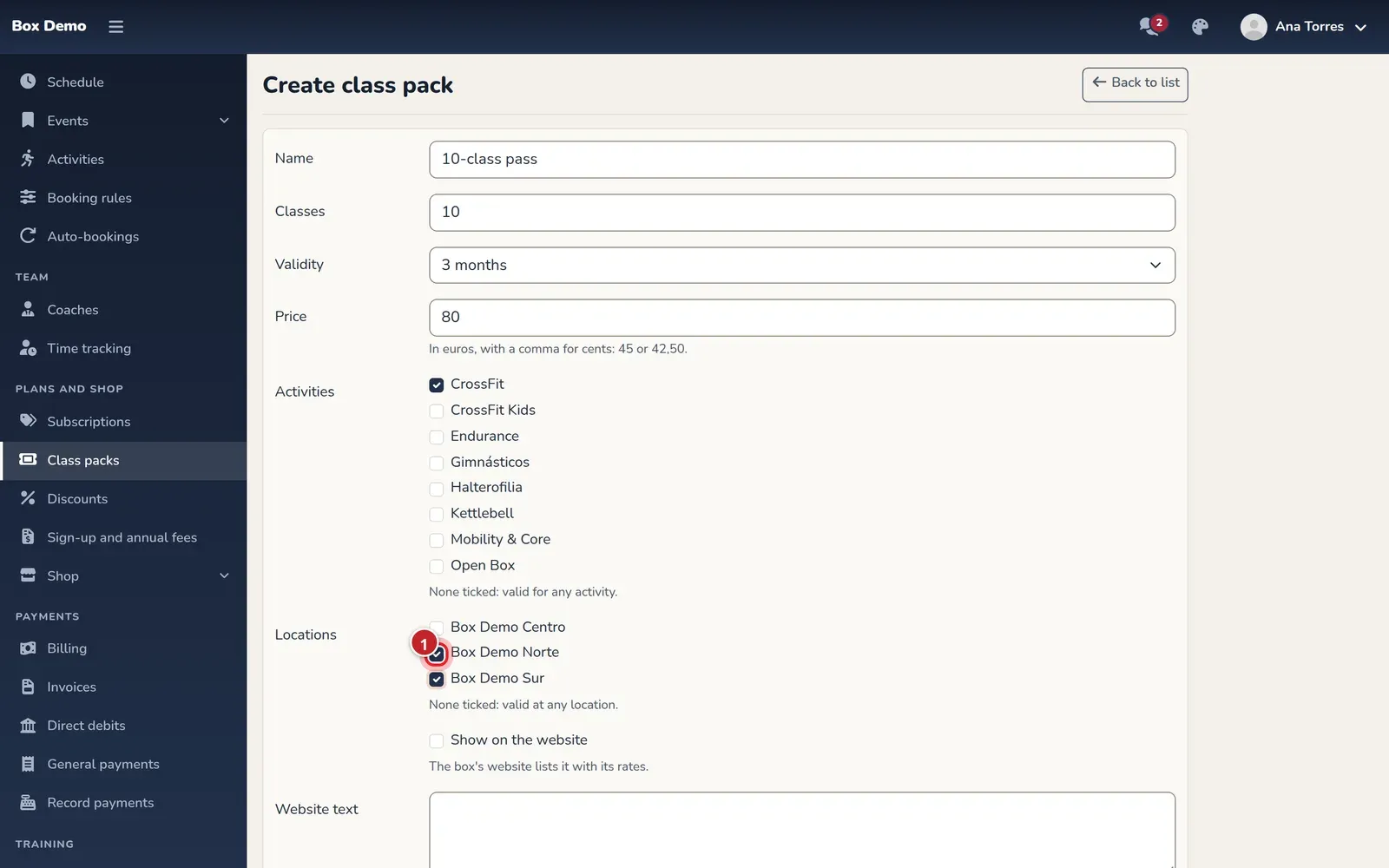
The list of class passes shows where each one is valid in the Locations column.
This way, a member with a plan at one location can buy a class pass for another and book there with it:
- At a location their plan doesn’t cover, the booking uses one class from the class pass, never from the plan.
- A class pass for other locations can’t be used to book at a location it doesn’t have checked.
- At their plan’s locations, the plan’s classes are used first, then the class pass’s.
Change or delete a class pass
Section titled “Change or delete a class pass”- Edit: the pencil in its row. Changing a class pass only affects future sales: the ones already sold keep their classes, their date and their price.
- Delete: the trash can in its row. If it was never sold, it disappears. If it has been sold at least once, it’s archived: it shows as Archived, is no longer sold, and the ones sold stay as they were.
- Sell again: on an archived class pass, puts it back on sale.
Common mistakes
Section titled “Common mistakes”- I’m looking for the Plans screen. It no longer exists. Class passes are in Class packs, and what each plan includes is inside the plan itself.
- An activity is missing from the form. Create it first in Classes ▸ Activities.
- I raised the price and a member paid the old one. They bought it before the change: class passes already sold keep their price.