
How the waitlist works in RoninBox
The RoninBox waitlist lets a member join a full class so they find out as soon as a spot opens up. When that happens, RoninBox sends an email to everyone on the list, and the spot goes to whoever signs up first.
How the member uses it
Section titled “How the member uses it”- A class with no spots left shows Full.
- If the member could book that class, the window offers Join waitlist.
- Once they’re on the list, the window changes to Leave waitlist, which takes them off it. If the class is closed, they can no longer leave on their own.
Being on the list doesn’t take up a spot or use any credit. It isn’t offered if the member couldn’t book the class for other reasons, such as a closed class or a location their plan doesn’t include (see Booking rules).
What happens when a spot opens up
Section titled “What happens when a spot opens up”The notice is sent when a member cancels or when you remove them from the class, and at least one spot is left open.
- The email is titled “Class available:” followed by the class name and says: “Open the gym’s app and grab the spot before someone else does.”
- Everyone on the list gets it, not just the first person.
- The person stays on the list until they book or leave. When they sign up for the class, RoninBox takes them off the list.
- Adding spots or deleting the class doesn’t send this notice.
How the administrator sees it
Section titled “How the administrator sees it”In Calendar, open the class. If people are waiting, the Waitlist block appears under Signed-up users with each person’s name and the "Waitlist" badge.
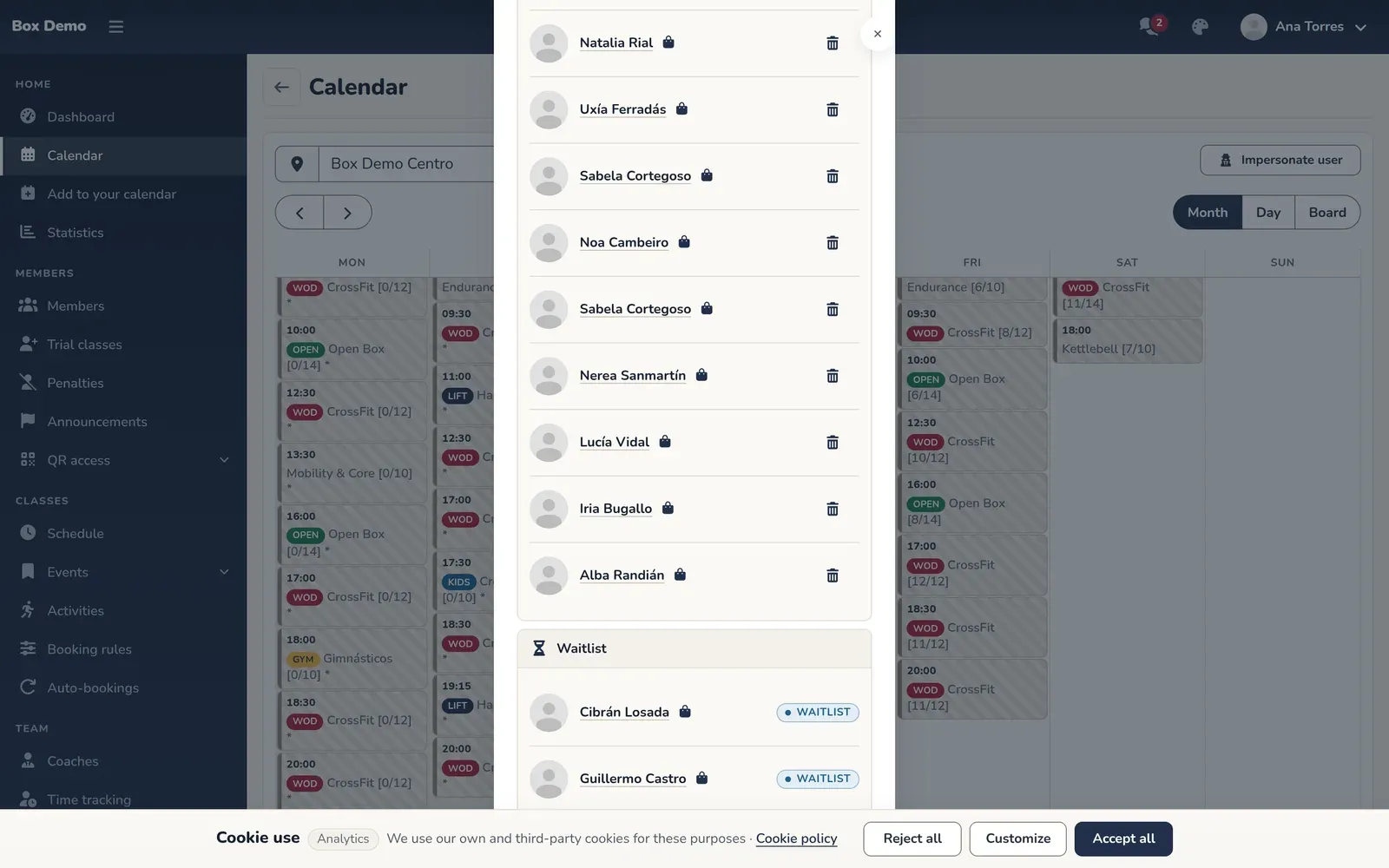
You can’t remove someone from the list from that window. If a member asks, open the calendar as that member and use Leave waitlist (How to sign up a member). To give a spot to someone who’s waiting, add spots and sign them up yourself (How to manage a class).