
How to create multiple classes at once in RoninBox
To create multiple classes at once in RoninBox, you use Create multi-event: you choose a date range, some times and the days of the week, and RoninBox saves one class for each matching day. It’s useful for a fixed block, like a summer camp or a month of extra classes. For a schedule that repeats with no end date, use the schedule builder.
How to create them
Section titled “How to create them”-
Open Classes ▸ Events and go to Create multi-event.
-
Choose the Start date and End date. The end day is not included.
-
Choose the Start time and the End time. They apply to every class in the range.
-
Check the Days of the week when there are classes.
-
Enter the Maximum number of athletes.
-
Choose the Activity. It’s required. It must already exist in Activities.
-
In a gym with multiple locations, choose the Location.
-
Tap Save. RoninBox creates all the classes at once and takes you to the event list. If anything fails, none are created.
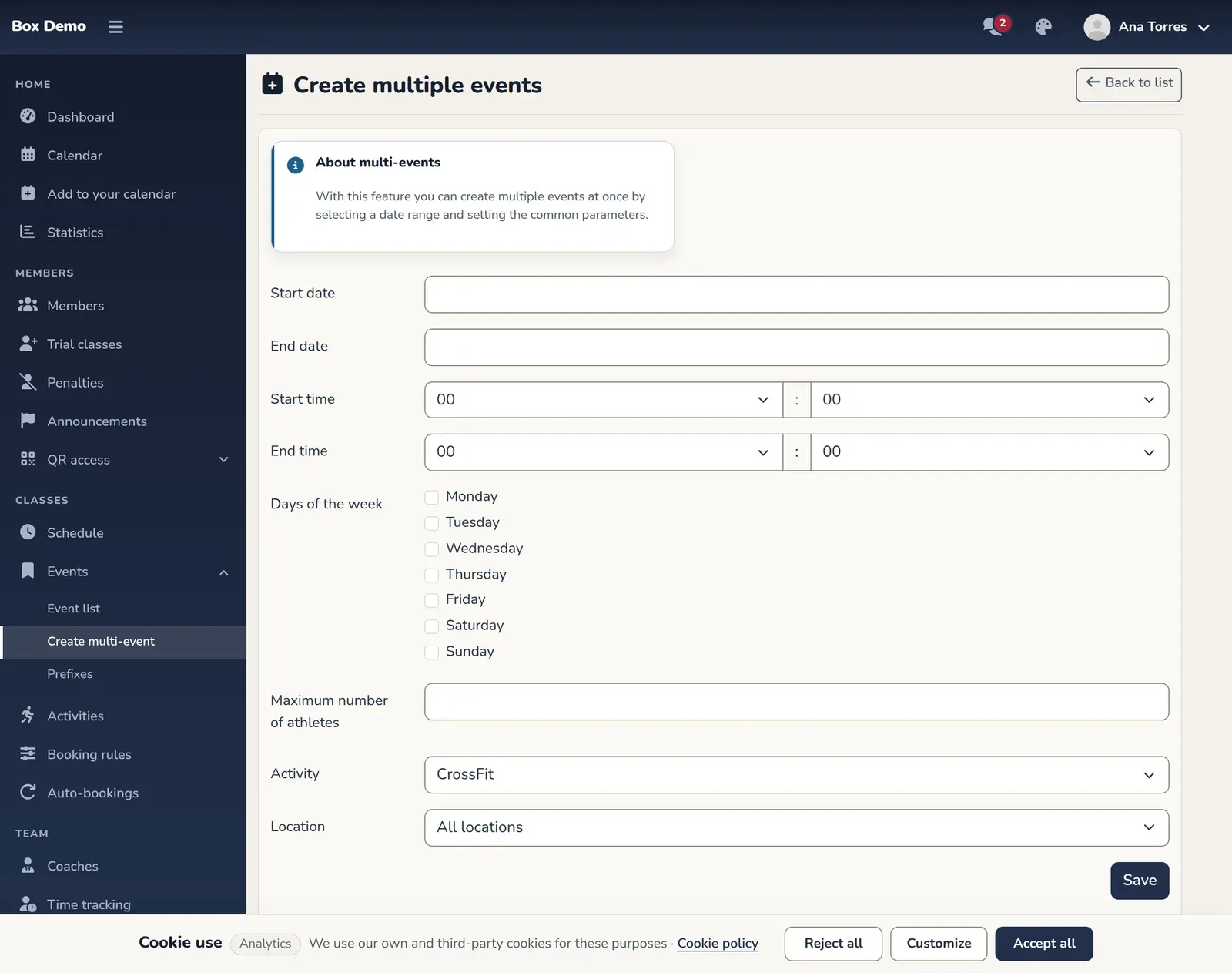
The multi-event form. At the top, a notice explains what it's for.
Each class is named after the activity. They have no prefix. Adjust the ones you need afterward in How to create a single class.
How to delete multiple classes
Section titled “How to delete multiple classes”The event list has a Delete multi-event button, but in this version the table has no checkboxes for selecting classes, so the button can’t be used. Delete classes one by one with the trash icon on each row. Each deletion returns the classes to the members who signed up. See How to manage a class.
Common mistakes
Section titled “Common mistakes”- The last day is missing. The end day is not included. Move the end date one day later.
- No classes are created. Make sure you checked at least one day of the week that falls within the range.