
Receipts and invoices in RoninBox
RoninBox provides receipts and invoices for what you charge. Each monthly fee payment has its receipt, which proves the box received the money and doesn’t break down VAT. You issue the invoice when a member asks for one: for the payments of a monthly fee or for a shop sale that’s already been paid.
Who can do it and where
Section titled “Who can do it and where”- Setting up and issuing invoices is up to the box’s administrators.
- The invoice list is in Payments ▸ Invoices.
- Coaches don’t see invoices or receipts.
- Each member downloads their receipts and invoices in Billing.
Before the first invoice: setup
Section titled “Before the first invoice: setup”-
Open Payments ▸ Invoices and click Invoice settings.
-
In Numbering and VAT, enter the Prefix (letters and numbers, up to 10). Invoices are numbered with prefix, year and a number: for example RB-2026-00001. The counter is yearly and doesn’t reset if you change the prefix.
-
Choose the VAT for fees. It must be a tax included in the price: what you charge is the total. If you don’t choose one, you’ll only be able to invoice shop sales.
-
Fill in the Gym tax details: legal name, NIF and address. Without them no invoice can be issued.
-
Click Save.
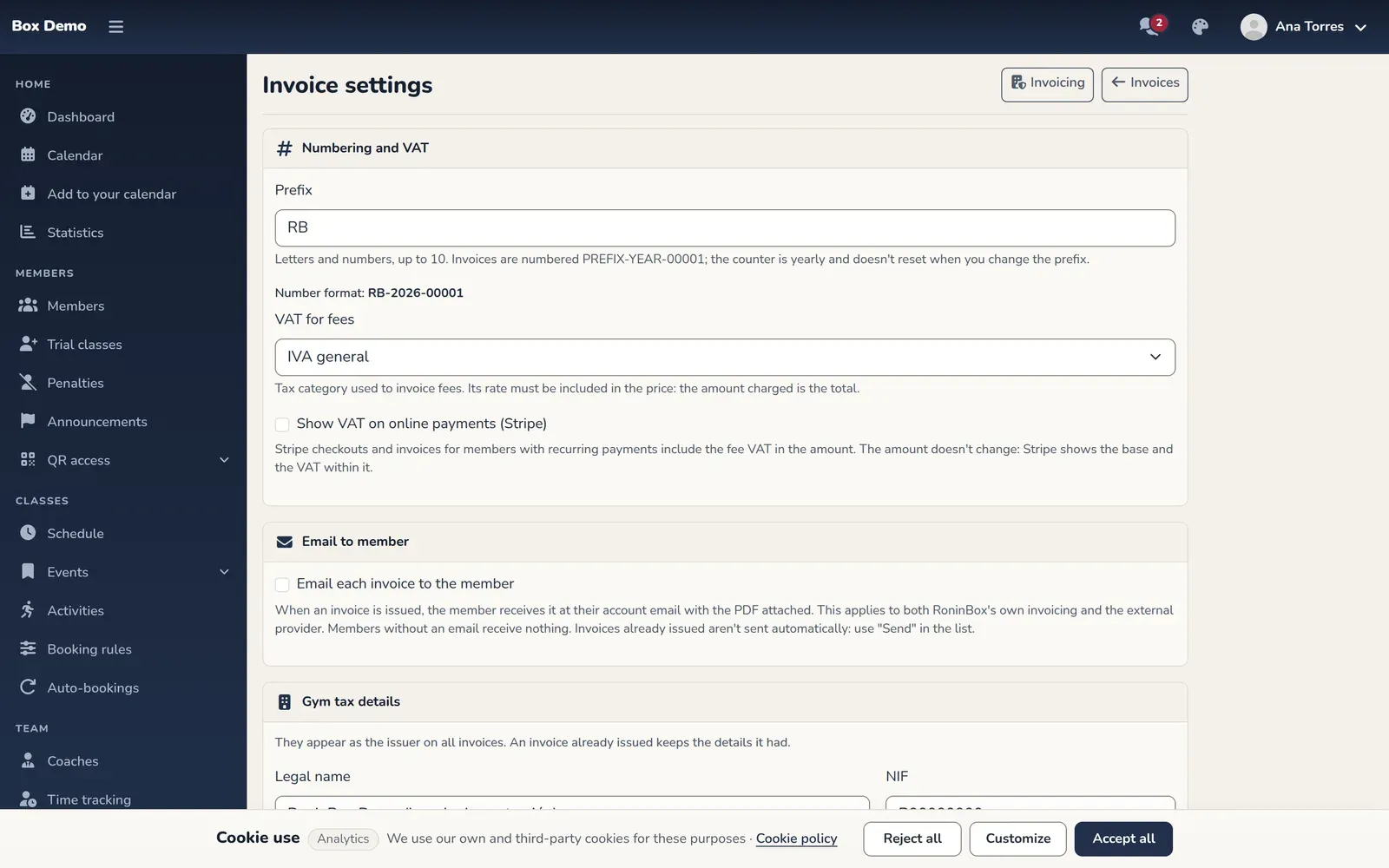
Invoice settings: numbering, fee VAT and tax details.
The Show VAT on online payments (Stripe) checkbox makes online payments from members on recurring billing show the VAT within the amount. The amount doesn’t change.
The Email each invoice to the member checkbox, in the Email to member card, sends each new invoice to the member’s email with the PDF attached. It’s off by default. It applies both to RoninBox invoices and to those from the external provider, and members without an email don’t receive anything.
Taxes are created in the shop: see How to set up shop taxes.
Download a receipt and issue the invoice for a monthly fee
Section titled “Download a receipt and issue the invoice for a monthly fee”-
Open the member’s profile, Monthly fees tab, and click the monthly fee.
-
In the payment list, the download icon for each payment (marker 2) is Download receipt.
-
To invoice, click Issue invoice (marker 1).
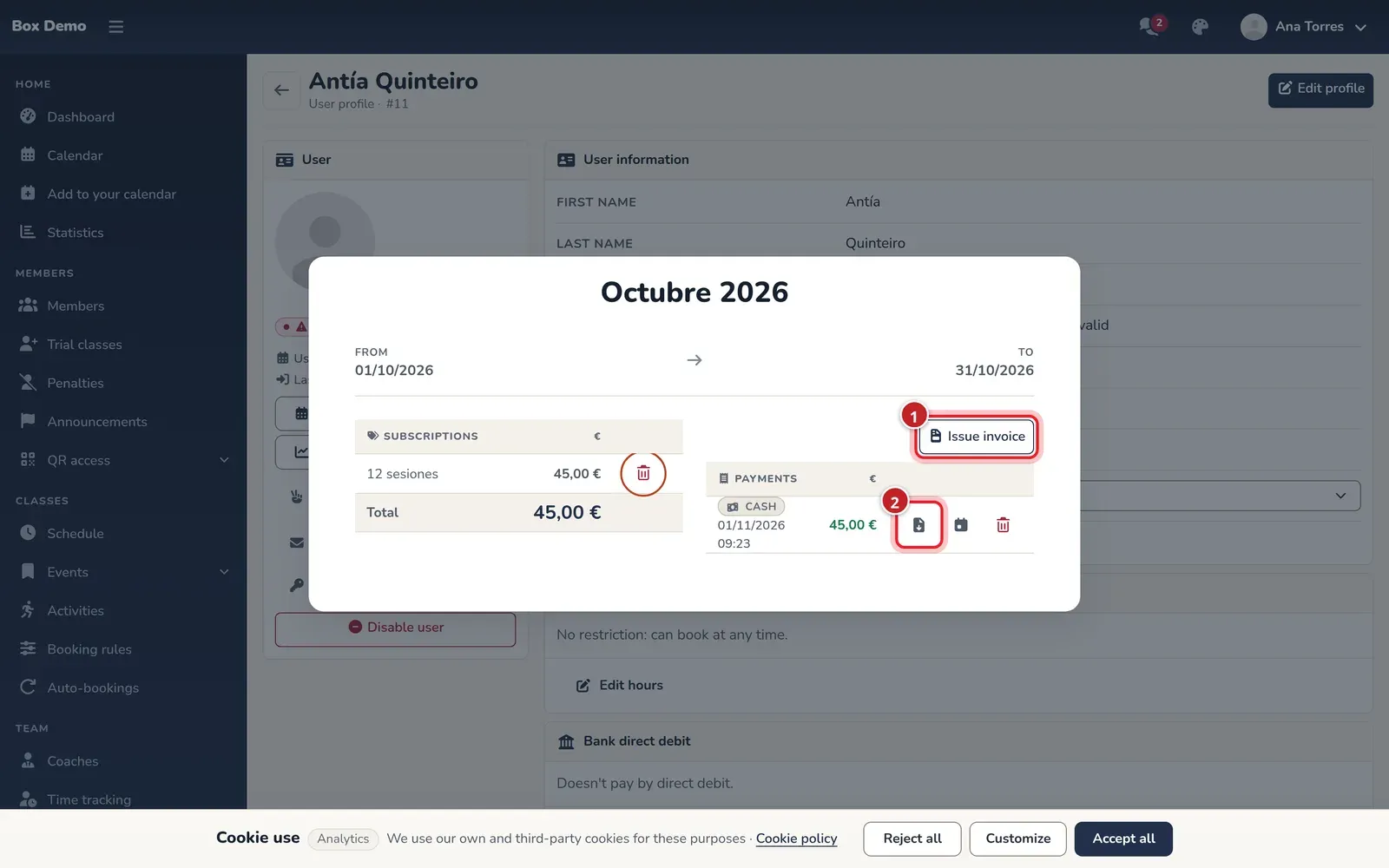
From the monthly fee: the receipt for each payment and the button to issue the invoice. -
Check the Payments to invoice. You can combine several payments from the same monthly fee into one invoice.
-
Review the Customer details. The first time you need to fill them in; after that they’re saved in the member’s profile and appear as a card, with Change billing details in case they change.
-
Click Issue invoice. The invoice is issued with its number and you can download it.
Each payment can only be on one invoice. In the monthly fee, an invoiced payment shows its invoice number.
Invoice a shop sale
Section titled “Invoice a shop sale”Open the sale in the shop. If it’s already paid, click Issue invoice. The lines and VAT are those of the sale. A sale can only be invoiced once. Shop sales explains how to find and open a sale.
What the member sees
Section titled “What the member sees”In Billing, the member has the Receipts and invoices section with a Receipt button for each payment and, if it’s invoiced, one for its invoice. Invoices for shop purchases appear there too.
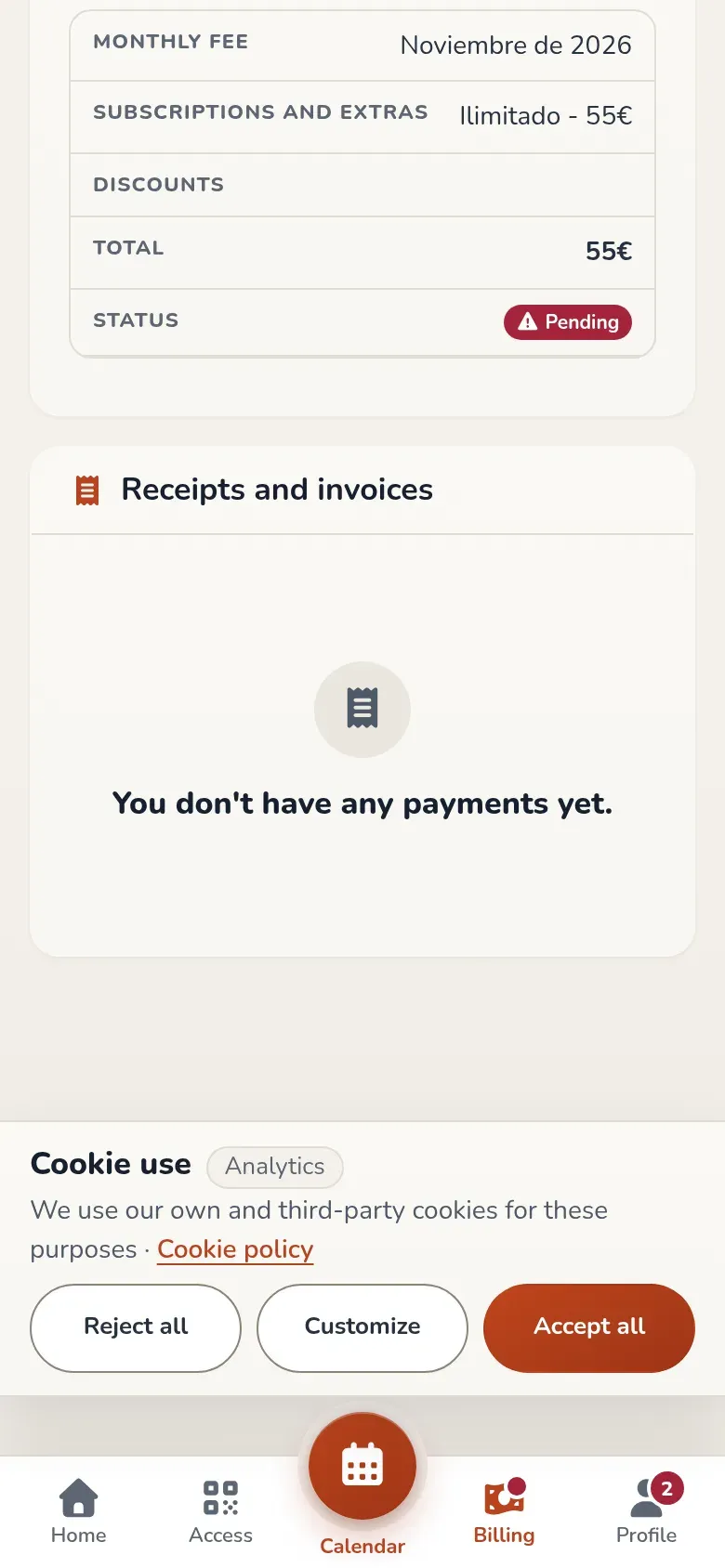
If you turn on email sending, the member also receives the invoice in their email, with the PDF attached and a button to Billing. Invoices that were already issued aren’t sent automatically.
Email an invoice manually
Section titled “Email an invoice manually”In the invoice list, the Email column shows whether the invoice was sent and when. To send or resend it, click Send (or Resend) in its row and confirm. Only the administrator can do this. It’s useful for invoices issued before you turned on sending, for an email that failed or if the member changed their address.
If invoices are issued by an external provider
Section titled “If invoices are issued by an external provider”When the box issues its invoices with a provider such as TOConline, each invoice includes the member’s tax details: first and last name, NIF, address, ZIP code, city and country. That’s why, in those boxes:
- The member can’t pay from the app (monthly fee, plan or class pass) until they’ve completed them in My billing details. The NIF is validated: the Portuguese one by its check digit and the Spanish one (NIF, NIE or CIF) by its letter or digit.
- While anything is missing, the app reminds them on the home screen and in Billing.
- Payments the member doesn’t make themselves (automatic ones and those recorded by staff) are charged as usual. If details are missing, their invoice is issued to “final consumer”. In the member’s profile, in cash payments and in quick sales, staff see a notice listing what’s missing.
Common mistakes
Section titled “Common mistakes”- Choosing a VAT that isn’t included in the price. The invoice wouldn’t match what was charged, and RoninBox won’t issue it.
- Looking for the Issue invoice button on a monthly fee with no payments. It only appears when there’s at least one uninvoiced payment.