
Get started with RoninBox: set up your gym
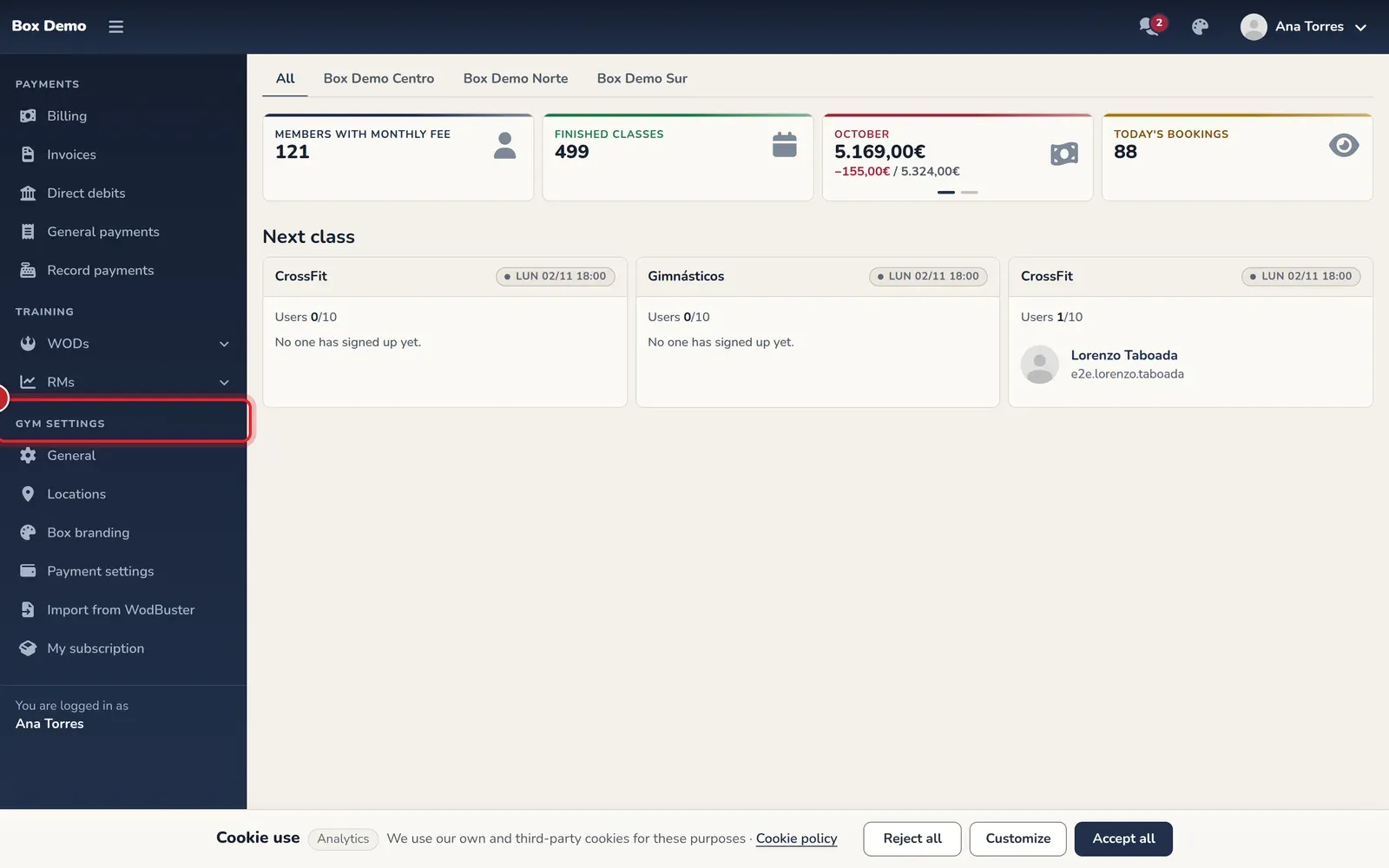
To get started with RoninBox, follow this order: activities, plans, membership plans, schedule, booking rules and, finally, members. Each step needs something from the one before, so don’t skip any. Everything is in the side menu of the admin dashboard, mostly under Classes, Plans and shop and, at the bottom of the menu, Gym settings.
Transcript
To set up your gym, always follow this order: activities, plans, membership plans, schedule and, finally, members. Let’s walk through it.
First, in the Classes section of the menu, open Activities. This is where you create the disciplines you offer, like CrossFit or Weightlifting.
Next, under Plans and shop, Plans. A plan says which activities it covers and how many classes it includes.
Then, Subscriptions, which is where membership plans live. The membership plan sets the price and groups one or more plans.
With your membership plans ready, go back to Classes and open Schedule. There you define your class schedule.
Finally, in Members you sign up your members and assign them their membership plan.
The list of steps
Section titled “The list of steps”-
Locations (only if you have more than one location). Create one location for each site in Gym settings ▸ Locations. The multi-location features only appear when there are two or more visible locations. See Locations.
-
Activities. Create the disciplines you offer (CrossFit, Weightlifting, Pilates…) in Classes ▸ Activities. See Activities.
-
Plans. A plan says which activities it covers and how many classes it gives. See How to create a plan.
-
Membership plans. The membership plan sets the price and groups one or more plans. The menu calls it Subscriptions. See How to create a membership plan.
-
Class prefixes (optional). These are the colored labels shown on classes, like “OPEN”. They’re in Classes ▸ Events ▸ Prefixes. See Prefixes.
-
Schedule. In Classes ▸ Schedule you define which activity runs, on which days, at what time and with what capacity. See Schedule builder. If your gym closes on holidays, see Holidays and days without classes.
-
Booking rules and billing settings. Set when booking closes and when members can cancel in Classes ▸ Booking rules, and how monthly fees are calculated in Gym settings ▸ Payment settings. See Booking rules and Gym settings.
-
Members. Sign up each member and assign them their membership plan. See How to create a member and Assign a membership plan.
-
Coaches. Add your team and assign who coaches each class. See Coaches.
Once step 6 is done, check how a member sees it in Home dashboard.
Beyond the basics
Section titled “Beyond the basics”Once your gym is up and running, look at what you can add: class passes, extensions, offers, one-off events, messages and announcements. Also review your RoninBox plan in My subscription.
Common mistakes
Section titled “Common mistakes”- When creating the membership plan, I can’t find the plan I want. Step 3 is missing: create the plan first.
- The plan doesn’t offer the activity I want. Step 2 is missing.
- The calendar is empty. The schedule from step 6 isn’t active or its start date is in the future.