
How to edit a single week of your schedule in RoninBox
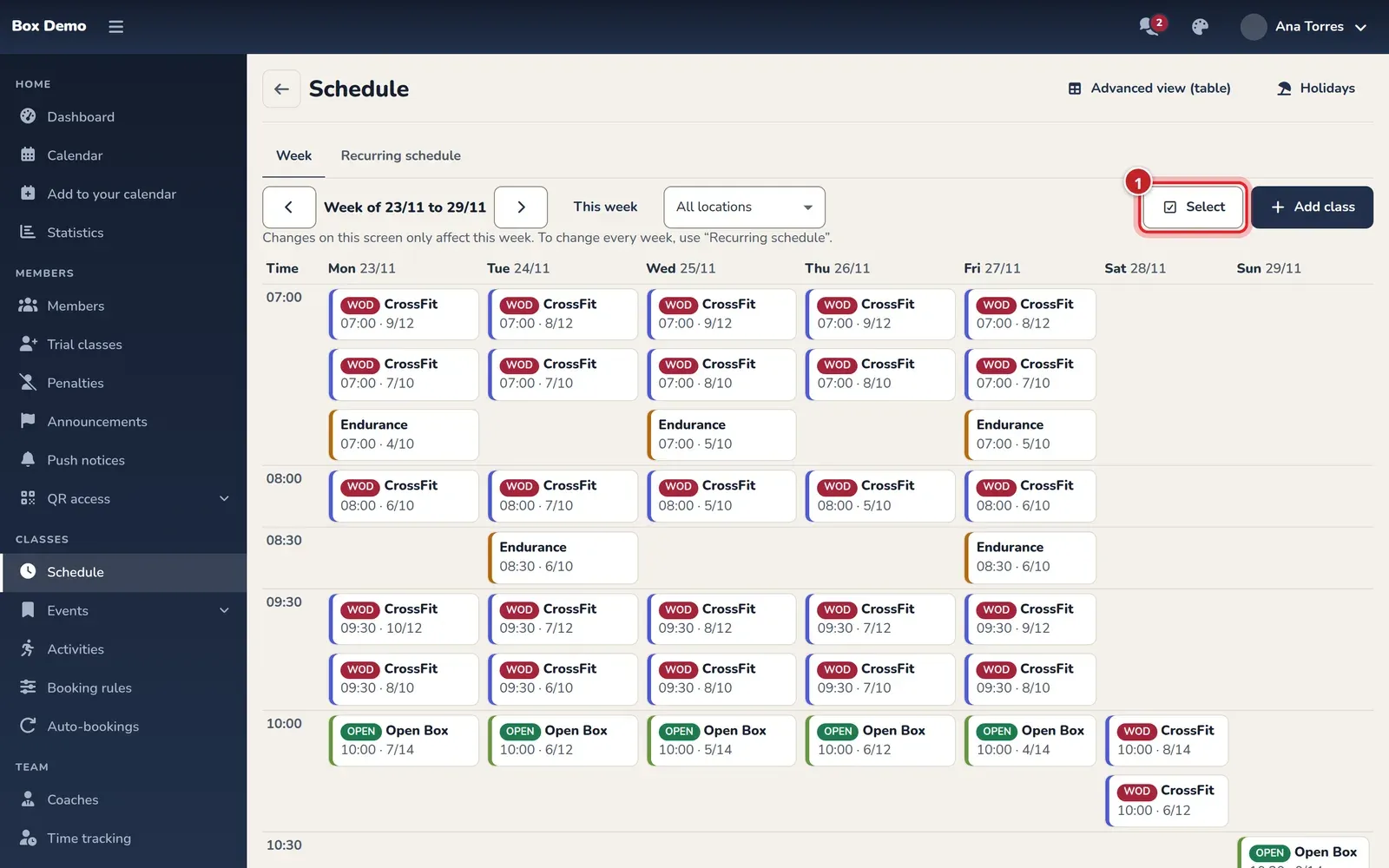
To edit a single week of the schedule, open Schedule and stay on the Week tab. You see all of that week’s classes in a grid and can change their spots, remove them or add a new class. What you change here applies only to that week: the regular schedule and the other weeks stay the same.
It’s what you need for a special week: a long weekend, a competition, a day with fewer people or an extra class.
Who can do it and where
Section titled “Who can do it and where”- Admin. In the side menu, Classes ▸ Schedule. It opens on Week, on the current week.
- From the calendar. The Edit week button on the calendar bar opens the same screen on the week you were viewing.
- Coaches. Only if the admin lets them edit the schedule (Let coaches edit the schedule). They get there through Profile ▸ Schedule or with Edit week from their calendar.
At the top you have arrows to go to the previous or next week, This week to go back to the current one and, if your gym has several locations, the location selector (All locations by default).
How to read the grid
Section titled “How to read the grid”On a computer, each column is a day and each row a start time. Each class shows its activity, the time, how many are signed up and the spots (for example, 8/12) and, if there’s a waitlist, how many are waiting.
Some classes also have a label:
- No bookings yet: a class from the regular schedule that nobody has opened yet. It’s actually created as soon as you change it.
- Closed: the class is closed and nobody else can sign up.
- Already started: it has already started. You can view it, but not change it.
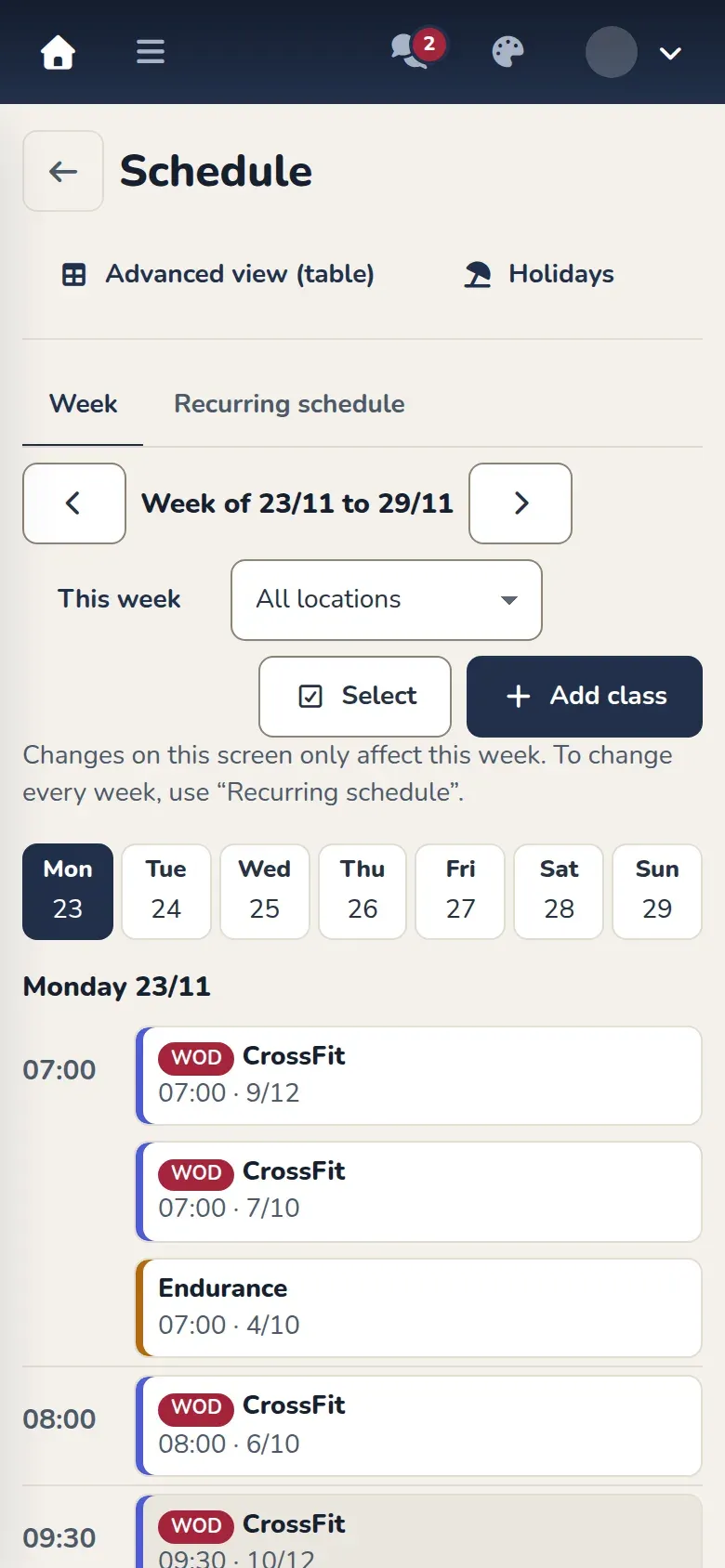
On your phone the week is shown by day. At the top you have the days of the week (from Mon to Sun): tap one and its classes appear below, one per row.
Change the spots in a class
Section titled “Change the spots in a class”-
Tap the class. Its details open with the people signed up, the waitlist and the coaches.
-
In Spots, use the minus and plus buttons or type the number.
-
Tap Save spots.
RoninBox won’t let you lower the spots below the number of people already signed up. If you raise the spots in a full class with people on the waitlist, those people get the open-spot notification (The waitlist).
Change several classes at once
Section titled “Change several classes at once”-
Tap Select (mark 1 in the first image).
-
Tap the classes you want to change. They’re marked with a check and a bar appears at the bottom showing how many you’ve selected and the Spots, Remove and Cancel buttons.
-
Tap Spots. Choose Set to (all of them change to that number) or Add (each one adds that number to what it has) and enter the Number of spots, between 1 and 999.
-
Check Result: each class with the spots it has and the spots it will have. The ones that can’t be changed show the reason.
-
Tap Save spots.
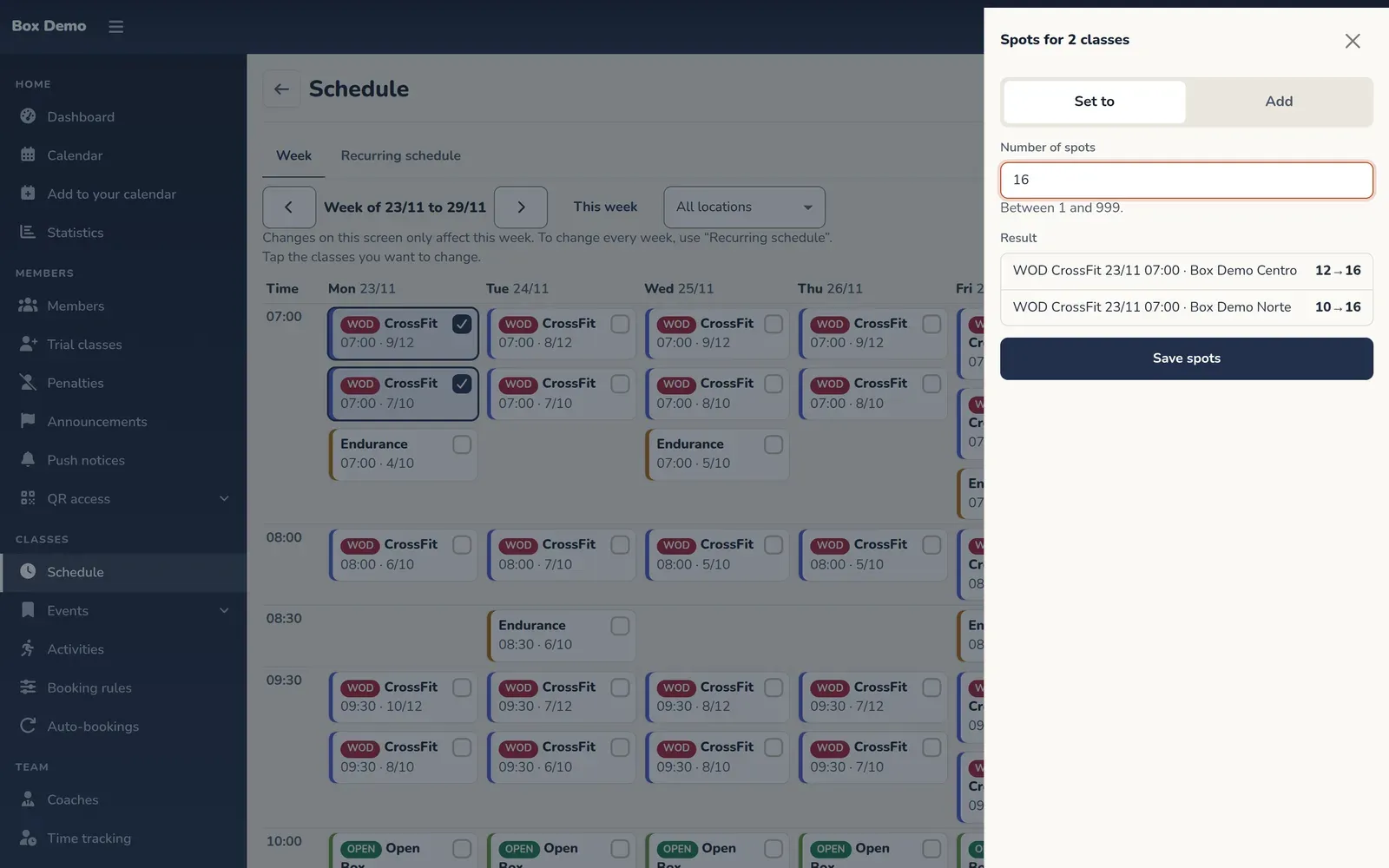
Spots for several classes at once, with the preview before saving.
When you save, a message tells you how many classes were changed and which weren’t, with the reason: already started, has more sign-ups, already had that many spots or no longer exists.
Remove classes from this week
Section titled “Remove classes from this week”For one class, tap the class and tap Remove this class. For several, select them as in the previous section and tap Remove on the bar.
Before removing anything, RoninBox shows you the confirmation:
- They're only removed from this week.
- How many signed-up people will be notified that the class is no longer happening.
- The Don't recreate this class from the schedule checkbox, checked. If you uncheck this, the recurring schedule can add it again.
Tap Remove to remove them or Don't remove to leave it.
If you removed a class from the schedule by mistake, you can restore it from its rule’s exceptions, in the advanced view (Holidays and days without classes).
Add a class just this week
Section titled “Add a class just this week”-
Tap Add class.
-
Choose the Activity, the Day, the time it Starts and the time it Ends.
-
Enter the Spots (the default is 12). If your gym has several locations, choose the Location (it starts on the one you filtered by at the top), and if you use prefixes, the Prefix.
-
Tap Add class.
It’s a one-off class: it shows up only on that day and doesn’t change the regular schedule. To have it repeat every week, add it in Regular schedule.
Change a class’s time or activity
Section titled “Change a class’s time or activity”In the details of a class that already exists you have Change time or activity. It opens the class form. When you change the time, activity or location, the class replaces the scheduled one on that day: see How to manage a class.
Recent changes
Section titled “Recent changes”Below the grid, the Recent changes card shows the latest schedule changes: what was changed, by whom and when. It includes what’s done on this tab and on Recurring schedule, and it updates by itself as soon as you save a change.
Common mistakes
Section titled “Common mistakes”- I wanted to change every week. This tab only changes the week on your screen. Use Regular schedule.
- It won’t let me lower the spots. There are already more people signed up than the number you’re asking for.
- A class’s buttons are grayed out. The class has already started.
- I don’t see the Edit week button on the calendar or Schedule in my Profile. You don’t have permission to edit the schedule: ask the admin.