
How to show classes on the TV at your gym
Classes on the TV at your gym: open a RoninBox page in the TV’s browser and pair it with the code that appears, from Gym settings ▸ Screens. From then on, the TV shows the current class on its own, with its WOD and who’s coming, and the images you choose between classes.
What the TV shows
Section titled “What the TV shows”The TV switches on its own based on the gym’s schedule:
- During a class: the class name, time, coach, WOD and the people signed up. Each person shows with their first name and last initial (“Laura G.”) and their photo, or their initials if they have no photo. At the top you see how many are signed up and how many are on the waitlist.
- Between classes: your slides, one after another, with the time and the next class in a corner.
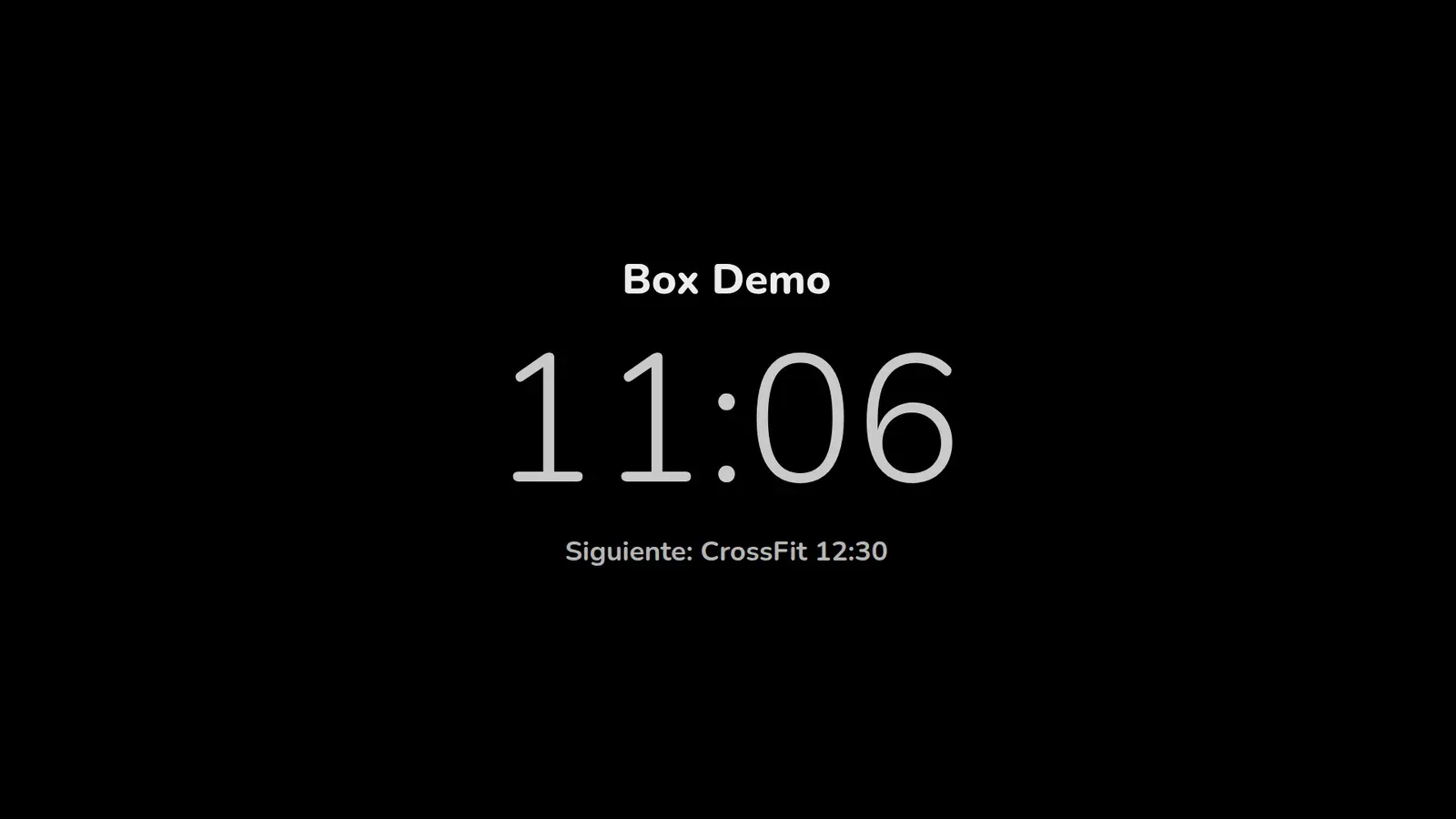
- No class and no slides: the standby screen, with the gym’s name or logo, the time in large print and the day’s next class.
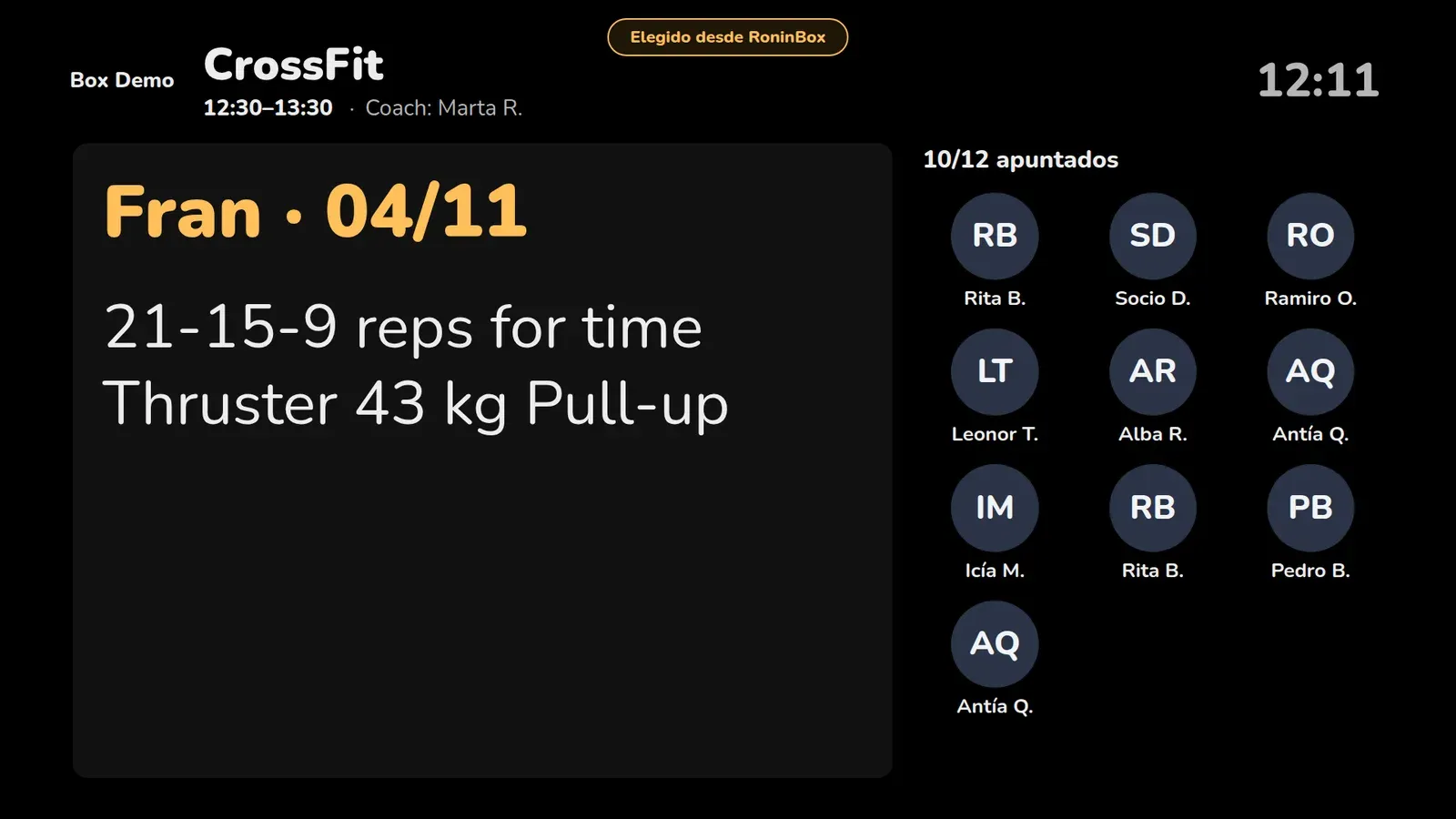
A coach can also send another class from today or the slides to the TV from their phone. See Send a class to the TV.
Which TVs work
Section titled “Which TVs work”Any TV or device with a web browser works:
- Google TV or Android TV: install the TV Bro browser from Google Play.
- Amazon Fire TV: use the Silk browser.
- A smart TV with its own browser.
- A mini PC or laptop connected to the TV by HDMI.
How to pair a TV
Section titled “How to pair a TV”-
In the TV’s browser, open
https://<tu-box>/pantalla, using your gym’s RoninBox address. The TV shows a 6-character code of letters and numbers. Press Full screen with the remote’s OK button to view it full screen.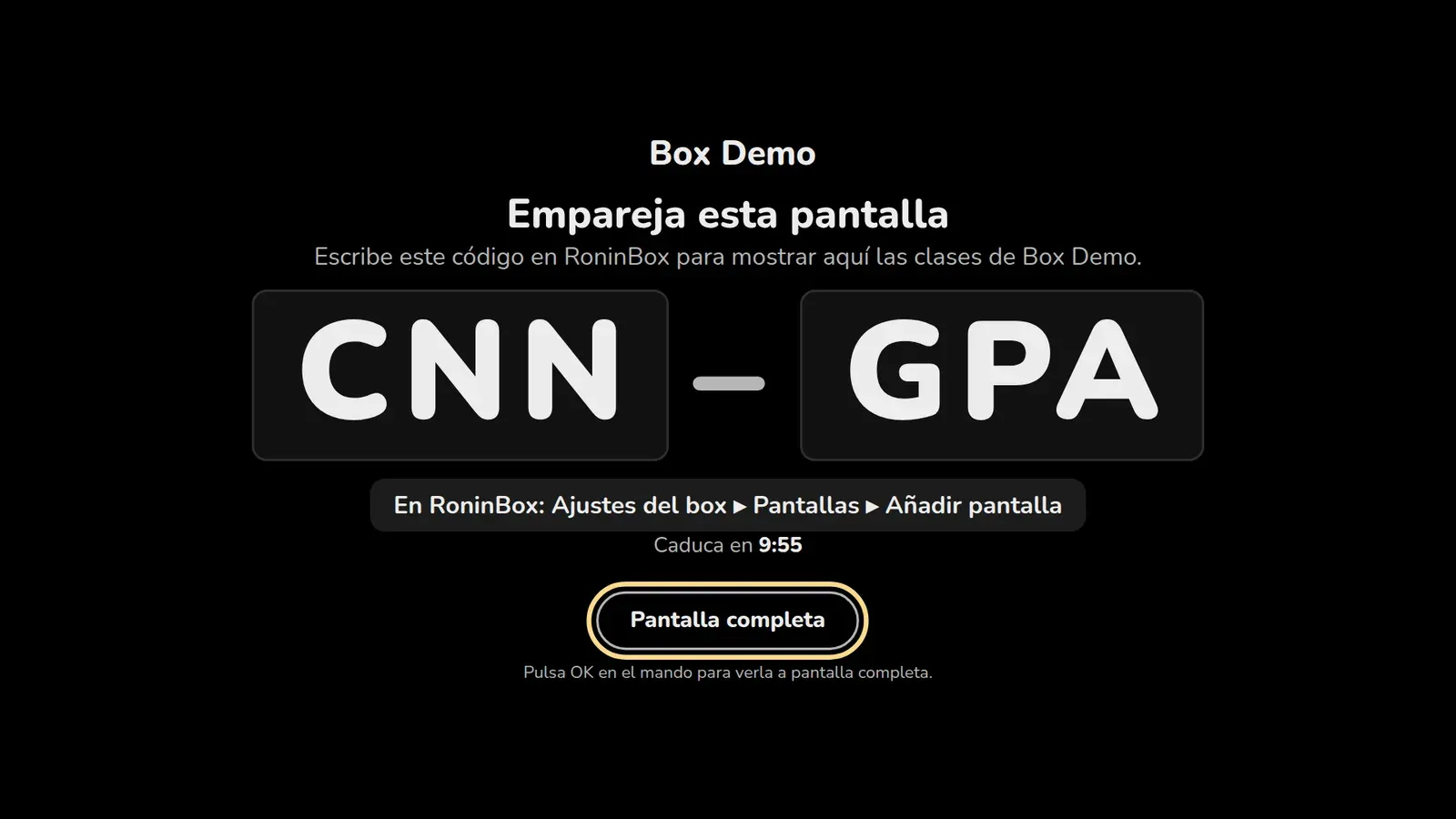
The TV, waiting for you to type its code. Screenshot of the interface in Spanish. -
In RoninBox, open Gym settings ▸ Screens and, under Add screen, type the code in TV code (marker 2). Uppercase or lowercase, with or without a hyphen, it doesn’t matter.
-
Give it a Name so you can recognize it, for example “Main room” or “Front desk” (marker 3).
-
If your gym has several locations, choose its Location (marker 4). With All locations the TV shows classes from all locations.
-
Press Pair (marker 5).
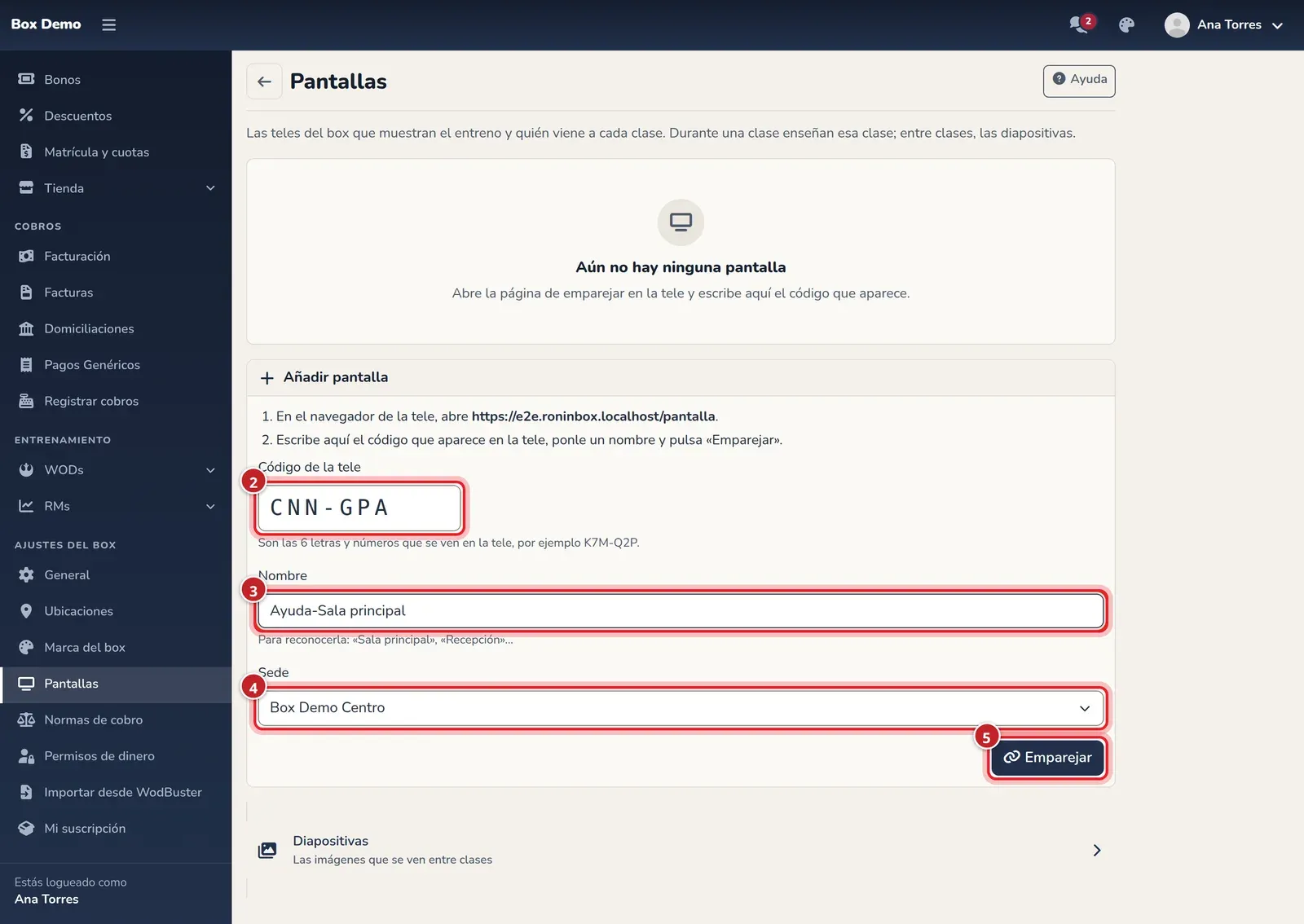
Within a few seconds the TV drops the code and starts showing your gym. The code only works once and expires after 10 minutes; if it expires, the TV shows a new one on its own.
Keep the TV from turning off
Section titled “Keep the TV from turning off”In the TV’s settings, turn off the screensaver and power saving (automatic shutoff after a few hours without touching the remote). Each brand calls it something different: look for “screensaver”, “eco mode” or “auto power off”.
The page also asks the browser to keep the screen on, but many TV browsers don’t allow it, so don’t rely on that alone.
When each class appears
Section titled “When each class appears”- A class appears 10 minutes before it starts and stays until 5 minutes after it ends.
- If two overlap, the one in progress that started later shows. If neither has started, the one that starts first.
- A TV assigned to a location only shows that location’s classes. A class with no location shows on all of them.
- The WOD only shows once it’s published. Until then the TV says "Workout not published yet". If a coach sends the class themselves, the WOD shows even if it isn’t published.
When someone signs up or cancels, the TV updates on its own within a few seconds.
Your TVs in Screens
Section titled “Your TVs in Screens”In Screens you have a card for each TV:
- Whether it’s Connected or how long since it last connected (marker 1).
- What it’s showing now and whether it’s on automatic or because someone sent it.
- The buttons to change what it shows and to edit it (marker 2).
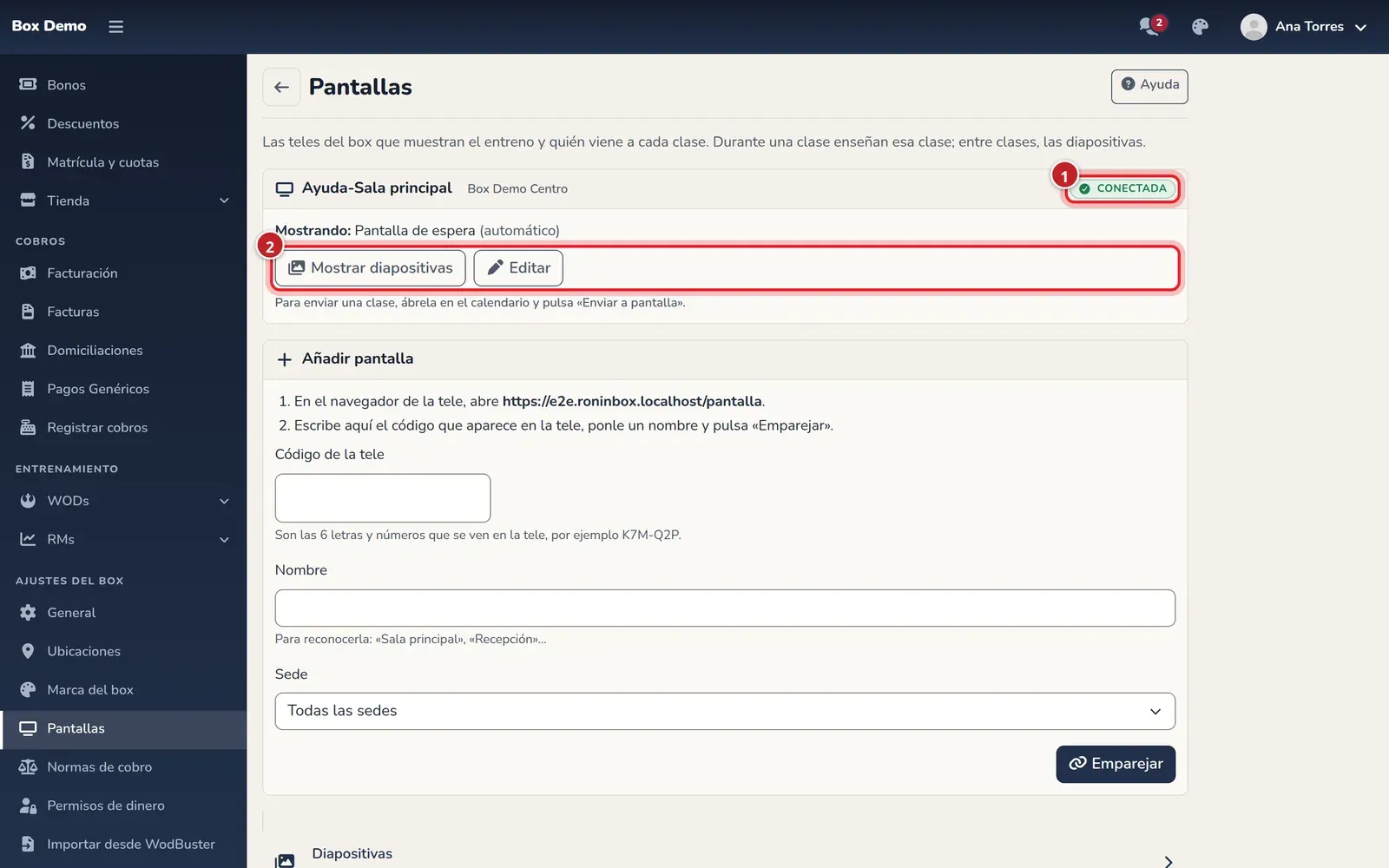
Show slides shows the slides for 60 minutes. Back to automatic, which appears when someone has sent something, returns it to the schedule right away.
Slides between classes
Section titled “Slides between classes”Slides are images the TV cycles through when there’s no class: schedules, events, challenges, offers. They show on all the gym’s TVs or only on those at one location.
-
In Screens, go to Slides.
-
In Images, choose one or more images (marker 1). If you have several locations, choose where they’ll show.
-
Press Upload (marker 2).
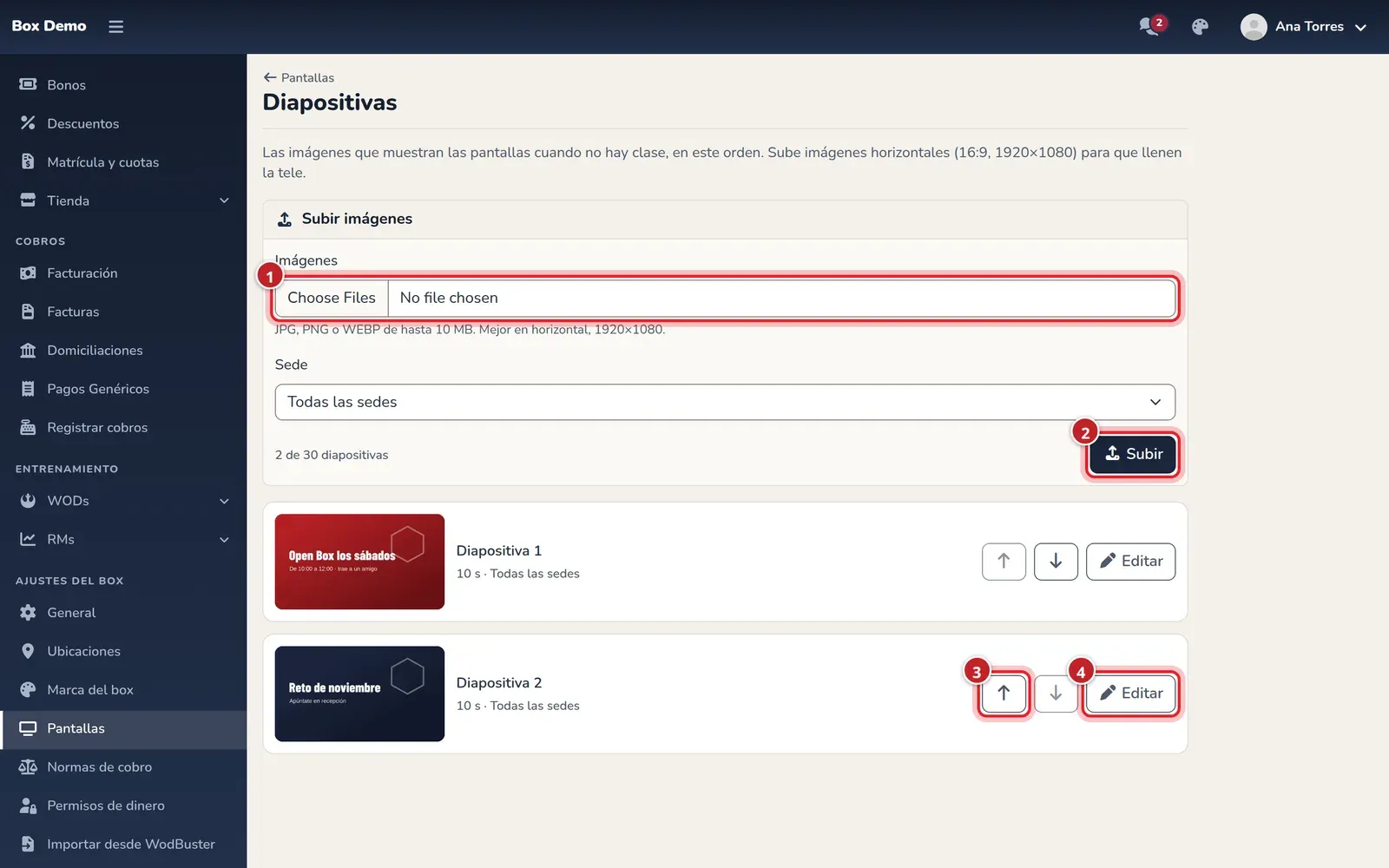
- Size: landscape 16:9 images, ideally 1920×1080, in JPG, PNG or WEBP up to 10 MB. An image with a different shape shows with black bars, and the list warns you.
- Order: the TV shows them in list order. Move each one up or down with the arrows (marker 3).
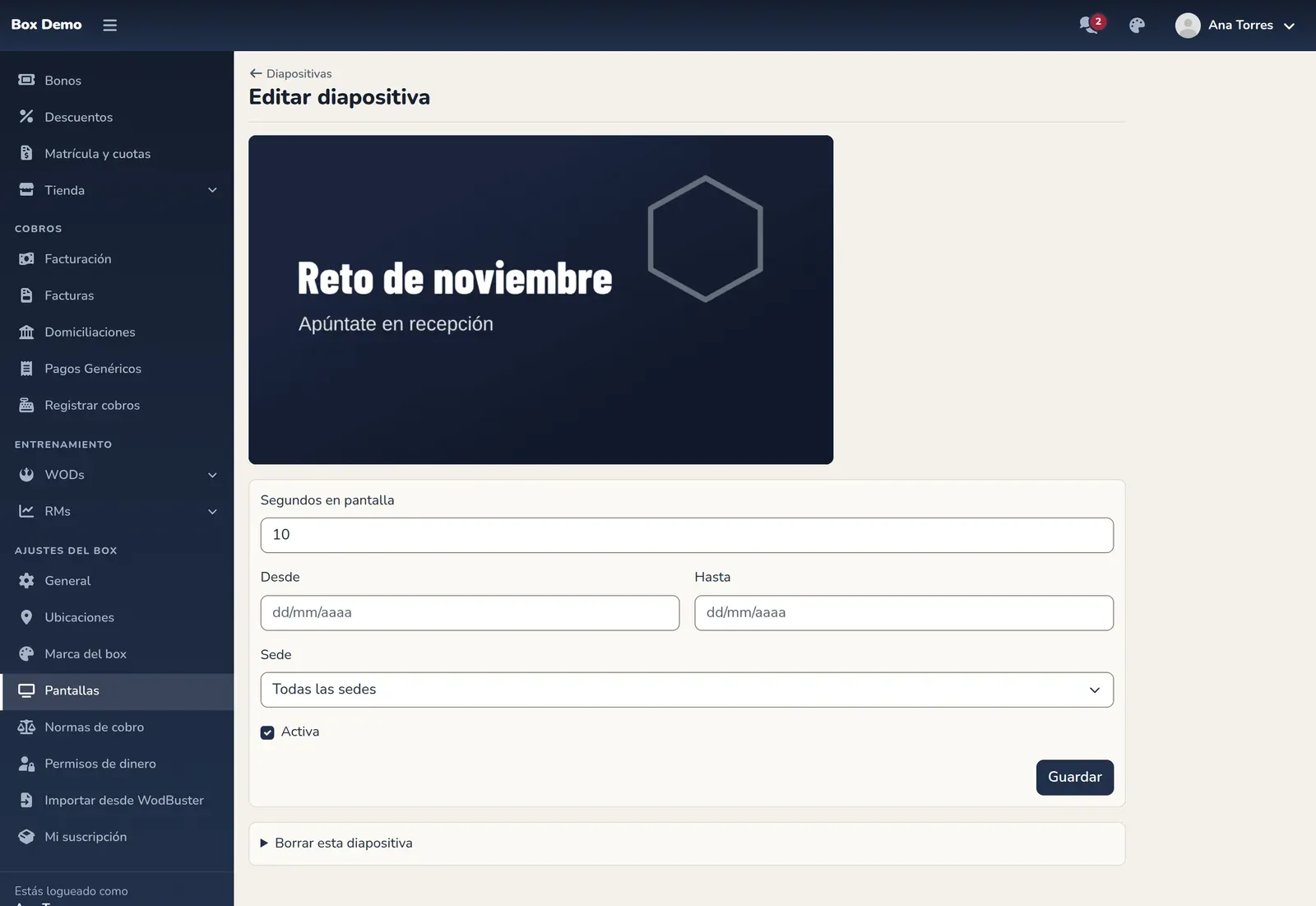
- How long each one lasts, from and until what date, at which location, or turning it off for a while without deleting it: press Edit (marker 4) and change Seconds on screen, From, To, Location or uncheck Active. Press Save.
- Delete: on the same page, expand Delete this slide and press Delete. It stops showing on all TVs.

With no slides, the TV shows the standby screen between classes.
Rename or unpair a TV
Section titled “Rename or unpair a TV”-
On the TV’s card, press Edit.
-
To change its name or location, edit the fields (marker 1) and press Save.
-
To remove it, expand Unpair this screen and press Unpair (marker 2).
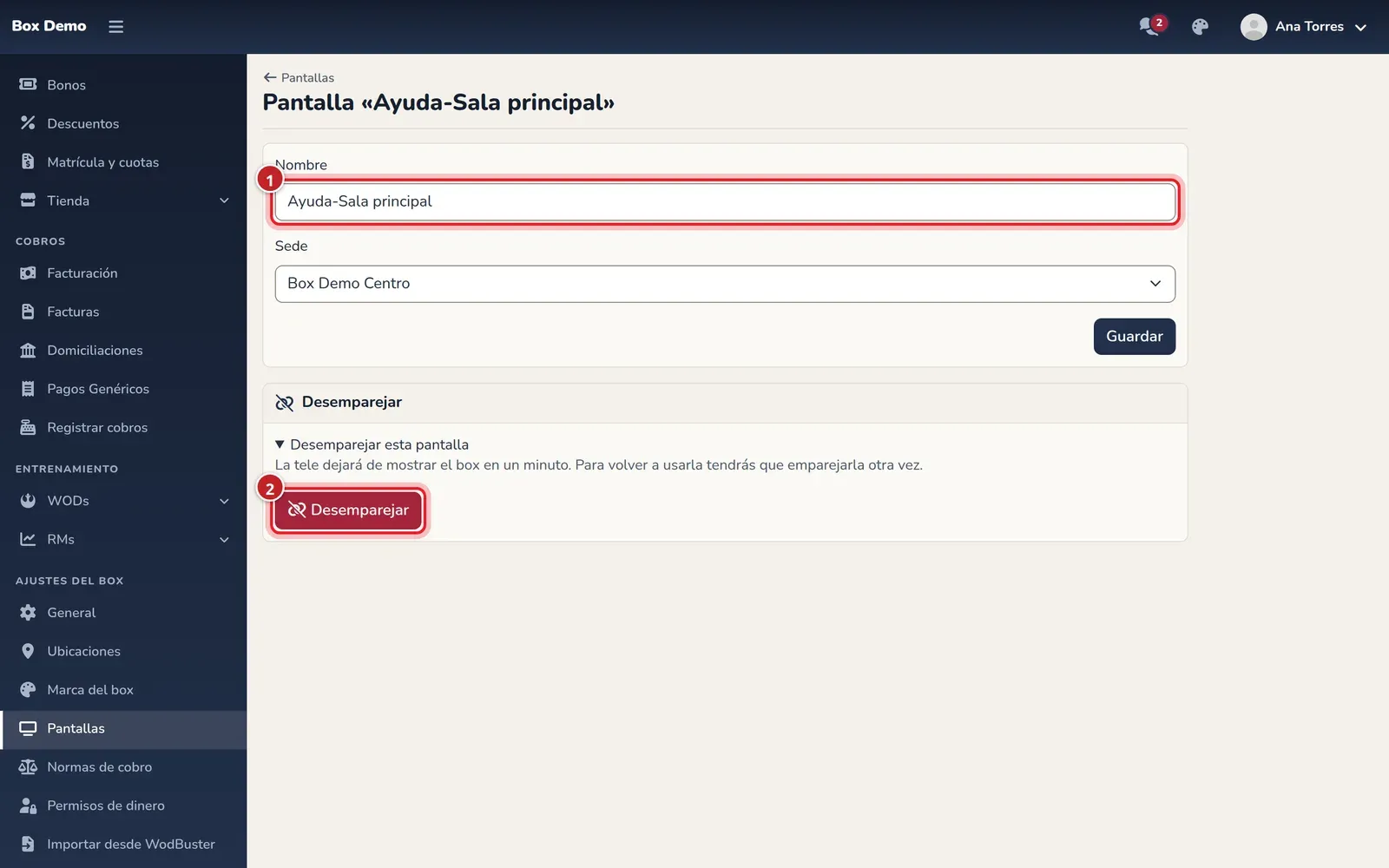
When you unpair it, within a minute the TV stops showing your gym and says "This display is no longer paired". To use it again, pair the TV again with a new code.
Common issues
Section titled “Common issues”- The TV says "Offline". It has lost its internet connection. It keeps showing the last thing it had and catches up on its own when the connection comes back.
- The TV doesn’t show a class that’s about to start. Check its location in Edit: a TV assigned to one location doesn’t show another location’s classes.
- The WOD doesn’t show. It isn’t published. Publish it, or ask the coach to send the class to the TV.
- The TV turns off or starts the screensaver. Turn them off in the TV’s settings, as explained above.