
My subscription: your RoninBox plan
My subscription is the screen where you see what your gym pays RoninBox to use the software: the plan status, how many locations you have and when it renews. It’s separate from your members’ plans. You’ll find it in Gym settings ▸ My subscription, and only administrators can see it.
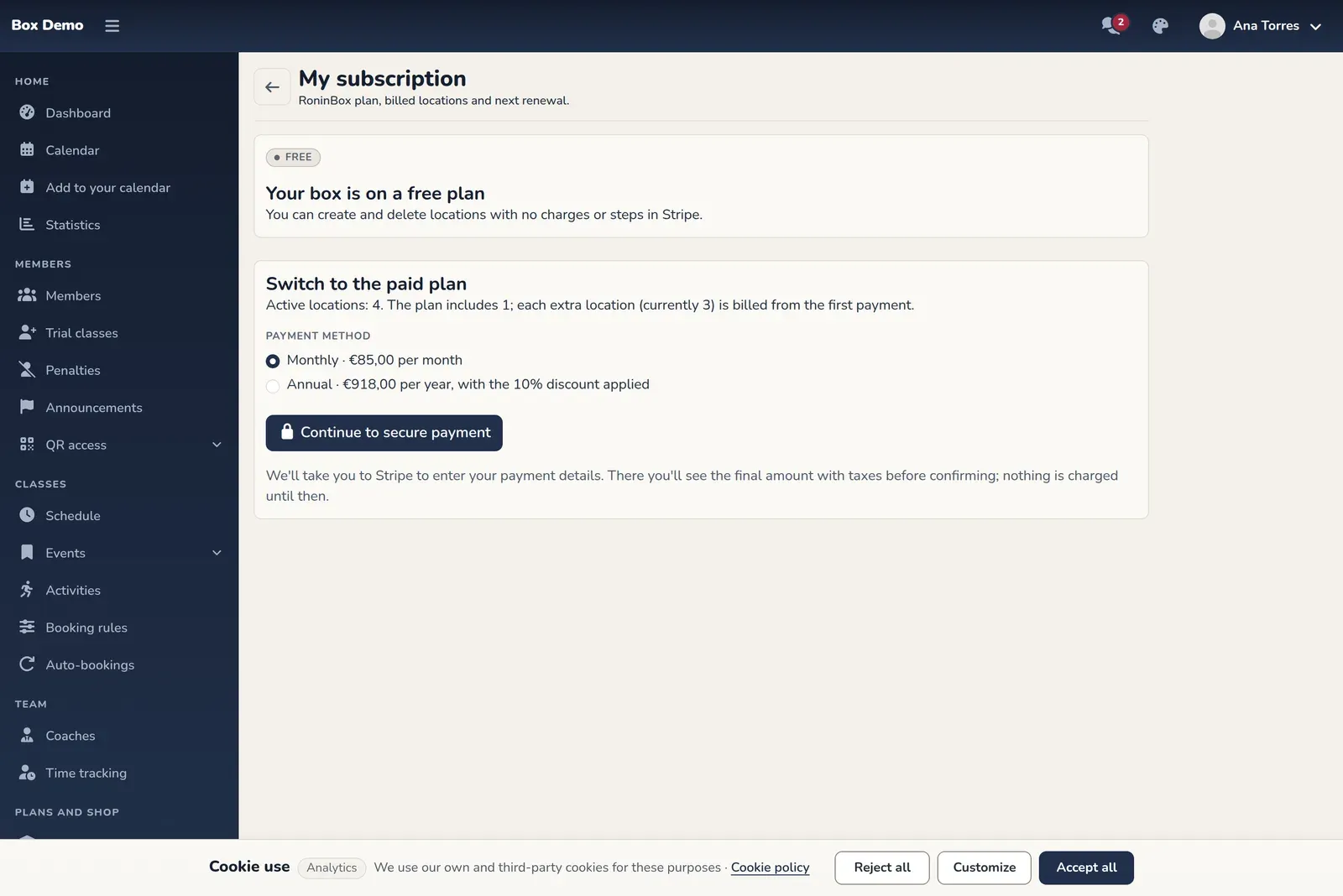
What the screen shows
Section titled “What the screen shows”If your gym is on a free plan, the screen says so: "Your box is on a free plan". In that case you can create and delete locations with no charges and nothing to do in Stripe.
If your gym is on a paid plan, you’ll see three cards and a breakdown:
- Status. It can be On trial, Active, Payment pending or Canceled.
- Active locations. How many locations you have, split between those included in the plan and extra ones.
- Current price. The current amount and whether it’s monthly or yearly. The yearly plan has a 10% discount already applied.
- Plan breakdown. The Base price, the Per extra location price and the Next renewal date (or Access until if it’s canceled).
Amounts are shown on screen because they depend on your plan. Check them there, not in this guide.
Included and extra locations
Section titled “Included and extra locations”Your plan includes a number of locations. Each location beyond that number is an extra location and is billed separately. All locations you haven’t deleted count, including hidden ones. With an active paid plan, when you create or delete a location RoninBox updates your subscription before saving the change. See Locations.
How to switch to the paid plan
Section titled “How to switch to the paid plan”This option appears if you’re on the free plan or if you canceled the paid one.
-
Open My subscription.
-
In the Switch to the paid plan section, choose how to pay: monthly or yearly.
-
Tap Continue to secure payment. It takes you to Stripe to enter your payment details, where you see the final amount with taxes before confirming.
-
When you’re done, you return to the screen. You’ll see the Payment received notice: the subscription activates in a few seconds. Tap Refresh if it doesn’t change.
If you leave Stripe without paying, nothing is charged and you’ll see the Payment not completed notice. You can try again whenever you want.
Manage payment, invoices or cancellation
Section titled “Manage payment, invoices or cancellation”With a paid plan, Manage in Stripe appears at the top right. It opens Stripe’s secure portal, where you can change your payment method, view invoices and cancel your subscription.
Common issues
Section titled “Common issues”- Payment received, but the screen hasn’t changed. Wait a few seconds and tap Refresh.
- I don’t see the Stripe button. The portal only exists for gyms on a paid plan.
- The status is Payment pending. There’s a pending payment. Check your payment method in the Stripe portal.