
How to create an offer for a member
To create an offer in RoninBox, go to Packs and offers ▸ Offers, tap Create offer and fill in the name, duration, plan and price. Then you apply it to a member from their profile.
An offer is a promotion: a plan for a number of months at an agreed price. Only the administrator can create them; any coach can charge them from the charge dialog.
How to create an offer
Section titled “How to create an offer”-
Open Packs and offers and go to Offers.
-
Tap Create offer.
-
Fill in the form:
- Offer name.
- Duration: the number of months it lasts (from 1 to 24): 3 for a quarter, 6 for a half year, 12 for a year.
- Price is the price of the whole offer, not of each month.
- Subscription: the plan the member gets (create a plan).
- Price.
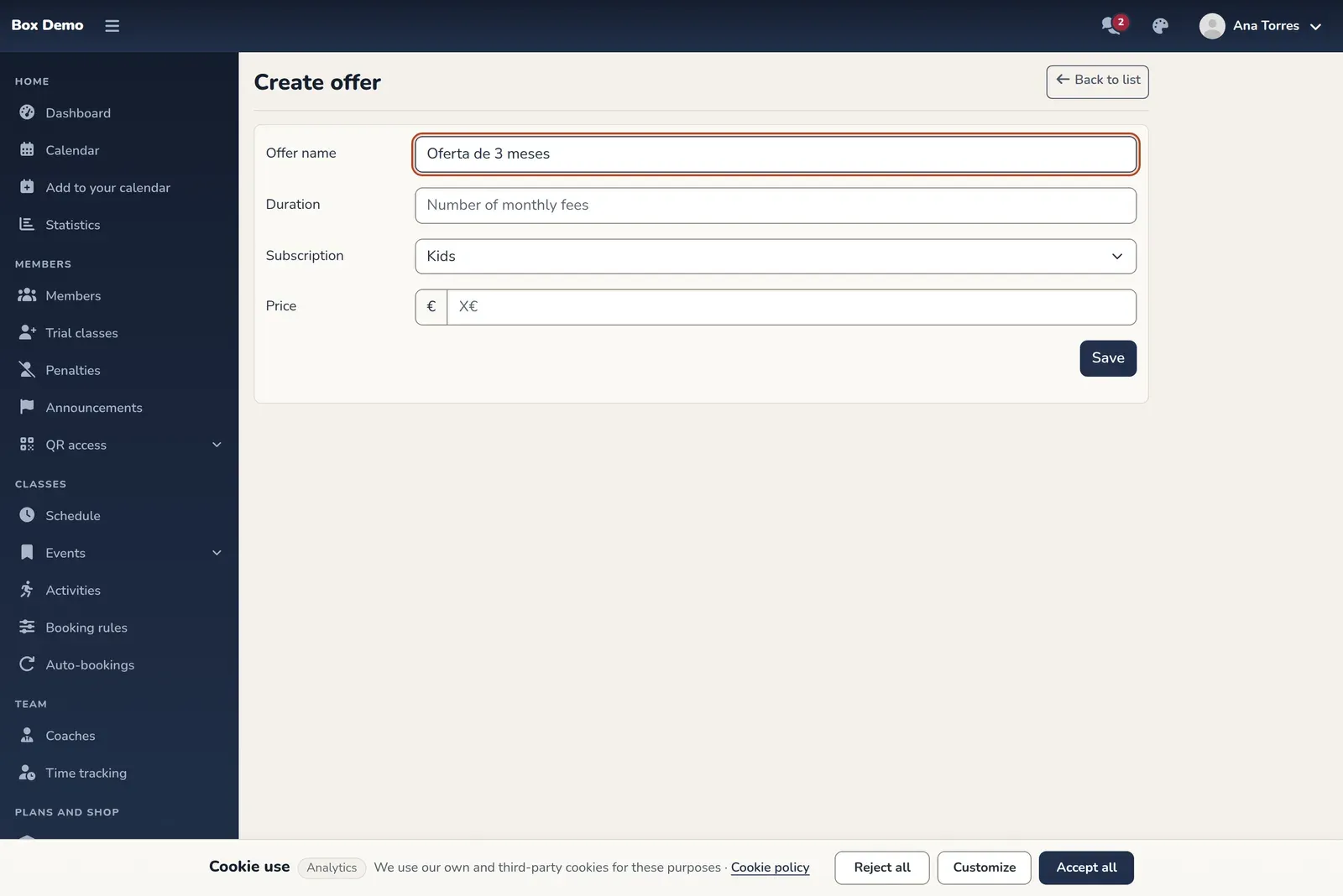
The offer form. -
Tap Save.
In the list of offers you can see the name, plan, price and duration. From there you can only delete an offer, not edit it. If you make a mistake, delete it and create it again.
How to charge several months at once (the fastest way)
Section titled “How to charge several months at once (the fastest way)”Like in WodBuster: when you charge a pending monthly fee you choose how many months it pays. Any coach or administrator can do it, and nothing has to be deleted.
-
In the member’s profile, monthly fees tab, tap Charge on the pending monthly fee (or find them in Record payments).
-
In How many months? choose the length: «1 month» or one of the offers of their plan, for example «3 months: 162.00 € (54.00 €/month)». Below it you see the period it covers.
-
If you want, choose a Discount from the catalogue: it only comes off this charge.
-
Choose the payment method and the location, check the amount and tap Record payment.
That monthly fee becomes the first one of the offer, at the price of the whole offer, and once it is paid the other months are created on their own at 0 €. Only the offers of the same plan as the monthly fee are listed; if one cannot be used (for example, because a month in those dates is already paid), it is shown disabled with the reason.
How to apply an offer to a member
Section titled “How to apply an offer to a member”-
Open the member’s profile and, on the monthly fees tab, tap Apply offers. The list of offers opens, each with its months and its price.
-
Each offer has two buttons, Apply this month and Apply next month, and each button shows the dates the offer would cover. Tap the one you want.
If a button is disabled, the reason is shown below it: for example, there is already a monthly fee within those dates or the member pays with an automatic subscription.
-
Charge the first monthly fee like any other: cash, card terminal, bank transfer, direct debit or an online payment link.
What changes when you apply it
Section titled “What changes when you apply it”- The member’s plan is replaced by the offer’s plan. Any plans they had before are removed.
- Only the first monthly fee is created, with the price of the whole offer. It includes a line with the offer’s name that adjusts the amount, and the profile shows the label «Oferta · N meses hasta …».
- Once it is fully charged, the remaining months are created automatically, already paid (at €0) and with their classes. On the profile they appear as «Incluida en oferta».
- Until the first monthly fee is charged, no other monthly fee is created within the offer’s dates.
- When the offer ends, the member stays on their plan and pays their regular monthly fees. It does not renew automatically: for another block, apply it again.
With rolling months, “this month” starts today and “next month” starts when their current period ends. Each month of the offer is a regular period of your gym.
Common issues
Section titled “Common issues”Common issues
Section titled “Common issues”- I don’t see any offers on the profile. You haven’t created any yet: the profile shows a notice in that case.
- I can’t edit an offer. Offers can’t be edited: delete it and create another one.
- I can’t delete the payment for the first monthly fee. The included months have already been created: delete them first, one by one, and then you’ll be able to delete the payment.