
How to clock in and out in RoninBox
To clock in and out in RoninBox, open My workday and tap Clock-in when you start and Clock-out when you finish. Each entry records the server time, so it doesn’t matter what time your phone shows.
Who can clock in and where
Section titled “Who can clock in and where”Coaches and managers whom the gym has enrolled in time tracking can clock in, as long as the gym has it turned on. How to turn it on and how to enroll someone is covered in Staff time tracking.
- From the member app (coaches): Profile ▸ My workday.
- From the admin dashboard (managers): in the side menu, Team ▸ My workday.
If the gym hasn’t enrolled you, the screen says You don't have an active link with this gym.. If time tracking is off, it says Time tracking is not enabled at this gym..
How to clock in
Section titled “How to clock in”-
Open My workday. At the top you see your status (marker 1): Off the clock, Working or On break, and how long you’ve worked Today.
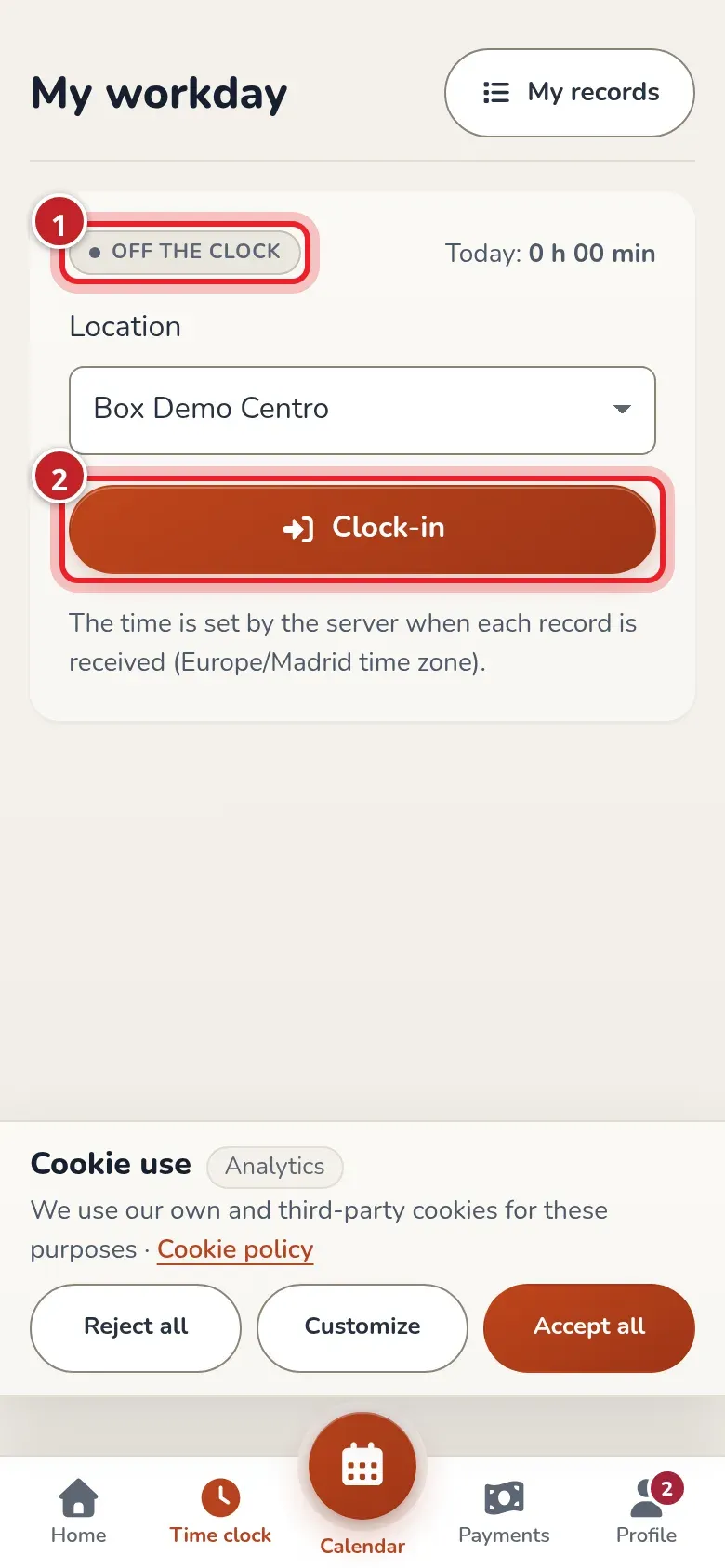
My workday: your status at the top and only the buttons that apply right now. -
If your gym has several locations, choose where you’re working in Location.
-
When you start, tap Clock-in (marker 2). Recorded appears below with the saved time.
-
If you stop, tap Break start. When you’re back, Break end.
-
When you finish, tap Clock-out.
The screen only shows the buttons that make sense at each moment: off the clock, only clock-in; while working, break and clock-out.
If you work for the gym as a freelancer, the screen is called My activity and the buttons are Activity start, Interruption, Resumption and Activity end. It works the same way.
What happens next: warnings, never blocks
Section titled “What happens next: warnings, never blocks”After saving, RoninBox may show you warnings below, for example a workday over the daily maximum or a long stretch without a break. They’re information for you and the gym: the entry is already saved and nothing stops you from clocking in.
Check your monthly record
Section titled “Check your monthly record”Tap My records to open My time tracking. Use the arrows to switch months.
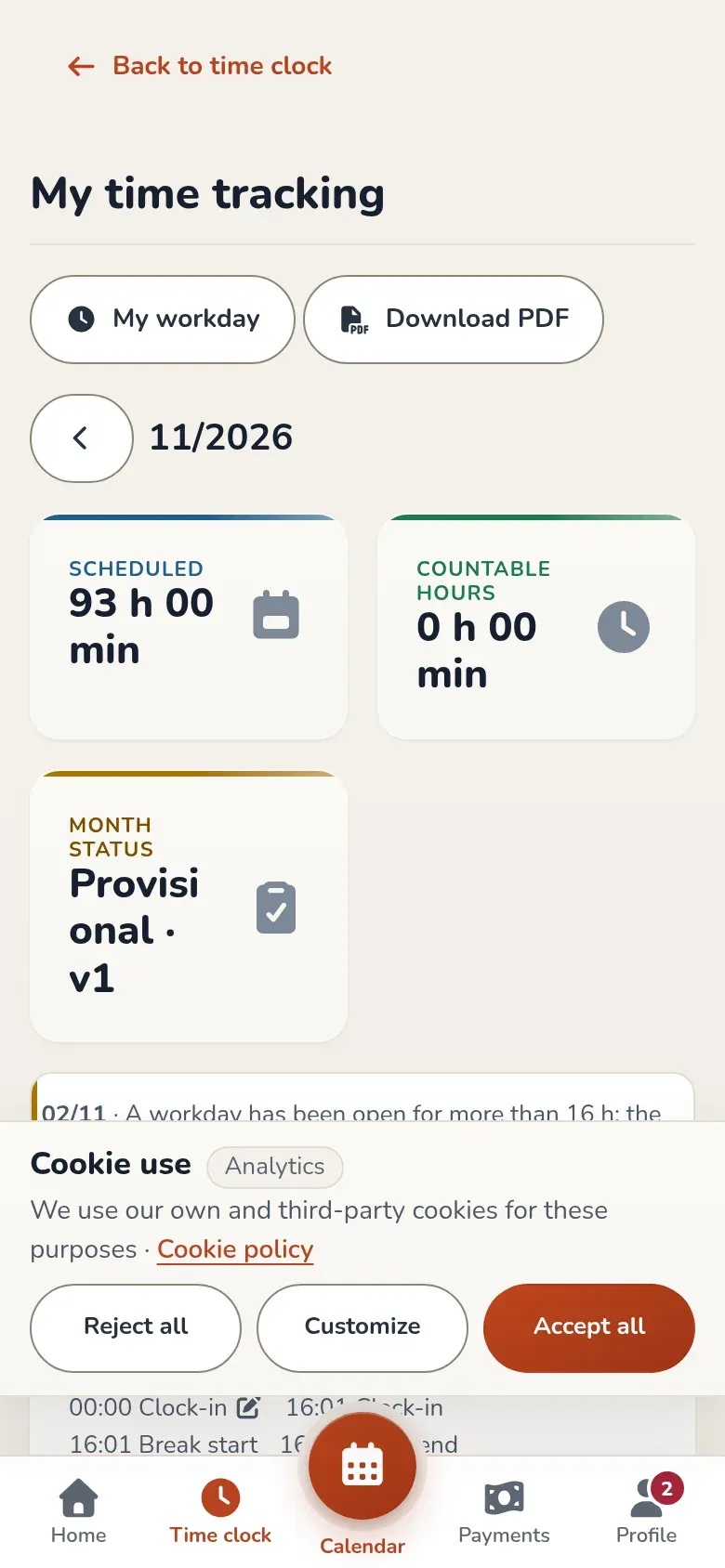
- Scheduled is what the gym had scheduled for you: your classes and the blocks on the roster.
- Countable hours is what counts based on your entries.
- A day labeled To clarify has something that doesn’t add up, like a clock-in without a clock-out. RoninBox doesn’t fill it in: it has to be corrected.
- Download PDF gives you the monthly record as a PDF.
Request a correction
Section titled “Request a correction”-
In My records, tap Correct on the day that’s wrong. For a day with no entries, use Correct another day.
-
In Records that are wrong, mark the wrong entries. They aren’t deleted: they just stop counting.
-
In Missing records, tap Add record for each missing entry and enter what it was and the time.
-
Explain what happened in Reason and tap Send correction.
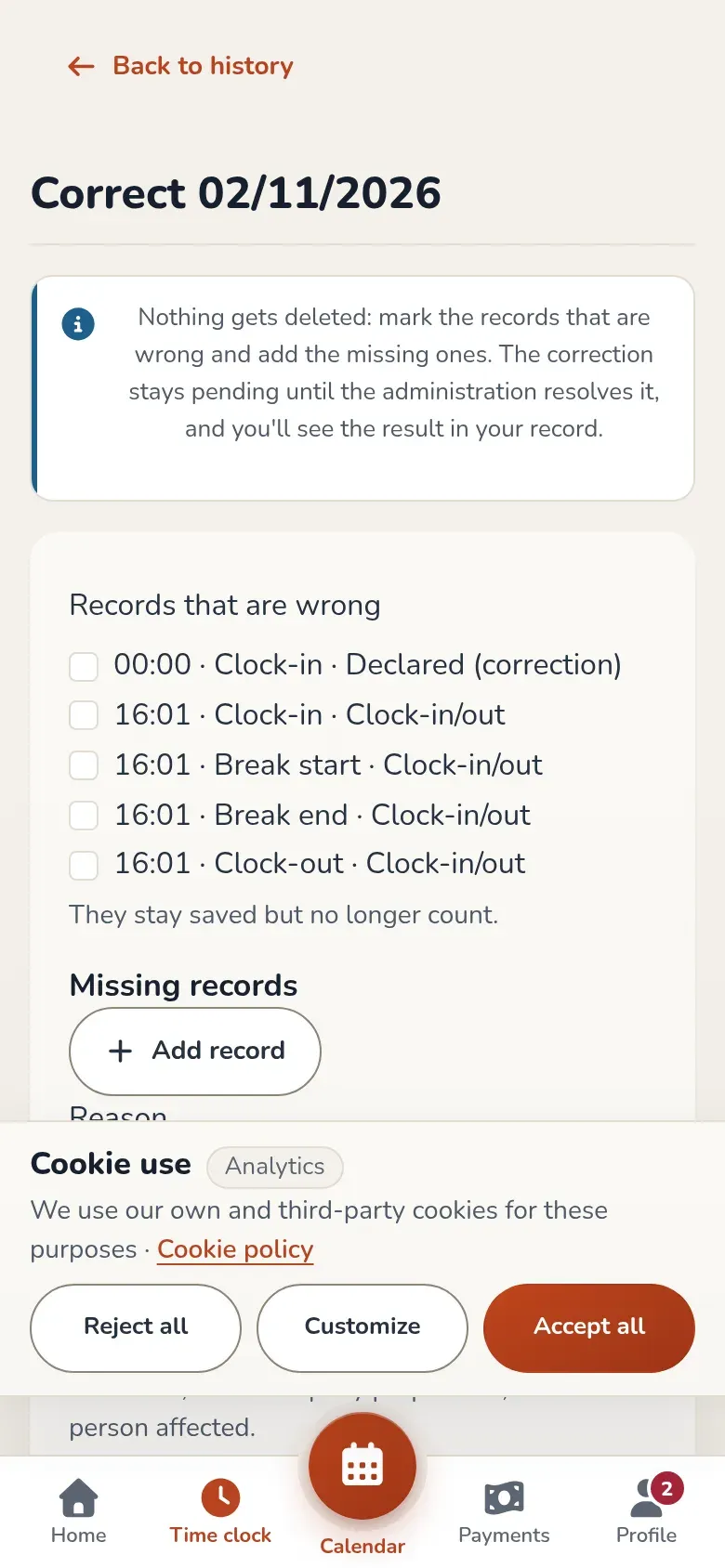
A correction: mark what's wrong, add what's missing and explain the reason.
The correction stays pending until management applies or rejects it. While it’s pending you can Withdraw. If the company proposes a correction to your record, you’ll see it in your month and can tap I disagree to put your disagreement in writing.
Common mistakes
Section titled “Common mistakes”- Clocking in on the wrong phone or in a hurry. If an entry has the wrong time, don’t repeat it: correct it by marking the wrong one and adding the right one.
- Expecting the app to close the workday on its own. It never does. If you leave without clocking out, request a correction.