
Chained plans: update the price
Chained plans let you change the price without editing members one by one. You create a new plan, tell it which one it replaces, and each member moves to the new one the next time their monthly fee is generated.
Here we talk about the previous plan (the one being replaced) and the new plan (the one replacing it). On screen the field is called Previous subscription and the undo button refers to the “parent.”
When to use it
Section titled “When to use it”When you want to raise or lower a price, or change a plan’s options. Since the price of an existing plan can’t be edited (see create a plan), this is the way to do it.
How to chain a plan
Section titled “How to chain a plan”-
Open Plans and shop ▸ Subscriptions and tap Create subscription.
-
Fill in the name, the new price and the options, just like in create a plan.
-
In Previous subscription, choose the plan you want to replace (marker 1). The form reminds you that, when you do, prices are updated automatically for all your clients.
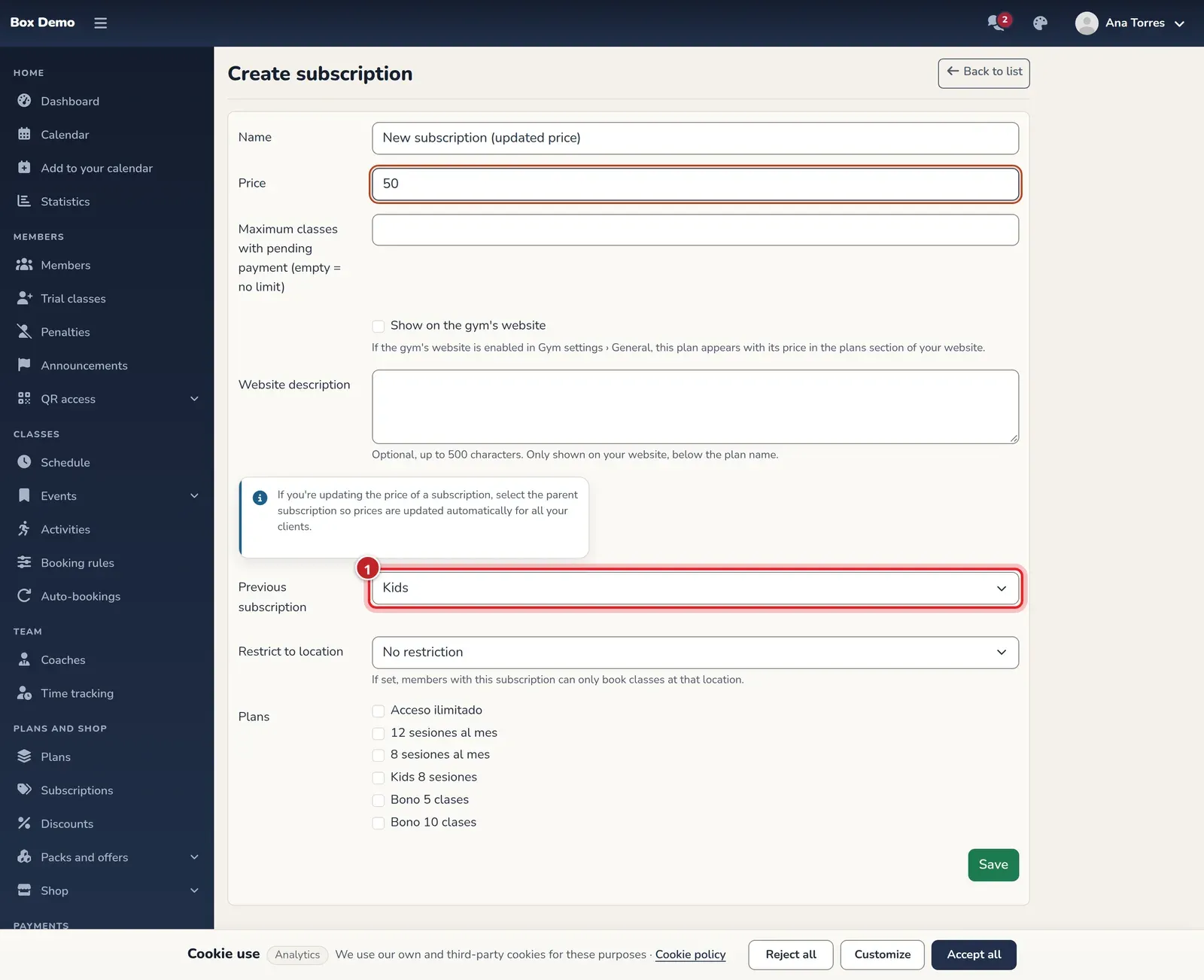
The previous plan dropdown is what creates the chain. -
Tap Save.
The chain can only be created in this form: the edit form neither creates nor removes it.
What happens to members
Section titled “What happens to members”From then on, every time RoninBox generates the monthly fee for a member who had the previous plan, it switches them to the new plan. Monthly fees already generated stay as they were. The previous plan remains in the list.
The “Location not inherited” warning
Section titled “The “Location not inherited” warning”In a gym with several locations, the new plan doesn’t copy the previous plan’s location restriction. If the previous plan only allowed booking at one location and the new one isn’t restricted, or is restricted to another, members will change location without asking for it.
RoninBox warns you in three ways:
- In the form, as soon as you choose the previous plan or change the location: “The successor doesn’t inherit the location restriction.”
- When you open a saved plan.
- In the list, with the Location not inherited label next to the previous plan’s name.
It’s a warning, not a block. Sometimes it’s exactly what you want, for example to extend to all locations. If not, choose the same location in the new plan.
How to roll back to the parent
Section titled “How to roll back to the parent”If you made a mistake, the new plan can be undone.
-
In the plan list, tap the trash icon of the new plan. Plans that are children of another have the button in yellow.
-
In the dialog that opens, choose Revert to parent. The other options are Delete (soft) and cancel.
This moves every member and every monthly fee on the new plan back to the previous plan, removes the link between them and deletes the new plan. There’s no undo button, so think it over first.
Delete (soft) does something else: it marks the new plan as deleted and keeps its data, but doesn’t move anyone back to the previous one.
Common mistakes
Section titled “Common mistakes”- Members are still on the old price. They switch with their next monthly fee, not the current one.
- The location warning appeared. Check the location of both plans and decide whether it’s what you want.