
Member statuses in RoninBox
A member always has one of three statuses: Activo, Inactivo or Pagos Pendientes. You see it in the colored label on their profile and in the Status column of the member list.
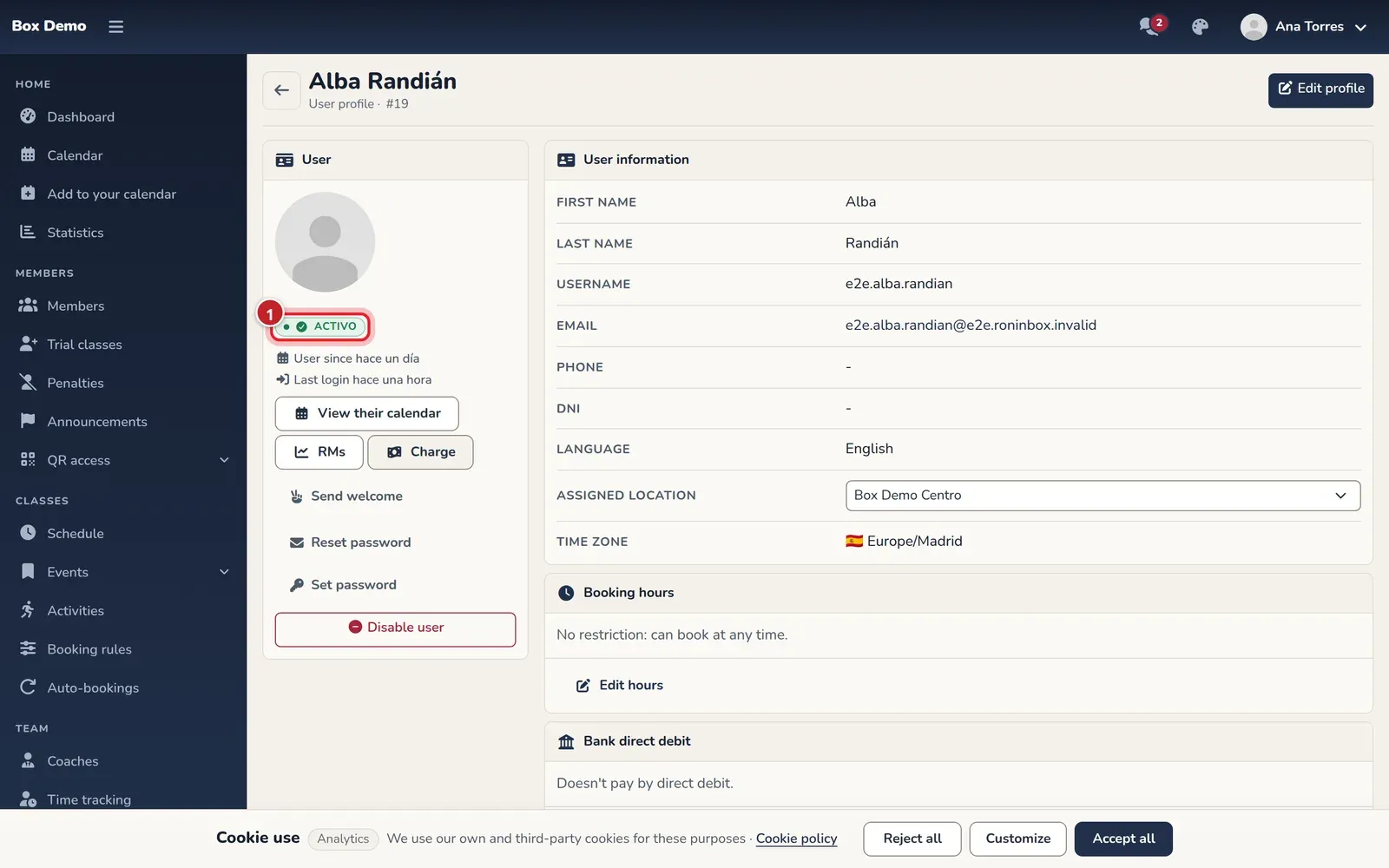
What each status means
Section titled “What each status means”RoninBox decides them in this order:
- Inactivo. The account isn’t activated. This happens with a new member until they open the link in the welcome email and choose their password. It’s fixed when the member activates it, when they use a password recovery link or when you set a password for them. See Activate and recover the account.
- Pagos Pendientes. The account is active, but the member has a monthly fee that has already started with uncollected payments. In the list, this label appears as Payment issues and it’s also the name of the filter.
- Activo. Account activated and no pending payments.
What causes pending payments
Section titled “What causes pending payments”A monthly fee with uncollected payments. This affects the member in two ways:
- Once the gym’s grace days have passed, they can’t book classes. This is explained in Unpaid fees and grace days.
- If the gym uses QR access, the turnstile denies them entry. See QR access.
To charge, see Charge in cash or Monthly fees.
The “On trial” filter
Section titled “The “On trial” filter”In the member list, the Status filter also has the On trial option. It’s not another status: it shows members who have taken at least one trial class, have no plan and aren’t disabled, and their rows carry the On trial label. This is explained in Trial class.
Inactive is not the same as disabled
Section titled “Inactive is not the same as disabled”There’s another situation that looks similar but is different: the disabled member. You disable them with Disable user on their profile. They lose their plans and their access, and their profile shows a red warning. Their status label is still whatever their payments call for. What happens to them is in The member profile.
A disabled member doesn’t show up in the regular list, but does when you search for them by name, with the Disabled label. And if you try to sign them up again with their email, RoninBox takes you to their profile and warns you that they’re disabled: click Enable user to restore them, without creating them again.
Member roles
Section titled “Member roles”On the profile, under Roles, there are buttons to change the person’s role in your gym. Only a superadmin sees them. A regular administrator doesn’t. Below the buttons you’ll see the roles they already have.
- Make superuser: the member becomes a superuser. They have no class limit and are allowed into any class without paying. Use it with care.
- Make coach: makes them a coach. More in Coaches.
- Make admin: gives them access to the gym’s admin dashboard.
- Clear roles: removes all the roles they have in this gym, including administrator or coach.
A button disappears when the member already has that role.
Common mistakes
Section titled “Common mistakes”- A new member shows up as Inactive. That’s normal until they activate their account. If they didn’t get the email, resend it from their profile.
- I can’t see the role buttons. Only superadmins see them.
- A member gets into classes without paying. Check whether they have the superuser role: that’s what that role does.